Table of Contents
Windows 10 version 1903 is no longer supported, but the update-repair steps below can help diagnose a legacy PC or a similar Windows Update failure. If you are trying to install 1903 today, stop and confirm that a documented application or hardware requirement truly needs that release.
Before changing services or system files, back up important data and note the exact error code shown in Windows Update. The code is more useful than a generic “update failed” message.
Start with low-risk checks
- Restart the PC, reconnect it to stable power and internet, and try Windows Update once more.
- Check free space on the system drive. A feature update needs room for the download, temporary files, and rollback data.
- Disconnect nonessential USB storage, printers, docks, cameras, and other peripherals.
- Temporarily disconnect a VPN or proxy. If the network is marked as metered, verify that Windows is allowed to download updates.
- Update third-party antivirus or check its vendor guidance. Do not leave protection disabled after testing.
If Windows Update is not offering the feature release, do not automatically force it with another tool. A compatibility hold may be protecting the PC from a known driver or software problem.
Run the Windows Update troubleshooter
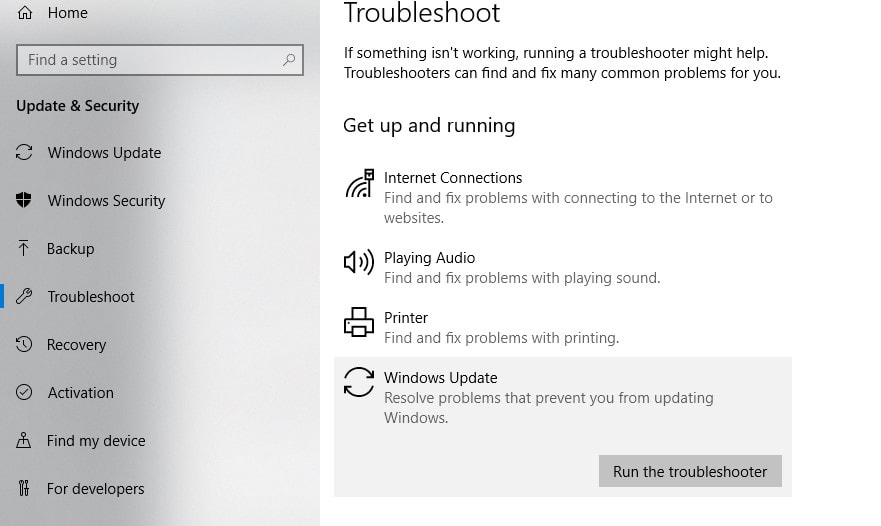
In Windows 10, open Settings > Update & Security > Troubleshoot > Additional troubleshooters, select Windows Update, and run the troubleshooter. Apply only the fixes it clearly identifies, restart Windows, and check for updates again.
Restart update services and rebuild the download cache
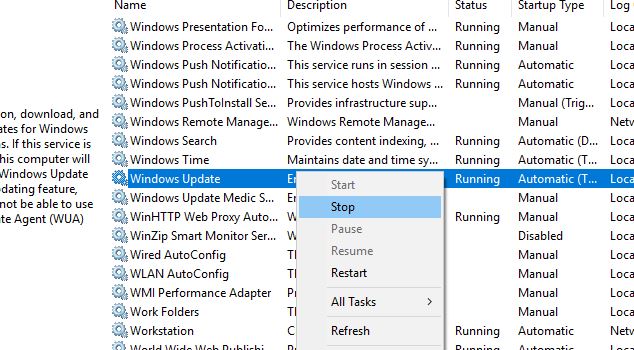
A corrupted or incomplete download can leave an update stuck near the beginning or end. The safer approach is to stop the update services, rename the cache folders, and let Windows recreate them. Renaming preserves the old data until the repair is confirmed.
Open Command Prompt as administrator and run these commands one line at a time:
net stop wuauserv
net stop bits
net stop cryptsvc
ren C:WindowsSoftwareDistribution SoftwareDistribution.old
ren C:WindowsSystem32catroot2 catroot2.old
net start cryptsvc
net start bits
net start wuauserv
If a stop command says a service is not running, continue. If a rename command reports that the destination already exists, do not delete folders blindly; inspect the existing .old folder or get administrator help.
The original instructions deleted everything under the Download folder. Renaming the complete cache is easier to reverse and avoids selecting the wrong files in File Explorer.
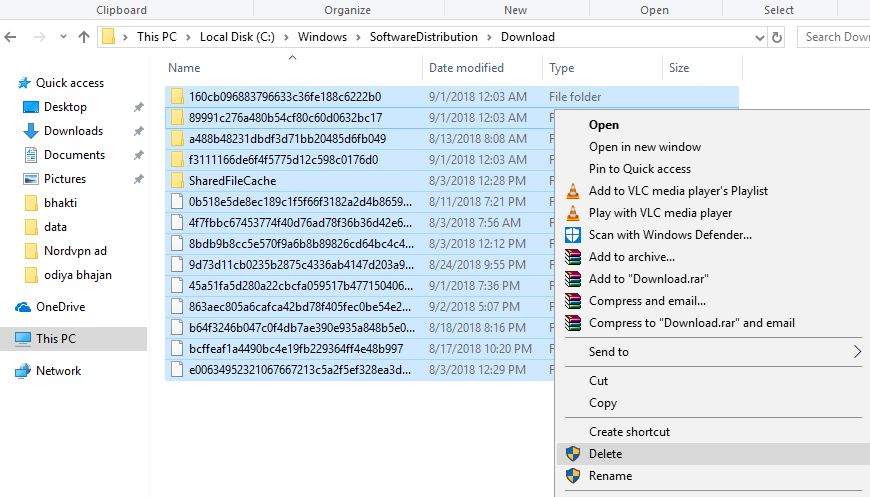
Restart the computer, return to Windows Update, and check again. Windows will create fresh cache folders and download required files again.
Repair the Windows component store and system files
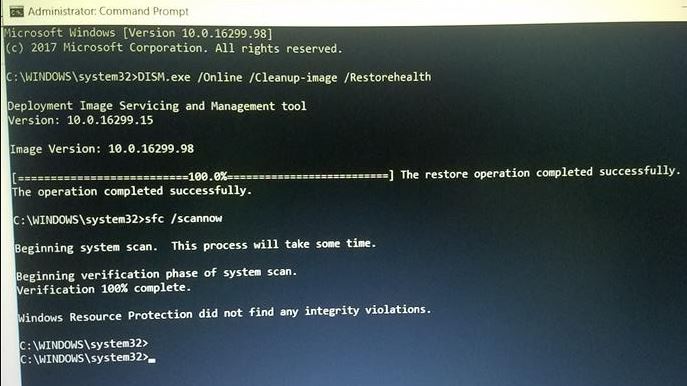
If the update still fails, open Command Prompt as administrator and run:
DISM /Online /Cleanup-Image /RestoreHealth
sfc /scannow
Let each command finish. DISM repairs the component store that Windows servicing relies on; System File Checker then checks protected Windows files. Restart after both commands complete and retry the update.
Check the logs and error code before forcing an upgrade
If the same failure returns, record the update name, Knowledge Base number if shown, and hexadecimal error code. Check Device Manager for failed devices and the PC manufacturer’s support page for firmware or driver advisories. Repeatedly running Update Assistant is unlikely to fix an underlying compatibility or disk problem.
When to use installation media
Current Microsoft installation media can repair or upgrade a supported Windows installation, but it will not normally install the obsolete 1903 release. Before an in-place repair, confirm the edition, language, and architecture match, and make a full backup.
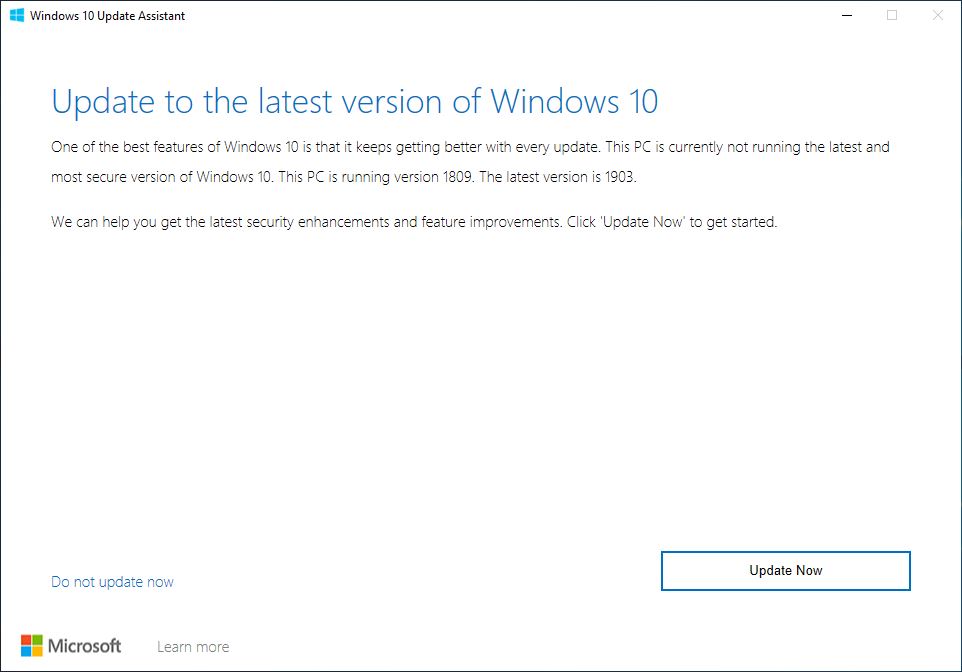
For supported update methods, use the Windows 10 update guide. If Windows no longer starts or you need bootable media, review the Windows installation and recovery guides.
If the PC must remain on version 1903
Keep the legacy system isolated from untrusted networks, avoid sensitive accounts, and use only verified installation media and drivers. Treat that setup as temporary and plan a migration to supported hardware and software.
Related Articles
 Steps to Fix Windows 10 Losing Network After Update6 minutes read
 Microsoft Releases New Update for Windows 10 and 11, Fixing VPN Errors3 minutes read
 Issues Related to the KB4579311 Update3 minutes read
 Temperature: How to Tell How Hot Your Computer Is6 minutes read
 How to Update Windows 10 to Windows 10 May 2019 (1903)9 minutes read
 The Simplest and Most Effective Guide to Fixing Windows 114 minutes read
Reader Comments 0
Sign in with email or Google to join the discussion.