Table of Contents
You can upgrade an activated Windows 10 Home or Home Single Language installation to Windows 10 Pro without deleting personal files by entering a valid Pro product key or purchasing the upgrade through Microsoft’s activation interface. Back up important files first and make sure the current Home installation is activated.
Before you upgrade
- Obtain a genuine Windows 10 Pro license from Microsoft, your organization, or an authorized seller.
- Install pending updates and restart the PC.
- Confirm activation under Settings > Update & Security > Activation.
- Back up important files and connect a laptop to power.
Pro adds business and administration features such as domain join, Group Policy, BitLocker management on supported hardware, Remote Desktop hosting, and Hyper-V on compatible 64-bit systems. It does not make ordinary applications or games automatically faster.
Upgrade by entering a Windows 10 Pro key
The screenshots below come from an older Windows 10 Settings layout. On most Windows 10 builds, the shortest route is Settings > Update & Security > Activation > Change product key. If your screen differs, search Settings for “Activation.”
Step 1: Press Windows + I to open Settings. The older interface shown here starts from System.
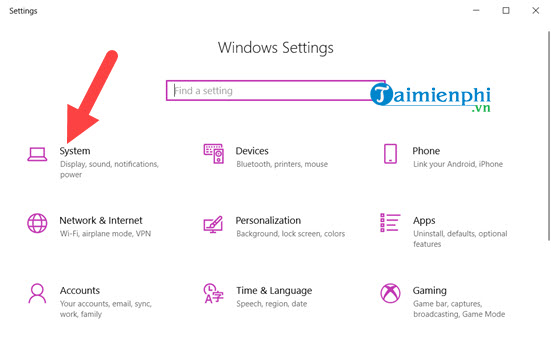
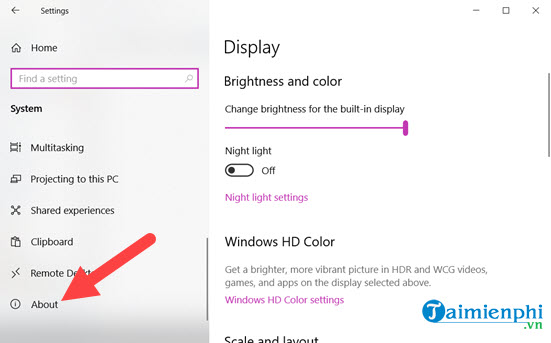
Step 2: In that layout, open About. In other builds, go directly to Update & Security > Activation.
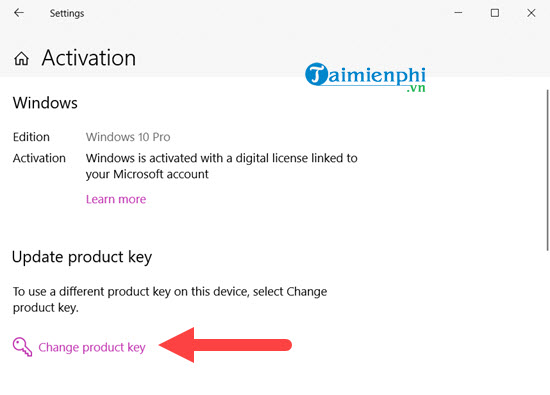
Step 3: Select Change product key or upgrade your edition of Windows.
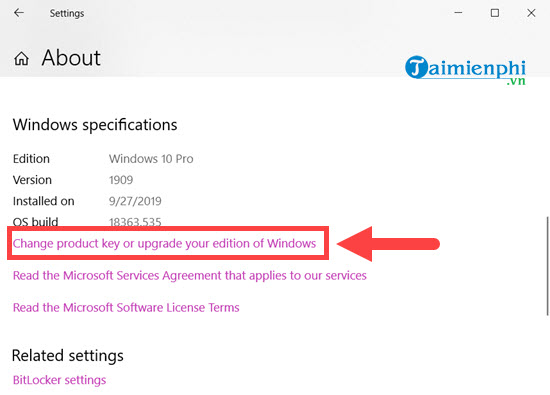
Step 4: Choose Change product key.
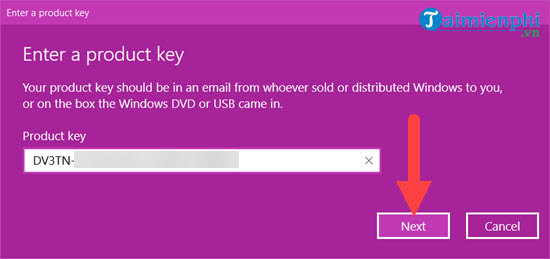
Step 5: Enter the 25-character Windows 10 Pro key exactly as supplied. Do not use keys copied from untrusted “free key” lists.
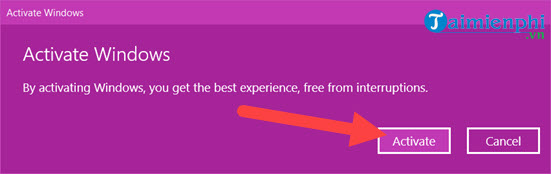
Step 6: Review the edition-change prompt and continue. Keep the computer online and connected to power while Windows adds Pro components and restarts.
After the restart, return to Activation. It should identify the edition as Windows 10 Pro and report that Windows is activated.

If the key is rejected
- Confirm the key is for Windows 10 Pro, not Home, Enterprise, Education, or a volume-license edition.
- Check that the PC’s date, time, and internet connection are correct.
- If the license is tied to your organization, connect through its approved network or contact its administrator.
- If you purchased the license separately, use the seller’s order record and Microsoft’s activation troubleshooter; do not post the key publicly.
Do you need to reinstall Windows 10 Pro?
Normally, no. A valid edition upgrade keeps installed applications, accounts, and personal files. A clean installation is appropriate when you also need to replace the system disk, recover from severe corruption, or deliberately start over.
A clean install can erase applications and data, so create verified backups and installation media first. See the Windows installation and recovery guides and how to install a new operating system before changing disk partitions.
About Group Policy on Home
Windows 10 Home does not include the full Local Group Policy Editor feature set provided by Pro. Third-party scripts that claim to “enable” it do not convert Home into Pro or grant a Pro license. If you need supported Group Policy management, upgrade the Windows edition legitimately.
Related Articles
 Compare Windows 10 Home and Windows 10 Pro7 minutes read
 How to Change Language in Windows 7: Practical Guide9 minutes read
 Dont Complain About Why Youre Single, This Is the Answer for You6 minutes read
 Microsoft Began to Order Upgrade Packages to Windows 84 minutes read
 Download Ghost Windows 11 23H2 Update 2024: Key Facts4 minutes read
 Enable // Disable the Language Bar on Windows 104 minutes read
Reader Comments 0
Sign in with email or Google to join the discussion.