Table of Contents
Meta Business Suite provides a shared business inbox for messages and comments connected to a Facebook Page and professional Instagram account. It replaces the older Pages Manager workflow and can help a team review Messenger, Instagram Direct, Facebook comments, and Instagram comments from one interface.
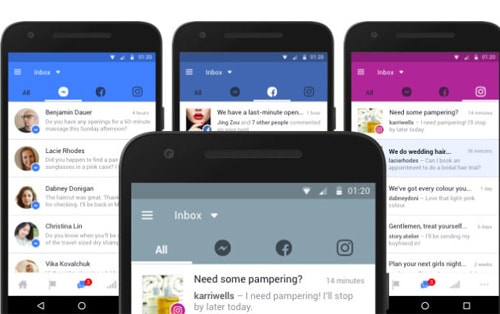
What the shared inbox includes
The exact tabs depend on the accounts and services connected to the business. Meta Business Suite may include:
- messages sent to the Facebook Page through Messenger;
- Instagram Direct messages for the connected professional account;
- comments on Facebook Page posts;
- comments on Instagram posts;
- WhatsApp Business conversations when an eligible account is connected; and
- conversation assignments, labels, notes, saved replies, and automations when available.
This is a business-management tool. It does not combine every personal Facebook Messenger chat with a personal Instagram inbox.
What you need before connecting the inbox
- A Facebook Page and appropriate Page access
- An Instagram professional account that you are authorized to manage
- Permission to connect the Instagram account to the Page or business
- Message access enabled when Meta asks for it
- The Meta Business Suite app or desktop interface
Do not share a personal password with team members. Give each authorized person the appropriate Page or business access and review access regularly.
Connect Instagram to the Facebook Page
- Open Meta Business Suite and select the correct Page or business portfolio.
- Open settings and find connected assets, linked accounts, or the Instagram connection.
- Choose Connect account and follow Meta's official Instagram sign-in flow.
- Confirm the professional Instagram account and the Page that should be linked.
- Approve access to Instagram messages if you want to manage Direct messages in the shared inbox.
If the account is already connected but Instagram messages are missing, open Inbox, select the Instagram tab, and look for a prompt to enable message access.
Open and filter the inbox
- Select Inbox in Meta Business Suite.
- Use the top or side filters to view all conversations or one channel.
- Select a conversation to read its history and available customer information.
- Reply from the correct business identity.
- Mark, label, assign, or close the conversation according to your team's workflow.
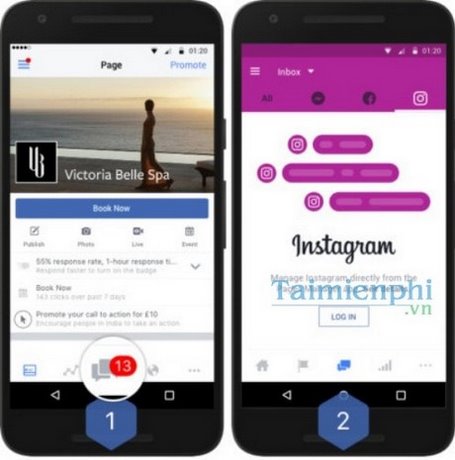
The screenshot shows the older Pages Manager app. Current Meta Business Suite layouts use different navigation, so look for Inbox and channel filters rather than matching the old icons exactly.
Manage comments without losing the conversation
Use the Facebook comments and Instagram comments tabs to review responses by platform and post. Before hiding or deleting a comment, make sure you understand which moderation action is being applied. A private reply, public reply, hidden comment, and deleted comment have different effects.
For sensitive support cases, move the discussion to a private channel and avoid asking customers to post order numbers, contact information, or other personal details publicly.
Use assignments, labels, and notes
When several people handle the inbox, assign conversations to prevent duplicate replies. Labels can group topics such as sales, shipping, refunds, or technical support. Internal notes should contain only information the team needs and should follow the organization's privacy and retention rules.
Review unresolved and unassigned filters at the start and end of each shift. A shared inbox improves visibility only when the team uses a consistent status system.
Configure automated responses carefully
Meta Business Suite can offer instant replies, away messages, frequently asked questions, keyword-based responses, and other automations. Use them to acknowledge receipt or collect basic non-sensitive context, not to pretend a complex case has been resolved.
- State when a human will respond.
- Keep business hours and time zones accurate.
- Do not request passwords, payment card details, or login codes.
- Review automation rules after a product, policy, or staffing change.
- Test each response from the customer side before enabling it widely.
Meta's current Business Suite Inbox guide explains the available message and comment surfaces.
Why Instagram messages may be missing
- The wrong Instagram account is linked: Verify the username in settings.
- Message access was not allowed: Open the Instagram Inbox tab and complete the permission prompt.
- The Instagram account is not professional: Review whether switching account type is appropriate.
- The team member lacks access: An admin should check Page and business permissions.
- The account connection expired: Reauthorize it through Meta's official flow.
- A filter hides the conversation: Check unread, assigned, done, spam, and channel-specific views.
Security and customer privacy
Use individual team access, two-factor authentication, and the least privilege needed for each role. Remove access promptly when a staff member changes duties or leaves. Do not export customer conversations to personal tools unless the organization has approved the workflow and legal basis.
Saved replies and automations should not expose one customer's information to another. Review the recipient and channel before sending, especially when the same person contacts the business on both Facebook and Instagram.
When to contact Meta support
If the Page and Instagram account are correctly connected but Inbox remains unavailable across the desktop and mobile apps, collect the exact error, affected asset names, account IDs shown by Meta, and the time of the failure. Use the support path in Business Suite or the Page support inbox.
TipsMake's guide to contacting Facebook support covers the official support options. More Facebook and Instagram instructions are available in the social-network guide library.
Related Articles
 New Feature Allows Answering Instagram Messages from Facebook4 minutes read
 Mark Zuckerberg Explains the Reason for Merging Messenger, WhatsApp and Instagram5 minutes read
 Instagram, Facebook and Messenger Have Problems That Caused User3 minutes read
 New Concerns When Facebook Unites Its Messaging Applications7 minutes read
 How to Build a Bot That Automatically Chat on Facebook Messenger9 minutes read
 Will Messenger Become a Golden Egg for Facebook?11 minutes read
Reader Comments 0
Sign in with email or Google to join the discussion.