Table of Contents
Microsoft Copilot Studio includes an interactive test panel for checking an agent while you build it. Use it to send realistic prompts, follow the topics and tools the agent selects, inspect variable values, and restart the conversation after making changes. This catches many design problems before you publish, although final testing should still take place in the channel where people will use the agent.
Open the test panel and start a conversation
- Open the agent in Copilot Studio and select Test at the top of the page if the test panel is hidden.
- Enter a message in the box at the bottom of the panel. Use wording that a real user might type, including alternate phrasings and incomplete requests.
- Select an agent response to jump to the topic and node that produced it. Activated nodes are marked on the authoring canvas, making it easier to see the route the conversation followed.
- Continue the conversation through the full task, including clarification questions, error paths, and cancellation.

Trace topics and orchestration
For a topic-based agent, open the test panel menu and enable Track between topics to follow transitions across the conversation. For an agent that uses generative orchestration, the activity map shows the tools, knowledge sources, and other steps selected for a response. If the activity map obscures the topic canvas, turn off Show activity map while tracing nodes.
Saving a topic applies your edits, but it does not automatically clear the current test conversation. Select Reset when you need the agent to forget the existing context and begin a clean test. This is especially important after changing trigger conditions, variables, or instructions.
Inspect variables while testing
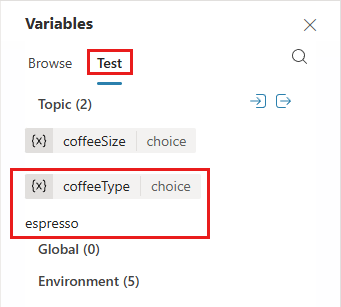
- Select Variables on the secondary toolbar.
- Open the Test tab and expand the relevant variable category.
- Continue the conversation and watch the values change. Select an individual variable to inspect its properties.
Check both the expected path and cases where a value is missing, malformed, or replaced during the conversation. A response can look correct while an incorrect variable value causes a later step to fail.
Manage test connections
If the agent calls tools that require user connections, open the test panel menu and select Manage connections. Confirm that each connection uses the intended account and has the permissions required by the tool. A failed connection can otherwise be mistaken for a prompt or topic problem.
Save a diagnostic snapshot
When a conversation does not behave as expected, open the test panel menu and select Save snapshot. Copilot Studio downloads a ZIP archive containing agent content and conversation diagnostics that can help with troubleshooting.
Handle snapshots carefully: the archive can contain the complete agent configuration and sensitive information from the test conversation. Store and share it only through an approved secure location.
Know what the test panel cannot prove
The test panel is intended for design-time validation. It does not reproduce every behavior of a published channel. Timer-driven, background, and inactivity-triggered events may not run or display follow-up messages in the panel. Publish the agent to a supported test environment, such as a controlled Microsoft Teams channel, before relying on those scenarios.
If the panel itself behaves unexpectedly, use its menu and select Flag an issue. This sends the conversation identifier to Microsoft for troubleshooting; it does not attach a saved snapshot automatically.
Turn useful prompts into repeatable tests
Interactive testing is useful for exploration, but important prompts should also become automated test cases. Create a focused set that covers normal requests, ambiguous wording, tool failures, and unsafe or unsupported requests. See how to edit Copilot Studio test cases and run evaluations and review the results.
Pre-publish test checklist
- Start with a reset conversation and use realistic user wording.
- Confirm the intended topic, tool, or knowledge source is selected.
- Inspect variable values at important decision points.
- Test missing information, cancellation, retries, and connection failures.
- Repeat critical scenarios as automated tests.
- Validate channel-specific behavior after publishing to a safe test channel.
Related Articles
 Overview of Copilot Studio11 minutes read
 Upload Files as Knowledge in Microsoft Copilot Studio12 minutes read
 Should You Choose Microsoft 365 Copilot or Copilot Studio to Build Your Agent?9 minutes read
 Evaluating Agent Performance in Microsoft Copilot Studio15 minutes read
 Add Copilot Connectors to Copilot Studio Agents8 minutes read
 Copilot Studio Knowledge Sources: Complete Guide10 minutes read
Reader Comments 0
Sign in with email or Google to join the discussion.