Upgrade to Copilot Studio Unified Authoring

This guide aims to help readers understand some of the key improvements in this release and the issues to consider when your organization transitions to a traditional Power Virtual Agents experience.

The latest version of Copilot Studio has now been released and is available to general users. This version brings a major update to the Copilot Studio product. It introduces a significant number of updates and improvements, helping organizations build valuable and relevant conversational experiences for their customers and internal users.

With the release of the latest version of Copilot Studio, now is a good time to consider migrating from the traditional Power Virtual Agents experience to the newest version. This guide aims to help readers understand some of the key improvements in this release and the issues to consider when your organization transitions from the traditional Power Virtual Agents experience.

Upgrade to Copilot Studio Unified Authoring

If you've created one or more traditional bots using Power Virtual Agents, you might be wondering how to upgrade to the latest version of Copilot Studio.

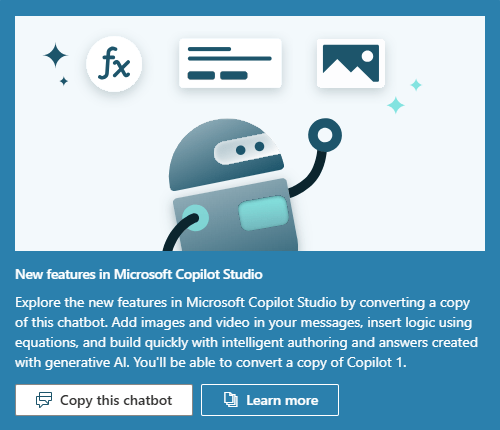
Copy the existing traditional Power Virtual Agents bot to the Copilot Studio agent.

To support the upgrade process, at launch, cloning functionality was provided for traditional bots built using Power Virtual Agents.

Picture 1 of Upgrade to Copilot Studio Unified Authoring

This feature clones the selected classic Power Virtual Agents bot and creates a new agent using the latest version of Unified Authoring. There are several important points to note during this cloning process, such as:

  1. The replication process is only available with the same language from the original classic bot to target the agent's experience.
  2. The cloning process only copies themes built using the Copilot Studio web interface.
  3. The cloning process copies entities and related synonyms, as well as custom entities.
  4. The agent administrator needs to reconfigure the authorization, channel, and security settings in the replicated Unified Authoring agent.
  5. Any Bot Framework Skills from the classic Power Virtual Agents bot will need to be reconnected to the cloned Unified Authoring agent.
  6. The connection to Power Automate Flows, built using the Copilot Studio web interface, is copied and linked within the copied Unified Authoring theme. However, the article specifically recommends checking the connections.
  7. Carefully review any custom architectural components, such as canvas and other components, that you previously connected to the classic Power Virtual Agents bot. These custom components need to be reconnected or reconfigured to your newly cloned Unified Authoring agent and should be tested. Additionally, consider your entire architecture. This review should include any impact within that architecture that may have been updated since your classic bot (and its bot ID) update.
  8. Any automated deployment process will need to be updated if using classic Power Virtual Agents bot IDs or any references to the underlying bot.
  9. Any custom reports for your new agent deployment will also need to be updated. Examples include if you're using a custom data path solution or alternative reporting solutions.

Important note : This list is not exhaustive. Make sure you complete the necessary testing for your agent before deploying it to a production environment, even if you are using replication to move the agent between instances.

By migrating your classic bot from Power Virtual Agents to Copilot Studio Unified Authoring, you gain access to the latest features in Copilot Studio Unified Authoring. Copilot Studio features include AI support , variable and Power Fx management, code viewing, events, and more. You can leverage this opportunity to add value to your agents and, consequently, improve the customer experience.

What's new or updated in the latest version of Copilot Studio?

The following overview is not a complete list of new features or updates in Copilot Studio Unified Authoring. Its purpose is to highlight important new capabilities available in the Copilot Studio authoring experience, or significant changes that readers should be aware of.

Important note : For more details on the core capabilities and features of Copilot Studio, please see the agent creation and deployment guide.

Create a new agent

When creating an agent, the creation process allows you to name the agent, specify the agent's language, and begin enhanced conversations.

Additionally, you can configure icons and choose the default solution and default schema name for new themes. When you select a schema name, it will directly use the prefix from the chosen solution.

Change the user interface.

Numerous user interface updates have been made to make the agent creation and administration experience easier and more intuitive. These updates begin with the agent creation experience, but don't stop there. The following improvements are also included:

  1. Creating themes: Copilot users can create new themes manually or using Copilot Studio.
  2. Trigger cards: You can now see all types of triggers in the theme view, and different triggers due to event features, such as Message Received .
  3. Connectors within a topic: Previously, the connectors between nodes were curved.
  4. Theme UI: Now, there are more nodes on the create menu in the editor, a new productivity panel, and an expanded menu including agents and variables.
  5. Variable Tracking Window: Note that the variable tracking window is no longer located within the thumbnail map, but instead on the variable control panel at the top of the editor.
  6. Flyout menu: Copilot Studio now uses the entire window in the editing experience. Other properties, based on selections within the editor pane, are traditionally contained in a flyout panel at the side of the screen.

System topic

If you are new and inexperienced in building agents with Copilot Studio, this article does not recommend changing system themes. If you are familiar with Copilot Studio, you may have noticed that new and updated system themes are now available in the latest Unified Authoring release.

Conversation Start: Previously, users had to customize the classic bot with additional code to automatically start conversations with Copilot Studio. This code is no longer necessary, and the system topic Conversation Start will automatically start conversations and is enabled by default. You can see the automatically started conversation working by using the Test your agent panel in Copilot Studio when your agent automatically starts using the Conversation Start topic data.

Multiple Topics Matched: For conversational experiences, when a user asks a question, more than one topic may match with high confidence. Multiple matches lead to a semantic discrimination experience, often referred to as the "Did you mean X, or did you mean Y?" experience in Copilot Studio. A semantic discrimination experience is when the agent asks the user, "Did you mean X, or did you mean Y?" This experience helps differentiate between two or more high-ranking topics that match the user's original question. In Copilot Studio, you can customize the semantic discrimination experience using the "Multiple Topics Matched" system theme, for example, by not displaying specific topics when semantic discrimination is triggered.

Transfer all objects back to Copylot Studio using Power Automate.

Copilot Studio is seamlessly integrated with Power Automate to allow agent creators to connect to various connectors to retrieve and access data across different systems. In previous versions of Copilot Studio, only text, numeric, or Boolean (yes/no) objects could be transferred between Copilot Studio and Power Automate.

In the Copilot Studio Unified Authoring release, you can now send an entire object. Whether that object is a Dataverse record or a collection of Dataverse records, the object will be sent back using the text output of Copilot Studio's return statement.

With these new editing capabilities in Copilot Studio, the agent creator can then retrieve that object from Power Automate. The agent creator then uses the Parse node feature and new variable features to extract information from that object. Once the data is obtained, they can format it as required (for example, in a custom Adaptive Card).

Variables, improvements to the variable monitoring window, and testing.

In the latest release, variables have been updated. These updates include a series of variable nodes for creating new variables and updating them, as well as using system data and variables. Additionally, agent creators can include Power Fx formulas to manipulate data and perform calculations within the Copilot Studio runtime.

When testing, it's crucial to be able to test variables within the topic workflow when creating conversational experiences. Previously, the variable tracking window was located within the topic thumbnail map, where the creator/agent author could use the test table in Copilot Studio to test topics and the data between them. Now, test variables are available in the variable table, on the adjacent panel in the editor, under the test section. Along with the test table window, the creator/agent author can now track variables and their data within this table for both topic-level and system-wide variables. Additionally, because this table has more space, this testing experience is improved for topics with many variables within them.

Write your agent in YAML.

Integration teams are enabled in Copilot Studio. These teams are capable of creating conversational experiences using both a graphical user interface (GUI) editor and a code view. The GUI uses rich responses, adaptive tags, etc., so that everyone can use it. Developers can switch to the code view in a theme, in real time, to directly build or edit the YAML referenced by the UI.

Event

Events introduces additional capabilities within the Copilot Studio web interface for creating and managing conversational experiences. Traditionally, trigger phrases are used to detect intent from a spoken sentence or word and the most appropriate topic, if any. Events are another way to manage events sent to or received from users or other systems.

Features enabled by Genematic AI

Enhanced conversations: Copilot creators/authors are empowered to create a useful agent in seconds by connecting it to a data repository, such as a public website, allowing the agent to generate answers to questions using that data repository. You can use this feature when creating your agent or from your agent's Knowledge page.

Creating Themes with Copilot: Creating AI-powered agents is simplified using Copilot in Copilot Studio. In the latest release, agent creators can now use Copilot on the theme screen when creating a new theme, entering a name and initial prompt to build the theme directly in Copilot Studio. Copilot creators/authors can also use Copilot, by using the Copilot button in the theme, to open the Copilot panel next to the editor screen to update the theme using natural language, including selecting specific nodes.

Application Insights is integrated by default.

By default, Application Insights is now integrated into Copilot Studio. Application Insights allows administrators to monitor application performance. Copilot Studio enables administrators to proactively understand application performance and react to root cause analysis and identify the causes of problems. In Copilot Studio, administrators can connect their agent to an Application Insights instance in the installation area using a connection string. They can then specify whether to log incoming and outgoing messages, log sensitive operational properties, and log node actions by default. Additionally, agent creators can log custom events with properties using the new Log custom telemetry event node.

Migrate your classic Power Virtual Agents chatbot.

You can convert your existing classic chatbot into an agent to utilize the latest features of Copilot Studio.

Sufficient conditions

Classic chatbots that utilize any of the following features are not eligible for replication:

  1. Languages ​​other than English
  2. Transfer to Omnichannel for Customer Service
  3. Knowledge Management Extension

Copy the classic chatbot

1. Open your classic chatbot in Copilot Studio.

2. On the Overview page , select Copy this chatbot .

A Chatbots window will open, with the following options: Copy and convert this bot or Try out the new studio experience .

3. Select "Copy and convert this bot ," then modify the default name for your copy as desired.

4. Select Create .

Important note : If your bot is not eligible to clone, Copilot Studio will prompt you to create a new agent.

5. Wait for Copilot Studio to create your new agent. When it's ready, select Go to your bot to open it in Copilot Studio.

Instructions for testing in Copilot Studio Unified Authoring

For any application, it's crucial for companies to ensure they have sufficient time during the transition to complete thorough testing. The thoroughness of testing depends on the type of agent and conversational experience the company is building, along with any other infrastructure and technologies that are connected. When considering migrating to Unified Authoring, ensure your organization's testing framework and workflow allow for agent testing, even for simple agents.

Warning : Please ensure you have completed all tests and complied with organization policies before deploying the converted classic bot into a production environment.

Working with Microsoft support

When reporting any issues to Microsoft, you should include a snapshot of the agent (found in the test pane) and the agent's metadata (found in the Copilot details section of the agent management area, under Advanced ), such as Environment ID , Tenant ID , and Bot App ID .

You've just finished reading the article "Upgrade to Copilot Studio Unified Authoring" edited by the TipsMake team. You can save upgrade-to-copilot-studio-unified-authoring.pdf to your computer here to read later or print it out. We hope this article has provided you with many useful tech tips and tricks. You can search for similar articles on tips and guides. Thank you for reading and for following us regularly.

« PREV Key Concepts - Security and Administration in Copilot Studio
NEXT » Explore the lesson topics in basic chatbots.