Table of Contents
Illustrator’s Curvature tool creates smooth paths by letting you place points while the app calculates the Bézier handles. Unlike the Pen tool, you normally click rather than click-drag. The tool is a practical choice for organic outlines, simple waves and smooth logo shapes when direct handle control would slow you down.
Draw a smooth curve
- Select the Curvature tool from the toolbar.
- Click once to place the first point.
- Click again to place the second point. The first segment appears.
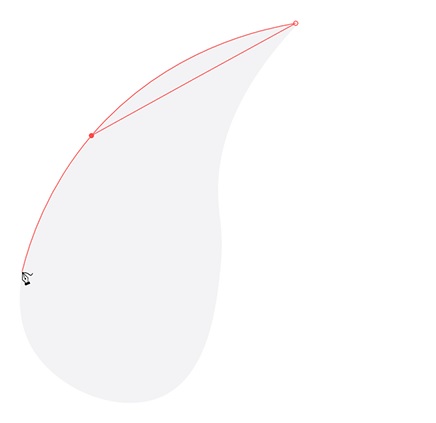
- Move the pointer to preview the next curve, then click to place another smooth point.
- Continue placing points around the outline, using as few as the shape allows.
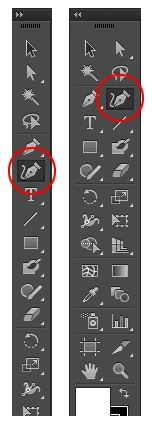
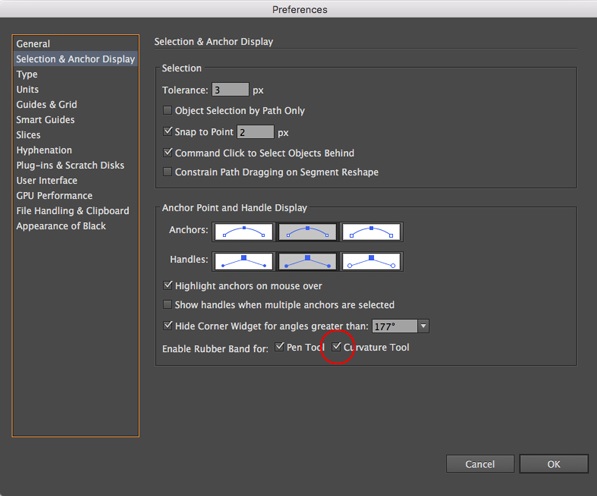
The live preview between the last point and the pointer is often called the Rubber Band. It shows how the next point will influence the curve before you commit it.
Create corners and straight segments
Double-click when placing a point to create a corner instead of a smooth point. Double-click an existing point to toggle it between smooth and corner behavior. A corner point can produce a sharp turn or a straight segment while the neighboring smooth points maintain curvature elsewhere.
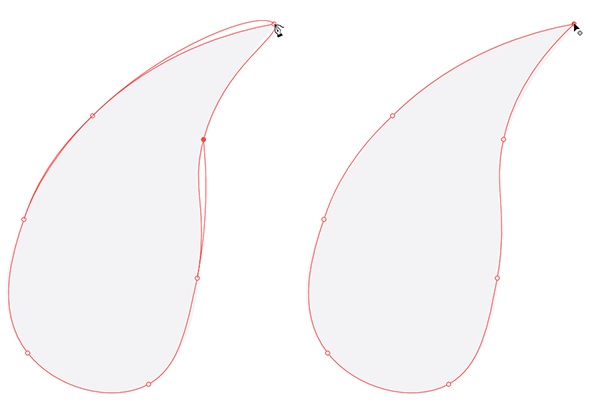
Use corners deliberately. Adding many closely spaced points to force a curve usually makes the path uneven and harder to edit.
Finish an open or closed path
- Open path: press Esc when the final point is in place, or switch tools and deselect.
- Closed path: move over the first point and click when the close-path indicator appears.
- Closed path with a corner at the join: double-click the first point when closing, then inspect the join.
An open path is appropriate for a stroked line. A filled shape generally needs a closed path, although Illustrator can visually fill some open paths using an implied closing edge.
Edit an existing curve
The Curvature tool can edit compatible paths after they are drawn:
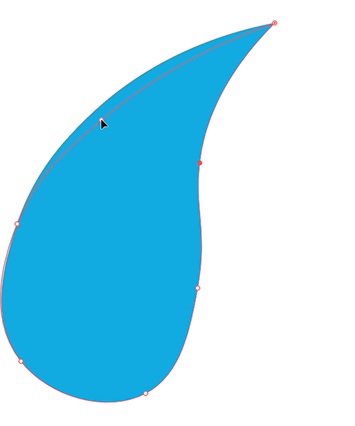
- drag an existing point to reposition it and let the surrounding curve update;
- click a path segment to add a new point;
- double-click a point to change it from smooth to corner or back;
- use a dedicated Delete Anchor Point command or tool when you need to remove a point while preserving the remaining path;
- switch to Direct Selection (A) when you need more explicit point selection or access to path segments.
Adjust or disable the live preview
If the Rubber Band preview is distracting, open Illustrator preferences and find Selection & Anchor Display. The available options can control the Pen and Curvature preview behavior. Keep the preview enabled while learning unless it obscures a dense drawing.
Curvature tool vs. Pen tool
| Need | Better starting tool |
|---|---|
| Quick smooth outline with few points | Curvature |
| Precise manual handle direction and length | Pen |
| Frequent toggling between smooth and corner points | Curvature |
| Exact tracing around complex geometry | Pen, often with Direct Selection |
| One isolated straight segment | Line Segment tool |
Both tools create standard Illustrator paths. You can begin with Curvature, then refine with Direct Selection, the Anchor Point tool or the Pen tool as needed.
Tips for cleaner curves
- Place points at major changes in direction, not at equal visual intervals.
- Zoom out periodically; a path can look smooth close-up but awkward at the final size.
- Use fewer points before reaching for the Smooth tool.
- Keep a reference image on a locked template layer when tracing.
- Inspect the final silhouette in Outline view and at the intended output size.
- Save a copy before expanding strokes or converting a flexible path into final production geometry.
Troubleshooting
| Problem | Fix |
|---|---|
| The path makes a sharp corner | Double-click the point to toggle it to smooth, then reposition it |
| The curve bulges unexpectedly | Move or remove a nearby point; avoid adding more points immediately |
| The next click starts a new path | Select the endpoint of the existing open path before continuing |
| The open path keeps extending | Press Esc to finish it |
| No curve preview appears | Check the Rubber Band preference for Curvature |
Adobe’s Curvature tool guide covers the current behavior, and the Smooth tool guide explains a related cleanup method. On TipsMake, learn how to draw straight Illustrator paths, review the Shape Builder tool, or keep the Illustrator shortcut reference nearby.
Related Articles
 How to Draw a Straight Line in Adobe Illustrator6 minutes read
 How to Cropping and Deleting Shapes in Adobe Illustrator4 minutes read
 Coreldraw - Lesson 9: Road Drawing Tools (Continued)4 minutes read
 Steps to Draw Curves in Autocad5 minutes read
 Photoshop's New Pen Tool Makes It Easier to Draw Curves3 minutes read
 How to Draw Straight Lines, Curves in Photoshop3 minutes read
Reader Comments 0
Sign in with email or Google to join the discussion.