Table of Contents
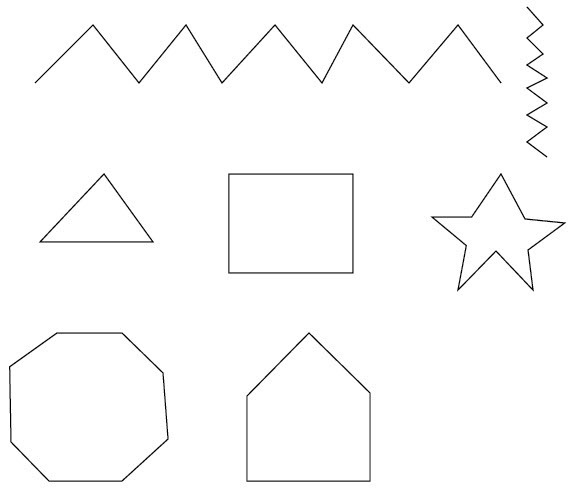
The quickest way to draw one straight line in Illustrator is the Line Segment tool: press the backslash key (), then drag across the artboard. Use the Pen tool when you need a connected path made from several straight segments, an open polyline, or a closed shape.
Method 1: Draw a line with the Line Segment tool
- Select the Line Segment tool from the toolbar or press .
- Drag from the starting point to the endpoint.
- Hold Shift while dragging to constrain the line to standard angles.
- Set the stroke color and weight in the Properties, Control or Stroke panel.
For an exact length and angle, click once on the artboard with the Line Segment tool instead of dragging, enter the values in the dialog, and confirm. A line needs a visible stroke; a fill alone does not make an open path visible.
Method 2: Draw connected straight segments with the Pen tool
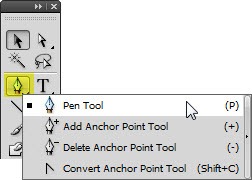
1. Select the Pen tool
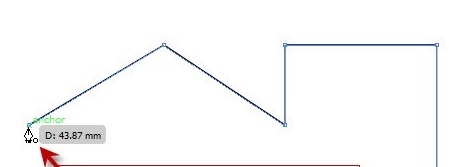
Choose the Pen tool or press P. The small x beside the cursor indicates that the next click will begin a new path.
2. Place the first two anchor points
Click once at the start of the line, then click once at the endpoint. Do not drag: dragging creates direction handles for a curve. If that happens accidentally, undo with Ctrl+Z on Windows or Command+Z on macOS and click again.
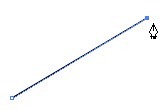
Hold Shift while placing the next anchor point to constrain the new segment to a multiple of 45 degrees.
3. Continue or finish the path
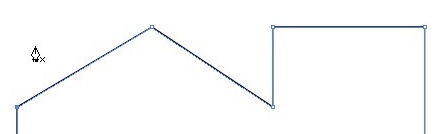
Continue clicking to add connected straight segments. The path remains open until you connect the last point to the first.
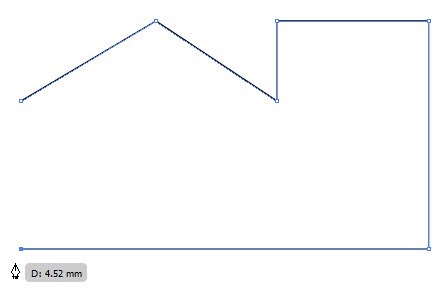
To finish an open path, press Esc, select another tool, or deselect the path. To close it, move the Pen cursor over the first anchor point and click when the small circle appears.
Edit the line after drawing it
- Use Direct Selection (A) to move one endpoint or anchor point.
- Use the Selection tool (V) to move, scale or rotate the whole path.
- Change width, cap, corner, dash and alignment in the Stroke panel.
- Enable Smart Guides when you need visual alignment feedback.
- Enter exact coordinates in the Transform panel for production measurements.
Add or remove anchor points
A straight path normally needs only the points that define its corners. Extra points make editing harder and can create accidental bends.
Remove a point without deleting the whole path
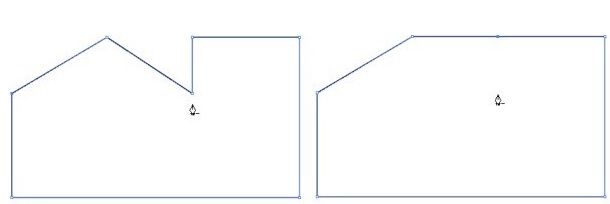
Select the Delete Anchor Point tool or press the minus key (-), then click the point. Illustrator redraws the path between the neighboring anchors, so check the resulting shape.
Add a point for a new edit
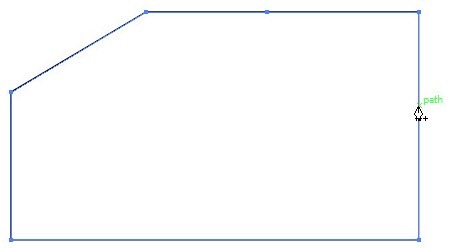
Select the Add Anchor Point tool or press the plus key (+), then click the path segment. Switch to Direct Selection to move or reshape the new point.
Troubleshooting
| Problem | Fix |
|---|---|
| The line is invisible | Apply a stroke color and a visible stroke weight |
| The Pen creates a curve | Click without dragging, or convert the point to a corner |
| The next click keeps extending the old path | Press Esc before starting the new path |
| The angle is slightly off | Hold Shift or enter an exact angle |
| The path is hard to edit | Remove redundant anchor points and use Direct Selection |
Adobe provides current instructions for the Pen tool and Line Segment tool. On TipsMake, see how to draw basic shapes, how to transform Illustrator objects, and the Illustrator shortcut reference.
Related Articles
 Guidelines for Drawing Straight Lines in Adobe Illustrator4 minutes read
 Tutorial Drawing. 'Unicorn' in Adobe Illustrator11 minutes read
 How to Draw Basic Shapes in Adobe Illustrator6 minutes read
 Adobe Illustrator: Complete Guide: Download Adobe Illustrator 2021.26.04 minutes read
 How to Cropping and Deleting Shapes in Adobe Illustrator4 minutes read
 What Is Adobe Illustrator? Learn Adobe Illustrator for What5 minutes read
Reader Comments 0
Sign in with email or Google to join the discussion.