Table of Contents
Illustrator’s Shape Builder tool turns overlapping selected paths into interactive regions that you can merge, extract or erase. It is especially useful when a logo, icon or illustration is easier to construct from circles, rectangles and other simple geometry than to draw as one complex path.
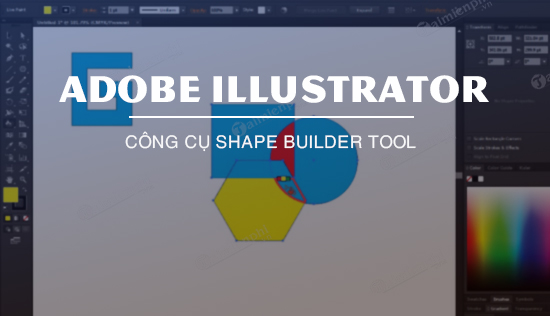
Create a new shape with Shape Builder
- Draw and position the source paths so their edges overlap where the final geometry should change.
- Use the Selection tool (V) to select every path Shape Builder should consider.
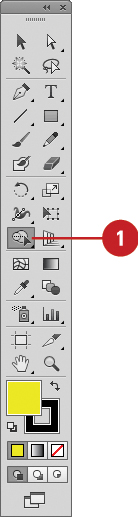
- Activate Shape Builder with Shift+M.
- Move over the artwork and confirm that Illustrator highlights the intended region.
- Click one region to extract it as a separate shape, or drag across adjacent regions to merge them.
- Hold Alt on Windows or Option on macOS and click or drag to erase unwanted regions or edges.
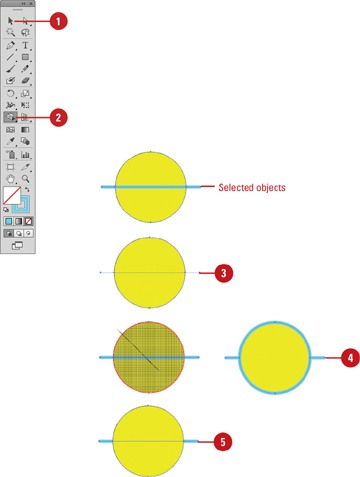
Hold Shift while dragging to display a rectangular marquee that can merge several regions quickly. Work on a duplicate of important source artwork: Shape Builder changes the selected paths and may make the original construction harder to recover later.
How appearance is assigned
When regions merge, Illustrator assigns appearance according to the source artwork and the selected Shape Builder color option. If the result receives the wrong fill or stroke, undo and review the object order and tool settings, or recolor the finished regions afterward with document swatches.
Open paths and strokes can participate, but the result depends on whether their intersections define usable regions. Zoom in before erasing short edges so you do not remove part of the structure by mistake.
Configure Shape Builder options
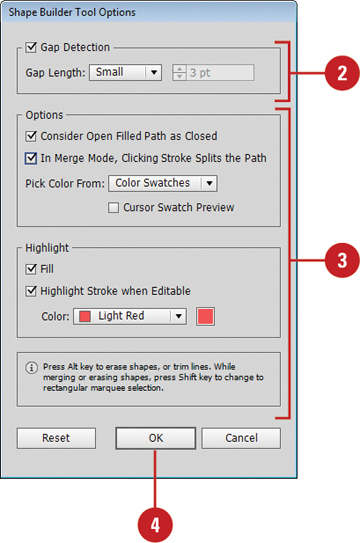
Double-click the Shape Builder icon in the toolbar to open its options.
Gap Detection
Enable Gap Detection when nearly touching paths fail to create a region. Choose a small, medium, large or custom gap value close to the actual break. A value that is much larger than the artwork gap can combine areas that should remain separate, while a smaller value may not detect the region.
Consider Open Filled Paths as Closed
This option creates an invisible edge for an open filled path so the apparent interior can act as a region. Use it only when the visual fill is intended to behave as a closed shape.
Clicking a stroke splits the path
In Merge Mode, Clicking the Stroke Splits the Path allows a click on an eligible stroke to divide the parent path at that location. This is useful for edge editing but can create unexpected fragments if enabled unintentionally.
Pick Color From
Choose Artwork to inherit colors from the selected source objects, or Color Swatches to paint regions from document swatches. Cursor Swatch Preview lets you cycle through available swatches while working.
Highlight controls
Enable Fill to preview a region under the pointer. Enable editable-stroke highlighting and choose a visible highlight color when working with dense line art.
Shape Builder vs. Pathfinder vs. Live Paint
| Tool | Best use | Key behavior |
|---|---|---|
| Shape Builder | Interactive merging and removal of visible overlap regions | You point directly at the regions to keep or erase |
| Pathfinder | Repeatable boolean operations such as Unite, Minus Front, Intersect and Divide | The chosen command acts on the selected object stack |
| Live Paint | Coloring faces and edges formed by intersecting paths | The paths remain part of a paint group and can be recolored interactively |
Common problems
- No regions highlight: select all participating paths and check that their geometry intersects or falls within the selected gap threshold.
- The wrong area merges: zoom in, drag across fewer regions and review gap detection.
- Color changes unexpectedly: choose the intended color source or recolor the result with swatches.
- Small fragments remain: inspect in Outline view and remove unwanted pieces deliberately.
- Open paths disappear: verify whether you erased an edge and whether the stroke-splitting option is enabled.
Practical workflow
- Keep the construction paths on a named source layer.
- Duplicate them to a working layer before using Shape Builder.
- Build the final silhouette with as few regions as possible.
- Inspect the path in Outline view and remove stray points.
- Apply final fills, strokes and effects after the geometry is stable.
Adobe’s Shape Builder instructions and options reference document the current controls. On TipsMake, start with basic Illustrator shapes, compare Pathfinder operations, or practice Shape Builder in the 3D-style logo tutorial.
Related Articles
 Learn About Stroke in Illustrator11 minutes read
 Draw and Edit Curves with the Curvature Tool in Illustrator6 minutes read
 AI Software Shortcuts: Common Adobe Illustrator Shortcuts9 minutes read
 Top Most Effective and Easy-to-Use AI Tools for Creating Websites9 minutes read
 Adobe Illustrator: Complete Guide: Download Adobe Illustrator 2021.26.04 minutes read
 Instructions for Completely Removing the 3D Builder Application6 minutes read
Reader Comments 0
Sign in with email or Google to join the discussion.