Table of Contents
Explore don't miss these 8 little-known features of microsoft copilot.
8. Upload the file
To make prompt AI more effective, you need to provide the software with as much context as possible. Instead of adding lots of text, consider uploading relevant files and folders.
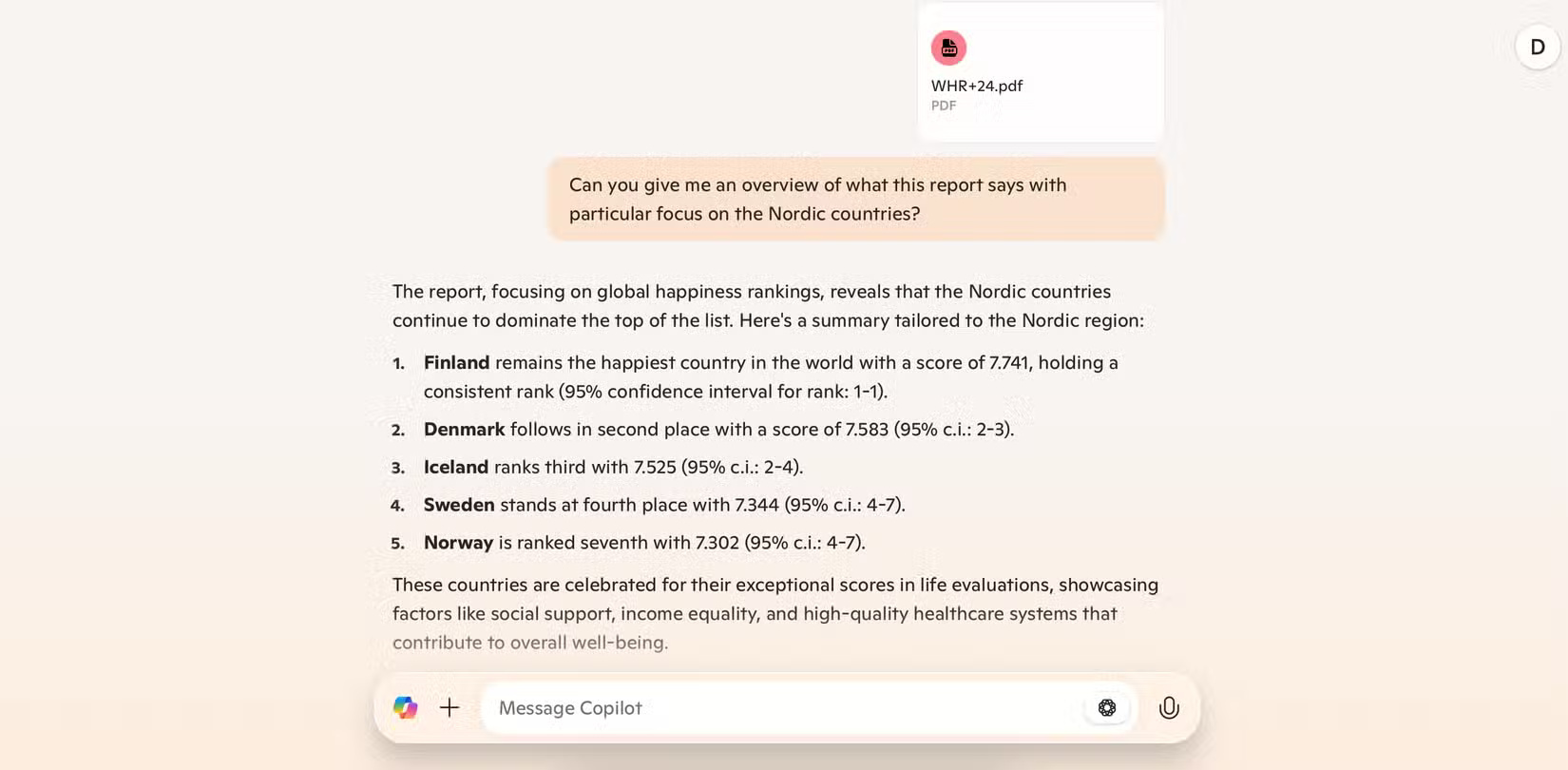
With Copilot, you can easily upload PDF documents and JPEG images. The software can then scan these documents and provide an overview. After obtaining this initial information, you can delve deeper. In addition to examining specific components of a PDF file, you can ask the software to speculate on various other factors. If you want to upload images, Copilot can scan these files based on your request.
Note : Copilot has file upload limits, so you may need to resize your file. If you are reviewing a PDF document, consider deleting unnecessary pages.
7. Create a future shortcut prompt
Writing the same prompt over and over again is time-consuming. Fortunately, Copilot has ways to prevent this from becoming a problem. While there isn't a precise tool for saving prompts, you can streamline conversations and tasks.
After providing Copilot with enough information on certain topics, you can give a one- or two-word prompt. For example, if you want to create a list, you can tell Copilot "list" and then specify what to include.
In addition to creating shorter prompts, you can streamline access time by creating Copilot desktop shortcuts in Windows.
6. Create a table
One of the best ways to use Copilot in Windows is to integrate it with other Microsoft applications. For example, you can use the software to create Pivot Tables in Excel.
Using Copilot to create these types of tables saves you a lot of manual time. Furthermore, you'll get a better overview of the necessary information. You can use this feature for any table you need to create; in Copilot, you'll find the option to summarize data in your spreadsheet.
Although this feature will simplify the summarization process, you should still double-check to ensure everything is accurate.
5. Summarizing long texts
In addition to summarizing data, Microsoft Copilot is also very good at giving you an overview of long documents. You can provide the software with a PDF document and ask it to review the information within it or extract data from across the internet.
You'll see everything in an easy-to-understand format after you ask Copilot to summarize your text. This feature is useful whether you need ideas for longer books or summaries of study notes and meetings.
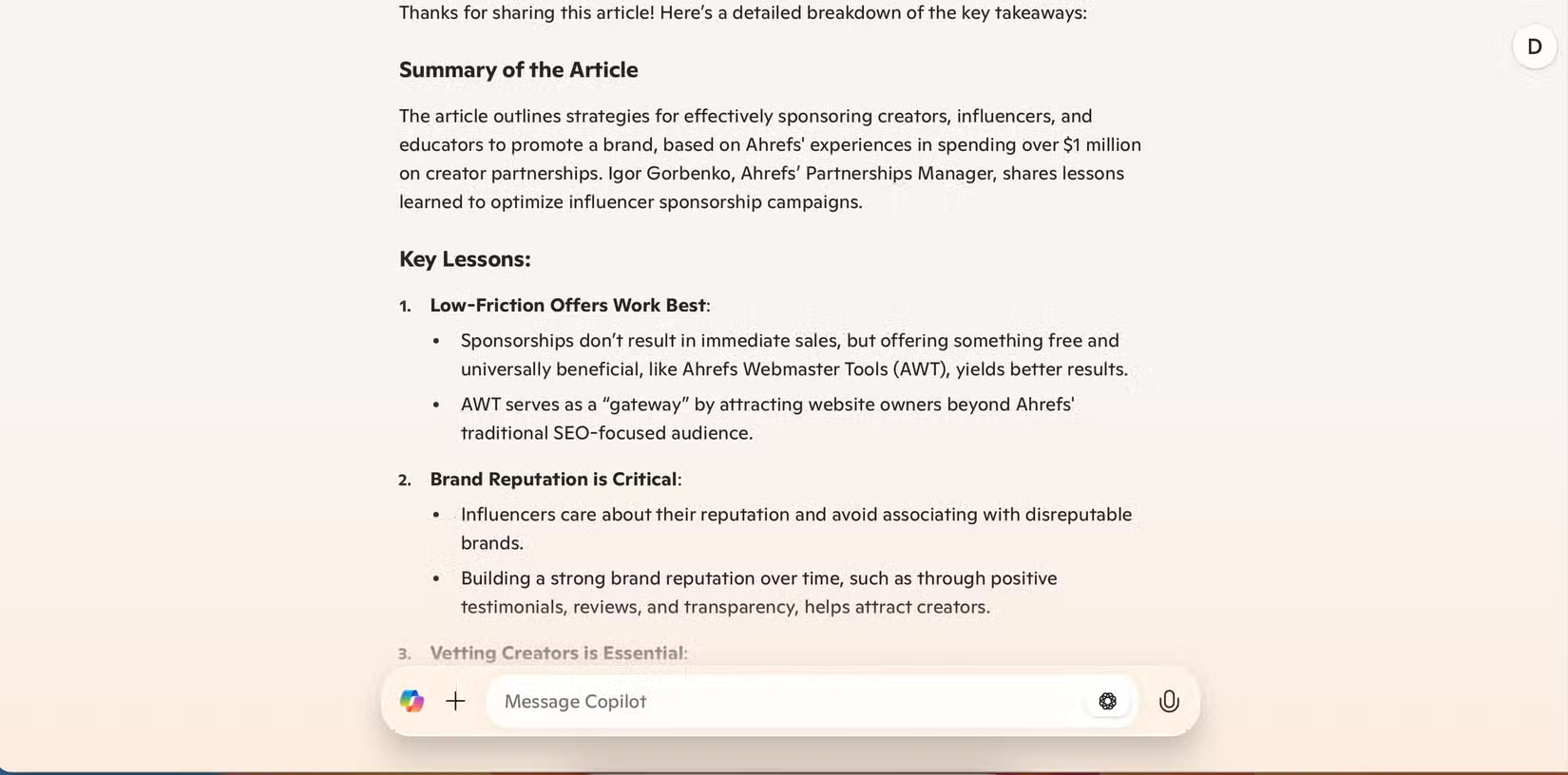
If you intend to use this feature for posts, copy and paste the text into Copilot. In personal experience, the app doesn't read specific links very well. However, you may need to break down your text as the app only allows a maximum of 10,240 characters per message.
4. The "Review previous conversations" icon
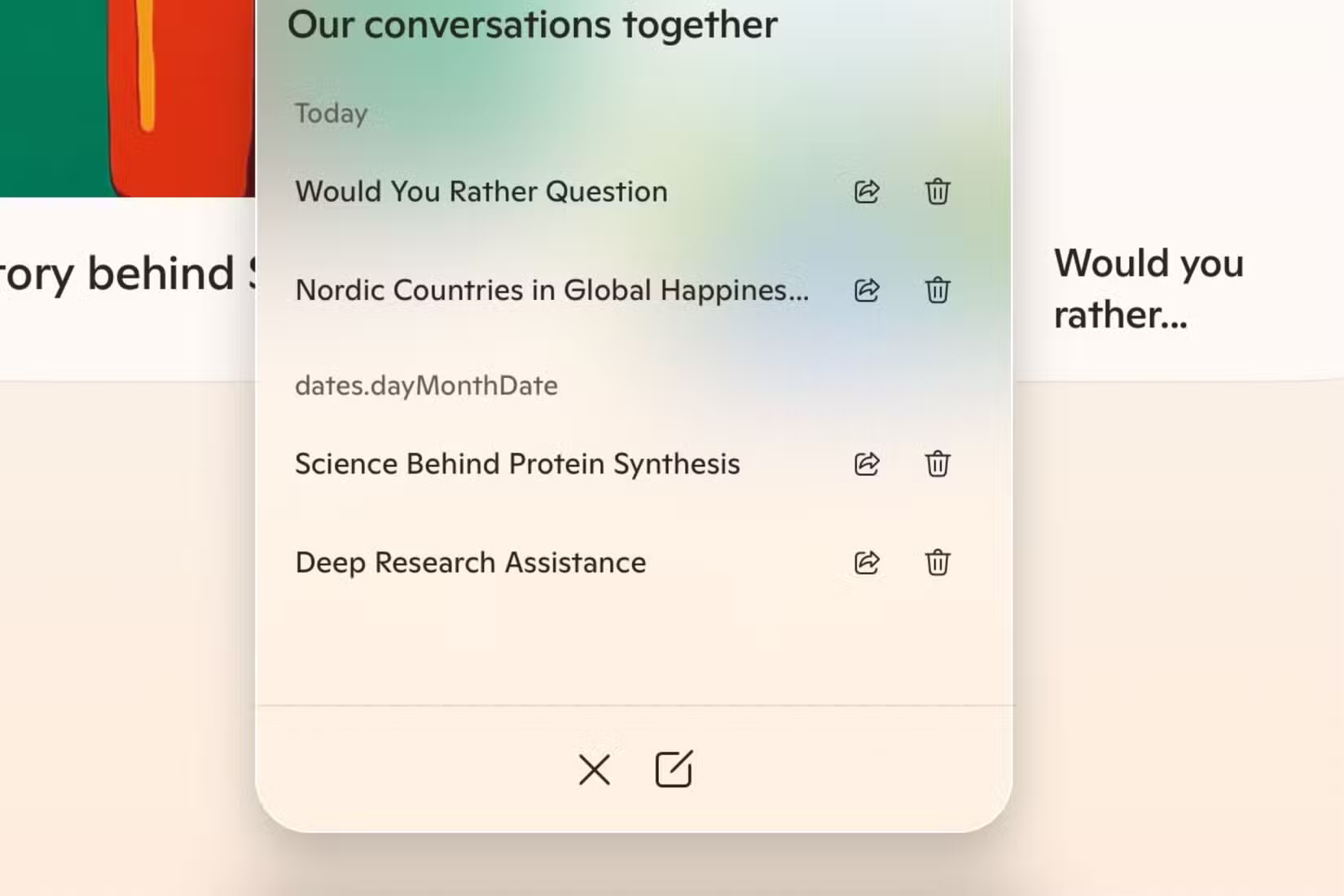
One major difference between ChatGPT and Microsoft Copilot is how you access legacy conversations. In ChatGPT, you'll see all of this on the left-hand toolbar. However, with Copilot, you need to click on the clock icon and the circular arrow.

After clicking this icon, you will see a list of your previous conversations. Find a conversation you are interested in and return to it immediately. You can also delete any conversations you no longer need and start new ones if necessary.
3. Follow-up email after the meeting
Whether you're in a meeting or collaborating with classmates, you'll likely have a list of action steps stemming from those conversations. Or at least, you should if you want to be more productive. With so many other tasks waiting, it's easy to overlook sending follow-up emails.
One of the best ways to use Copilot in Outlook is to send follow-up emails to meeting attendees. You can tell the app what information they need to know while adding other necessary details (e.g., deadlines). Depending on the audience, you can even change the tone of the message.
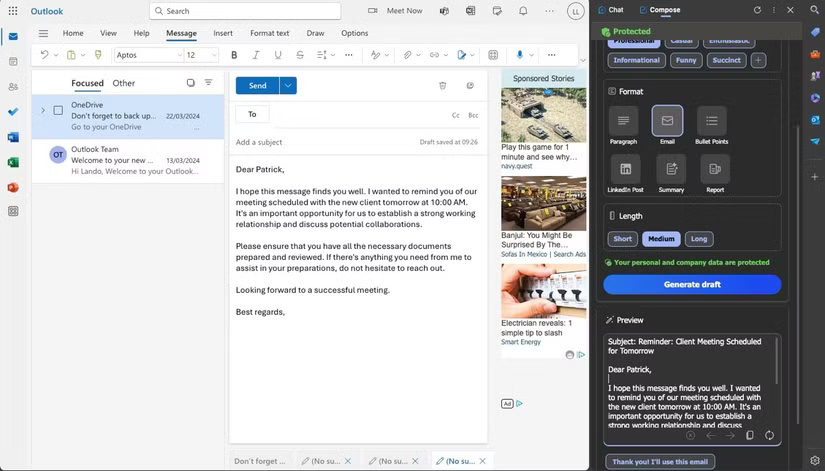
After writing the email using Copilot, you only need to make a few minor adjustments. Once you're done, the message will be ready to send to others.
2. Create PowerPoint slides
Copilot can help you complete any PowerPoint presentation in many ways, one of which is slide creation. You can provide a prompt to the software to ensure that all the most important details are included; once completed, Copilot will create a slide or an entire presentation based on your needs. In your prompt, you should provide Copilot with as much information as possible.
If necessary, provide a full analysis of each slide; you may also want to provide some statistics that the software can use.
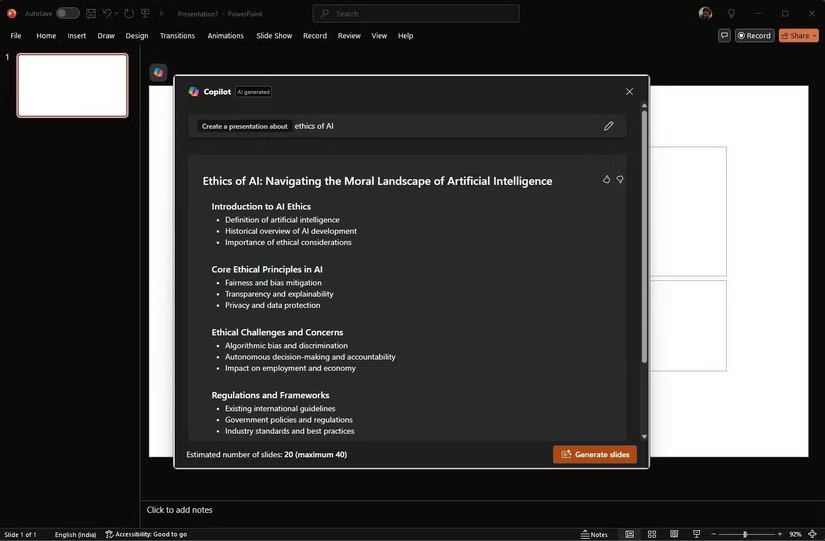
When PowerPoint creates slides, you can edit everything to better suit your needs. Having an initial draft to work with can make your ideas flow more smoothly than when you have to start from scratch. You can combine Copilot with PowerPoint's advanced features to take your presentations to the next level.
1. Brainstorming
You might achieve better results when brainstorming with ChatGPT, but if you don't want to use another AI chatbot, Copilot is also quite effective in this area. This tool allows you to prepare for exams, realize your big creative ideas, prepare for job interviews, etc.
Copilot excels at brainstorming ideas in a bulleted format. You'll receive comprehensive outlines and then be able to ask follow-up questions to deepen your research. While you can use the questions that follow each answer, Copilot will also allow you to ask yourself questions if needed.
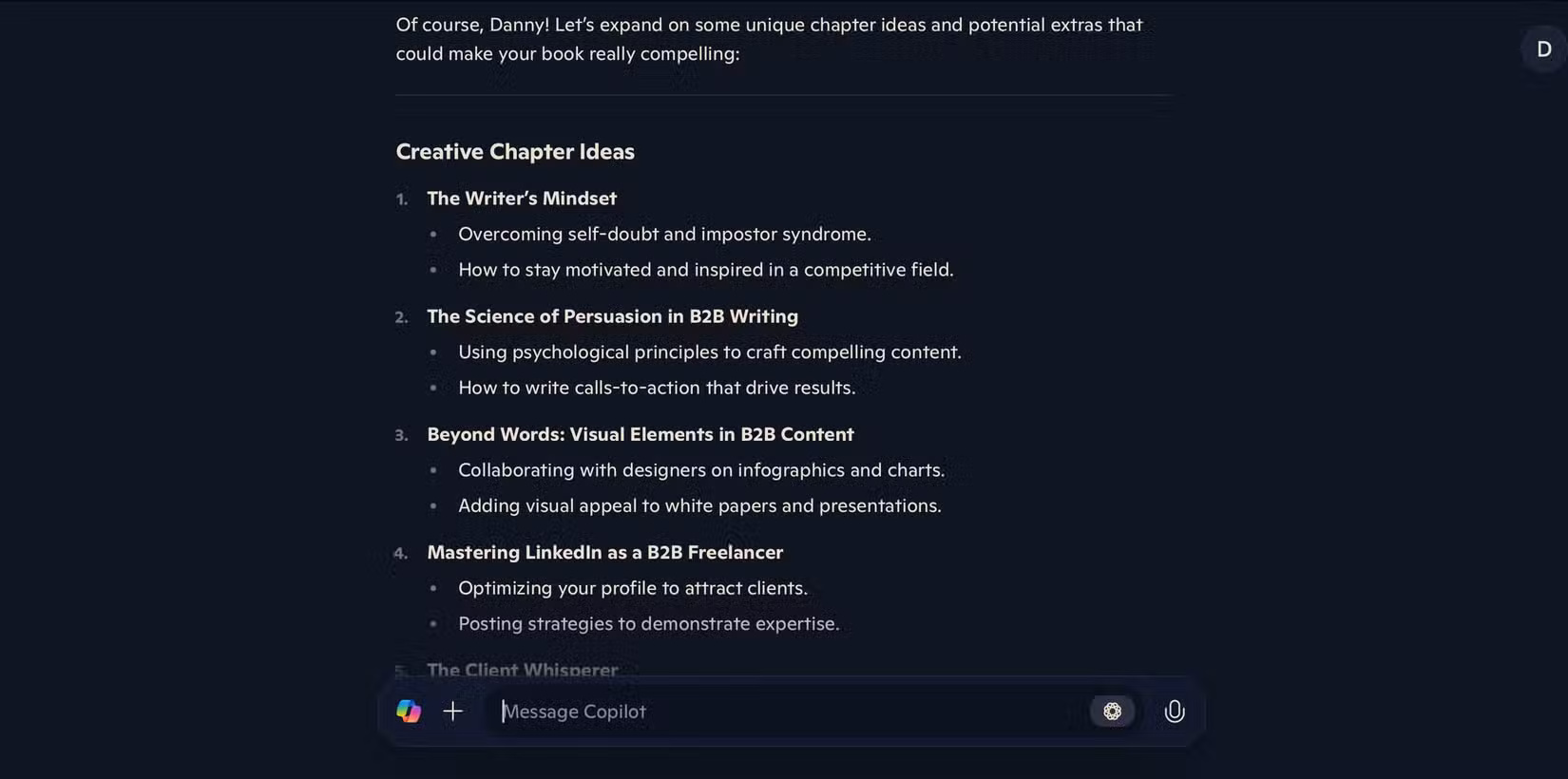
Mind mapping with Copilot is more difficult. Copilot only provides a list of apps specifically for this purpose, rather than actually mapping thoughts and processes. But for brainstorming in general, you won't have too many problems.
Copilot has many lesser-known tools to help you tackle all kinds of projects and requirements. It can create comprehensive presentations, and you'll also find it useful for brainstorming your big ideas. Combining these Copilot features with existing features in your favorite Microsoft applications can be particularly effective.
Final Thoughts
Understanding don't miss these 8 little-known features of microsoft copilot makes it easier to evaluate the information and apply the most relevant recommendations. Focus on the key points above and verify details that may change over time.
FAQ
What is don't miss these 8 little-known features of microsoft copilot?
Explore don't miss these 8 little-known features of microsoft copilot.
What key points does this article cover?
The article focuses on 8. Upload the file, 7. Create a future shortcut prompt, 6. Create a table, with practical explanations and examples.
How can you use this information in practice?
Use the explanations to compare options, verify important details, and make a more informed decision. Apply the recommendations that best match your goals and situation.
Related Articles
 How to Use Microsoft Copilot to Never Miss Any Online Deals7 minutes read
 What Are Copilot Labs: Clear Explanation5 minutes read
 Microsoft Upgrades Copilot with a Series of New Features: from Bing4 minutes read
 The Truly Useful Features Make Copilot Irresistible to Users8 minutes read
 These Major Updates Enable Users to Utilize Copilot for Research and Analysis5 minutes read
 What Is Microsoft Copilot AI? How to Use It Effectively?6 minutes read
Reader Comments 0
Sign in with email or Google to join the discussion.