Table of Contents
Microsoft 365 Copilot is most useful when it works inside the app and file you already use. Its practical advantage is context: with the appropriate account, license, administrator settings, and permissions, it can reason over a meeting, presentation, workbook, email, or approved work source without a long copy-and-paste workflow.
That context also creates responsibility. Review generated output, verify calculations and summaries, and follow your organization's policies for sensitive data. Features differ between personal Copilot, Copilot Chat, Microsoft 365 Copilot, Teams Premium, app versions, and work or school accounts.
1. Catch up on a Teams meeting
If Copilot is available and meeting settings provide the necessary transcript or live-meeting data, open Copilot from the Teams meeting controls and ask:
- “Summarize the key points since I joined.”
- “List decisions, owners, and due dates mentioned so far.”
- “Was my project discussed? Quote the relevant transcript segment.”
- “Which questions remain unresolved?”
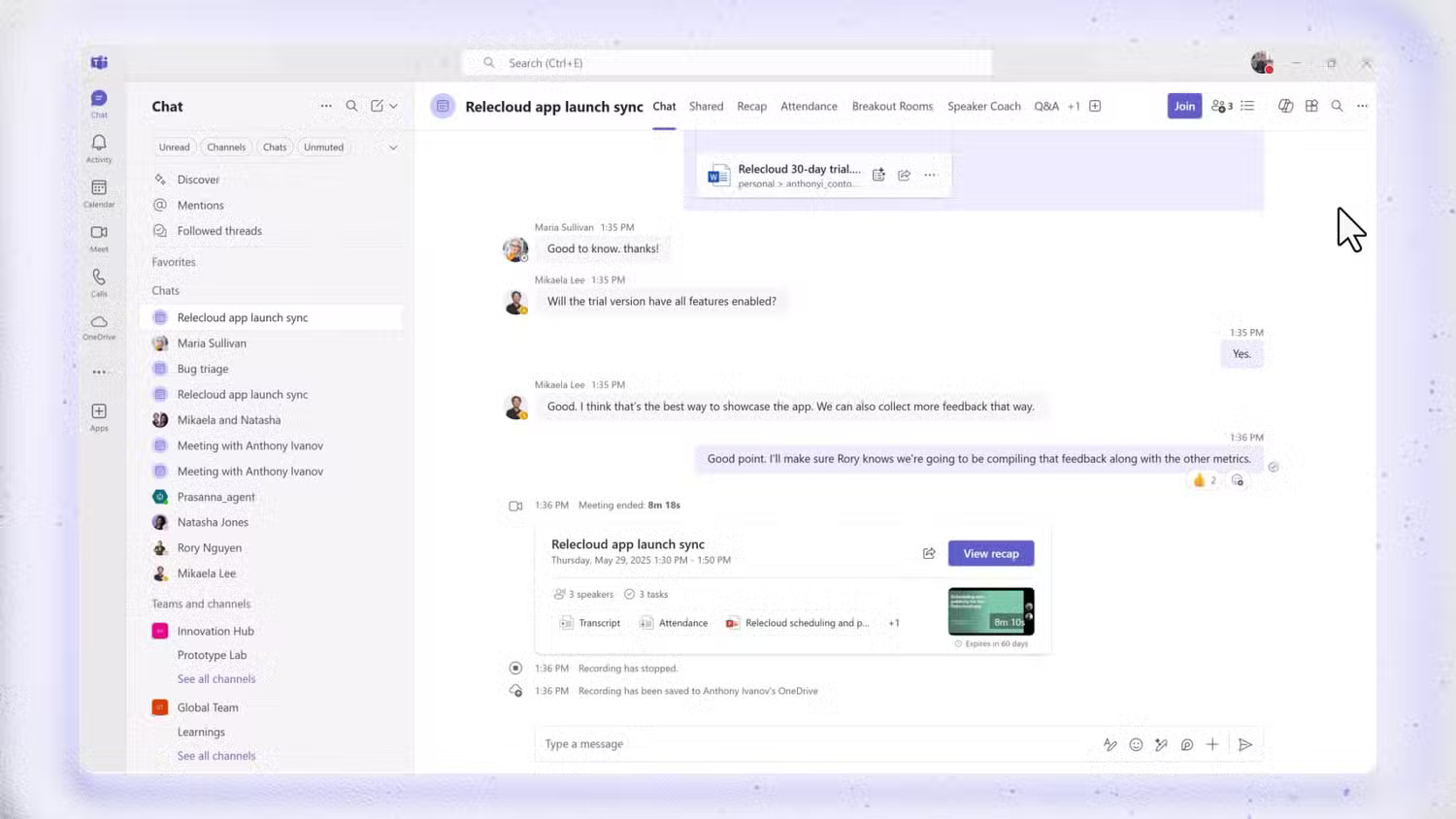
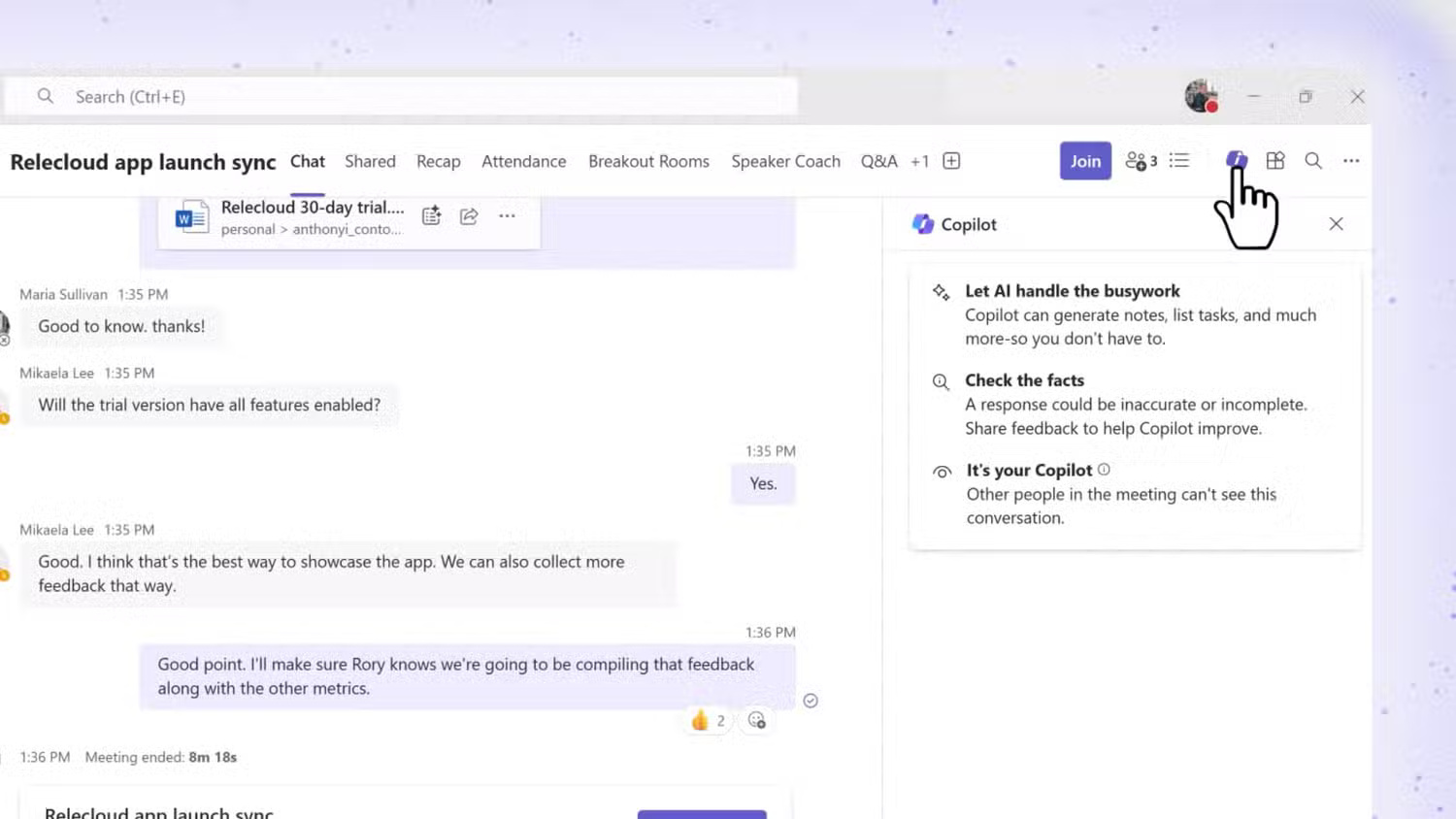
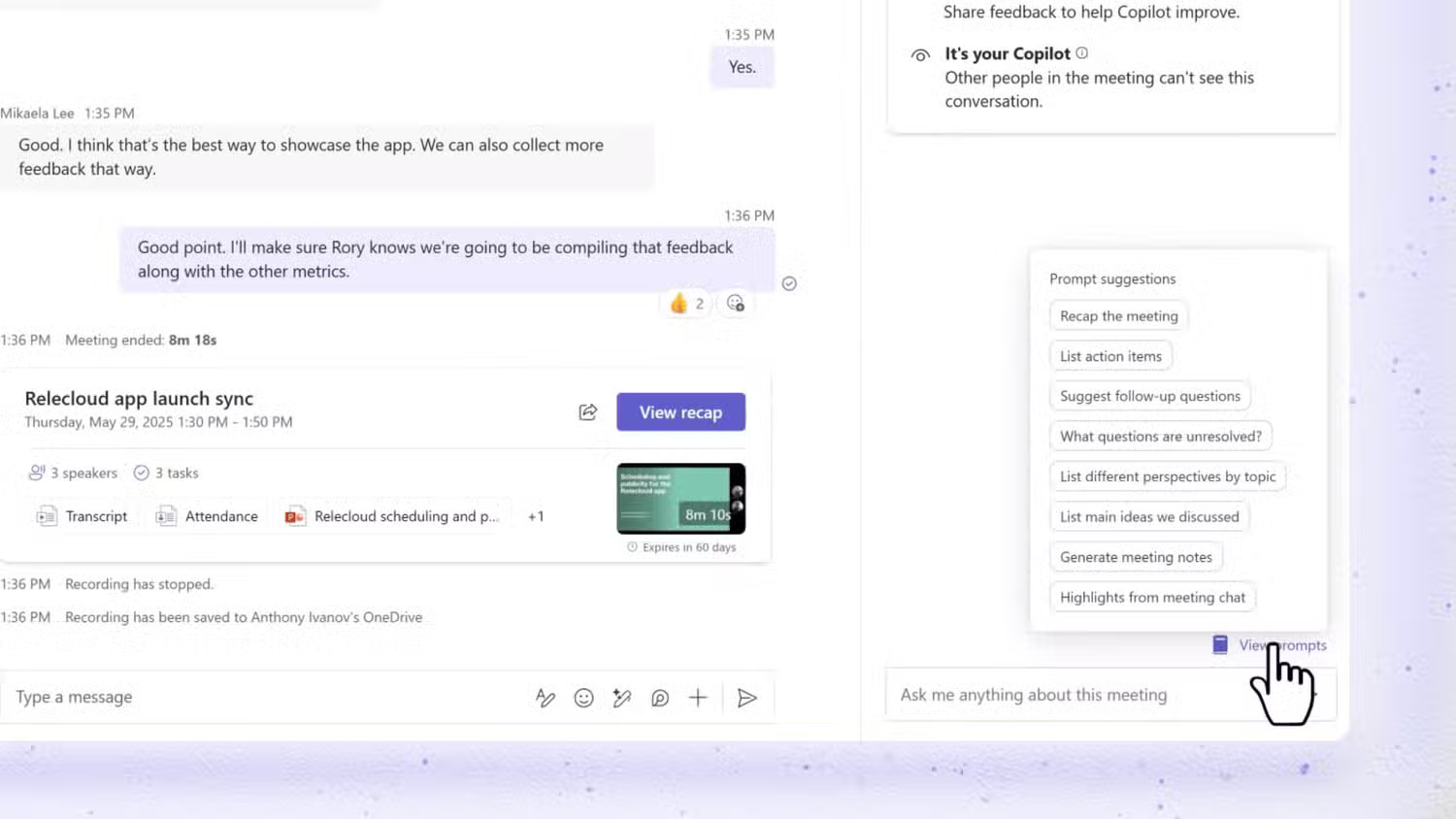
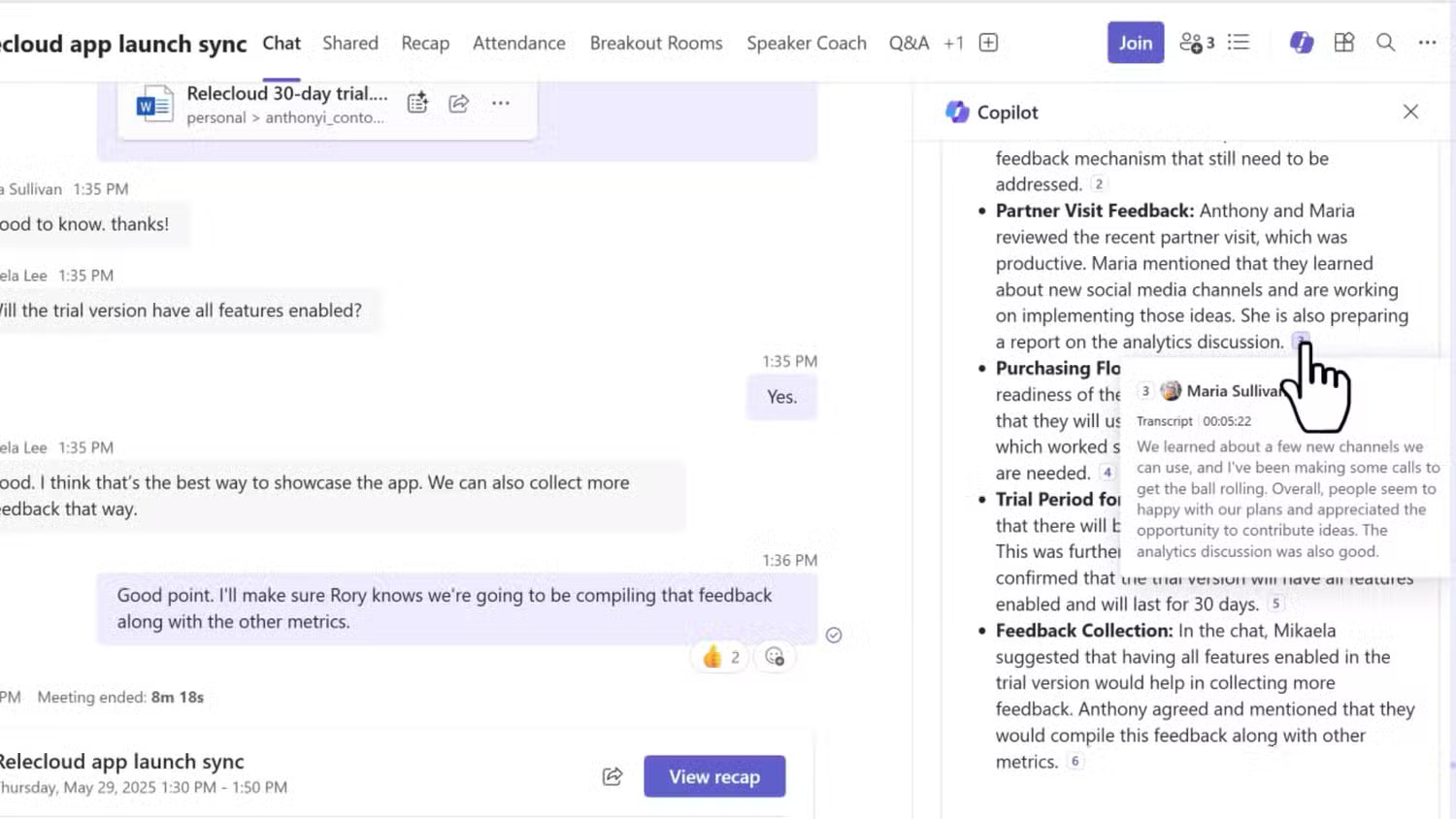
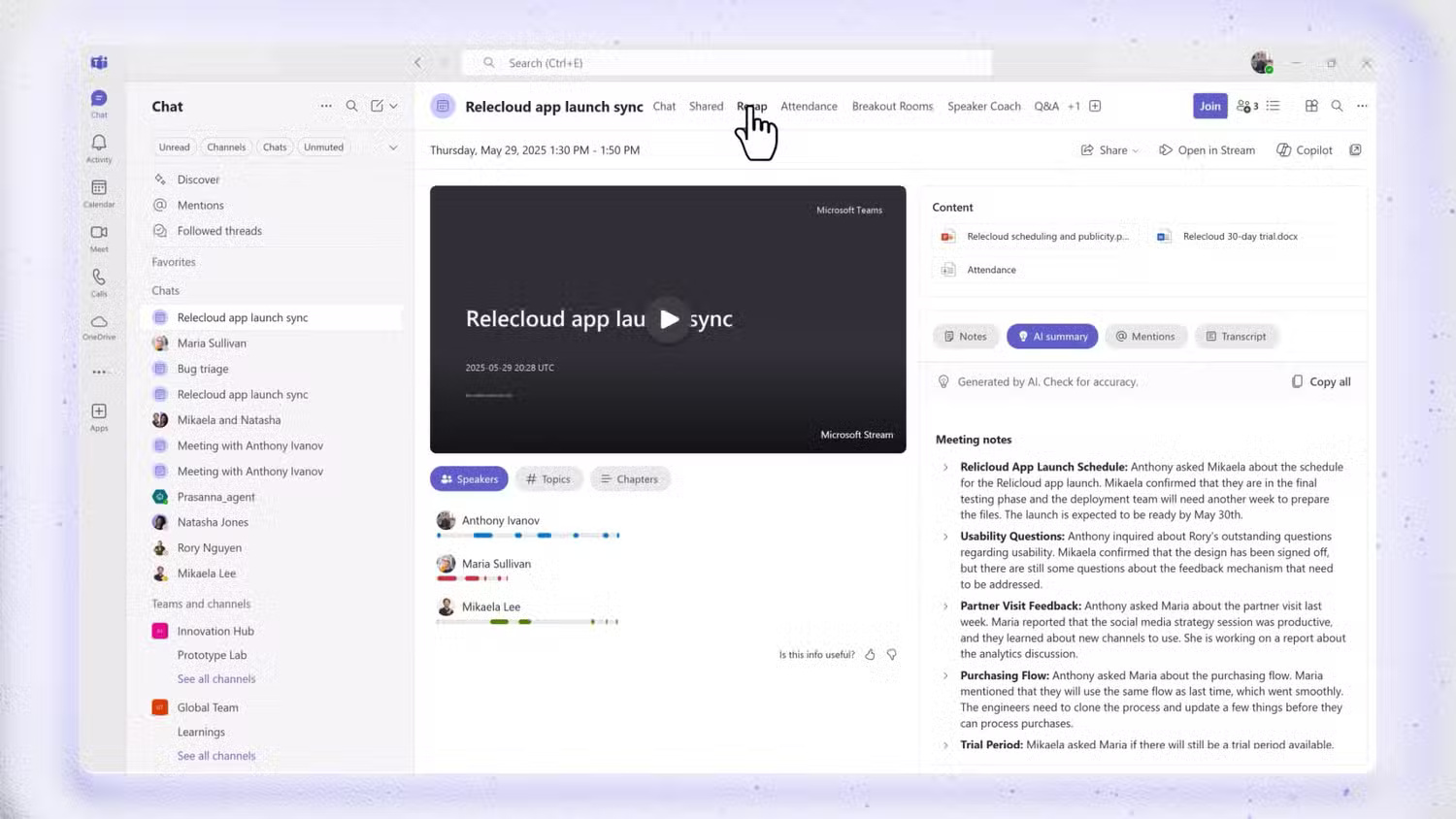
Microsoft says Copilot can answer questions during or after a meeting using the discussion and chat, subject to meeting configuration. Afterward, transcript availability matters; without one, Copilot may be limited to meeting chat. Verify owners and deadlines against what participants actually agreed. See Microsoft's Teams catch-up instructions.
2. Turn a source file into a PowerPoint draft
Open a blank presentation, select Copilot, and choose the option to create a presentation from a file. Reference the approved Word document or other file type supported by your license. Give the intended audience, objective, length, and visual constraints.
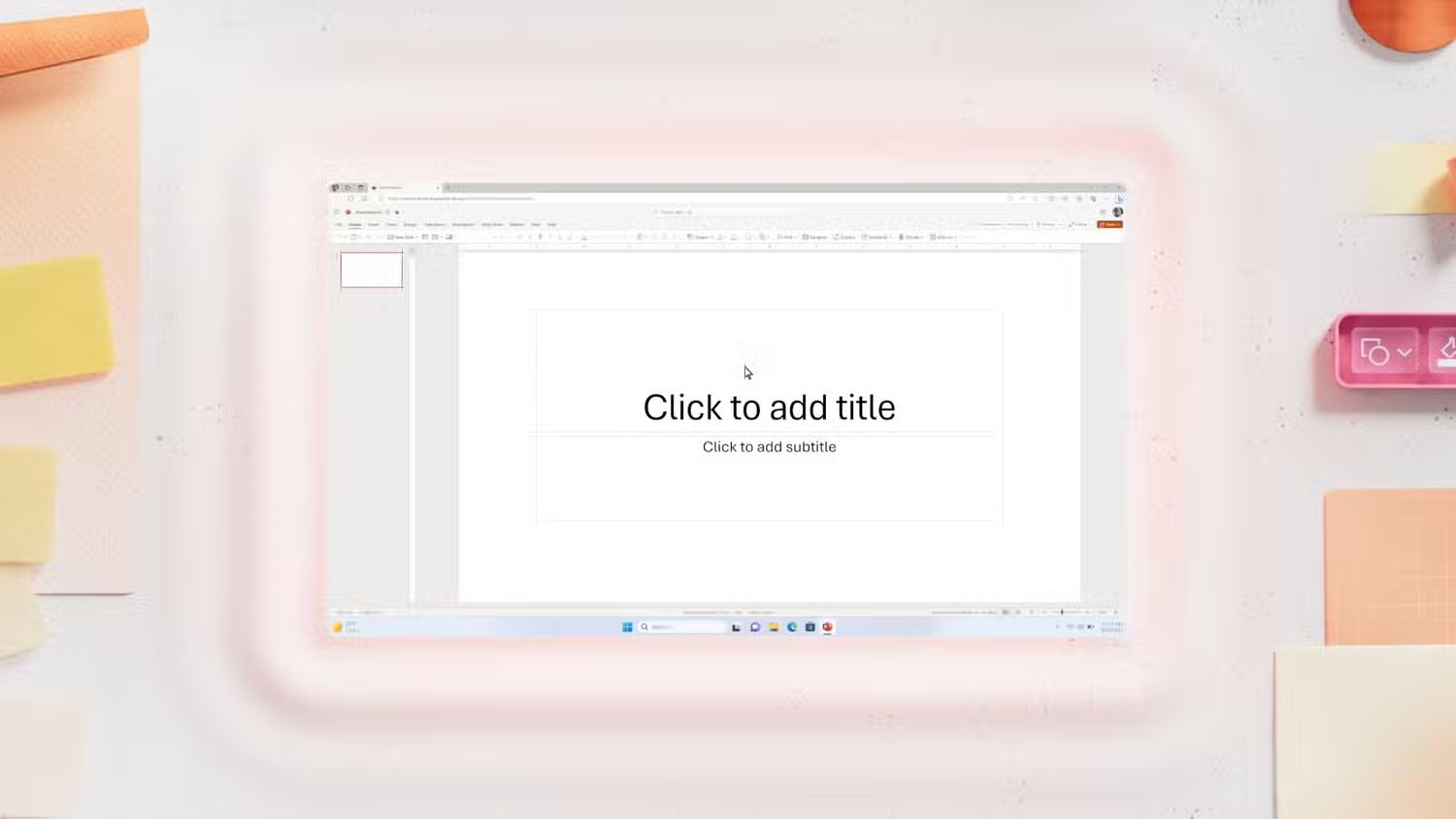
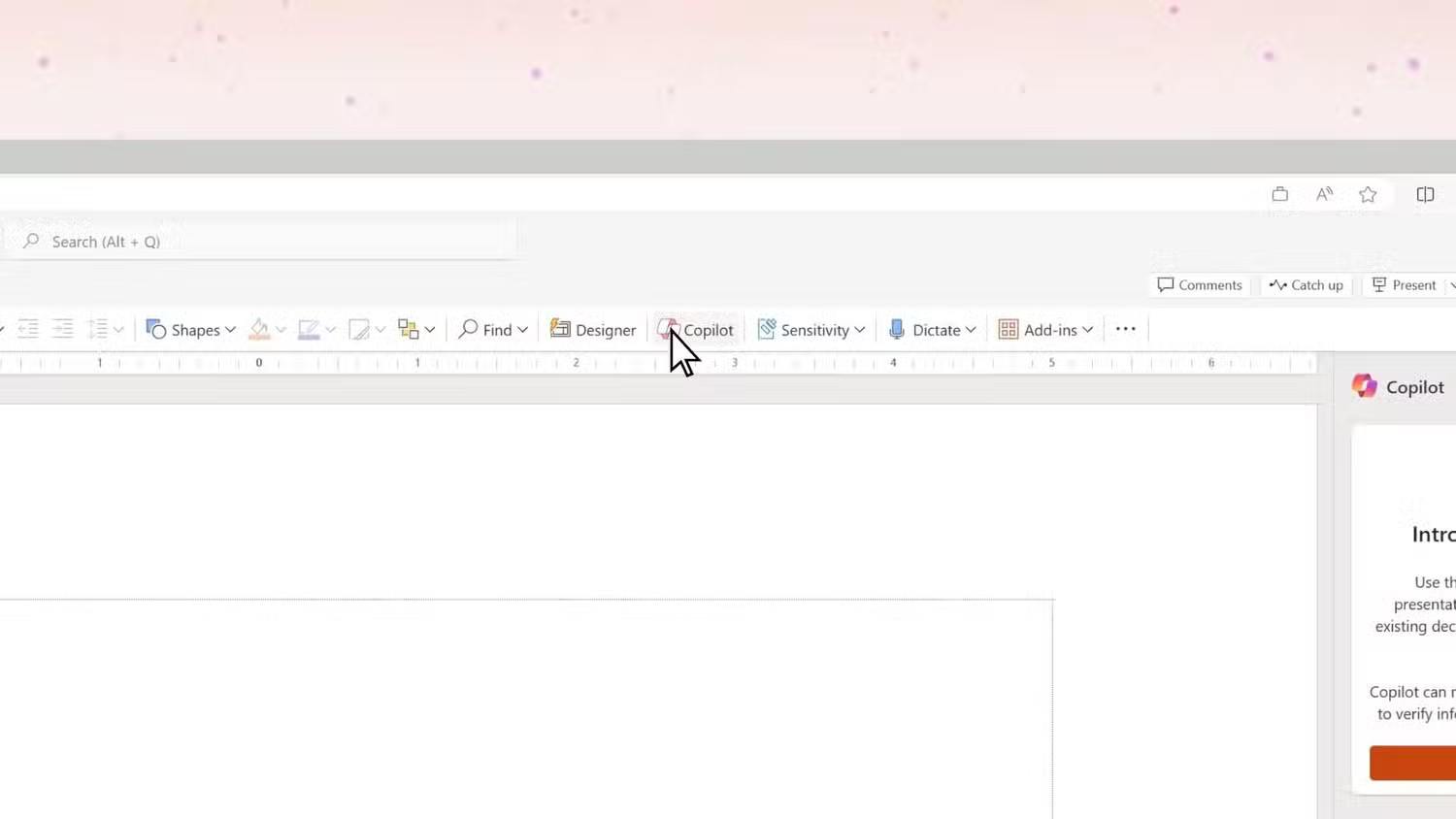
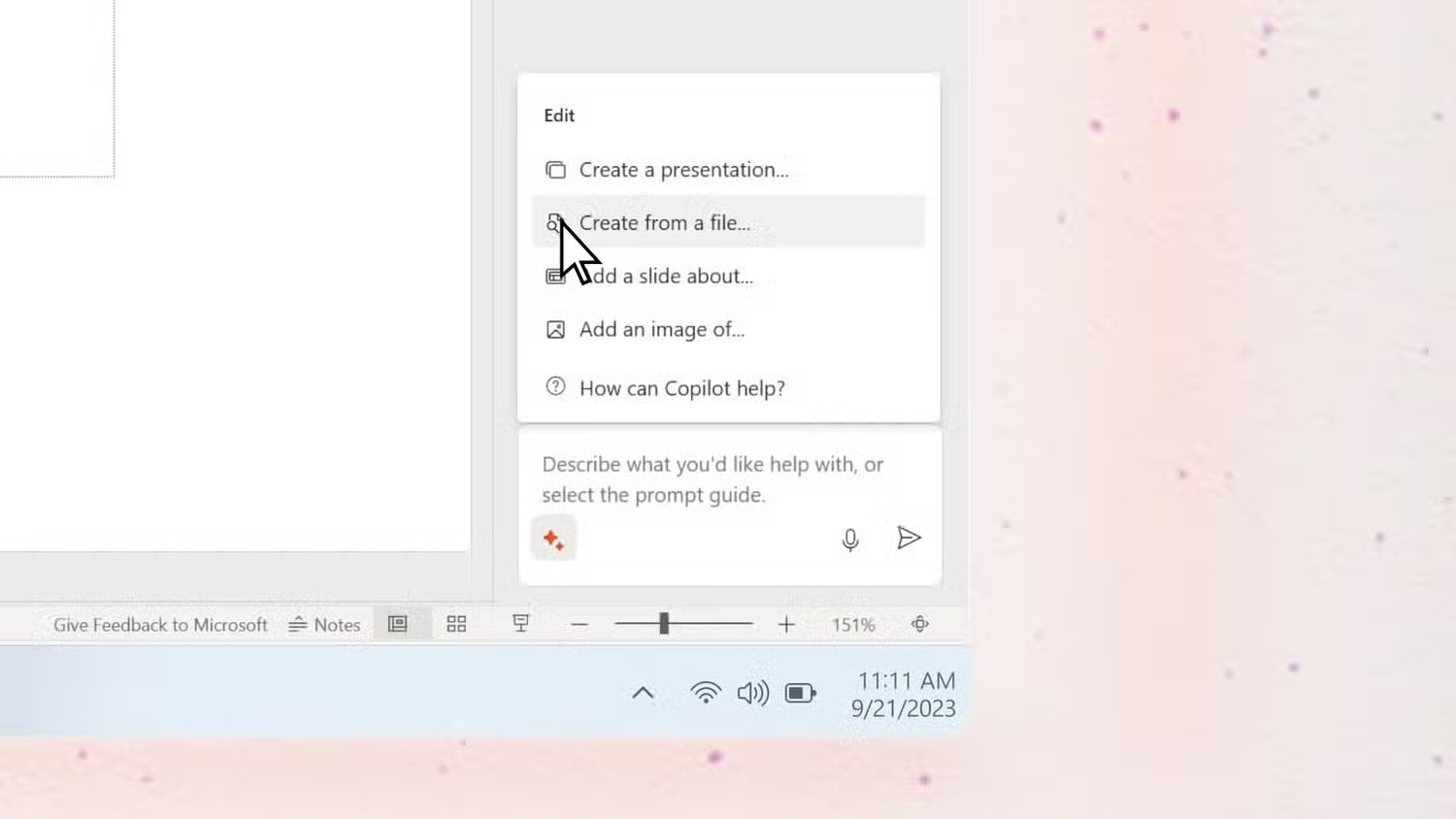
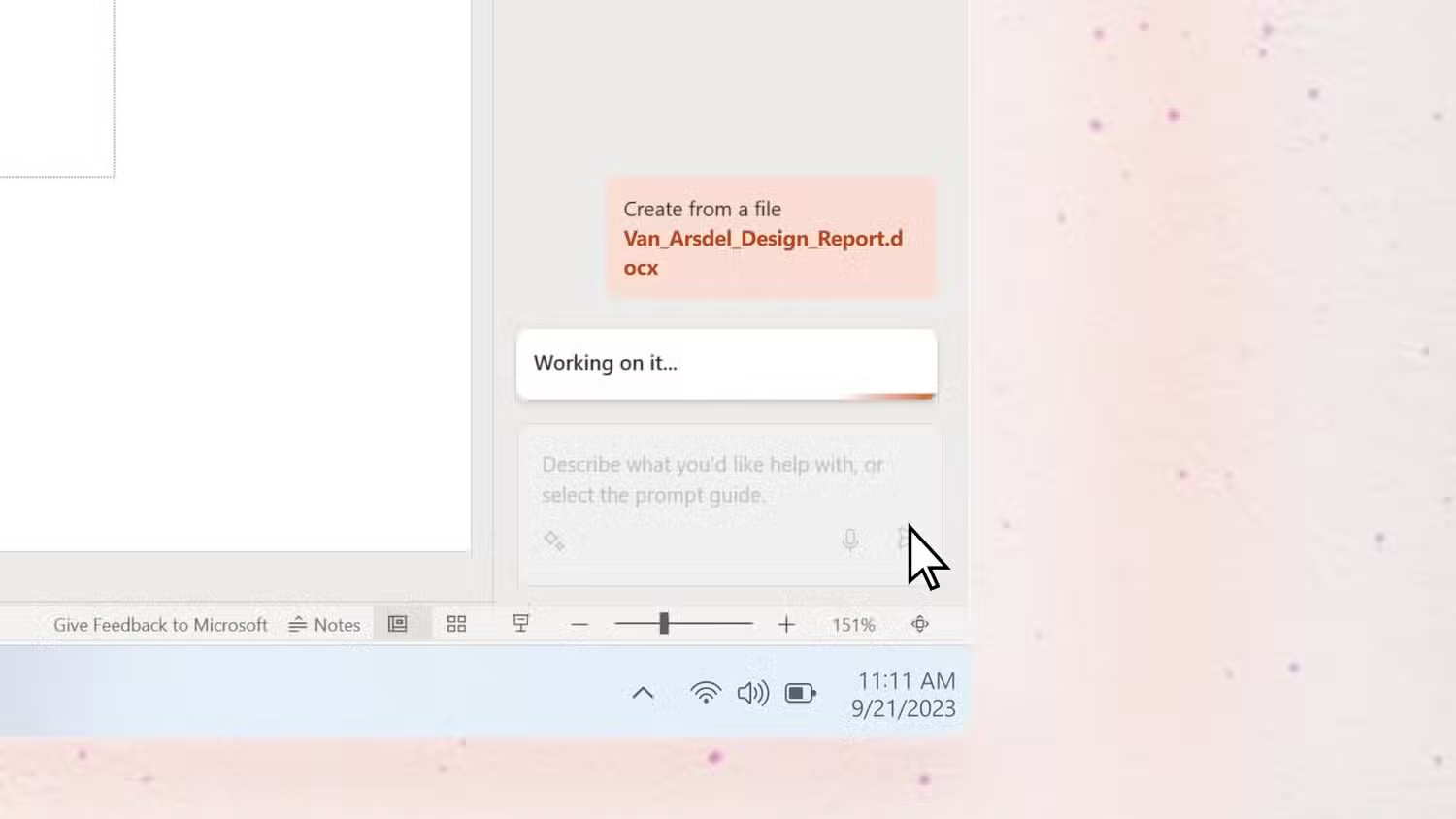
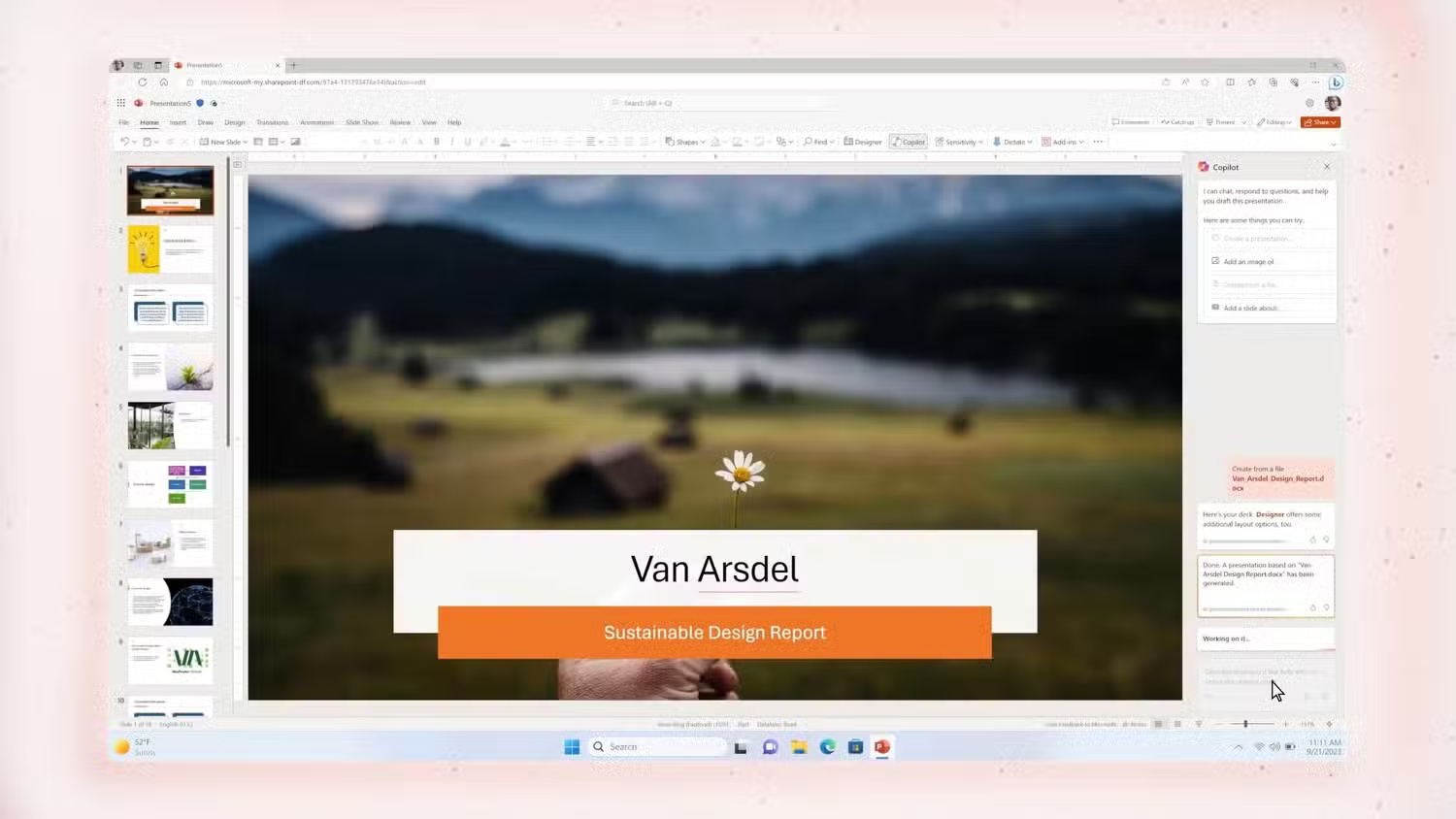
Copilot can draft slide structure, text, images, and speaker notes, but it does not create a “perfect” presentation automatically. Check every claim against the source, remove crowded slides, verify image rights and relevance, apply the correct brand template, and rehearse the narrative. Microsoft's presentation-from-file workflow explains the current steps.
3. Generate and explain Excel formulas
Copilot in Excel can create formula columns or rows, summarize data, and help build charts or PivotTables. Use a table with clear headers, defined units, consistent dates, and no unnecessary merged cells. State precisely what the result should represent.
For example: “Add a column named Annual growth that calculates the percentage change from 2025 revenue to 2026 revenue. Return blank when the prior value is zero, and explain the formula.”
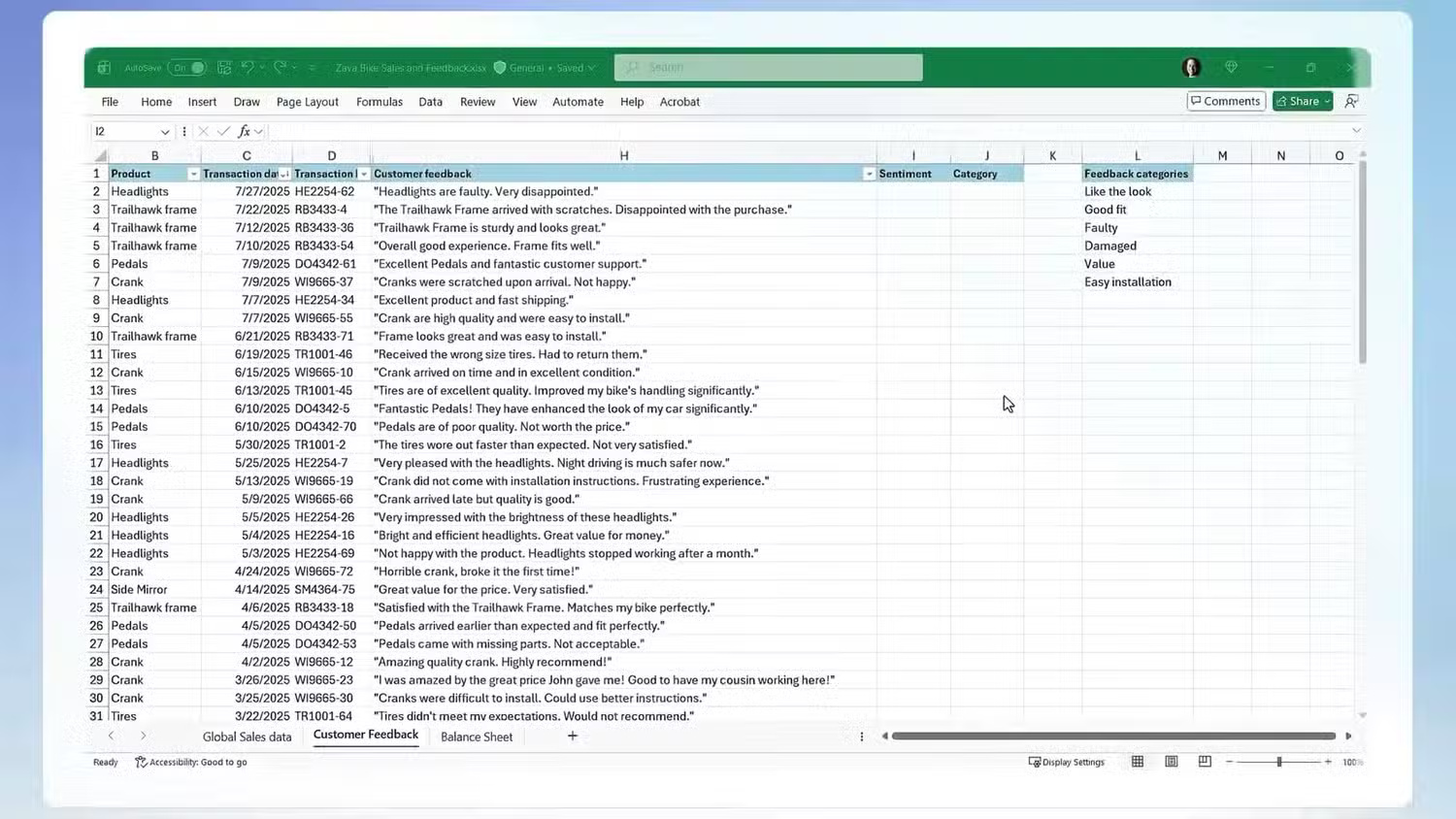
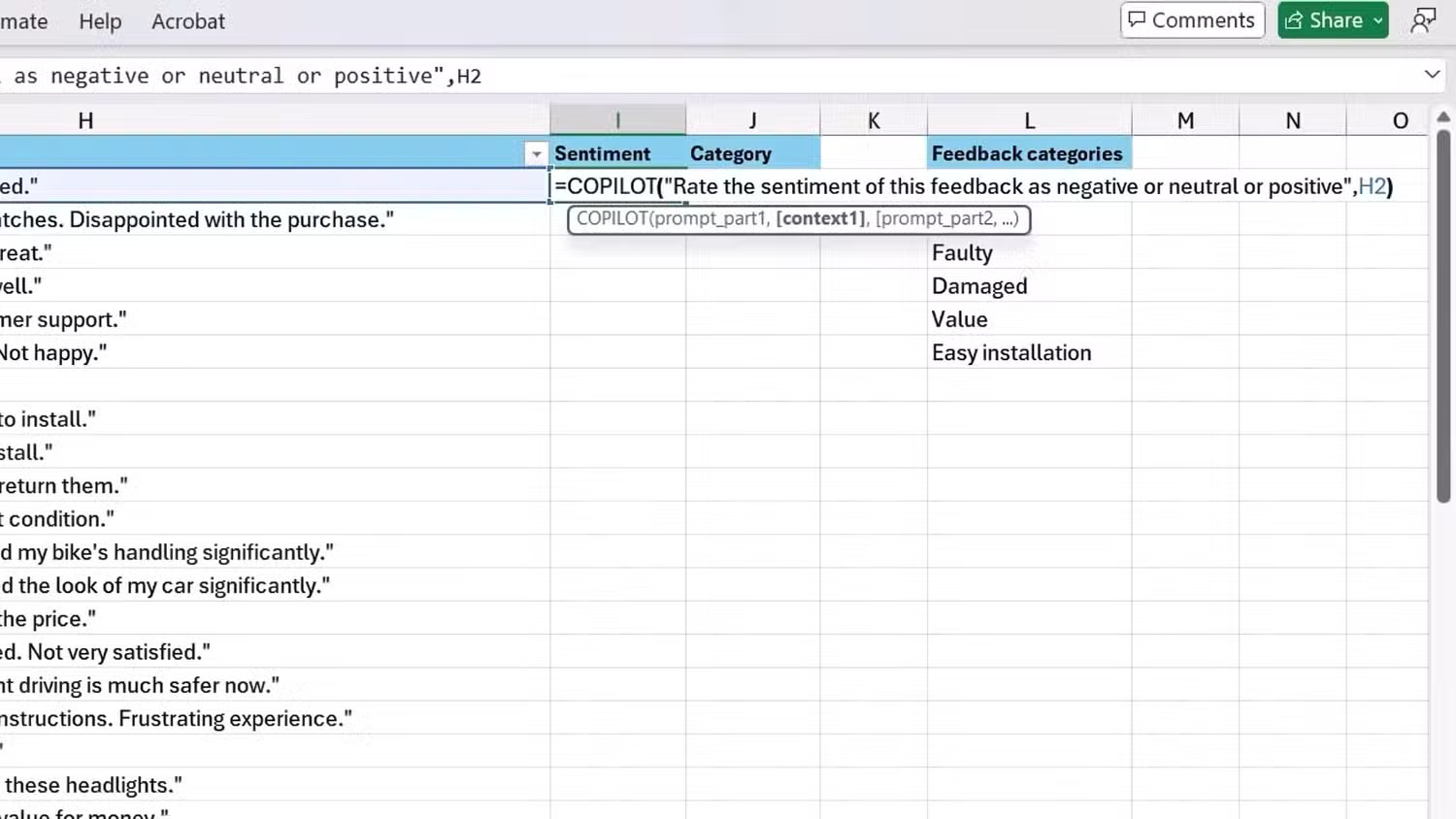
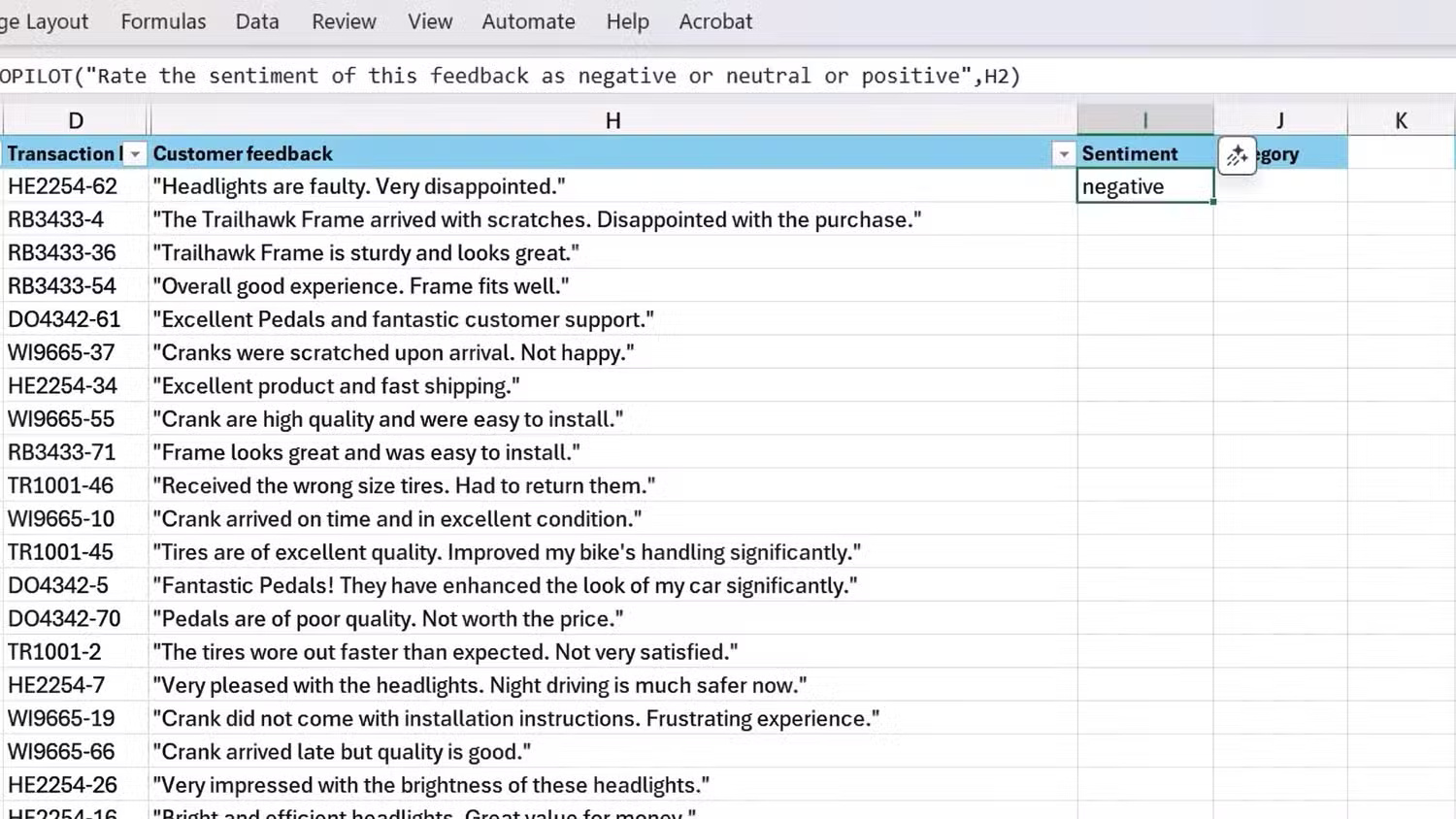
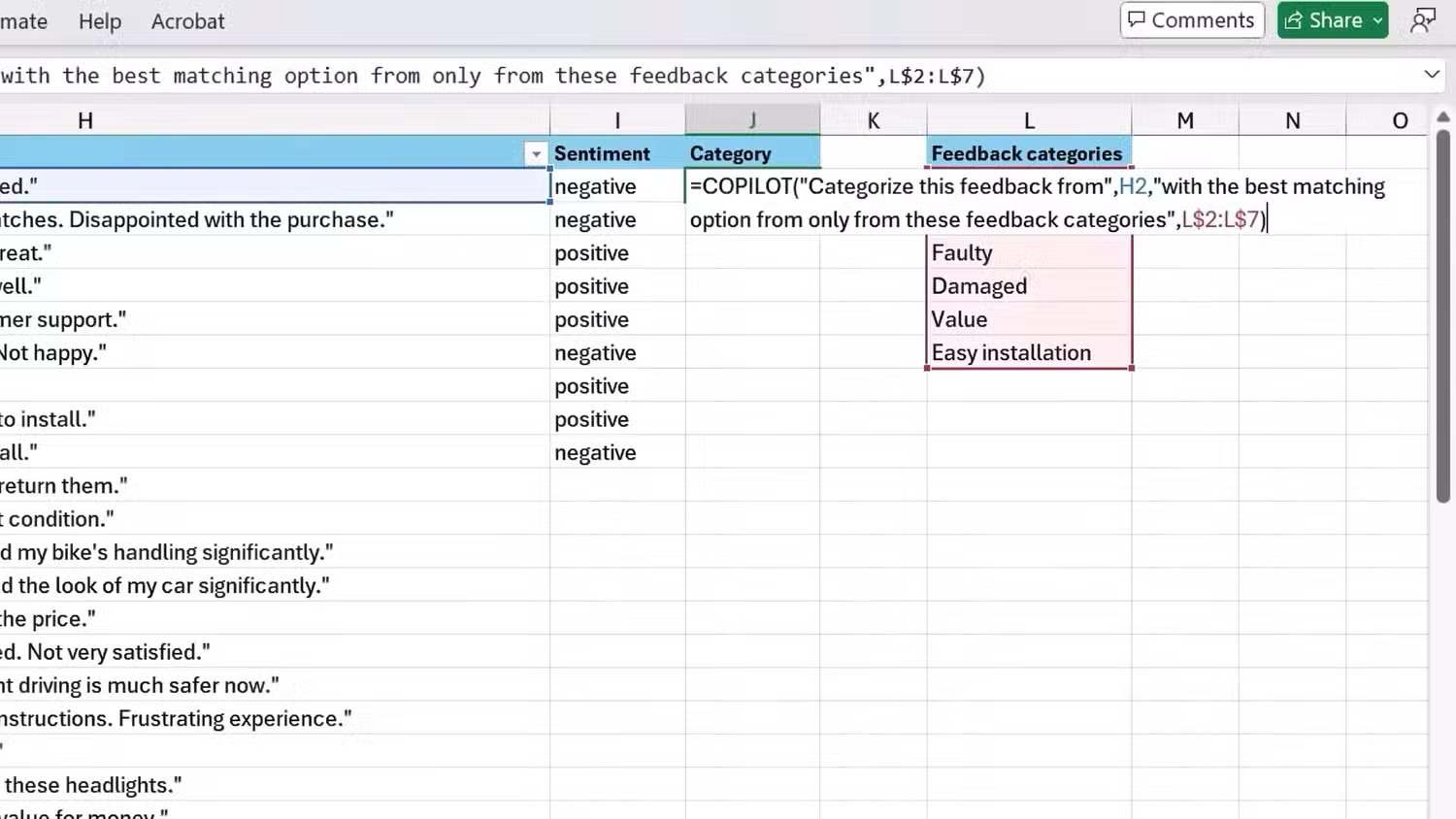
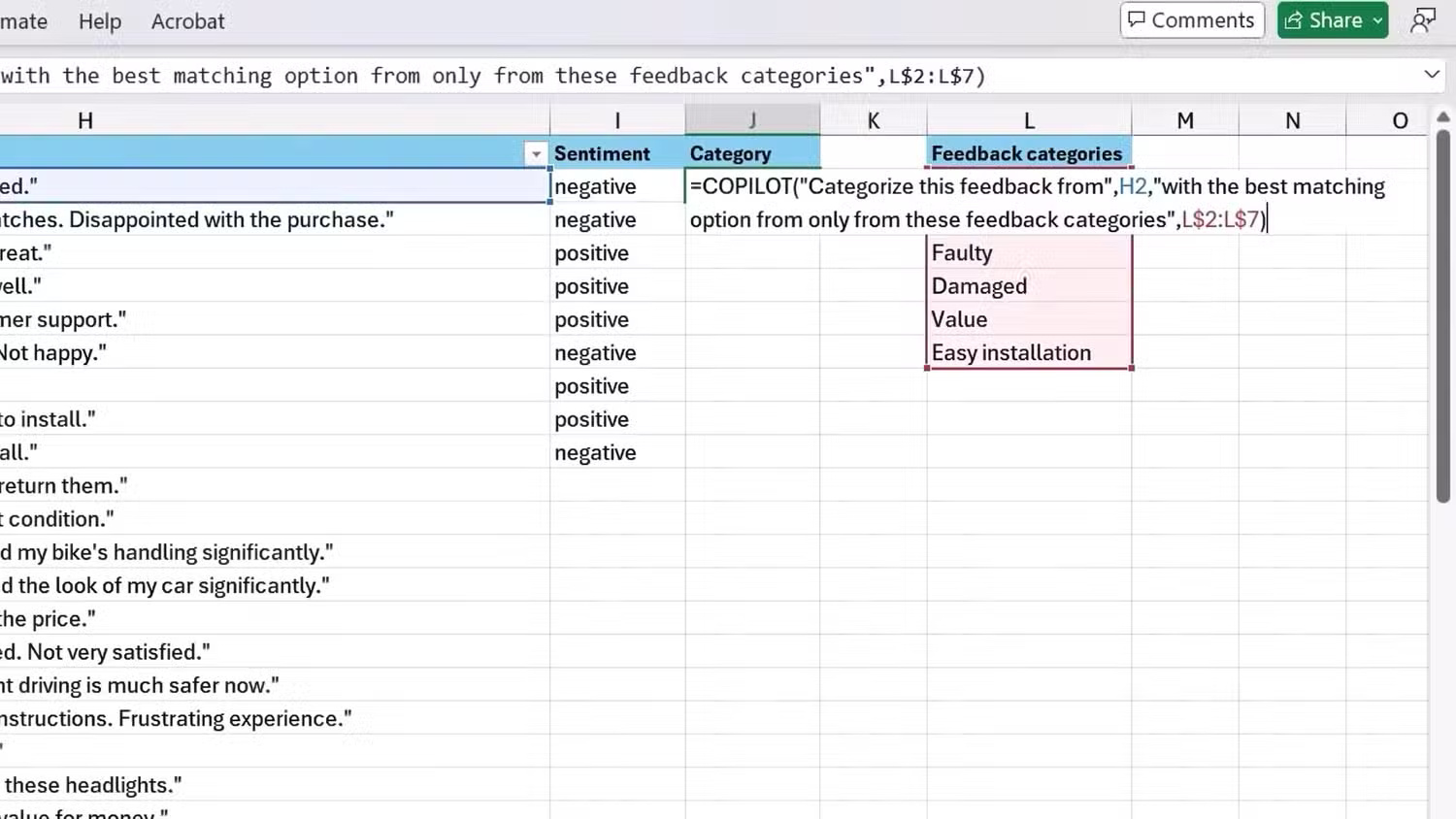
Inspect the cell references, copy behavior, error handling, locale separators, filters, and sample results. Recalculate a few rows manually. Do not rely on Copilot alone for financial, legal, scientific, or safety-critical decisions. Microsoft's current Excel Copilot guide lists supported workbook actions.
4. Improve an Outlook draft before sending
Coaching by Copilot reviews a draft for tone, clarity, and reader sentiment. It is useful for spotting an abrupt opening, a buried request, or an unclear deadline.
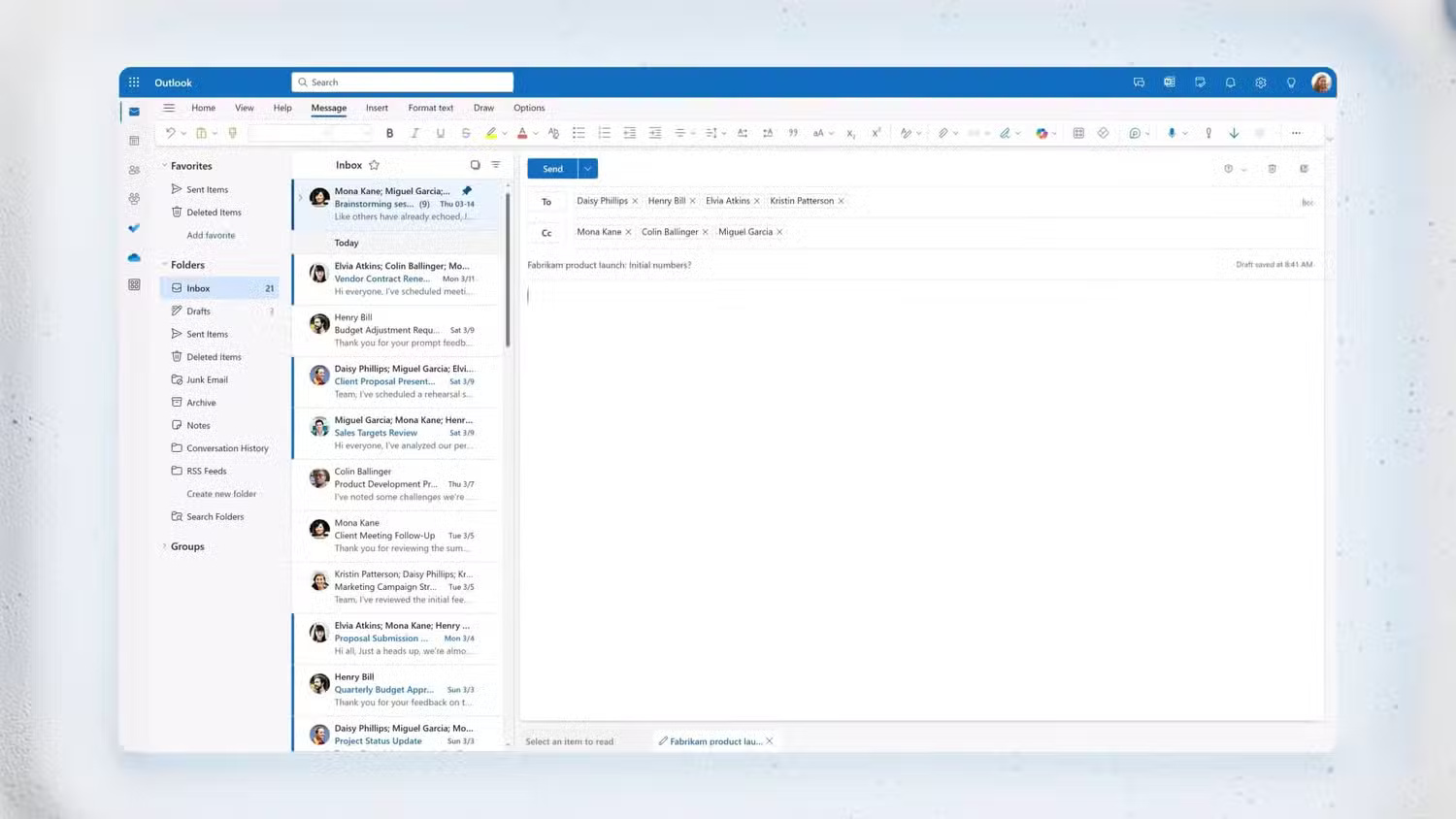
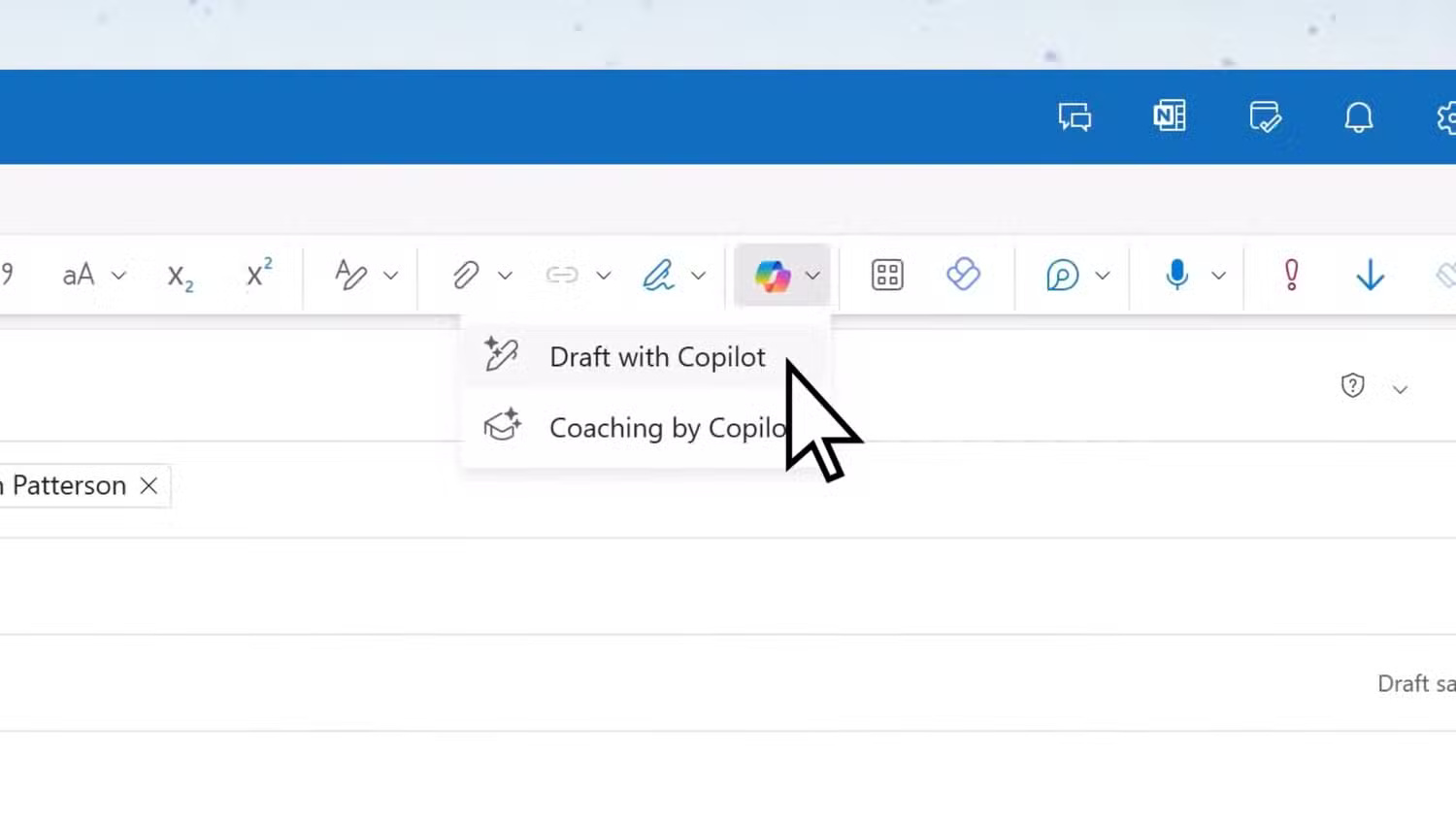
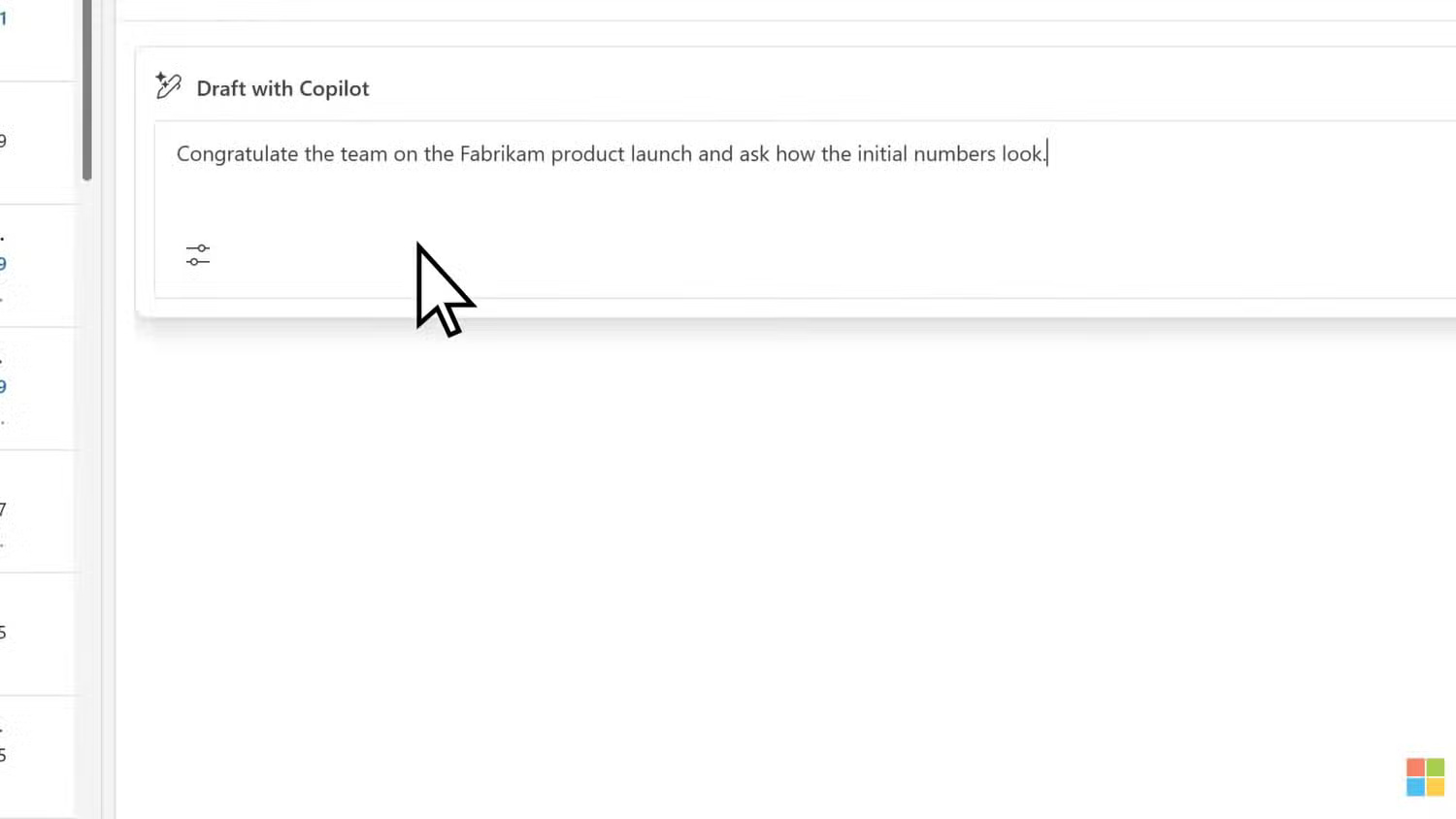
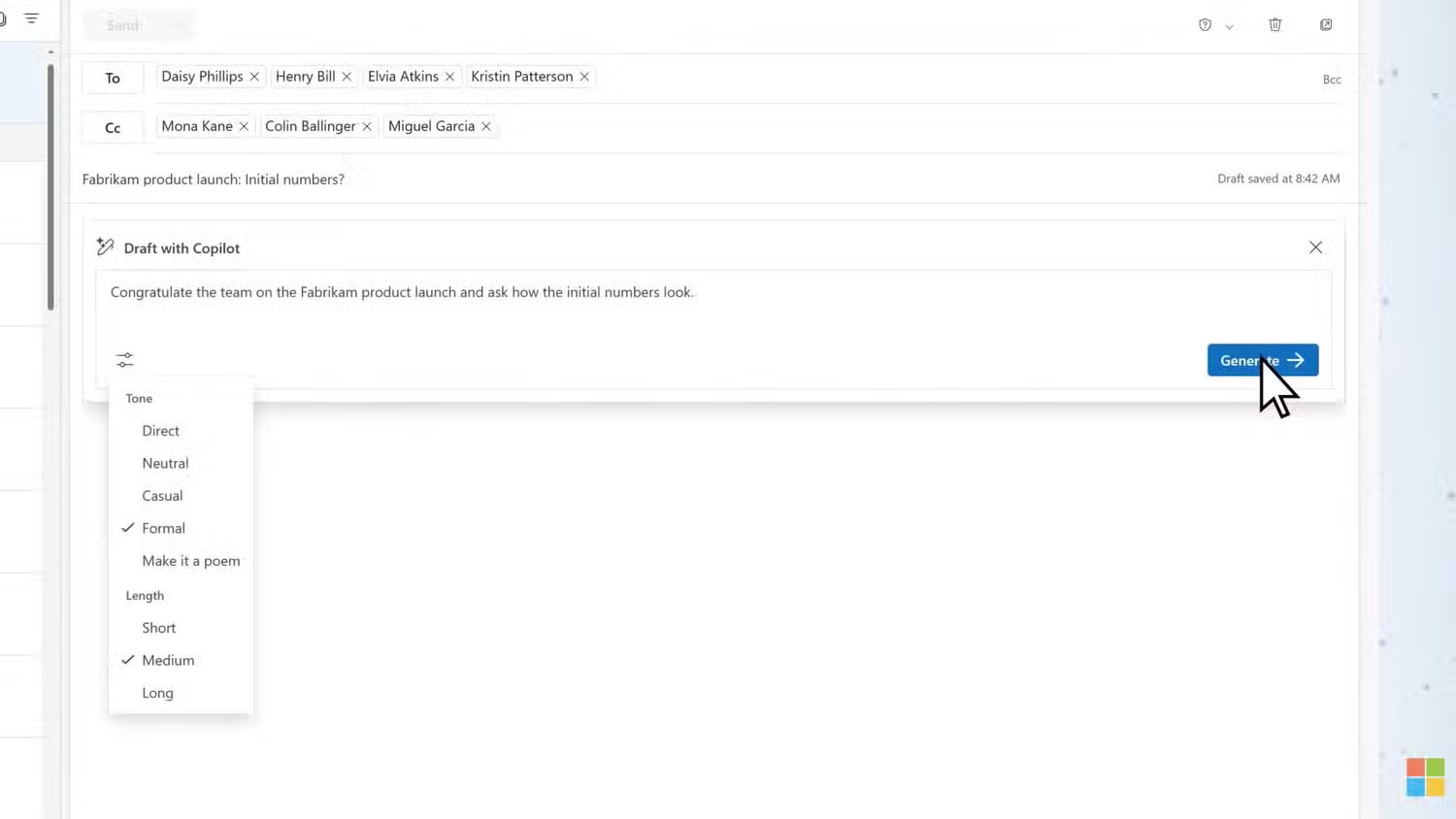
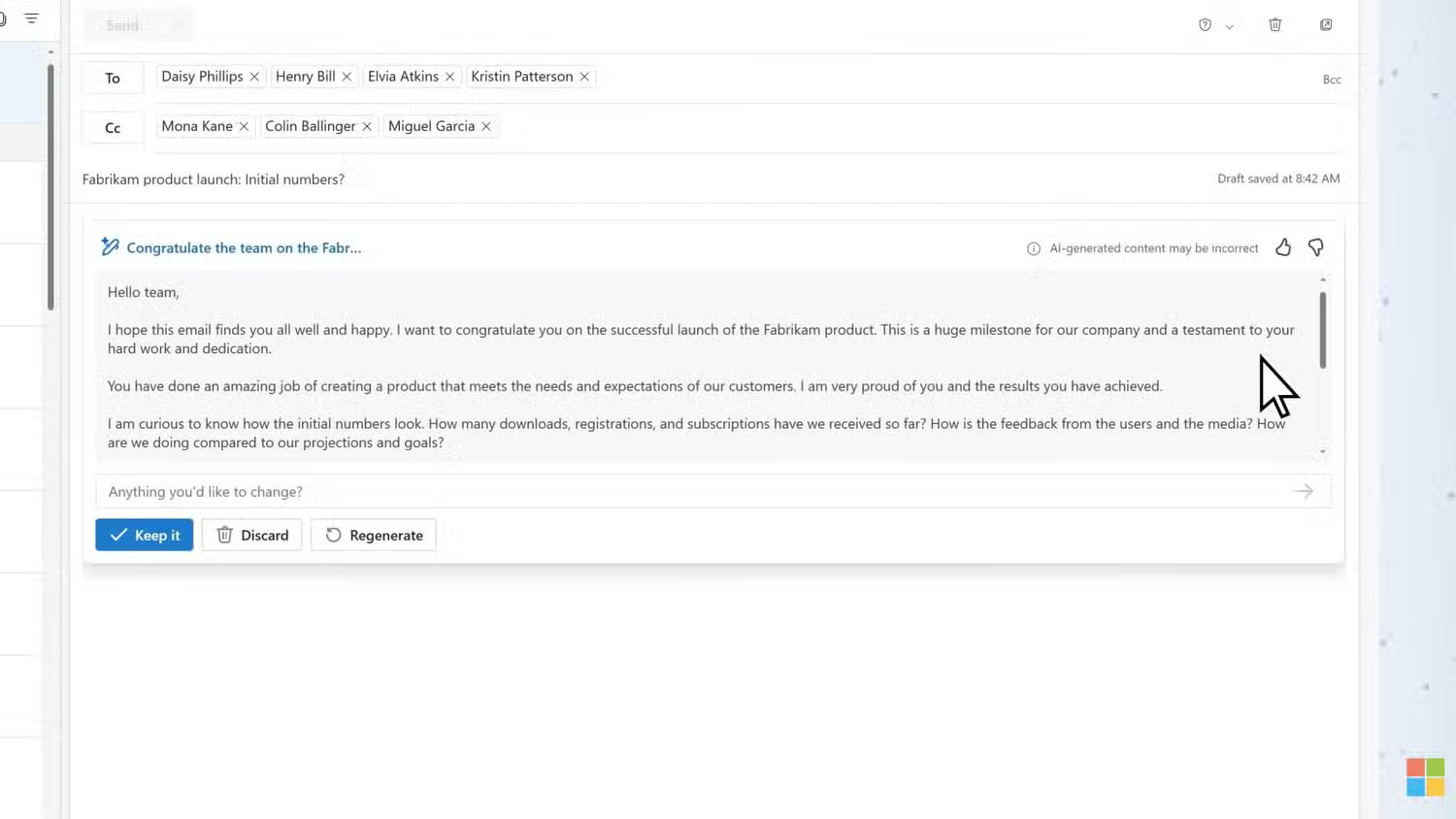
Apply suggestions selectively. Confirm names, dates, commitments, attachments, recipients, and confidentiality before sending. An AI rewrite can sound polished while changing the level of certainty or promising work you did not authorize. Microsoft's Outlook coaching guide covers the supported apps.
5. Summarize a file or work thread with explicit references
In Copilot Chat, reference a specific permitted file, email thread, meeting, or chat rather than asking a broad question with ambiguous scope. Request a structured result with citations:
Summarize the referenced document for a project manager.
Separate:
1. confirmed decisions;
2. open questions;
3. actions with named owners and dates;
4. risks or dependencies.
Cite the source location for every item. Do not infer an owner or deadline.
Open the references and check the original context. Summaries can omit exceptions, tables, footnotes, or later corrections. For PDFs or web pages in Edge, feature availability and accessible page context depend on the current Copilot experience, permissions, and document restrictions.
Before deciding whether Copilot is useful
- Confirm which Copilot product and license your account actually has.
- Check whether the relevant Microsoft 365 app and file type are supported.
- Understand what organizational data Copilot is permitted to access.
- Use representative tasks and measure time saved after review and correction.
- Do not count a fast first draft as a benefit if verification takes longer than doing the work directly.
Copilot is compelling when it reduces navigation and first-draft work while keeping the user in control. Its value comes from a verified workflow, not from treating its output as final.
Related Articles
 Don't Miss These 8 Little-known Features of Microsoft Copilot9 minutes read
 These Major Updates Enable Users to Utilize Copilot for Research and Analysis5 minutes read
 Microsoft Upgrades Copilot with a Series of New Features: from Bing4 minutes read
 Copilot Cannot Be Successful If Microsoft Cannot Convince Windows6 minutes read
 What Are Copilot Labs: Clear Explanation5 minutes read
 Do Not Worry! Copilot+ PC Does Not Make Windows 11 Systems6 minutes read
Reader Comments 0
Sign in with email or Google to join the discussion.