Table of Contents
UltraDefrag can analyze and consolidate fragmented files on a mechanical hard disk drive (HDD). It should not be used as a general cure for freezes or slow storage: those symptoms may indicate low free space, background activity, or a failing drive. Back up important data before intensive disk maintenance.

Check whether the drive is an HDD or SSD
Search Windows for Defragment and Optimize Drives and check the Media type column. Traditional defragmentation is intended for HDDs. Windows normally optimizes SSDs with TRIM and other storage-aware operations; do not force a full third-party defragmentation pass on an SSD.
For most PCs, Windows' scheduled Optimize Drives task is sufficient. UltraDefrag is mainly useful when you specifically want its analysis, file filters, or manual HDD controls.
Analyze the HDD in UltraDefrag
- Install UltraDefrag from its official site and close applications that are writing large amounts of data.
- Select only the HDD volume you intend to check. Do not select recovery, EFI, or unfamiliar system partitions.
- Choose Action > Analyze or the analysis icon. Analysis reports the layout; it does not require choosing an optimization mode.
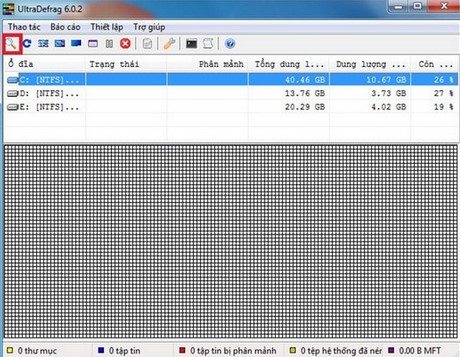
The screenshots in this article show an older UltraDefrag interface. Names and locations can differ in current editions, so consult the documentation bundled with the installed version before starting a boot-time or full optimization.
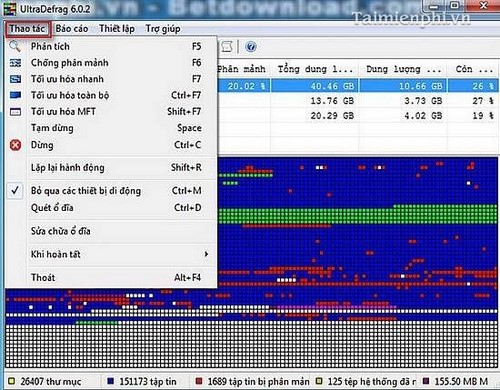
Choose the least intensive useful action
- Defragment: consolidates fragmented files on an HDD and is the normal manual choice.
- Quick optimization: rearranges some files with a shorter run time, depending on the edition.
- Full optimization: performs more data movement and can take much longer. Use it only for a specific HDD need, with a current backup and reliable power.
Do not interrupt the PC by disconnecting power. On a laptop, connect the charger. The utility may allow cancellation, but any unusual noise, disconnects, I/O errors, or health warnings are reasons to stop and check the drive rather than continue optimizing it.
Verify the result—and the drive's health
Run Analyze again after the job. A lower fragmentation percentage can confirm that files were consolidated, but it does not prove the drive is healthy or guarantee a noticeable speed increase.
If Windows freezes, files become corrupt, or the disk reports errors, back up first and use the manufacturer's diagnostic tool. TipsMake also explains how to check drive health in Windows.
When not to defragment
- The volume is an SSD or flash drive.
- The drive is clicking, disconnecting, reporting SMART warnings, or showing bad sectors.
- The file system is damaged or the volume is nearly full.
- The volume is encrypted or managed by an organization and its policy is unknown.
For a comparison of Windows' built-in tool and other utilities, see hard-drive defragmentation options. Defragmentation cannot repair physical damage, recover lost data, or compensate for insufficient RAM.
Related Articles
 When and How to Defragment Hard Drives on Windows 10?4 minutes read
 Defragment the Hard Drive with Disk Defragment2 minutes read
 These Quality Hard Drive Defragmentation Software7 minutes read
 How to Defragment the Windows 10 Hard Drive4 minutes read
 Why Doesn't Mac Hard Drive Need to Defragment?4 minutes read
 Why You Really Shouldn't Defragment Your SSD: Key Reasons Explained7 minutes read
Reader Comments 0
Sign in with email or Google to join the discussion.