What you will learn
- Explain what MFA adds and what it does not prevent.
- Choose among passkeys, security keys, authenticator apps and SMS.
- Register MFA only from an official account page.
- Store and test recovery methods without invalidating the active session.
What you need
- The account password and access to its official security settings.
- A second device, passkey-capable device, authenticator app or security key.
Compare authentication methods honestly
CISA recommends phishing-resistant MFA where possible and ranks security keys above authenticator codes and text or email codes for common deployments.
NIST explains that manually entered one-time codes are not phishing-resistant because an impostor site can relay them. Cryptographic authenticators such as FIDO-based passkeys can bind authentication to the verifier.
Any MFA is generally better than password-only access, but an unexpected prompt is evidence of a possible attack. Never approve a request merely to make repeated notifications stop.
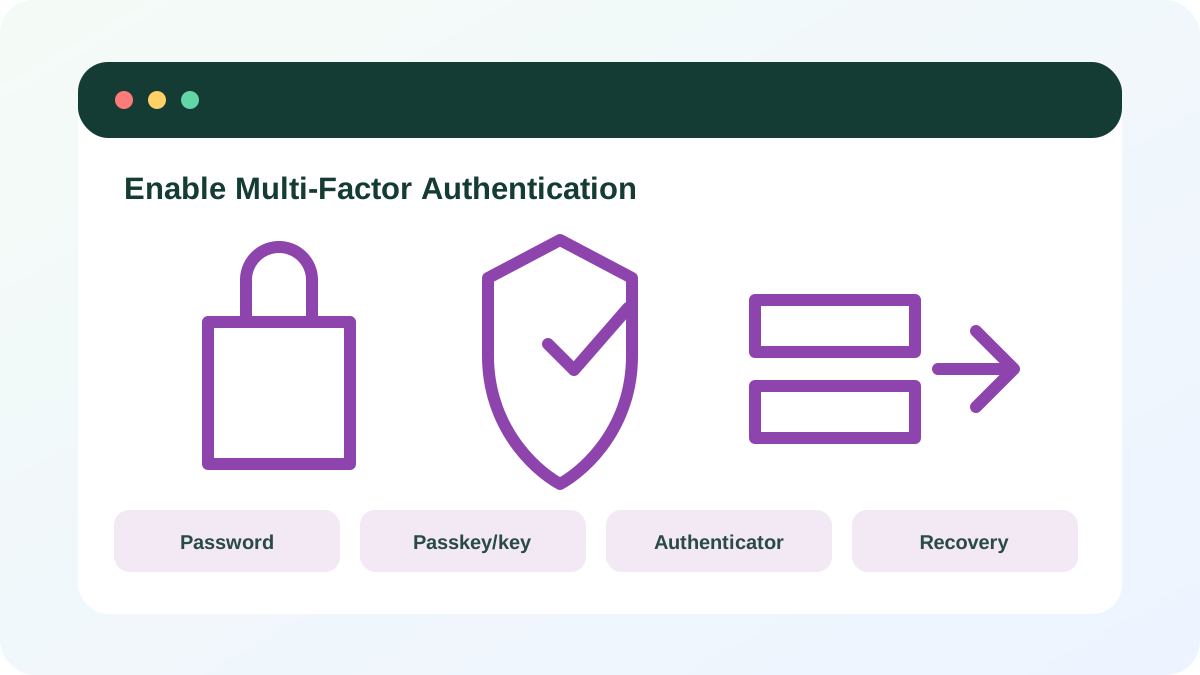
Choose the strongest practical option
Use a passkey or FIDO security key for high-value accounts when the service supports it and you can register a backup. Authenticator number matching is preferable to a simple approve/deny push. Time-based codes are broadly available but must not be typed into sites reached through suspicious links. SMS remains useful when stronger methods are unavailable, but the mobile account and carrier PIN also need protection.
- 1
List the factors offered by the service.
- 2
Prefer passkey or security key with a backup key or trusted device.
- 3
Otherwise choose number matching or an authenticator code.
- 4
Use SMS only when stronger methods are unavailable.
- 5
Avoid email as the sole second factor when the same mailbox controls account recovery.
Enable MFA from the official service
Menu names vary, but the safe sequence is stable. Begin from the official application, a saved bookmark or an address you type yourself. Do not scan a QR code from an unsolicited message or support chat.
- 1
Open Account, Security or Sign-in settings.
- 2
Confirm the password if requested.
- 3
Choose MFA, two-step verification, passkeys or security keys.
- 4
Register the primary factor and complete its verification.
- 5
Generate and save recovery codes before leaving the page.
- 6
Add a backup factor stored separately from the primary device.
- 7
Review trusted devices and active sessions.
Test the new factor without locking yourself out
Keep the original signed-in window open while you test a separate private window or second browser. This leaves a safe route back to settings if the new factor fails. If the service generates replacement recovery codes, securely destroy the old set because it may no longer work.
- 1
Start a new sign-in in a private window.
- 2
Confirm the correct factor prompt appears.
- 3
Reject any unrelated prompt that arrives during the test.
- 4
Test a backup factor if the service allows it safely.
- 5
Confirm recovery codes are stored outside the primary phone.
- New logins require the expected factor.
- At least one backup method exists.
- Recovery materials are accessible if the primary device is lost.
- You know how to report an unexpected prompt.
Protect one high-value account
Start with primary email, financial services, password manager or cloud storage.
- 1
Navigate to the official security page.
- 2
Choose the strongest supported factor.
- 3
Register and verify it.
- 4
Store recovery codes separately.
- 5
Test a second-browser sign-in.
- 6
Review sessions and remove any device you no longer use.
Common mistakes to avoid
- Approving an MFA prompt you did not initiate.
- Saving recovery codes only on the authenticator phone.
- Scanning a QR code after following an unexpected link.
- Removing the old factor before the new one is verified.
Key takeaways
- MFA methods differ in phishing resistance.
- Recovery is part of setup.
- Unexpected prompts require investigation, not approval.
Frequently asked questions
Is SMS MFA useless?
No. It is weaker than phishing-resistant methods but still adds protection over a password alone when stronger methods are unavailable.
What if I receive repeated login prompts?
Deny them, change the password through the official service, review sessions and verify that recovery information has not changed.
Sources and further reading
Ready to continue?
Mark the lesson complete so your Learning Path progress stays current on this device.