Table of Contents
This guide covers checking steps when buying an old laptop with practical context and easy-to-follow details. Use it to understand the subject and apply the information confidently.
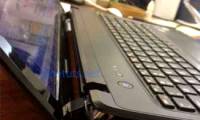
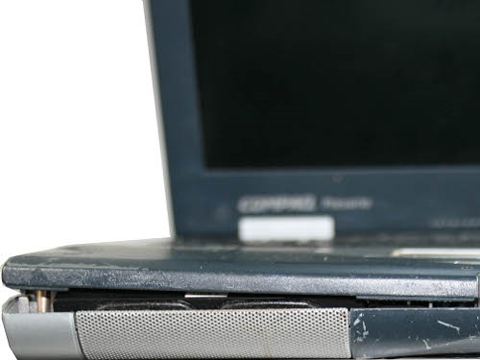 Cracks or gaps will reveal more or less about machine condition Photo: Cnet .
Ignoring scratches or colors is no longer beautiful because these are very unavoidable when used, but you must pay attention to cracks or joints that don't fit, as that may reveal that the product This has been broken. This also means that the details inside can be affected by impact. If you are not really knowledgeable or knowledgeable, it is best to refuse to buy these machines. In addition, the loose of the connection ports (USB, VGA, HDMI. ), the manufacturer's or the store's warranty stamps are not sold intact, such as tearing or tearing, no longer full of screws Rusted screws or screws and signs of opening are also signs of concern. Warranty status
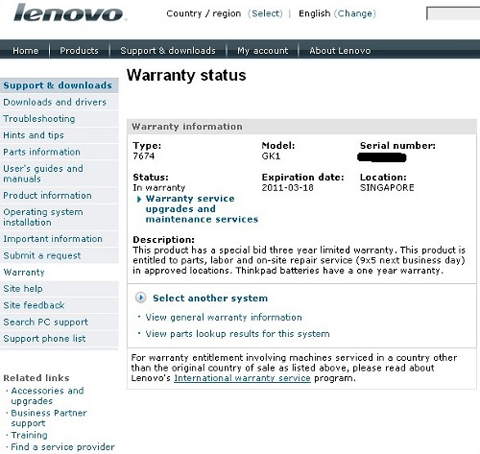 The manufacturer's warranty or at least that of the seller is one The most important thing Photo: Cnet .
Ideally, purchase machines with a manufacturer's warranty (or sales agent) warranty and require the buyer to obtain all relevant documents regarding the regime. Along with that is check the code of the machine on the official website of the company to make sure about the warranty period and some other basic information of the machine. In the other case, try to claim the rights of the seller by forcing them to warrant for the product to be sold (at least 7 days) and have a full legal record. If the seller does not agree to warranty, it is best to remove the device from the head. Check the configuration
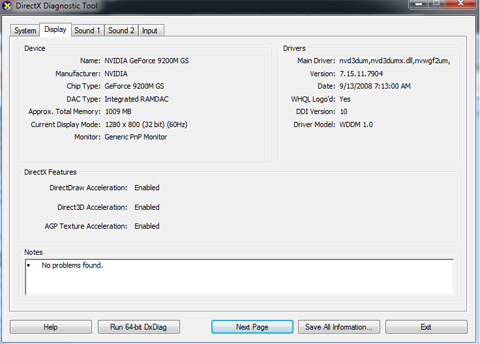 Please check the configuration of the machine carefully before buying Screen shot .
This is a simple but crucial step. Buyers need to check the basic parameters to evaluate the value of the machine currently with how much loss is. Right-select My Computer and select Properties . The new window displays the operating system, processor and RAM information. Select My Computer and proceed to check the hard disk capacity (hard drives often do not reach the capacity as in the configuration sold because of the difference in the unit, for example, 250 GB drives usually only check on the device. Capacity of more than 230 GB).
Select Control Panel And select System And select the Hardware Tab, then select Manage Hardware . The left panel displays some information such as wireless network card and Bluetooth. Simultaneously pressing the " Windows " + R key , type " Dxdiag " into the open panel afterwards. In addition to the processor, RAM, the device also displays the parameters of the graphics chip and some other information. Ensure the connection ports and charging function are working
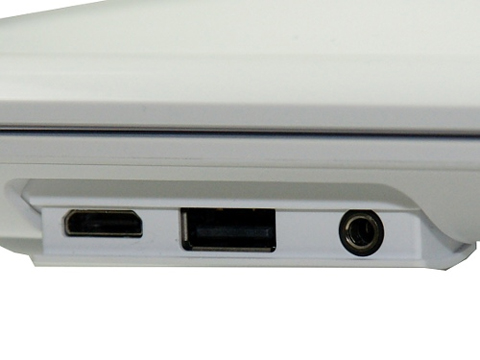 USB ports are most commonly used Photo: Cnet .
USB ports are most frequently used, so check them first. You should bring a USB and check each port to see if they work well. In addition, it is possible to lay the USB device to ensure that these ports are not loose when used. Carrying a PCMCIA card and other devices to check the rest is also a must. Last but not least, make sure that the adapter is still active and the battery is still rechargeable. Used machines will be very difficult to maintain good battery condition, so do not worry when they are not as manufacturer's notice. However, it is also necessary to double-check the battery life by downloading free software like BatteryCare for Windows to determine the number of charge times and the remaining time. For Macs, select Apps select Utilities, choose Systems Profiler for more information about battery life. Find dead pixels on the LCD screen
 Look carefully to detect dead spots on the LCD screen Photo: Cnet .
Dead spots on LCD screens are largely due to the manufacturing process, which usually does not change color until the machine is turned off. There are plenty of free software to check this screen for errors like Pixel Tester. The program displays monochrome images to easily check dead spots. Or if you don't bring the program, there is a simpler way to remove the entire icon on the screen, hide the taskbar and change the background to different colors. At that time, dead spots will be easier to spot. Most manufacturers and dealers do not warrant for this error, so if you decide to choose this product, the buyer should be sure whether it can "live" with them for a long time. In addition, it is also necessary to reduce costs from this seller error.
FAQ
What should I check before following these steps?
Confirm device and software compatibility, save important data, and make sure you have the required permissions, files, and account access.
Why might the process not work?
Common causes include outdated software, missing permissions, incompatible hardware, an unstable connection, or completing a step in the wrong order.
Can I undo the changes if necessary?
That depends on the tool or setting. Use built-in restore options when available, keep a backup, and record the original configuration first.
Related Articles
 How to Check Old Laptop, Test the Machine Before Buying12 minutes read
 Steps to Check Before Buying an Old Mac5 minutes read
 6 Questions to Ask Before Buying a New Laptop11 minutes read
 Instructions to Check the Old Laptop Before Buying11 minutes read
 Don't Buy a Cheap Laptop If It Doesn't Pass These Tests!7 minutes read
 How to Check HP Laptop Warranty Accurately3 minutes read
Reader Comments 0
Sign in with email or Google to join the discussion.