Table of Contents
Learning how to use Google TV isn't too complicated, but getting the most out of it takes a little exploration. Once you do, your viewing experience can become faster, smarter, and more personalized.
6. Install the app directly from your phone or PC
Like Android phones, Google TV has its own Play Store where you can browse and install new apps. However, using the TV remote to navigate menus and type searches is much less seamless than on a phone.
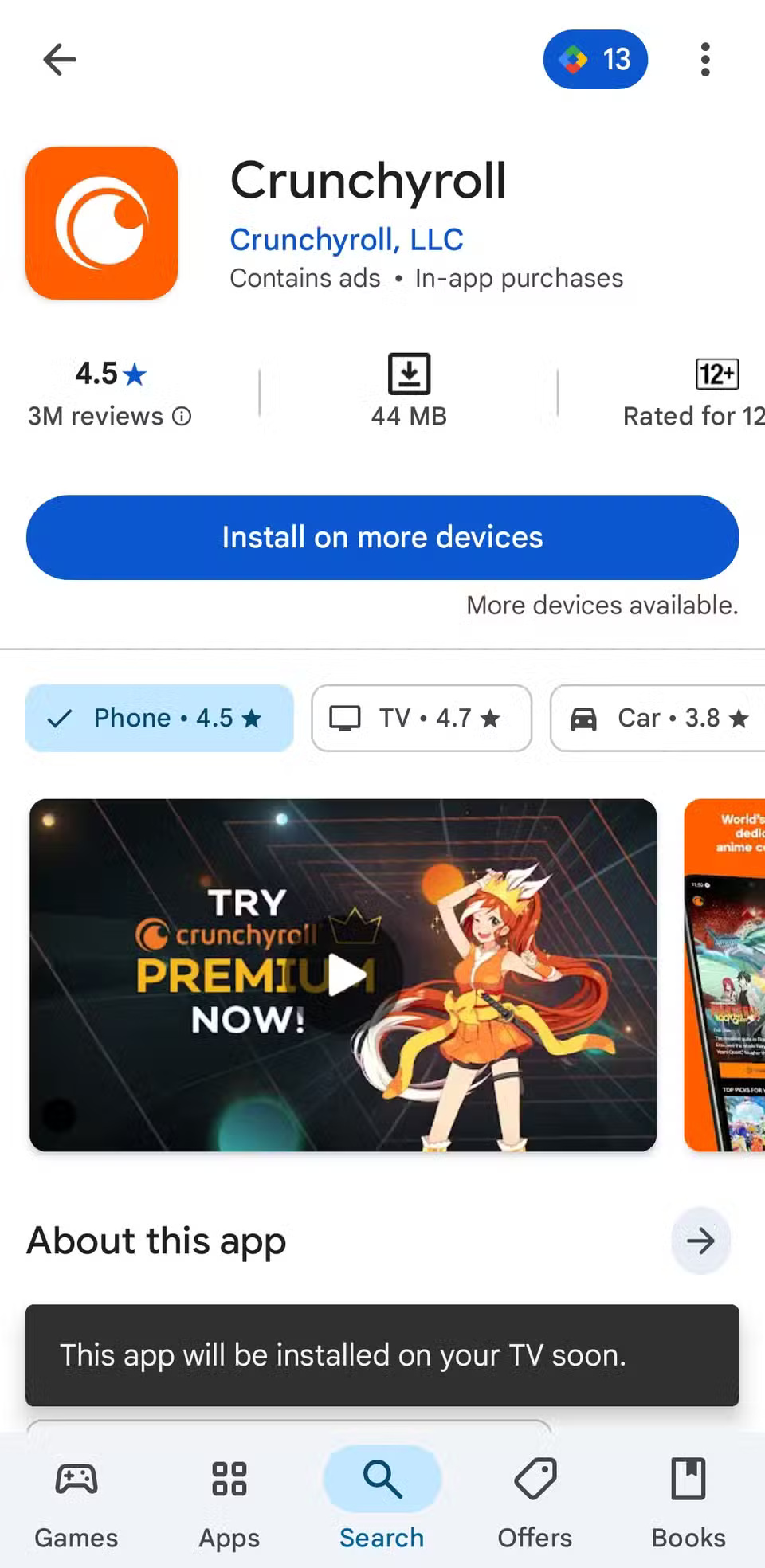
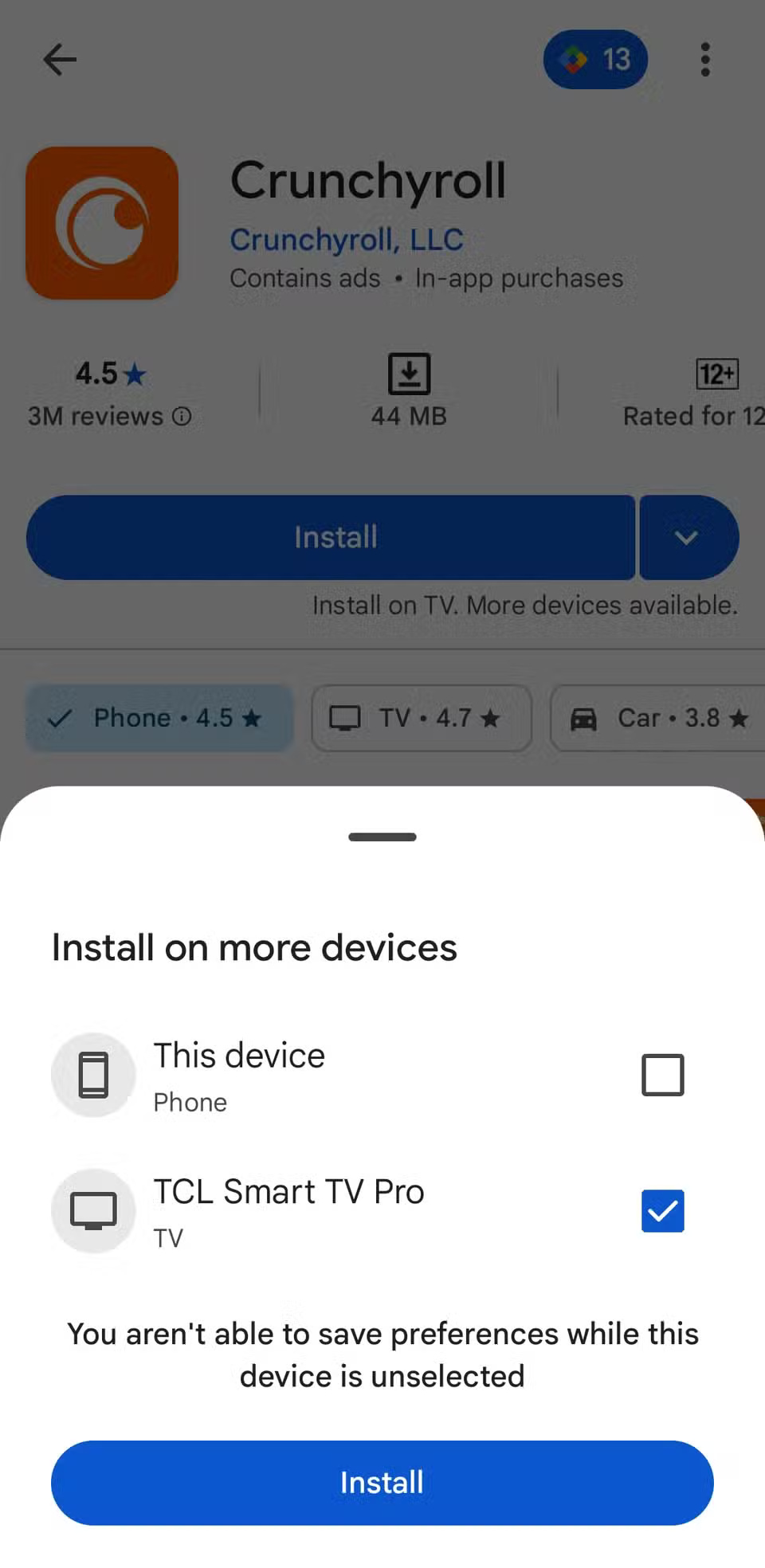
Also, if you've turned on Apps-only mode on Google TV to hide recommendations and simplify your home screen, the Play Store option won't appear. The good news is that you can use the Play Store on your Android phone or tablet to install apps directly on your TV.
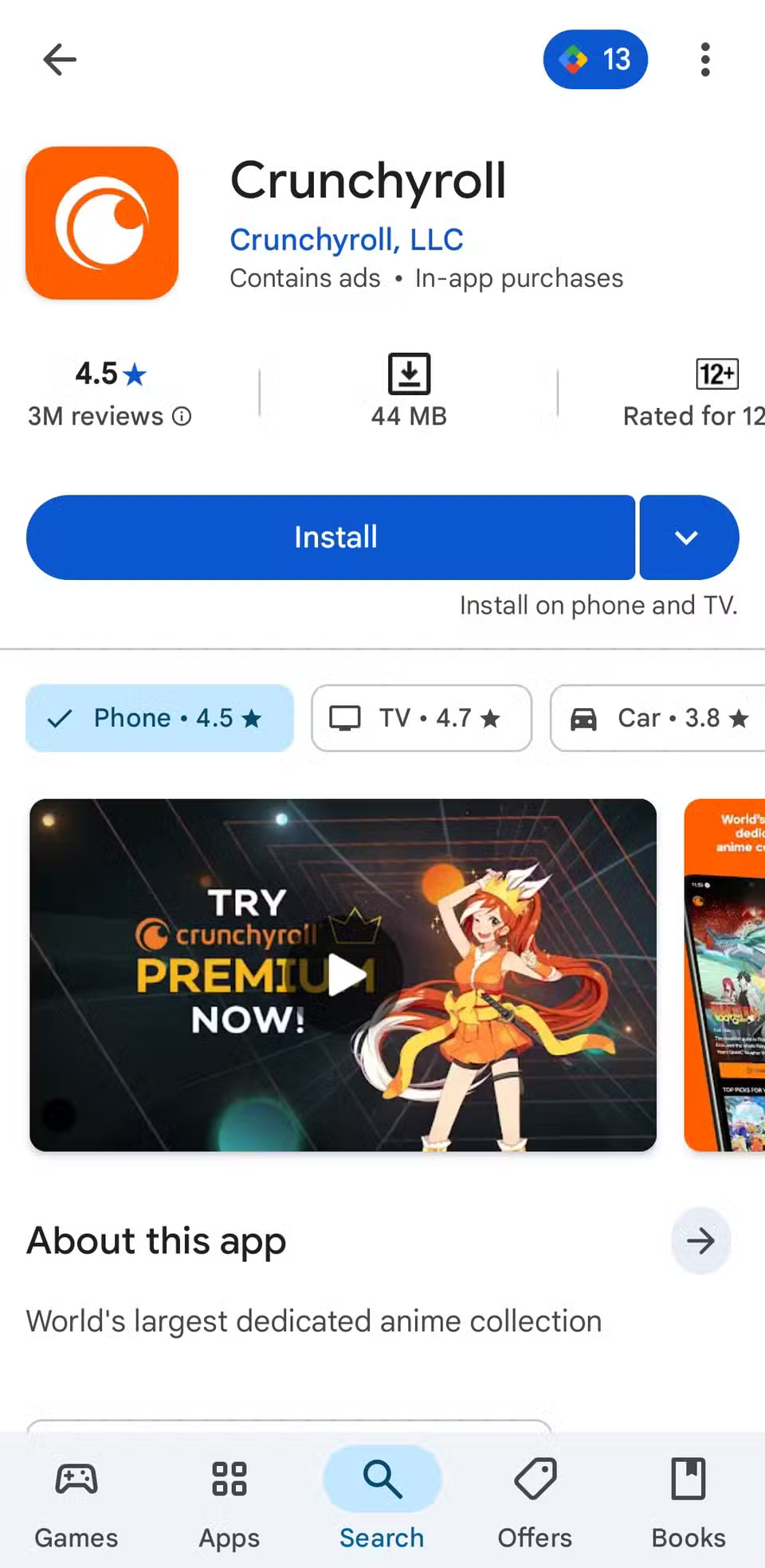
To get started, find the app you want to download. If it's available for your TV, tap the arrow next to the Install button. Then, select your TV and tap Install again. Make sure you're signed in to the same Google account on both devices for this to work.
5. Type faster with your phone's keyboard
Sometimes you may need to type something on your TV using the remote control, which can be a bit inconvenient. Sure, some apps like YouTube have voice search features, but sometimes you may need to manually enter a complicated login ID or password.
Once you connect your phone to the same Wi-Fi network as your TV and sign in with the same Google account, you can use your phone to control your TV. Whenever you're prompted to enter text, the app will automatically open your phone's keyboard.
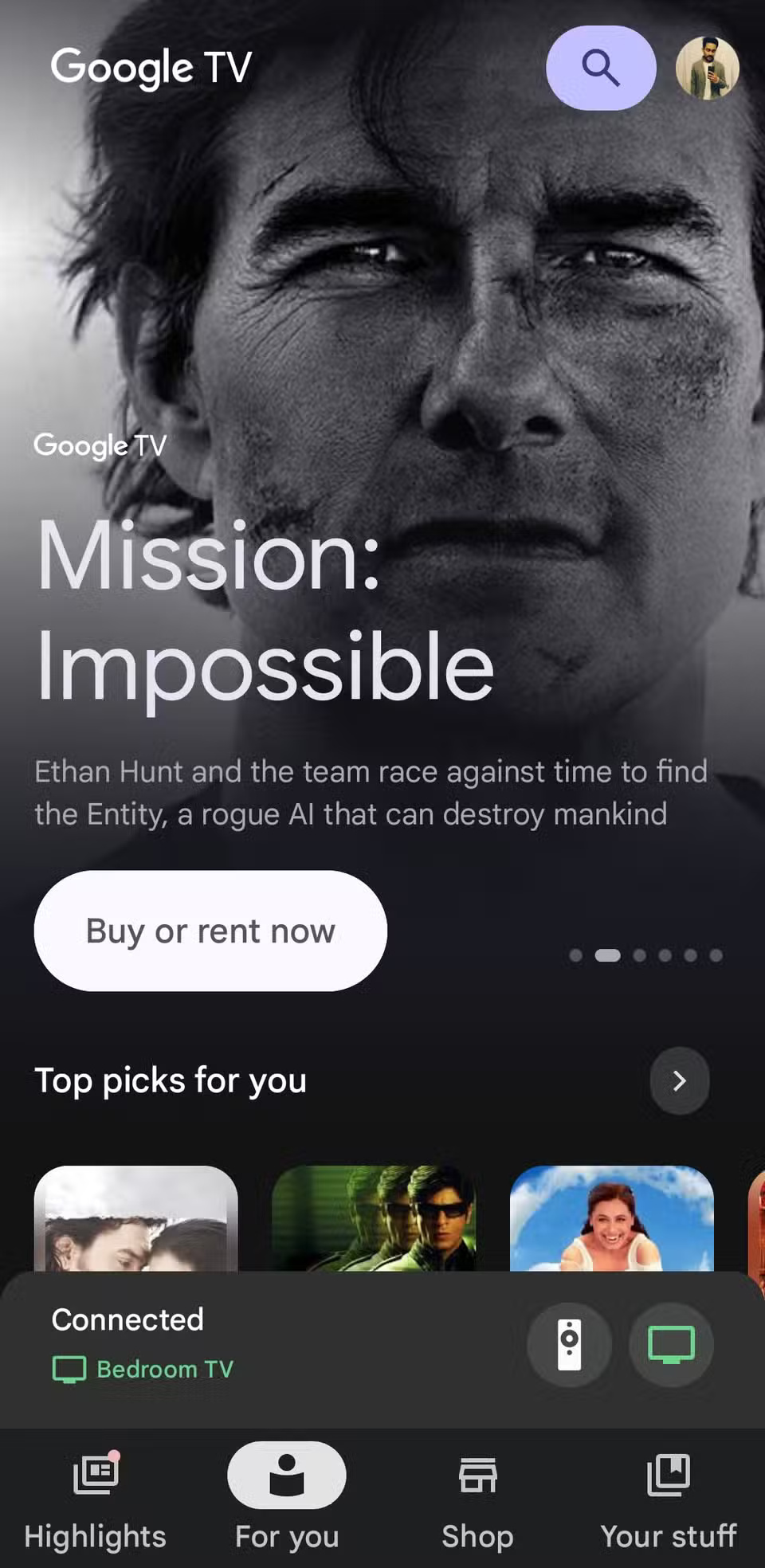
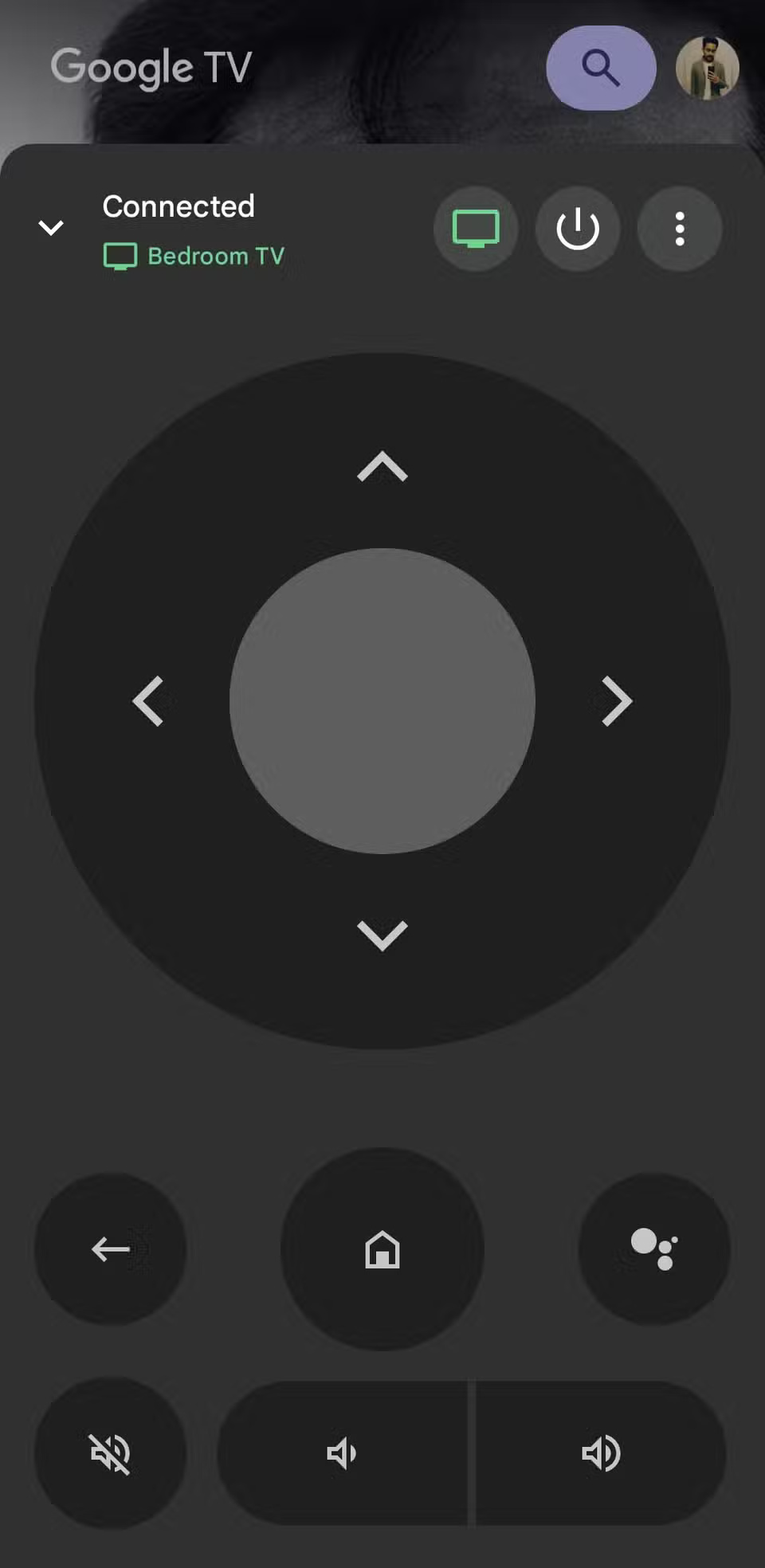
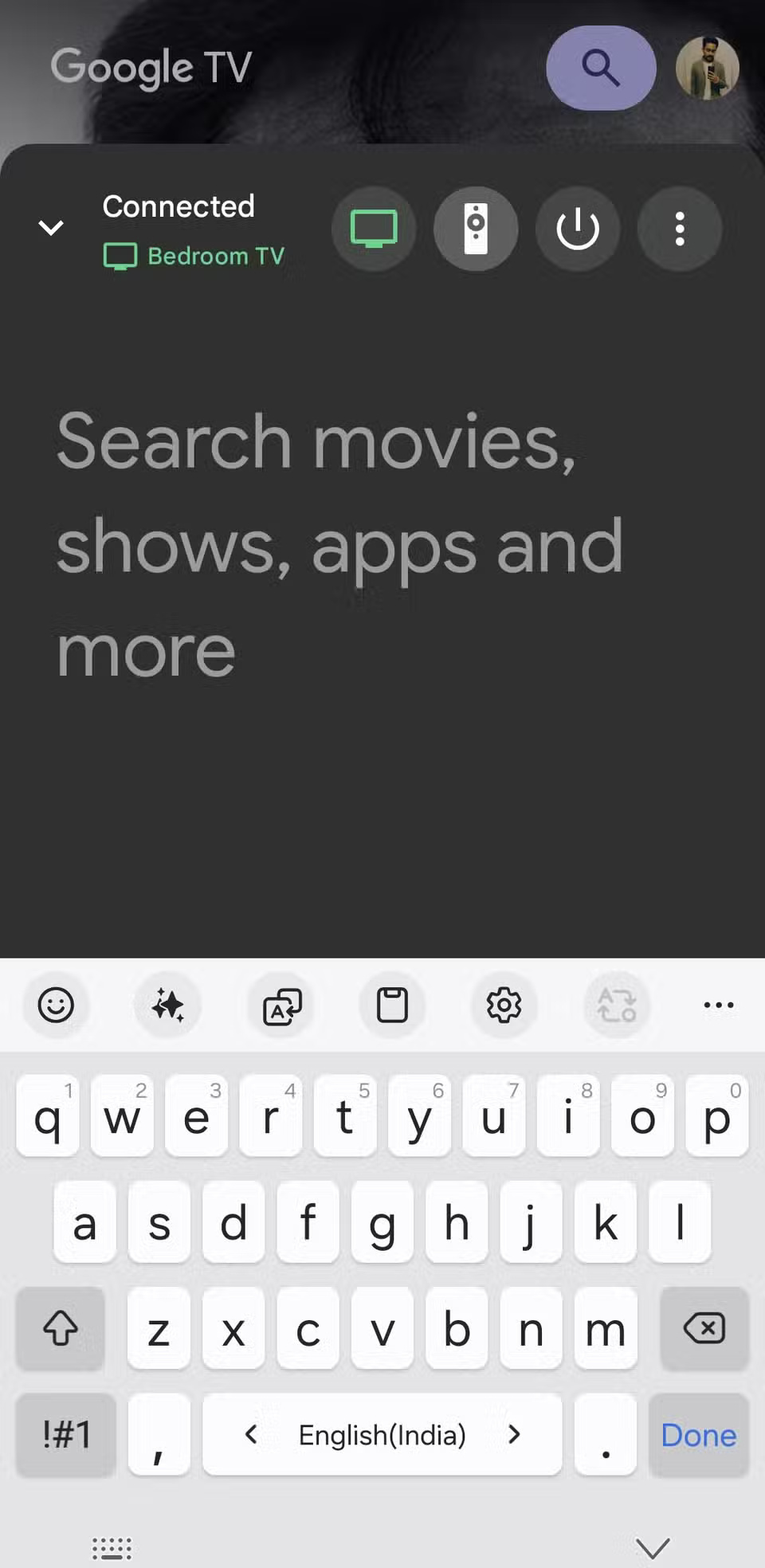
The app lets you type naturally, use predictive text, and even paste from the clipboard. This is especially useful when setting up a new streaming account or entering complex passwords.
4. Customize remote control buttons with Button Mapper
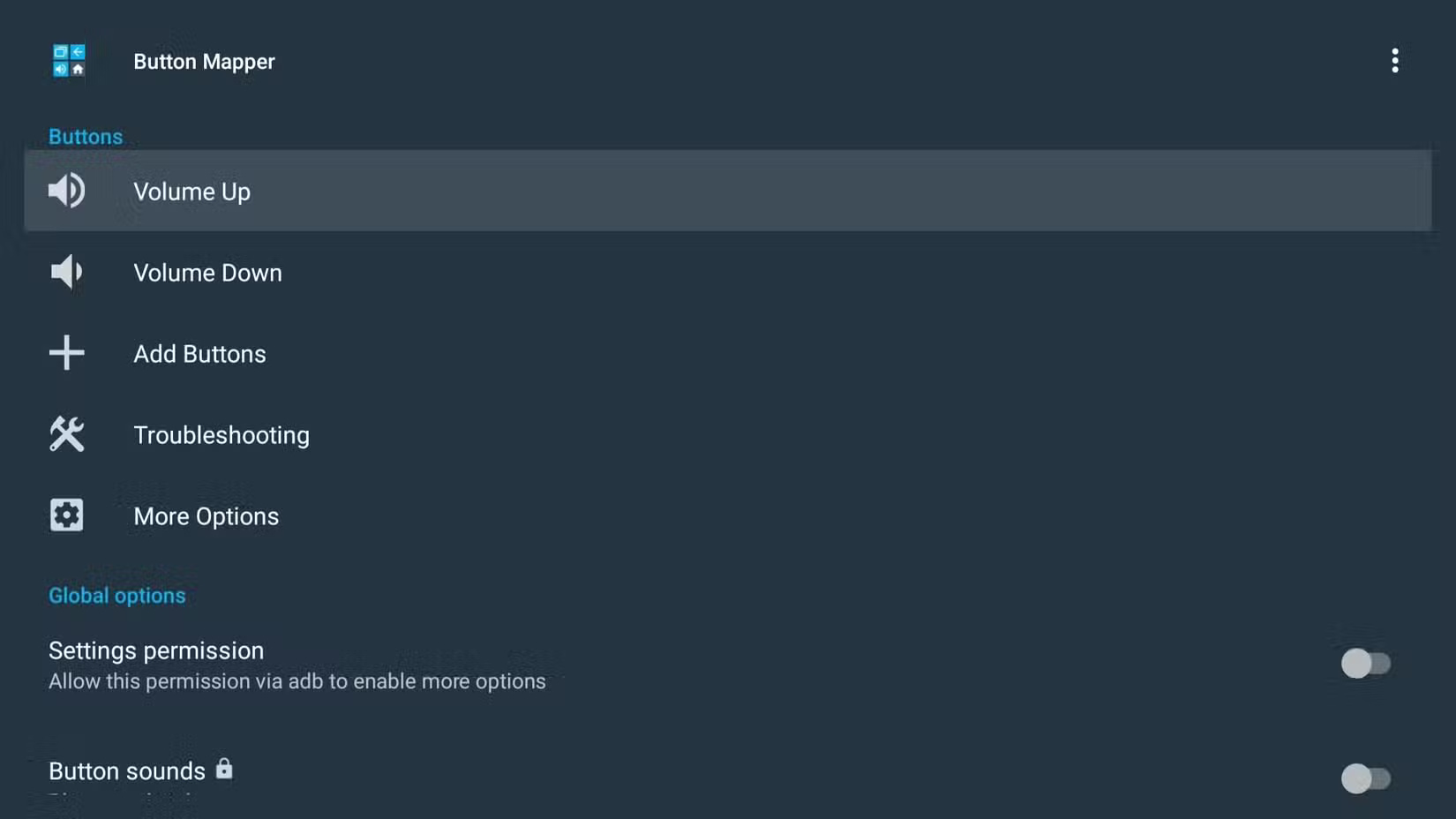
With Button Mapper, you can reconfigure buttons to open different apps or even assign actions to buttons like Home or Volume when you double-click or hold them.
- First, install the Button Mapper app on Google TV from the Play Store.
- Then, open the Settings menu on your Google TV and go to System > Accessibility .
- Find the Button Mapper app in the list, select it and press Enable .
Now, open the Button Mapper app and start remapping buttons on your remote. For example, you can set the Volume Down button to open Google Assistant when you hold it down, and configure it to launch your favorite app when you double-tap it.
3. Create and manage watchlists
Watchlists let you save movies, shows, and even YouTube videos to a personal list, easily accessible at any time. When it's time to relax, you won't have to endlessly scroll through recommendations - all your choices will be available in one place.
Adding content is simple. When browsing Google TV, select a title and tap the Watchlist button. If you've already watched something, tap Watched it to update your list. You can also manage your watchlist from the Google TV mobile app.
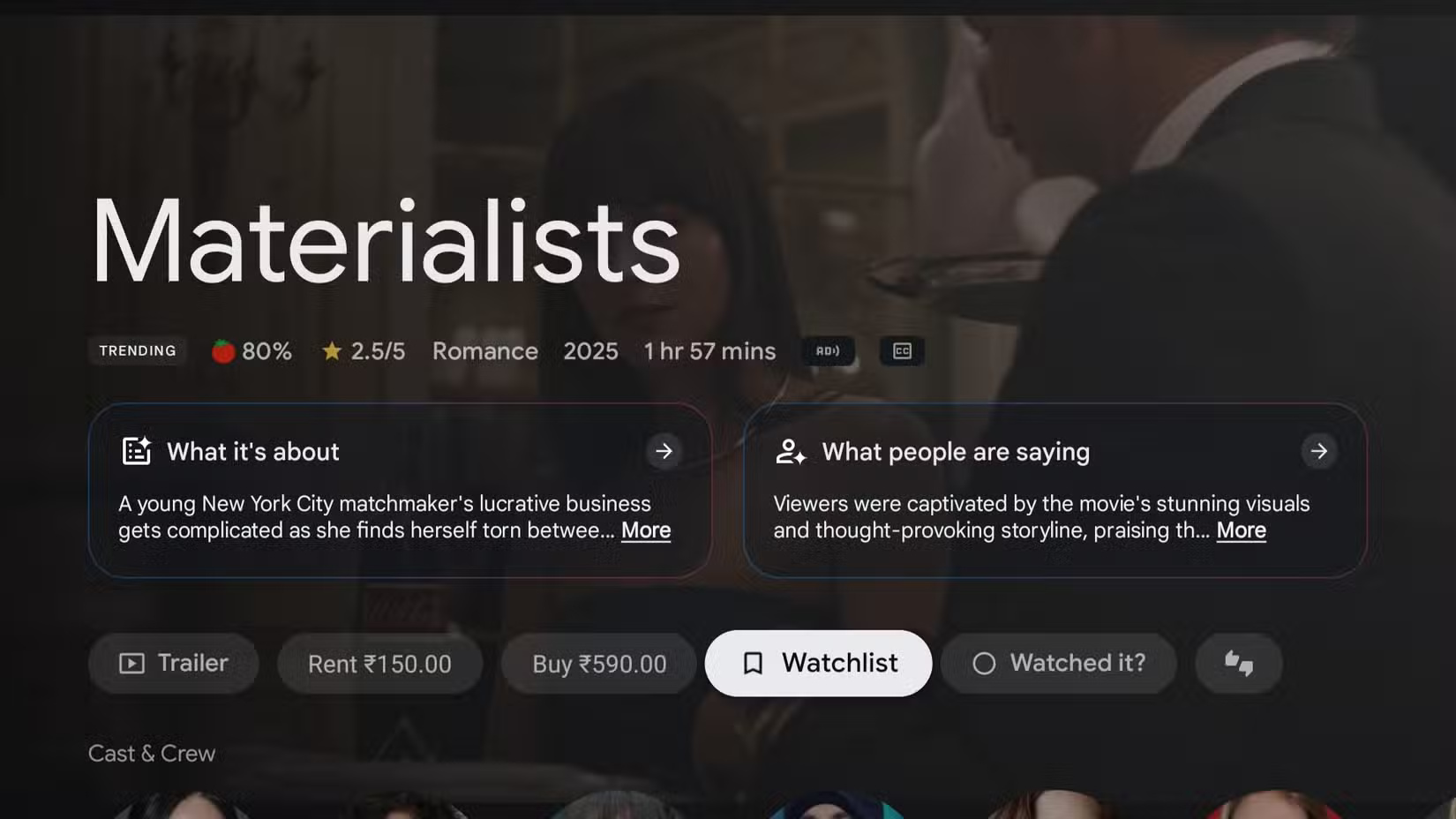
To view or manage your watchlist, open the Library tab on your TV or in the app. Here you can delete watched items, reorder titles, or jump straight to saved content.
2. Use Apps-only mode
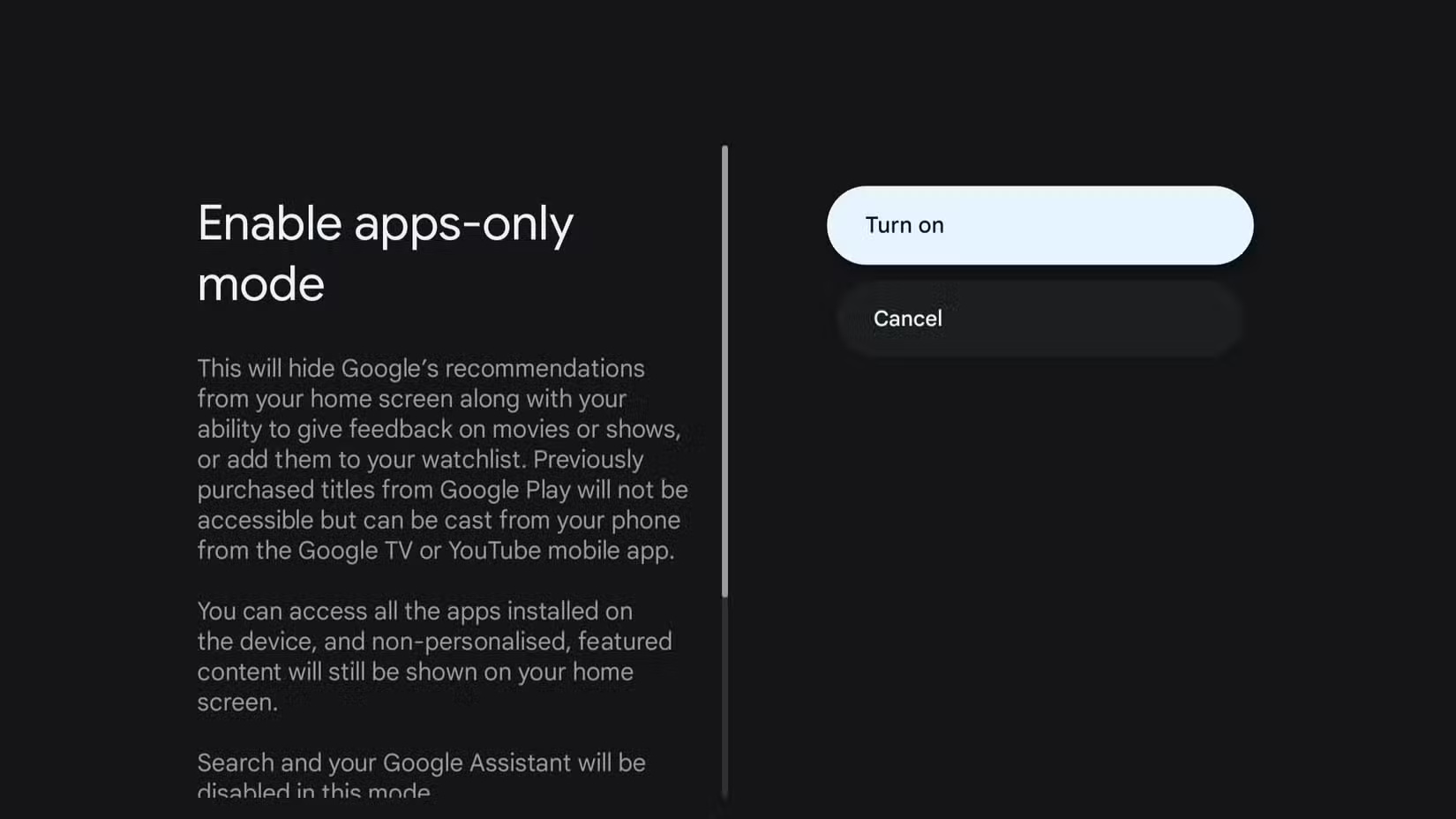
Apps-only mode removes all of Google's personalized recommendations, banners, and highlights. This leaves your home screen with a clean grid of only your installed apps. This way, you can jump straight to the services you actually use without scrolling through rows of suggestions. It also reduces distractions and speeds up navigation.
To enable this mode, go to Settings > Accounts and Profile , select your profile. Then, select Apps-only mode and tap Turn on to confirm.
1. Set up separate profiles for everyone
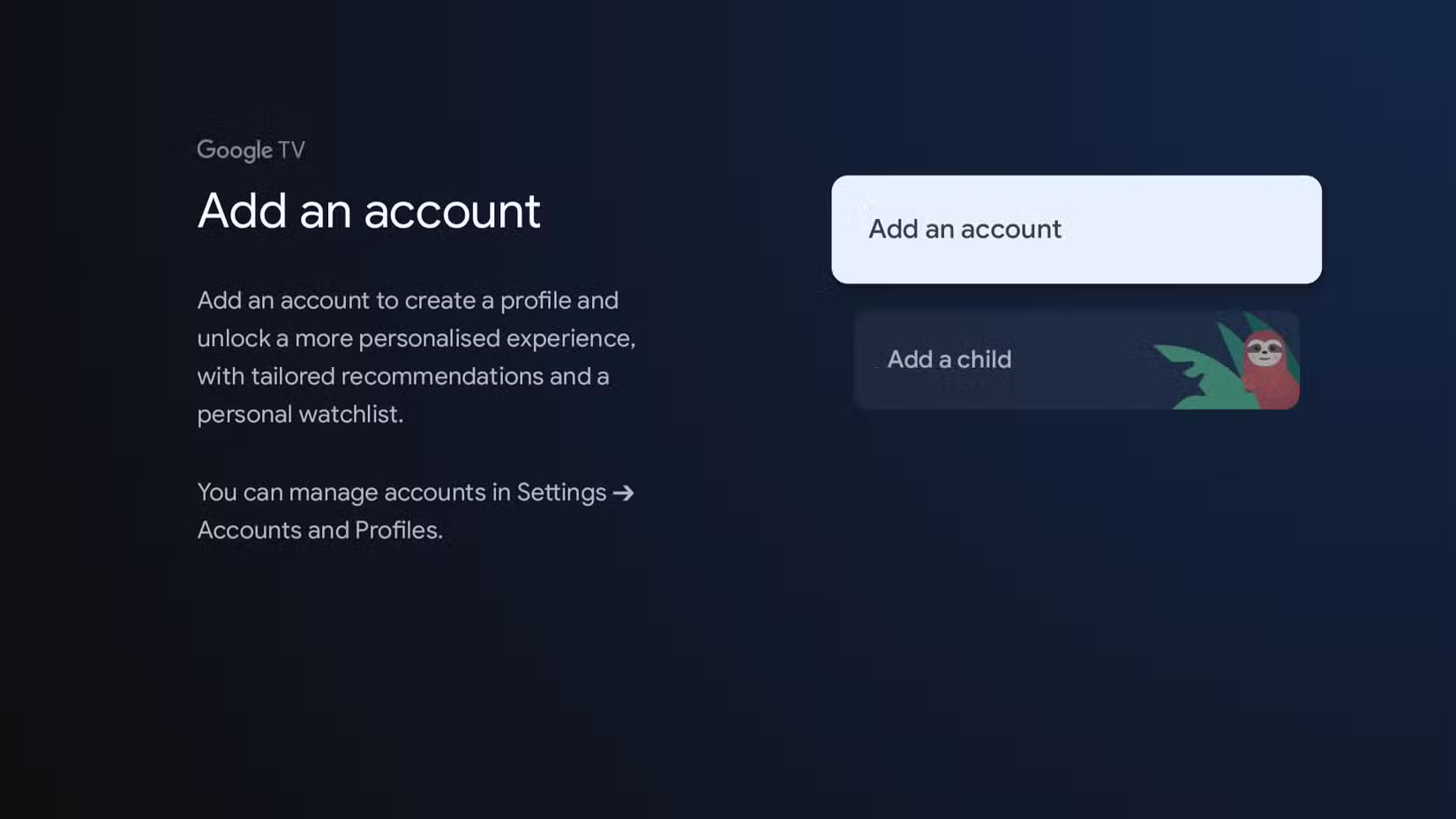
If you have young children at home, you can also create a dedicated profile for them. This profile provides age-appropriate recommendations, lets you block or delete apps, and includes controls to set screen time limits. This ensures kids can watch safely without compromising your recommendations.
To create a profile on Google TV, go to Settings > Accounts and Profile > Add Account . From there, sign in with the appropriate Google account or create a profile for a child. Once added, you can switch between profiles directly from the home screen.
Using Google TV on a daily basis is one thing, but getting the most out of it also means exploring its hidden features. The tools mentioned above are just the start. You can also explore third-party apps that enhance the TV's functionality, or even access the hidden Developer Options menu for advanced tweaking.
Final Thoughts
Overall, 6 Google TV Features You Should Be Using is best understood by considering the main facts, practical context, and limitations together. Use the details above as a clear starting point and confirm time-sensitive information when necessary.
FAQ
What does this article explain about 6 Google TV Features You Should Be Using?
Learning how to use Google TV isn't too complicated, but getting the most out of it takes a little exploration. Once you do, your viewing experience can become faster, smarter, and more personalized.
What should you know about 6. Install the app directly from your phone or PC?
Like Android phones, Google TV has its own Play Store where you can browse and install new apps. However, using the TV remote to navigate menus and type searches is much less seamless than on a phone.
Should time-sensitive details be verified?
Yes. Software features, game codes, product specifications, prices, and research findings can change. Confirm important details with an official or primary source when accuracy affects your decision.
Related Articles
 What Is Google One?8 minutes read
 14 Great Features on Google You May Not Know Yet8 minutes read
 How to Try Out the Coolest Features from Google's Event Right Now5 minutes read
 8 Google Photos Features You're Missing7 minutes read
 How Many of the Best Features Have You Missed on Google Docs?8 minutes read
 Top 10 Missing Features from Google Plus8 minutes read
Reader Comments 0
Sign in with email or Google to join the discussion.