Table of Contents
This guide provides a clear overview of super brightness mode, including Enable Super Brightness on Galaxy S22. Use it to understand the topic, compare the available options, and make a more informed decision.
Enable Super Brightness on Galaxy S22
Before you start working, there is one important thing you need to note, that is, Super Brightness mode will cause the screen to consume more power, which in turn leads to significantly affected battery life. In return, you get a sharper and more vivid display panel, especially in strong ambient lighting conditions.
If you're okay with that, follow the steps below to enable Super Brightness.
Step 1: On the Galaxy S22, tap the gear icon on the home screen to open the Settings menu.
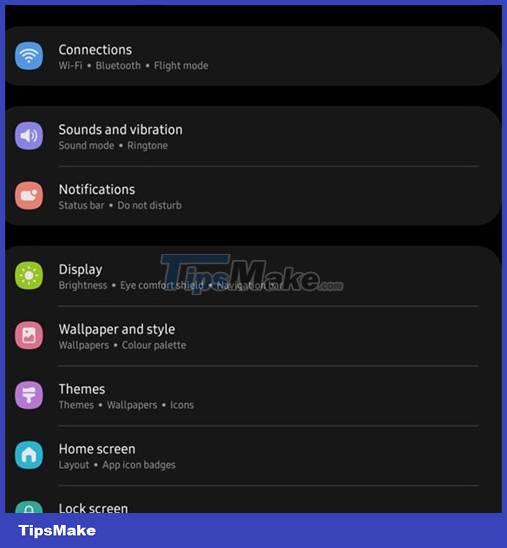
Step 2: In the Settings menu that opens, click on Display .
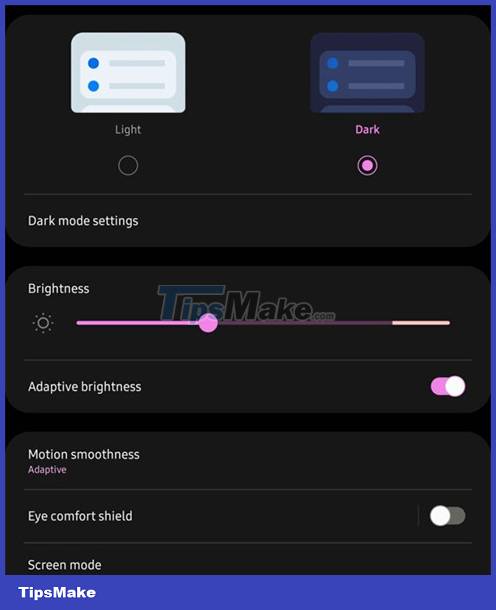
Step 3: Next, you have to turn off Adaptive brightness mode if it is enabled.
Step 4: After turning off Adaptive brightness , you will get another switch just below it called Extra brightness . Turn this switch to on and the job is done.

Super Brightness mode has now been successfully activated on your Galaxy S22. After activating this feature, you will no longer be able to use adaptive brightness and the battery consumption will also increase. But in return, you get a much brighter display.
Conclusion
Understanding Super Brightness Mode makes it easier to compare options, avoid common mistakes, and apply the information in this guide more effectively. Review the relevant requirements before making changes or choosing a solution.
FAQ
What is Super Brightness Mode?
Enable Super Brightness on Galaxy S22 Before you start working, there is one important thing you need to note, that is, Super Brightness mode will cause the screen to consume more power, which in turn leads to significantly affected battery life.
Why is Super Brightness Mode important?
Understanding Super Brightness Mode helps you evaluate features, compatibility, performance, and potential limitations before you choose a product or follow a procedure.
What should you consider when using or choosing Super Brightness Mode?
Consider your specific goal, compatibility requirements, available features, cost, security, and the practical recommendations described in this guide.
Related Articles
 How to Adjust the Screen Brightness of Android Phones6 minutes read
 Should the TV Screen Be Too Bright?5 minutes read
 How to Keep the Screen of Android Phones Always Bright3 minutes read
 How to Enable Night Mode on Samsung Galaxy S85 minutes read
 Samsung Galaxy S24 Ultra: Complete Guide3 minutes read
 Should You Buy the Samsung M51 Phone?5 minutes read
Reader Comments 0
Sign in with email or Google to join the discussion.