Table of Contents
There are many reasons to take a screenshot ; perhaps you want to show something to a friend, save a webpage or important information for later use, or create a tutorial. Taking screenshots is an essential feature that all Android phones have, including the Samsung Galaxy A32 .
Instructions on how to take a screenshot on Samsung Galaxy A32
The Samsung Galaxy A32 is the first version of the incredibly impressive A Series, launched in early 2021, and Samsung provides several different ways that users can take screenshots on the Samsung A32.
Table of Contents:
1. Using physical buttons .
2. How to swipe with your palm .
3. Using the Help Menu .
3 ways to take screenshots on a Samsung Galaxy A32 phone.
1. Taking a screenshot on a Samsung A32 using the physical buttons.
The first way to take a screenshot on a Galaxy A32 phone is to use the physical button located on the side of the phone. This is the easiest and most commonly used method. Here's how:
Step 1
Prepare the content you want to capture on your phone screen (website, game score, Zalo chat, etc.).
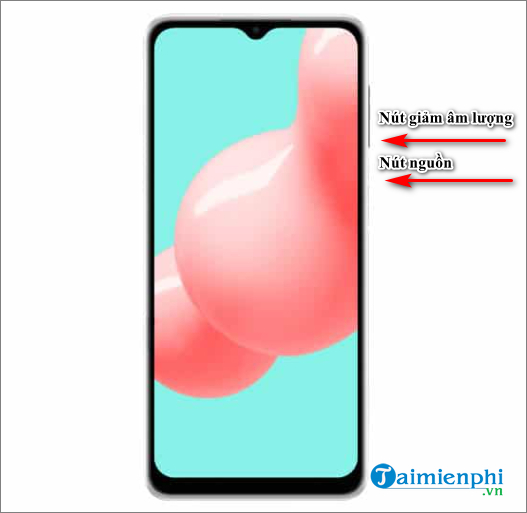
Step 2: Press and hold the volume down button and the power button simultaneously until you hear a camera shutter sound and the screen flashes.
Step 3
Next, you will see a small menu bar appear at the bottom of the screen, offering three options: editing and cropping the image, Scroll Capture, and sharing the image on social media.
2. Take a screenshot on Samsung A32 by swiping your palm.
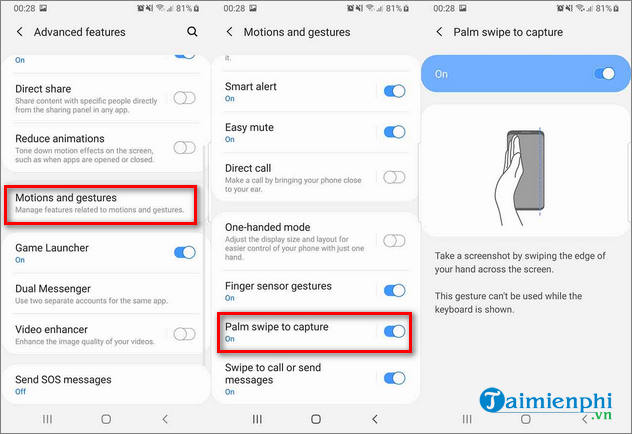
Step 1. To take a screenshot on your Samsung A32 using a palm swipe, first enable this feature by going to Settings > Advanced Features > Motions and Gestures and turning on the Palm swipe to capture option .
Step 2
Once the feature is activated, simply swipe the edge of your hand horizontally across the screen to capture the content currently on your phone screen.
3. Take a screenshot on your Samsung A32 phone using the Support Menu.
Besides using physical buttons and gestures to take screenshots on the Samsung A32, you can also use the virtual Home button, or more accurately, the Assistive Menu, to do this. Here's how:
Step 1
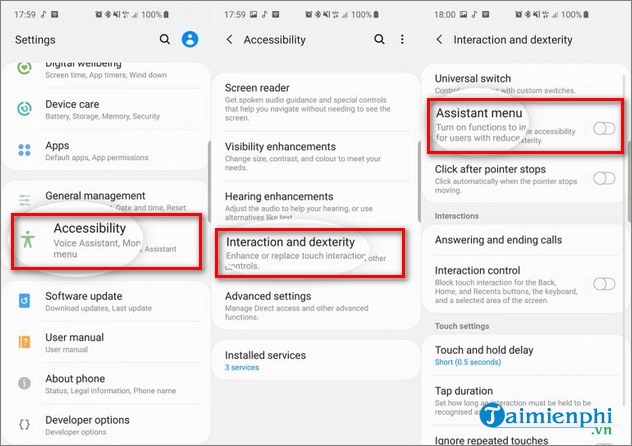
First, you need to activate the Assistant Menu by going to Settings > Accessibility > Interaction and dexterity and turning on the Assistant menu.
Step 2
A virtual Home button will appear on the screen. Simply tap the virtual Home button and select Screenshots . The phone screen will then flash to indicate that the image has been captured.
Above are three ways to take screenshots on the Samsung A32. It's great that Samsung has included some software features for taking screenshots in case the physical buttons malfunction.
If you're still undecided about whether or not to buy the Samsung Galaxy A32, please refer to the article below to help you make your final decision.
Additionally, you can find more ways to take screenshots on other Xiaomi, Samsung, and Oppo phones here:
Related Articles
 How to Take a Screenshot on Samsung Galaxy S21, S21+, and S21 Ultra Phones5 minutes read
 How to Take Photos of Samsung Galaxy Note 7 Screen?5 minutes read
 How to Disable the Screenshot Toolbar on Samsung Galaxy S203 minutes read
 How to Screenshot on a Galaxy Note 23 minutes read
 How to Turn Off the Samsung Galaxy S20 Screen Capture Toolbar2 minutes read
 How to Change Samsung Screenshot Format: Step-by-Step Guide2 minutes read
Reader Comments 0
Sign in with email or Google to join the discussion.