Samsung has added several options and methods for taking screenshots on the Galaxy S21, S21+, and S21 Ultra. Below are the details of each method that you can refer to and use.
How to take a screenshot on Samsung Galaxy S21
1. Use the physical buttons .
2. Swipe your palm to take a screenshot .
3. Use the Assistant Menu .
1. Method 1: Using physical buttons
As TipsMake mentioned above, the simplest way to take a screenshot on a Samsung Galaxy S21, S21+, and S21 Ultra is to use the traditional physical buttons.
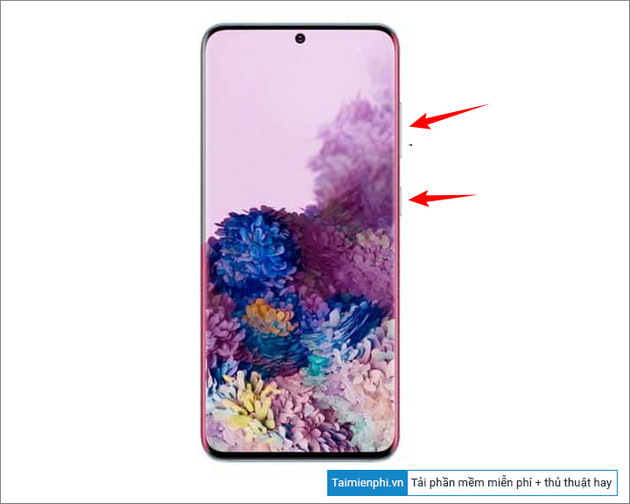
Simply put, on your Samsung device, press and hold the Power button and the Volume Down button simultaneously . You will hear a click, indicating that the screenshot has been taken.
A small menu bar will appear at the bottom of the screenshot, containing three different buttons. The first button is for editing and cropping the image. The second button activates the Scroll Capture feature, and the third button includes options for sharing the image to social media applications.
2. Method 2: Swipe your palm to take a screenshot on Samsung Galaxy S21, S21+, and S21 Ultra.
Another way to take a screenshot on the Galaxy S21, S21+, and S21 Ultra is to use the palm swipe feature. However, this method requires you to activate the feature on your device first.
To activate the screenshot feature using a palm swipe, follow these steps:
First, go to Settings => Advanced Features => Motions and Gestures . Here, find and activate the Palm swipe to capture option.
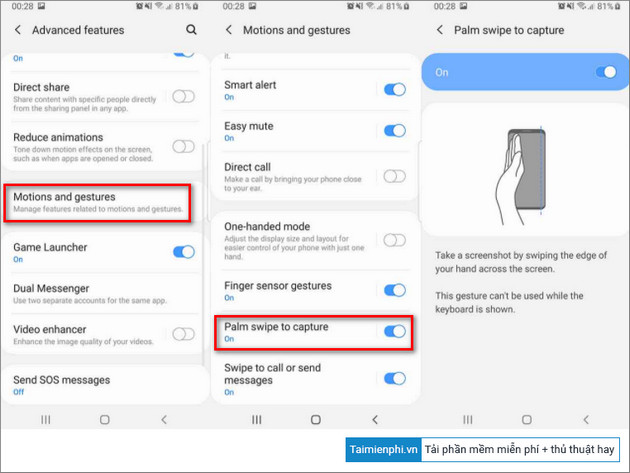
After activating the feature, simply swipe the edge of your hand across the part of the screen you want to capture. Your Galaxy S21, S21+, and S21 Ultra will then vibrate to notify you that a screenshot has been taken.
3. Method 3: Using the Assistant Menu on Galaxy S21, S21+, and S21 Ultra
Finally, you can activate and use the Assistant Menu to take screenshots on your Samsung Galaxy S21, S21+, and S21 Ultra phones.
Additionally, you can use this screenshot method if the device's physical buttons are malfunctioning or not working.
Follow the steps below to activate the support menu:
Open the Settings app => Accessibility = > Interaction and dexterity => find and toggle the slider next to the Assistant menu option .
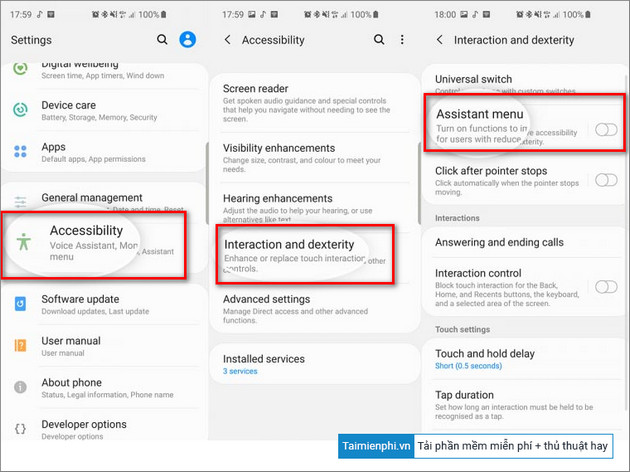
A small circular icon will appear on the screen; this is the virtual Home button. Open the section you want to take a screenshot of on your Galaxy S21, S21+, or S21 Ultra device, then tap the circular icon and select the " Take screenshot" option .
Similarly, you will hear a clicking sound, which means the screenshot has been taken.
The article above from TipsMake has just guided you through 3 ways to take screenshots on Samsung Galaxy S21, S21+, and S21 Ultra phones. Additionally, if you still have questions about how to take screenshots on the Samsung Galaxy A21s, you can refer to the instructions here.
Related Articles
 Samsung Galaxy S20 Buyback Scheme Gets You Half Your Money2 minutes read
 8 Useful Apps on Samsung Galaxy S218 minutes read
 Galaxy S20 and S20 +:+: Snapdragon 865 // Exynos 990, 8 // 12gb4 minutes read
 First Real-life Photos of Samsung Galaxy S26 Ultra Revealed with New5 minutes read
 Review Samsung Galaxy S20: First 5g Phone in 20207 minutes read
 The Display Panel on the Galaxy S20 Ultra Is the 'Best Ever Made'4 minutes read
Reader Comments 0
Sign in with email or Google to join the discussion.