Table of Contents
This updated guide compares hidden Windows 11 photos features worth using and highlights the details that matter most. At first glance, Windows 11's Photos app may seem like a basic photo viewer, but it is packed with features that go beyond the bare essentials. While some features are well-known, others are hidden away, waiting to be discovered.
6. Resize the Image
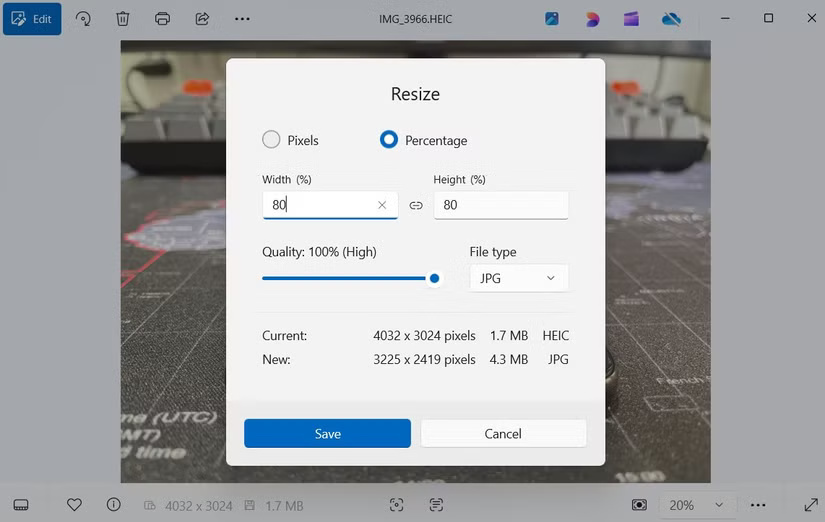
Occasionally, you may need to resize images, whether to make them easier to share or to optimize them for a website. Fortunately, you do not have to rely on third-party photo editing apps or online tools, as the Photos app on Windows already offers an image resizing feature.
After opening an image in the Photos app, tap the three-dot menu icon in the top left corner and select Resize image . From here, you'll have two options: Resize to a percentage of the original image or manually set the pixel dimensions. Just enter the desired width and height, then tap Save .
5. Scan Text from Image
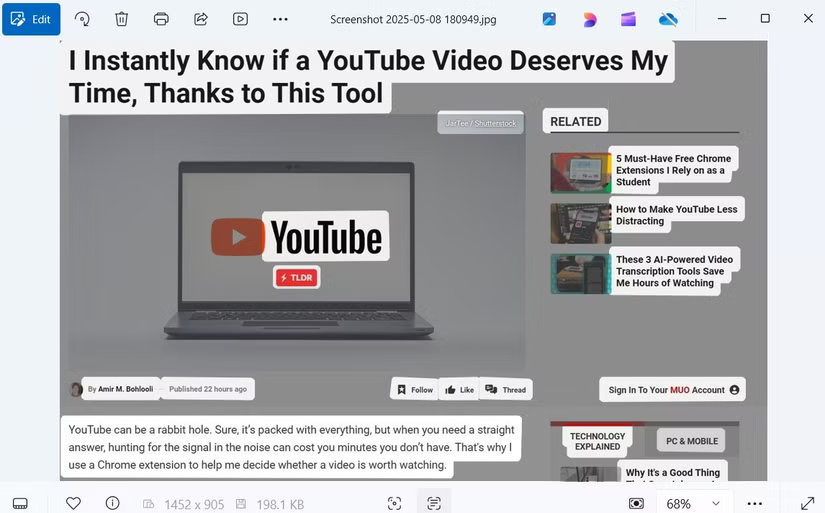
Another often overlooked feature of the Photos app is the Optical Character Recognition (OCR) tool. This feature lets you extract printed text or even handwritten text from images, screenshots, or scanned documents and turn them into digital copies.
All you have to do is open the image in the Photos app and tap the Scan Text icon at the bottom. When the app detects text in the image, press Ctrl + A to select it, then press Ctrl + C to copy it. You can select specific text with your mouse cursor, just like you would on a web page.
Once you copy text, you can paste it into a document, email, note, or any text field. This can save you many time when you're digitizing handwritten notes, quoting pages from books, or copying addresses from flyers.
4. Super Resolution
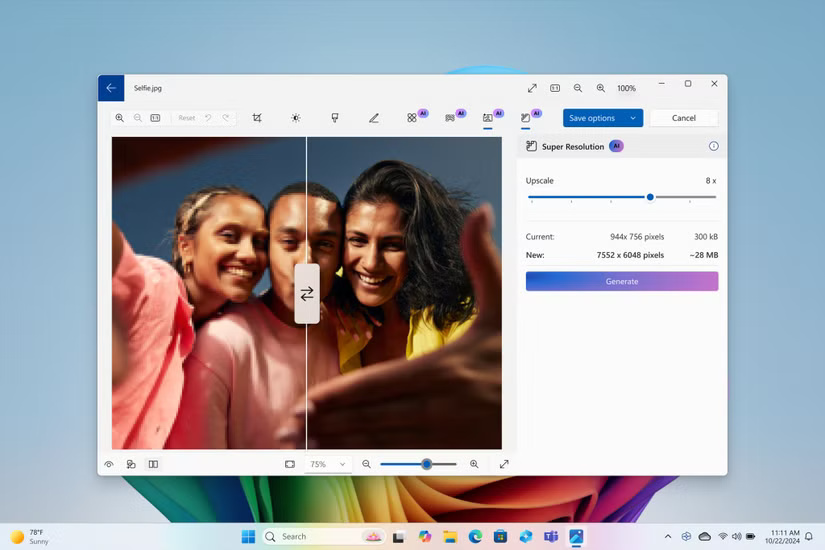
Microsoft recently introduced some impressive AI-powered tools in the Windows Photos app, and one of the standout features is Super Resolution, which uses artificial intelligence to upscale images up to 8 times their original size.
What makes Super Resolution unique is that it enhances the sharpness and detail of an image without losing quality like conventional upscaling methods. To use it, you first need to go into edit mode in the Photos app. There, you will see a Scale slider that lets you adjust the level of enhancement. After processing, you will see the two images compared side by side.
remember that Super Resolution is currently exclusive to PC Copilot+ as it relies on the Neural Processing Unit (NPU) found in these newer systems. If you do not see it in the Photos app, it is possible that your hardware isn't compatible.
3. Blur, Remove or Replace Photo Background

Previously, the Windows Photos app only offered basic editing options like cropping, rotating, filtering, and marking up. But that is no longer the case. You can now also use the Photos app to blur, remove, or replace the background of a photo with just a few clicks.
After opening a photo in the Photos app and entering Edit mode, open the Background tab. The app uses AI to automatically separate the subject from the background. From there, you can choose to Blur , Remove , or Replace the background, depending on your purpose.
This feature is extremely useful when you want to add a portrait style effect or replace the background with something completely different.
2. Generative Erase
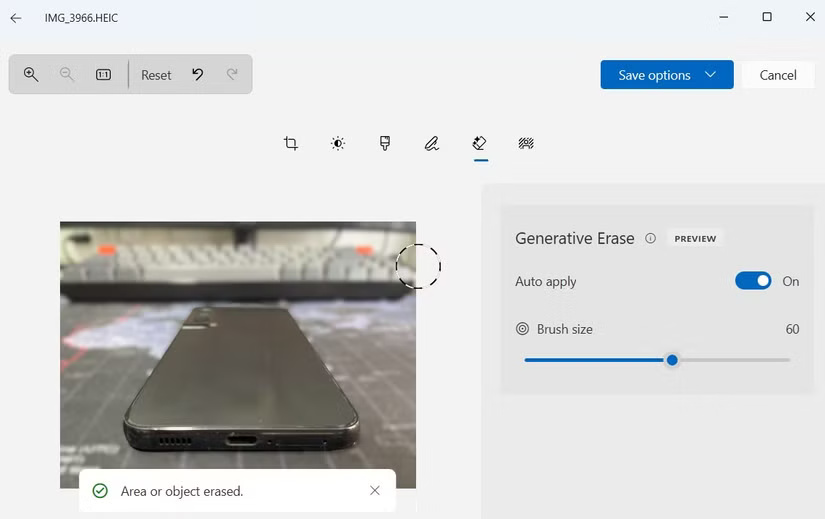
If you do not need to change the entire background and just want to remove a specific object or person, Windows 11's Photos app also has a Generative Erase feature. Similar to Photo Cleanup on iOS or Magic Eraser on Android, this app uses AI to help you easily clean up your images.
To use it, open a photo in the Photos app, switch to editing mode, and navigate to the Erase tab. From there, simply swipe over the object or person you want to erase. The app will then analyze the surrounding pixels and use AI to fill in that area.
naturally, this app isn't perfect, so you may not always get perfect results, but in most cases it can get the job done.
1. iCloud Photos and OneDrive Sync
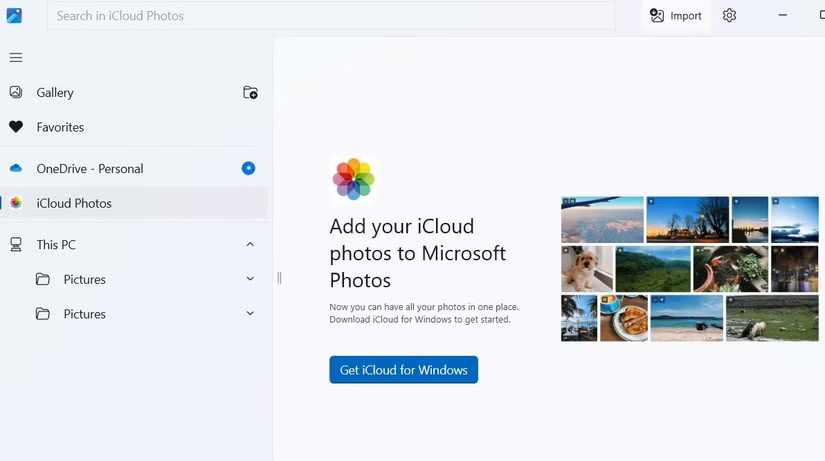
The Windows 11 Photos app isn't just for viewing photos and videos stored on your PC, it can be used to access and manage media stored in the cloud. The great thing is that it is not limited to Microsoft's OneDrive; the Photos app also supports Apple's iCloud Photos.
If you use OneDrive, just open the Photos app and sign in to your account. To sync iCloud Photos, you'll need to install the iCloud app from the Microsoft Store and sign in to your account. Once connected, your cloud photos and videos will appear in their own section of the Photos app.
While Windows 11's Photos app started out as a simple redesign from Windows 10, Microsoft has significantly improved the app over time. With these new features, the Photos app has grown into a powerful tool and reduced the need for third-party photo editing software on your PC.
FAQ
How were the hidden windows 11 photos features worth using options evaluated?
The comparison focuses on practical features, ease of use, limitations, compatibility, and the type of user each option is most likely to help.
Which option is best for beginners?
Beginners should prioritize a clear interface, useful documentation, reliable support, and the core features needed for their first project.
Should I choose a free or paid option?
Start with a free option when it covers your needs. A paid plan may be worthwhile when you need advanced tools, commercial rights, collaboration, or professional support.
Related Articles
 Search and Activate Hidden Features in Windows 10 with Mach2 Tool9 minutes read
 Most People Don't Use These Hidden Features in Windows Security9 minutes read
 Unlock Hidden Features on Windows 10 with Some Registry Tricks18 minutes read
 10 Interesting Hidden Features of Windows 1111 minutes read
 Top 5 Hidden Features Available on Windows 10 That You Do8 minutes read
 11 Hidden Features in Apple Music Every User Should Know7 minutes read
Reader Comments 0
Sign in with email or Google to join the discussion.