Table of Contents
Explore 2 steps to test zenfone 2 before buying the device and learn what each option does well. The article focuses on practical details that can help you make a more informed decision.
Zenfone 2 is Asus' new smartphone with many improvements such as a sharper display, stronger configuration, faster charging and running Android 5.0 operating system. But the problem is that when buying a machine, we are not easy to distinguish what is "genuine" goods so it is very easy to buy low quality "fake" goods. Therefore,. com will guide you how to test the machine before buying. Please consult.
1- Check the shell and machine accessories
Asus Zenfone 2 has a compact carrying case with the front as the Zenfone 2 product name along with the phone image. On the back, the basic specifications such as the IMEI Number and the Intel Atom Z3580 4 Processor chip are Multiplied by 1.8 GHz or 2.3 GHz, 16 GB or 32GB or 64GB internal memory, depending on the version and the device can be opened. Wide memory with external memory card up to 64GB. Asus Zenfone 2 has a Battery capacity of 3000 mAh For all versions.
Zenfone 2 accessories include a Manual , A charger , A headset , A micro USB cable . You should also check if the charger is on the phone and if the headset is listening or not.
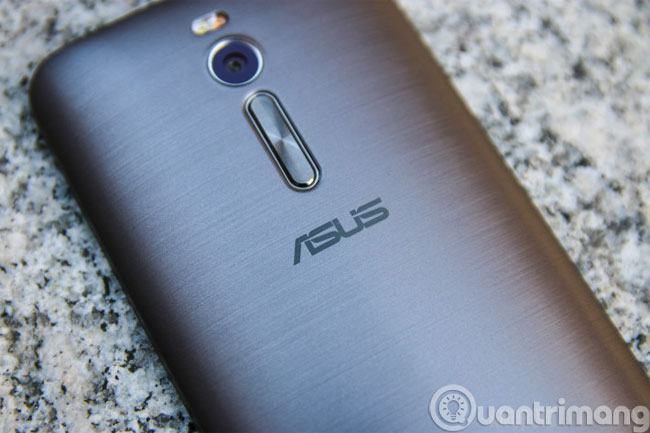
Next you should check the Zenfone 2 outside as if the machine's scratches are scratched, especially pay attention to the edges of the device, the logo on the machine is blurred or blurry.
Surf the test screen to see if the touch is sensitive. Check if the screen is not bright by turning on the device and taking a closer look at the edge of the screen, if you see a much brighter line than the middle of the screen, the screen may be bright, when Please ask the staff to get another machine for comparison.
2- Check the machine configuration
As with the previous Asus Zenfone series, there is a fairly common and quick way to test the computer, in the Calculator section of the Applications menu, we can check hardware devices such as monitors, speaker, vibration, flash, camera, sensors.
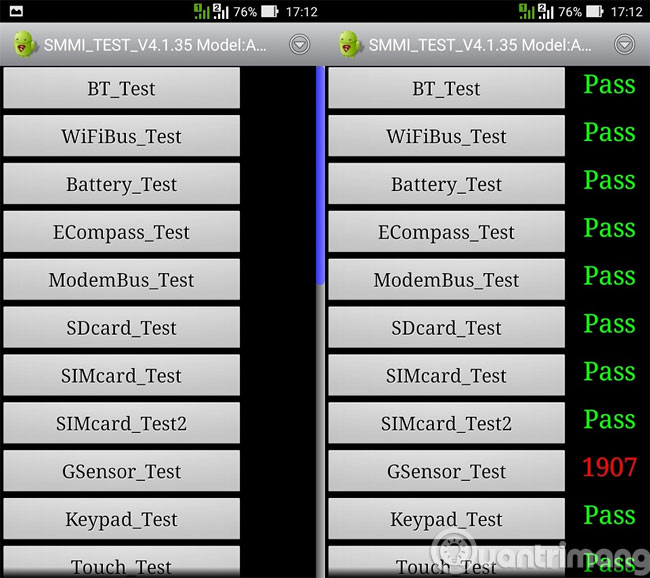
After you access the Computer application, enter the following parameters to check the device: .12345 + =
The Asus Zenfone 2 screen will display Test Mode (or test mode) to check the touch feature, BT_Test To check Bluetooth , WiFiBus_Test To check Wi-Fi , Battery_Test To check Battery , ECompass_Test To check Compass , Proximity_Test And LightSensor_Test To test Sensors (light sensors, proximity sensors), BoardMic_Test For Micro Tests, Vibrator_Test For vibration testing, Display_Test To check screen Deadlines And brightness,.. and many other test options. You just need to click each item to check the corresponding features, after checking that item shows " PASS ", that function works well.
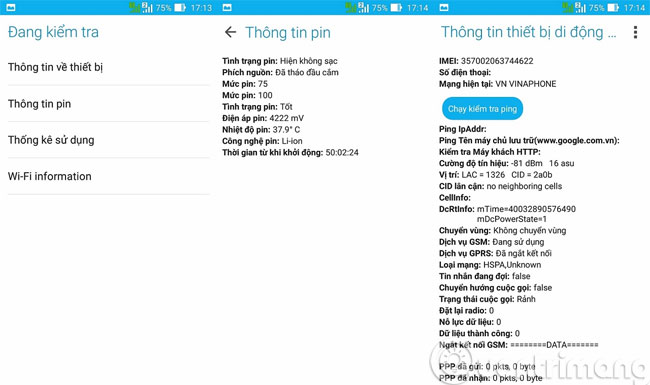
Another test for you that is more familiar and fluent in mobile devices is to test using a keyboard command that calls with the following command: * # * # 4636 # * # *
After that, the screen will switch to another screen which is also Test Mode Table but different from the above table. This mode will allow you to go deeper and have a deeper assessment of Asus Zenfone 2.
In this Test Mode table, you will be able to check your device's IMEI , Ping to a server you have pre-selected with Wi-Fi connection, Battery status, Battery temperature and other parameters.
- Fix some basic errors on ASUS ZENFONE 5 (Part 1)
- Instructions for Hard Reset ASUS ZENFONE 5 (Part 2)
- Fix some basic errors on ASUS ZENFONE 5 (End part)
Hope the article is useful to you!
FAQ
How were the 2 steps to test zenfone 2 before buying the device options selected?
The options are compared by usefulness, ease of use, core features, and their fit for the situations described in the article.
Which option is best for beginners?
Choose the option with the simplest setup, clear documentation, and the features you actually need. A more advanced option is not always the better starting point.
What should I check before choosing?
Check compatibility, current availability, pricing or licensing, privacy requirements, and whether the product still receives updates and support.
Related Articles
 How to Take Screenshots on Asus Zenfone4 minutes read
 Instructions for Using Asus Zenfone for Newbies6 minutes read
 Instructions to Check the Old Laptop Before Buying11 minutes read
 Zenfone Is the Future of Asus4 minutes read
 Asus Launched the Zenfone 6 with Automatic Flip Camera, 5,000 MAh Battery, Priced from 499 USD4 minutes read
 Asus Will Release 5 New Zenfone Models in Vietnam Before Tet4 minutes read
Reader Comments 0
Sign in with email or Google to join the discussion.