Table of Contents
The quickest way to open the Recycle Bin in Windows 11 or Windows 10 is to double-click its desktop icon. If that icon is hidden, you can restore it through Personalization or open the same folder with Search, File Explorer, Run, or a shell command.
What the Windows Recycle Bin does
Files deleted from a local internal drive normally move to the Recycle Bin, where they continue to occupy space until they are restored or permanently deleted. Select an item and choose Restore to return it to its original folder, or use Restore all items when you are certain everything should come back.
The Recycle Bin is maintained separately for each drive. In Recycle Bin Properties, you can set a maximum size for each location or choose to bypass the Bin. When its allocated space is exhausted, Windows can remove older items to make room. Storage Sense can also clear items after the period you configure; it does not do so merely because the Recycle Bin exists.
Not every deletion goes to this folder. Shift+Delete, files that are too large for the configured Bin, items deleted from some removable or network locations, and files on a drive configured to bypass the Bin may be removed immediately. Cloud services such as OneDrive also have their own online recycle bins.
1. Double-click the desktop icon
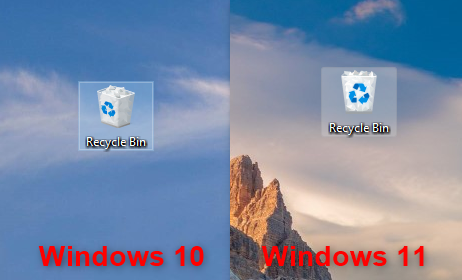
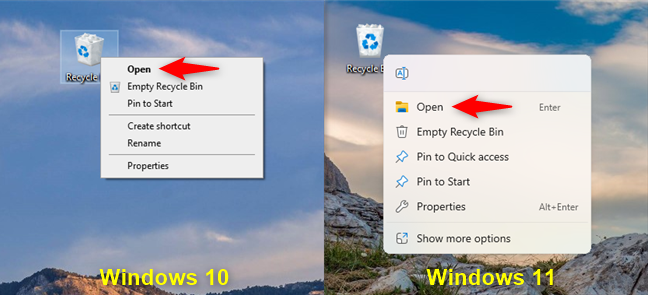
Find Recycle Bin on the desktop and double-click it. You can also select it and press Enter, or right-click and choose Open.
2. Restore a missing Recycle Bin icon
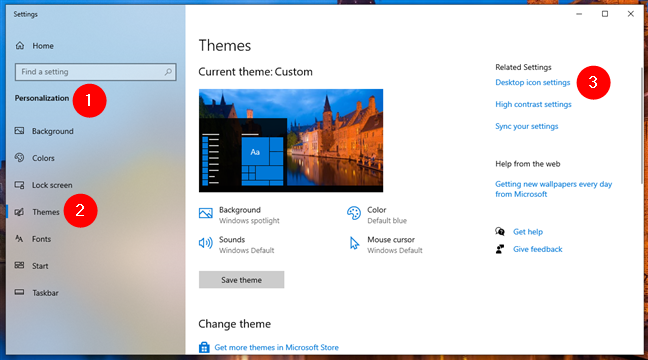
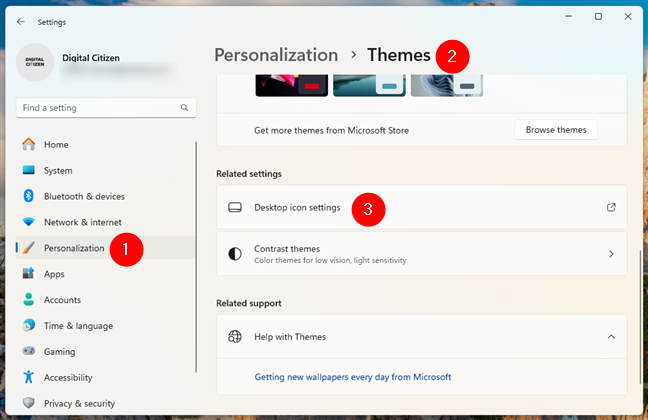
Press Windows+I and go to Personalization > Themes > Desktop icon settings. Select Recycle Bin, then choose Apply and OK. Microsoft's Recycle Bin help page confirms this current path.
If every desktop icon is missing, right-click an empty area of the desktop and make sure View > Show desktop icons is selected.
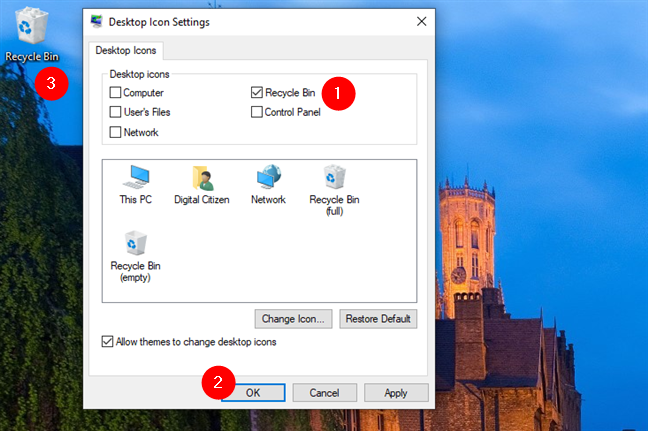
For more detail, see how to hide or show the Recycle Bin in Windows 11.
3. Use Windows Search
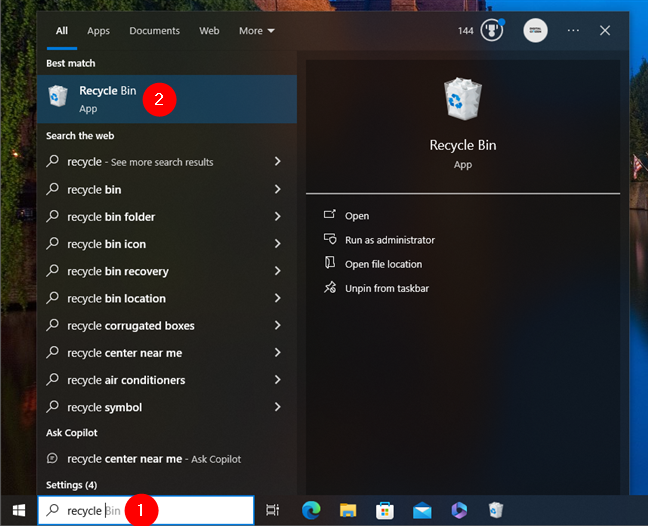
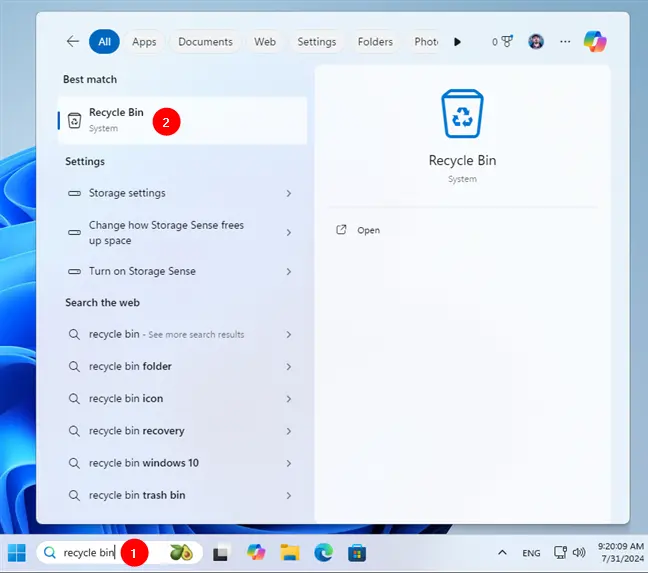
Open Search from the taskbar or press the Windows key, type Recycle Bin, and select the matching result. This is the simplest alternative when you do not want desktop icons displayed.
4. Pin Recycle Bin to Start
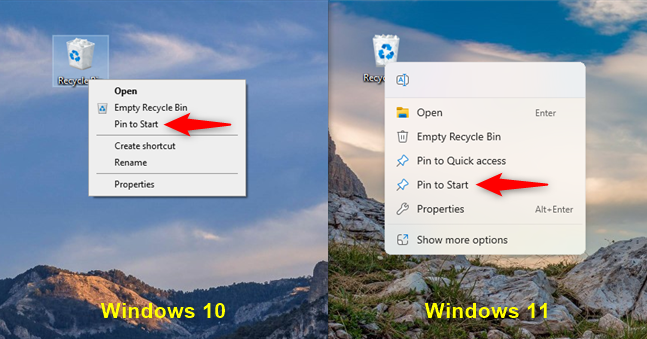
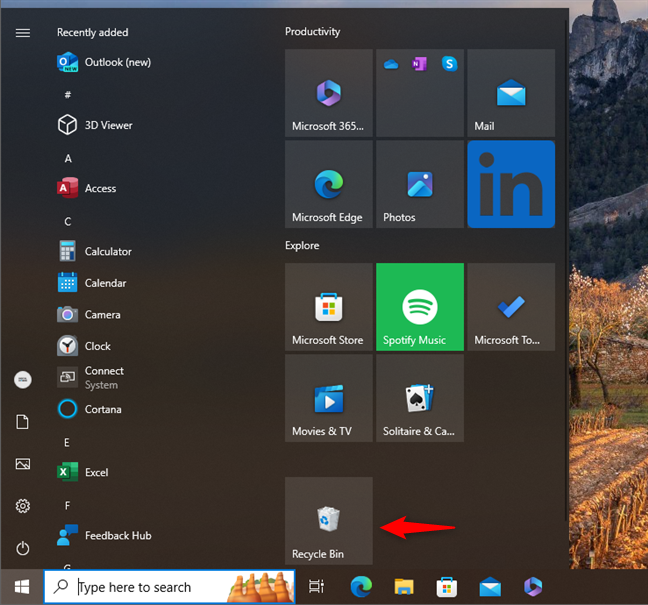
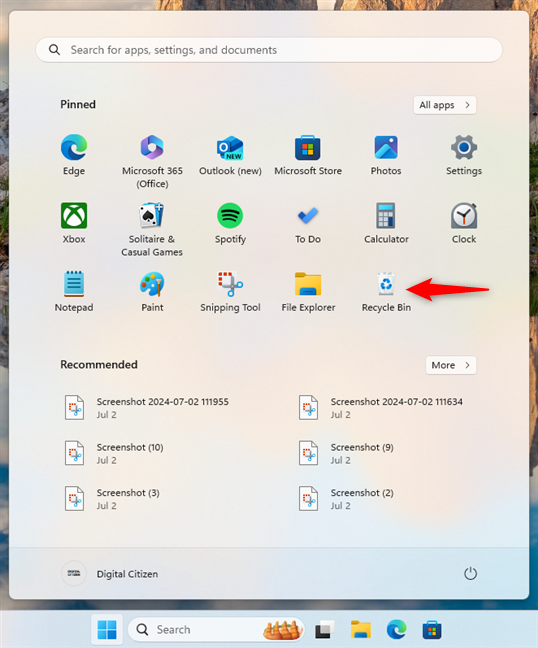
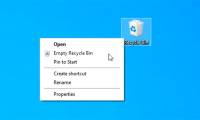
Right-click the desktop Recycle Bin icon and choose Pin to Start. In Windows 11 it appears in the Pinned section; in Windows 10 it appears as a Start tile. Open Start and select it whenever you need the folder.
5. Type its name in File Explorer
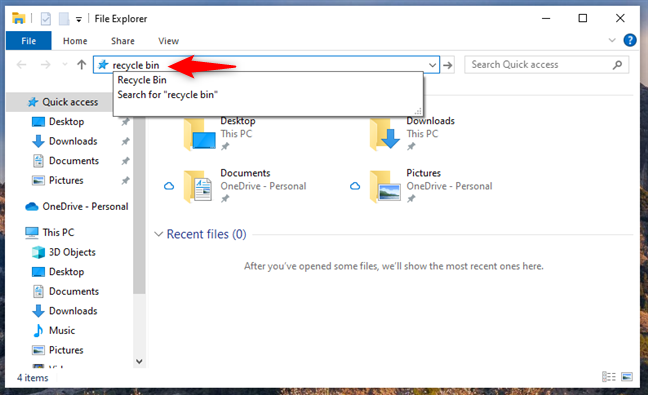
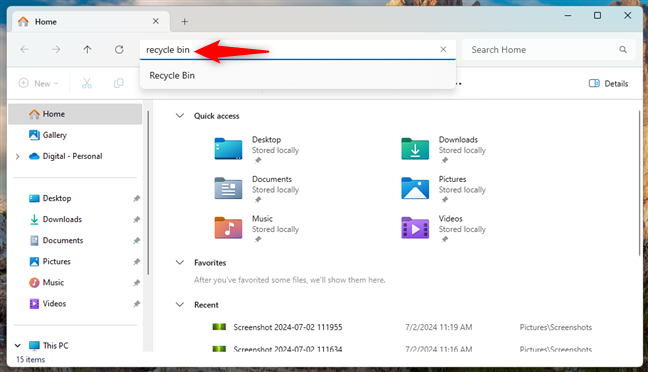
Press Windows+E to open File Explorer. Press Ctrl+L to focus the address bar, type Recycle Bin, and press Enter. Windows resolves the special folder name and opens its normal contents view.
6. Use the File Explorer address-bar menu
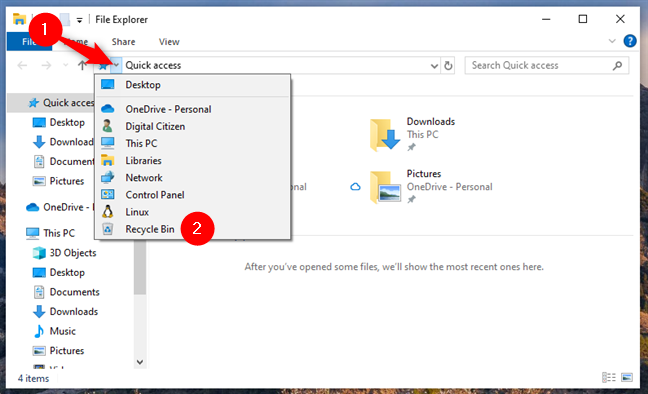
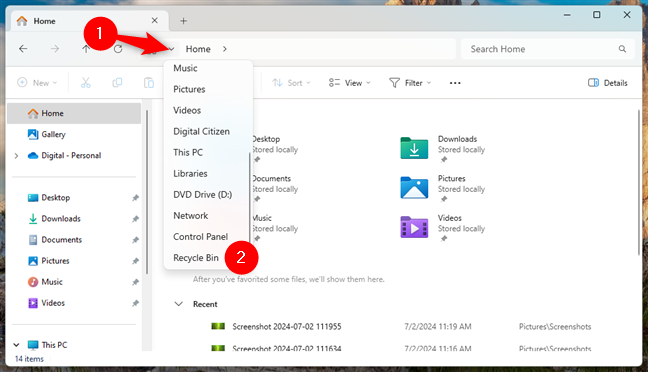
In some File Explorer views, selecting the first chevron in the address bar opens a list of desktop shell locations. Choose Recycle Bin from that list. If the current Windows build does not show the entry, use the address-bar text method above.
7. Add it to File Explorer Quick access
For frequent access, drag the desktop Recycle Bin icon onto File Explorer's taskbar icon or into the navigation pane until Windows indicates that it will pin the location. It should then appear in the File Explorer jump list or Quick access area. The exact placement varies between Windows versions and File Explorer layouts.
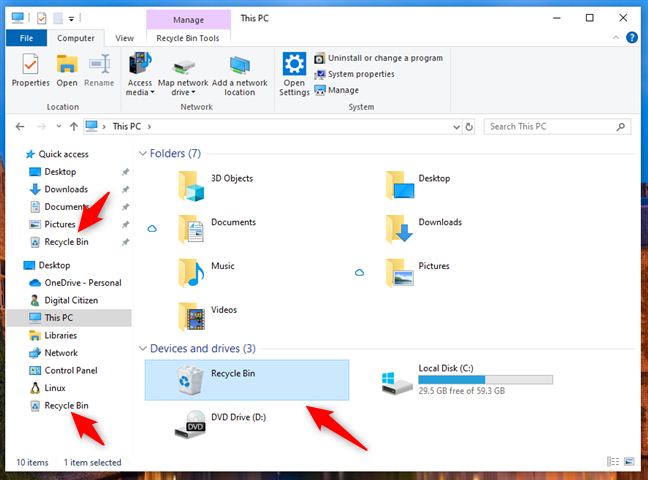
Our earlier guide to Recycle Bin access in Windows 10 shows the classic Quick access behavior.
8. Open the per-drive system folder
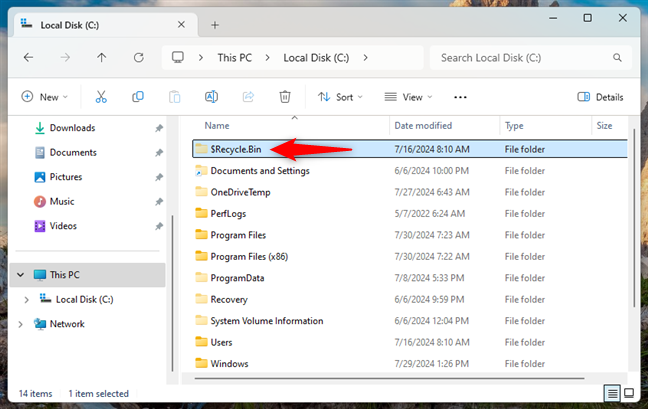
Each drive that supports the Recycle Bin has a protected folder named $Recycle.Bin. In File Explorer's address bar, enter a path such as:
C:$Recycle.BinThis technical view may contain account-specific folders identified by security IDs rather than the friendly combined Recycle Bin view. Do not rename, move, or edit its internal files manually. Use shell:RecycleBinFolder instead when your goal is simply to restore or delete items.
9. Open it from Run
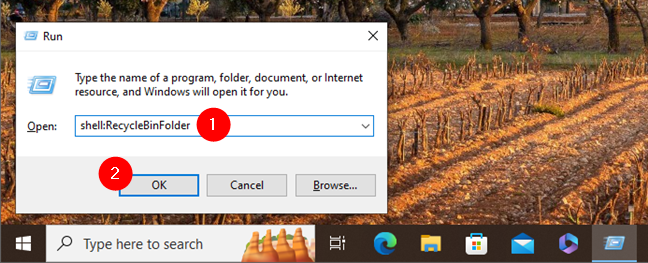
Press Windows+R, enter the following shell command, and select OK:
shell:RecycleBinFolder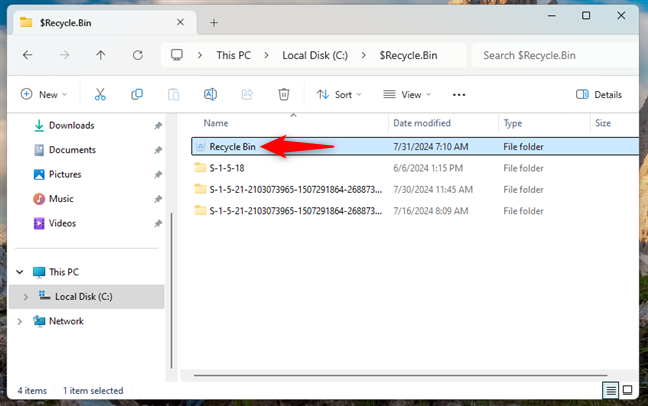
10. Create a reusable shortcut
- Right-click an empty part of the desktop and choose New > Shortcut.
- For the location, enter
explorer.exe shell:RecycleBinFolder. - Select Next, name it Recycle Bin, and finish.
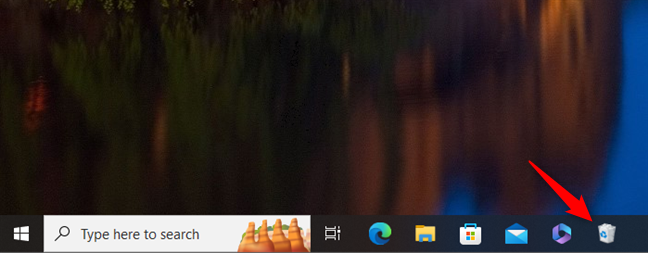
- Open it like any other shortcut. You can also right-click it and use Pin to Start or Pin to taskbar when that option is available.
11. Use Command Prompt, PowerShell, or Windows Terminal
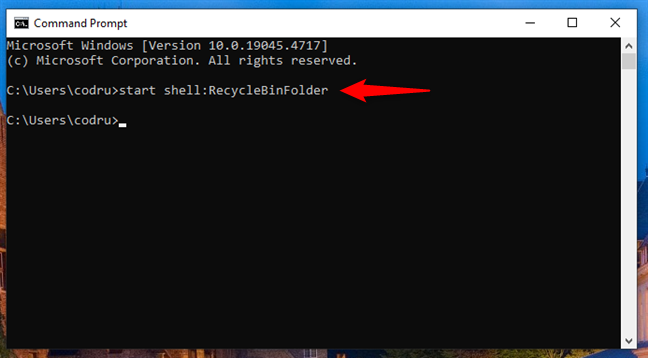
Open a terminal and run:
explorer.exe shell:RecycleBinFolderThe command asks File Explorer to open the special Recycle Bin shell folder and works without exposing its protected on-disk structure.
Restore or permanently delete an item
Inside the Recycle Bin, select a file or folder and choose Restore to return it to its original path. Check the Original Location column first if you are unsure where it will go. Use Delete or Empty Recycle Bin only after checking the selection, because the normal one-click Restore option will no longer be available.
If a needed file is no longer in the Bin, stop writing new data to that drive and check backups or File History. Microsoft's Windows File Recovery is another option for supported local storage, though recovery is never guaranteed. For third-party choices, see our overview of deleted-file recovery tools.
Control automatic cleanup
Go to Settings > System > Storage > Storage Sense to review whether Windows may delete Recycle Bin items automatically and after how many days. Microsoft's Storage Sense guide explains the current options. Choose a period that leaves enough time to notice accidental deletions without allowing the Bin to consume excessive space.
Related Articles
 9 Ways to Open Recycle Bin on Windows 108 minutes read
 How to Restore the Recycle Bin Icon Lost in Windows 105 minutes read
 Automatically 'Clean Up' the Recycle Bin on Windows 102 minutes read
 How to Fix Recycle Bin Not Working3 minutes read
 5 Recycle Bin Settings on Windows 11 You Should Know7 minutes read
 How to Create a Shortcut to Clean the Recycle Bin on Windows 10/11: Clear8 minutes read
Reader Comments 0
Sign in with email or Google to join the discussion.