Table of Contents
Snapseed 3 redesigned Google’s photo editor for iPhone and iPad. The home screen shows recent edits in a grid, the editor groups tools into tabs, and some settings use an on-screen arc. If you’re returning to Snapseed after using an older version, start with the + button and look for Export near the upper-right corner when you finish.
Find the tools you used before
- Looks applies a ready-made style. Try one if you want a starting point before making adjustments.
- Faves keeps the tools you use often easy to reach.
- Tools is where to look for individual controls such as crop and tone adjustments.
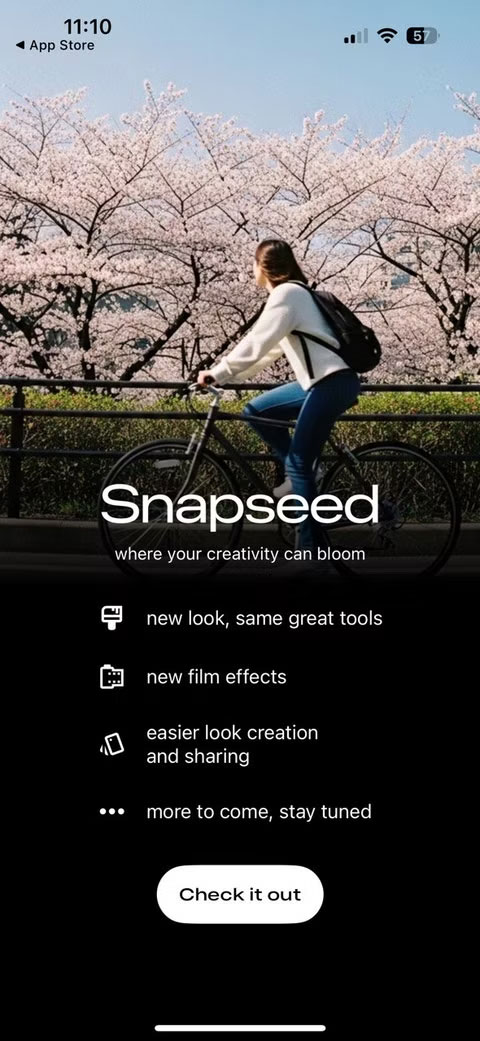
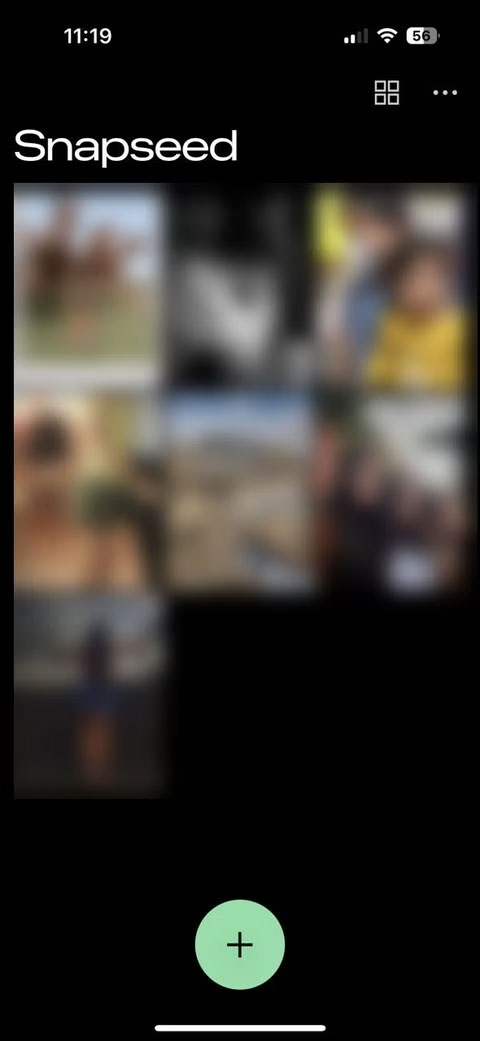

Snapseed photo editing tool
Try a simple edit and export a copy
- Tap + and choose a photo.
- Crop and straighten it first if the framing needs work. Then adjust brightness or contrast. Move the arc in small increments where it appears.
- Add a tool to your favorites if you expect to use it on most edits.
- Tap Export and choose the save or sharing option you need. If you want to keep the original as a separate file, choose an export or copy option where offered.
For another editing technique, see how to combine photos on an iPhone.
What’s different on Android?
The redesign first reached iPhone and iPad. Google later rolled out Android updates, including color grading and search, according to Android Authority. The screenshots above show the iPhone layout. To check the version for your device, use the App Store or Google Play listing.
Related Articles
 Google is finally getting updates to Snapseed after two years
 How to create artistic text using Snapseed image editing application
 How to delete an image object using the Snapseed application
 How to Edit Photos in Snapseed on Android
 How to save photos on Snapseed to your device
 Stunning photo editing on smartphones with Snapseed
Reader Comments 0
Sign in with email or Google to join the discussion.