Table of Contents
Overview
This guide examines the question 'Why Can't My Laptop Mouse Move? How to Fix It?' in clear, practical terms. It covers the key concepts, recommended steps, common limitations, and useful checks so you can make a better-informed decision.
Touch pad is a touchpad integrated into the laptop for more convenience for users. Although not many people have the habit of using the touchpad and often use an external mouse, the touchpad on the laptop is a fire extinguisher when we accidentally forget to bring the mouse outside. But if you forget the mouse but the laptop mouse does not work, it is a real dilemma! The laptop mouse cannot move, which means we will have more difficulty using the laptop. Don't worry too much, your laptop is not necessarily broken. Here, This guide helps you find one reason the laptop mouse cannot move, cannot click and fix it!
Why can't my laptop mouse move?
Laptop is an electronic device that includes many components. Therefore, the laptop mouse not moving can be caused by many reasons. But there are some common main causes as follows:
- Because the laptop touchpad is disabled, turned off by the user.
- The cable connecting the laptop mouse to the motherboard is broken, loose.
- The laptop touchpad control I/O chip on the mainboard is faulty.
- Due to faulty touch pad contact surface, cannot target.
How to fix laptop mouse not recognized, not clicked?
When your laptop mouse is not working, stay calm, no need to bring it to warranty or to computer repair shops. Try one of the following methods:
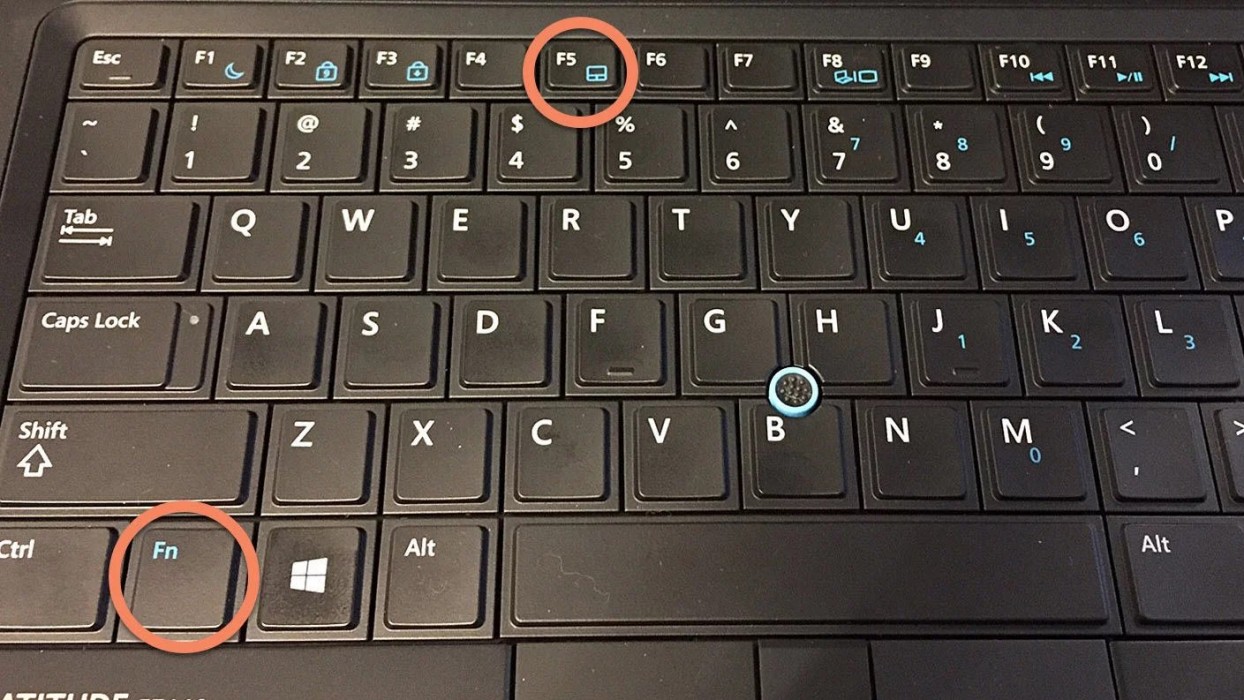
Reactivate laptop mouse (touchpad) with shortcut key combination Fn
Fn is the function key of the laptop that allows us to adjust the volume, screen brightness, and many other functions including the laptop mouse. Therefore, during use, we can accidentally press the mouse lock key combination, causing the laptop mouse to turn off and not move. To reactivate, hold the Fn button and press the function button (F keys) containing the icon on the laptop keyboard.
Remove redundant driver, update Touchpad driver
All peripheral devices that want to operate through computers and laptops need drivers. And the same goes for laptop mice. There are many cases where laptop mice fail to work because during use, we plug in too many types of external mice, causing the mouse driver to conflict and cause errors. Therefore, to fix this, we can try to remove other mouse drivers that have been installed on the computer.
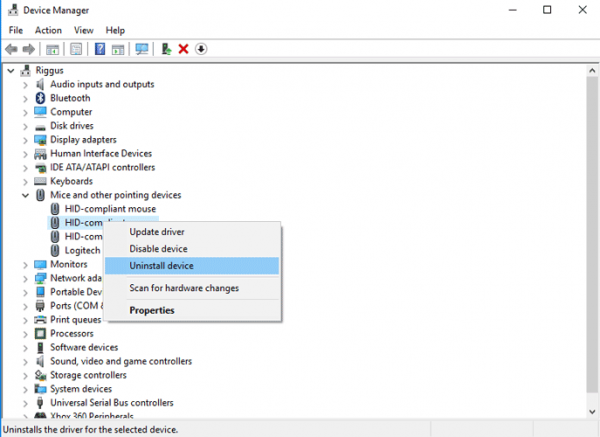
To remove the driver of the external mouse, just right-click on the My Computer icon on the Desktop screen, select Manage > Device Manager > Mice and other pointing devices, then right-click and remove each device in this section until the Touchpad works again.
Enable touchpad in Mouse Properties
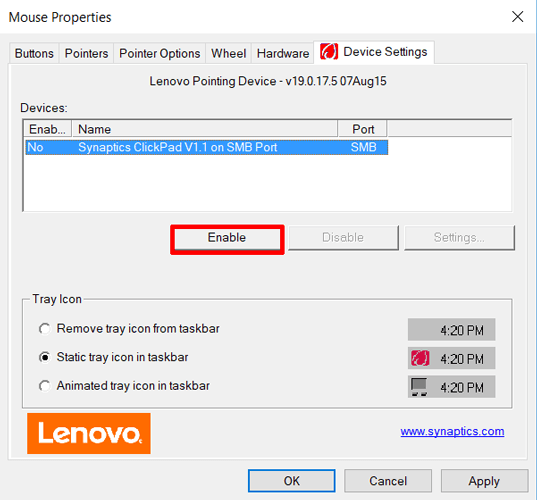
In some cases, Device Manager cannot enable/disable the touchpad. If the touchpad is disabled, you need to go to Mouse Properties to enable it again => Type 'mouse' in the Windows Search box and then go to Mouse Settings => click Additional mouse options, in the new window select Device Settings => Touchpad or any tab on the right side of the window. Find the touchpad in the list, select it and click Enable.
Disable Tablet PC Input Service
If you're using a Windows 10 laptop-tablet hybrid, it's possible that the Tablet PC Input Service is conflicting with the touchpad.
To disable, press Win + R and type 'services. msc' in the box. In the list of services, scroll down to find 'TabletInputService' or 'Tablet PC Input Service', right-click on it and disable it.
Error due to damaged touch pad, error cannot target
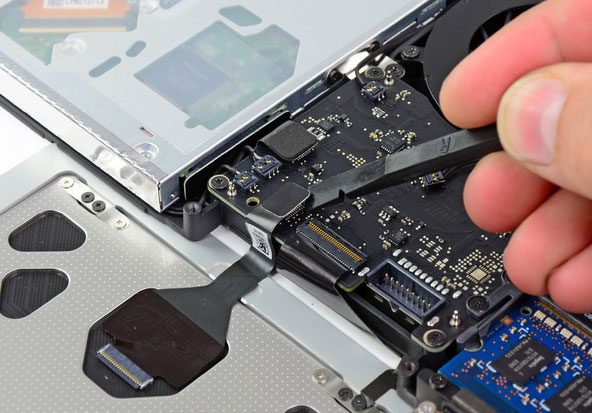
This error can be detected with symptoms such as: heavy movement, the laptop mouse is difficult to follow the will. Or intermittently moving sometimes, sometimes not. At this time, you may need an expert to remove and check if the cable is faulty, loose or faulty due to the touch pad surface, or the touchpad is damaged.
Above are the solutions to fix the problem of the laptop mouse not moving that this guide wants to share with you. If you have tried all the above methods but the laptop mouse still does not work, you can bring it to our Warranty Center to have experienced professional technicians diagnose and give you the best solutions.
Key Takeaways
Use the guidance above as a practical reference for why can't my laptop mouse move. Check compatibility, follow the steps carefully, and verify important details with official documentation when software, security, accounts, health, or purchases are involved.
FAQ
Why Can't My Laptop Mouse Move? How to Fix It?
The answer depends on the conditions, limitations, and evidence explained in this article. Review the relevant section before applying the conclusion to your situation.
What factors can change the answer?
Hardware, software version, location, budget, compatibility, timing, and individual requirements can all affect the result.
How can I verify the information for my situation?
Check current official documentation, compare your exact model or account settings, and confirm any time-sensitive details before acting.
Related Articles
 Computer Mouse Cannot Move Up and Down - Instructions for Fixing Errors7 minutes read
 The Mouse Can Move but Cannot Click, Let's Find a Solution: Main Insights7 minutes read
 How to Fix Laptop Touch Mouse Error Can't Move9 minutes read
 Why Is the Mouse Light on but Not Moving: Causes and Fixes3 minutes read
 6 Extremely Simple Ways to Fix a Computer Mouse That Won't Move9 minutes read
 8 Things to Know When Buying a Computer Mouse12 minutes read
Reader Comments 0
Sign in with email or Google to join the discussion.