Table of Contents
If a drive disappears from File Explorer, first check Disk Management. A healthy volume may simply have lost its drive letter, which can be restored without formatting. If the disk is missing from Disk Management, shows as RAW or Unallocated, makes unusual noises, or contains irreplaceable data, stop writing to it and investigate the hardware or use professional recovery help.
Why a drive can disappear
- Missing drive letter: Windows sees the volume, but File Explorer has no letter with which to display it.
- Disk is offline: Disk Management detects the device but has not brought it online, sometimes because of a signature conflict or policy.
- Connection or power problem: A loose cable, failing USB enclosure, inadequate power, or bad port can make the whole disk vanish.
- Driver or controller issue: The storage controller or external enclosure may not be detected correctly.
- File-system or partition damage: The disk can appear as RAW, Unallocated, or Not initialized even though it previously held data.
- Storage Spaces, RAID, encryption, or virtual disks: A member disk may not be intended to appear as a normal standalone volume.
- Hardware failure: Read errors, repeated disconnects, SMART warnings, clicking, or very slow detection can indicate a failing drive.
Check where the drive is missing
| Where it appears | Likely next step |
|---|---|
| Healthy volume in Disk Management, no drive letter | Assign a letter using the steps below |
| Disk Management shows Offline | Review why it is offline; bring it online only if it is a normal standalone disk |
| Disk Management shows RAW, Unallocated, or Not initialized | Do not format or initialize if existing data matters |
| Device Manager sees it, Disk Management does not | Rescan disks, then check controller/enclosure drivers and connections |
| Firmware/BIOS and Windows do not see it | Power off and check hardware, cabling, enclosure, and the drive itself |
Assign a drive letter to a healthy volume
Use this fix only when Disk Management shows the expected partition with a normal file system and Healthy status. Do not assign letters to EFI System, Recovery, OEM, or other small system partitions.
- Disconnect unrelated removable drives. This makes the target easier to identify, but do not disconnect a device that is part of a Storage Spaces or RAID set.
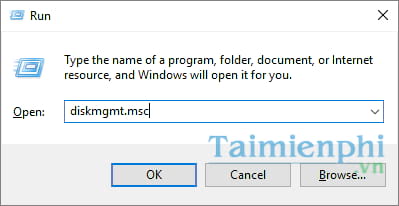
- Open Disk Management. Press Windows + R, enter
diskmgmt.msc, and press Enter. TipsMake also lists other ways to open Disk Management.
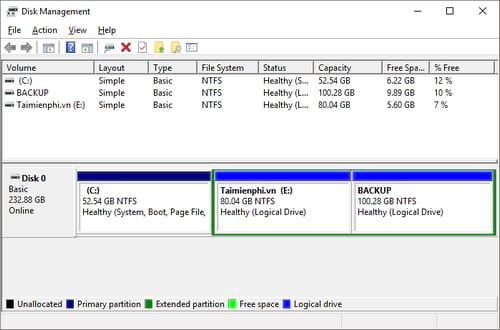
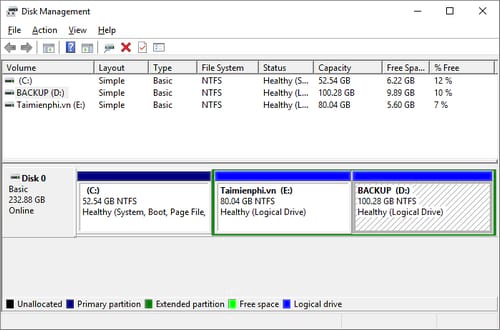
- Identify the volume by capacity, file system, label, and neighboring partitions. Do not assume Disk 1 or the first unnamed volume is the missing drive; disk numbers can change.
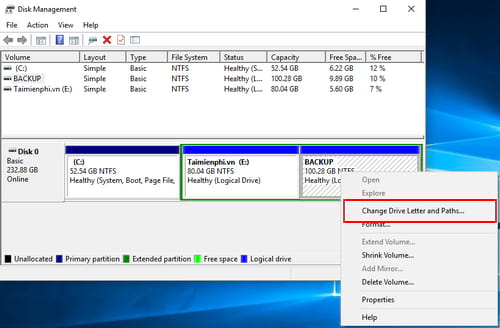
- Right-click the correct healthy volume and choose Change Drive Letter and Paths.
- Select Add. If a conflicting letter is already assigned, choose Change instead, but avoid changing the Windows system or application drive.
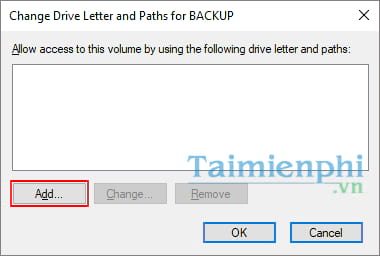
- Choose an unused letter and select OK. Microsoft's drive-letter instructions document the same Disk Management procedure.
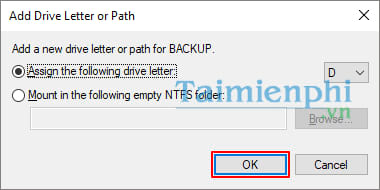
The new letter should now appear beside the volume.
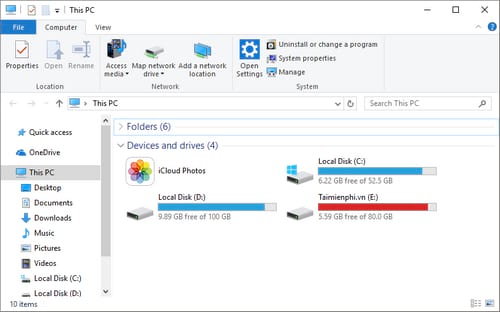
- Press Windows + E and confirm that the drive opens and the expected folders are present.
Back up important files immediately. A drive letter can disappear after a one-time configuration change, but repeated disappearance may indicate a deeper storage problem.
If the disk appears Offline
Right-click the disk label at the left of Disk Management and review the status. Bringing a normal standalone disk online may be appropriate, but do not do this blindly for a cloned system disk, SAN disk, RAID member, or shared organizational storage. A signature collision or storage policy may be keeping it offline intentionally.
If the disk is RAW, Unallocated, or Not initialized
Do not click Initialize, New Simple Volume, or Format if the disk previously contained data you need. Those actions write new metadata and can complicate recovery. Microsoft explains initialization for genuinely new disks in its Disk Management guide; a used disk that suddenly asks to be initialized is a different situation.
- Stop installing software or saving files to the affected disk.
- Take a screenshot of Disk Management and record the disk model and capacity.
- Check whether the correct storage pool, encryption key, or external enclosure is available.
- If the data is valuable, consult a reputable data-recovery specialist before trying repair utilities.
- If you have a current backup, replace or reconfigure the disk and restore from that backup instead of experimenting on the only copy.
If the disk is absent from Disk Management
- For an external drive, try another known-good cable, port, and—where required—power adapter. Avoid an unpowered hub.
- In Disk Management, select Action > Rescan Disks. Microsoft's Disk Management troubleshooting guide recommends rescanning for an external disk that does not appear.
- Check Device Manager for the disk, enclosure, and storage controller. Use drivers from the PC, motherboard, or enclosure manufacturer.
- Shut down before reseating an internal SATA or power cable. Do not open a sealed drive enclosure or laptop unless you are qualified and the warranty permits it.
- Check whether the disk appears in UEFI/BIOS. If firmware also cannot detect it, treat the problem as hardware-related.
Warnings that call for professional recovery
- Clicking, grinding, repeated spin-up, or burning smells
- The drive disconnects during copying or reports many read errors
- Disk Management hangs when the device is connected
- The disk was dropped, exposed to liquid, or connected with the wrong power supply
- The only copy contains business-critical or irreplaceable files
Do not run repeated repair scans, “bad sector repair” utilities, or full-disk recovery attempts on mechanically failing hardware. Each powered-on attempt can reduce the chance of recovery. Once data is safe, review TipsMake's overview of disk partitions and backups and keep at least one independent backup.
Related Articles
 How to Identify Hard Drive Failure, Hard Drive Failure, Bad Hard Drive7 minutes read
 Computer Hard Drive Is Fast, Why?6 minutes read
 5 Hard Drives with the Best Reliability6 minutes read
 The Basic Signs That Tell You It's Time to Change the Hard Drive for Your6 minutes read
 5 Ways to Check Hard Drive Effectively to Help Periodically Check11 minutes read
 What Is a Hard Drive? There Are Several Types?7 minutes read
Reader Comments 0
Sign in with email or Google to join the discussion.