Table of Contents
Copilot Studio can ground an agent in a SharePoint site URL or one or more SharePoint lists. The agent searches only the registered scope and returns content the signed-in user is permitted to access, so authentication and SharePoint permissions are part of the design—not optional cleanup after publishing.
Choose the correct SharePoint option
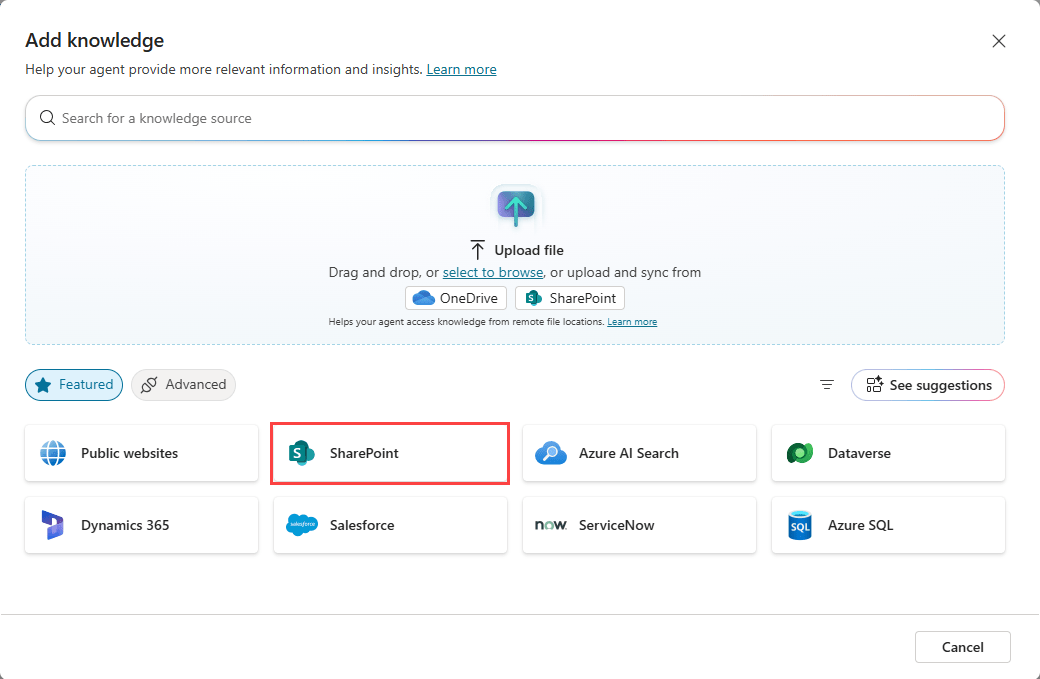
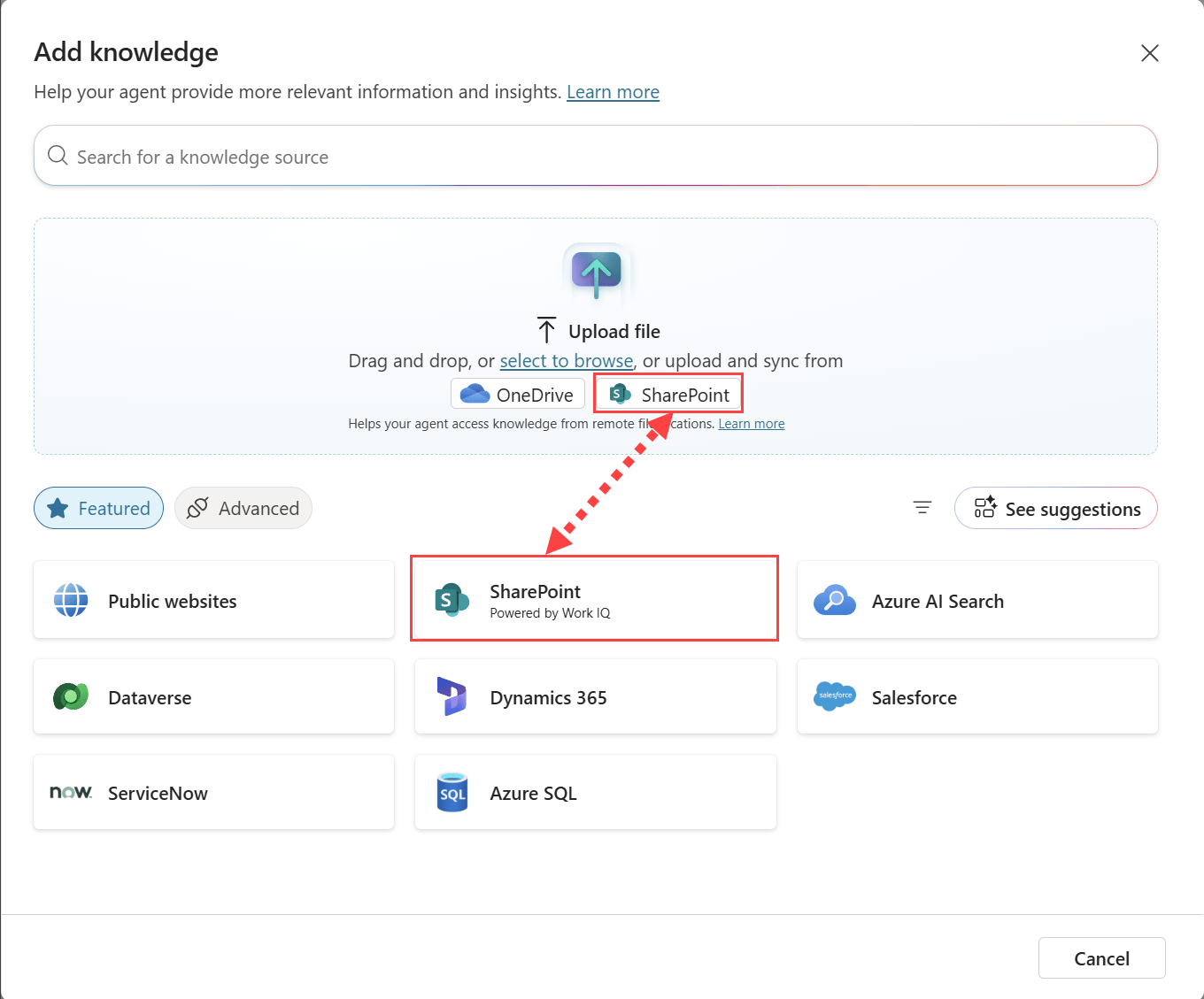
The Add knowledge dialog can show more than one SharePoint entry:
- Use the featured SharePoint option for a site URL, folder URL, or list with full SharePoint knowledge integration.
- Use SharePoint under file upload when the goal is to add individual files or folders with file synchronization.
This guide covers the full SharePoint integration.
How permission trimming works
Published generative-answer calls run on behalf of the user chatting with the agent. With Microsoft authentication, the agent should surface only content that user can access in SharePoint. The agent does not grant additional SharePoint permission.
Do not assume that sensitive source content is absent from all analytics or transcripts. Transcript behavior and controls can differ by environment and agent type. Review the current Copilot Studio transcript documentation, Dataverse retention settings, and maker access roles before using confidential content.
Add a SharePoint site or folder URL
- Open the agent.
- From Overview or Knowledge, select Add knowledge. You can also configure knowledge from a generative answers node.
- In Featured, select SharePoint.
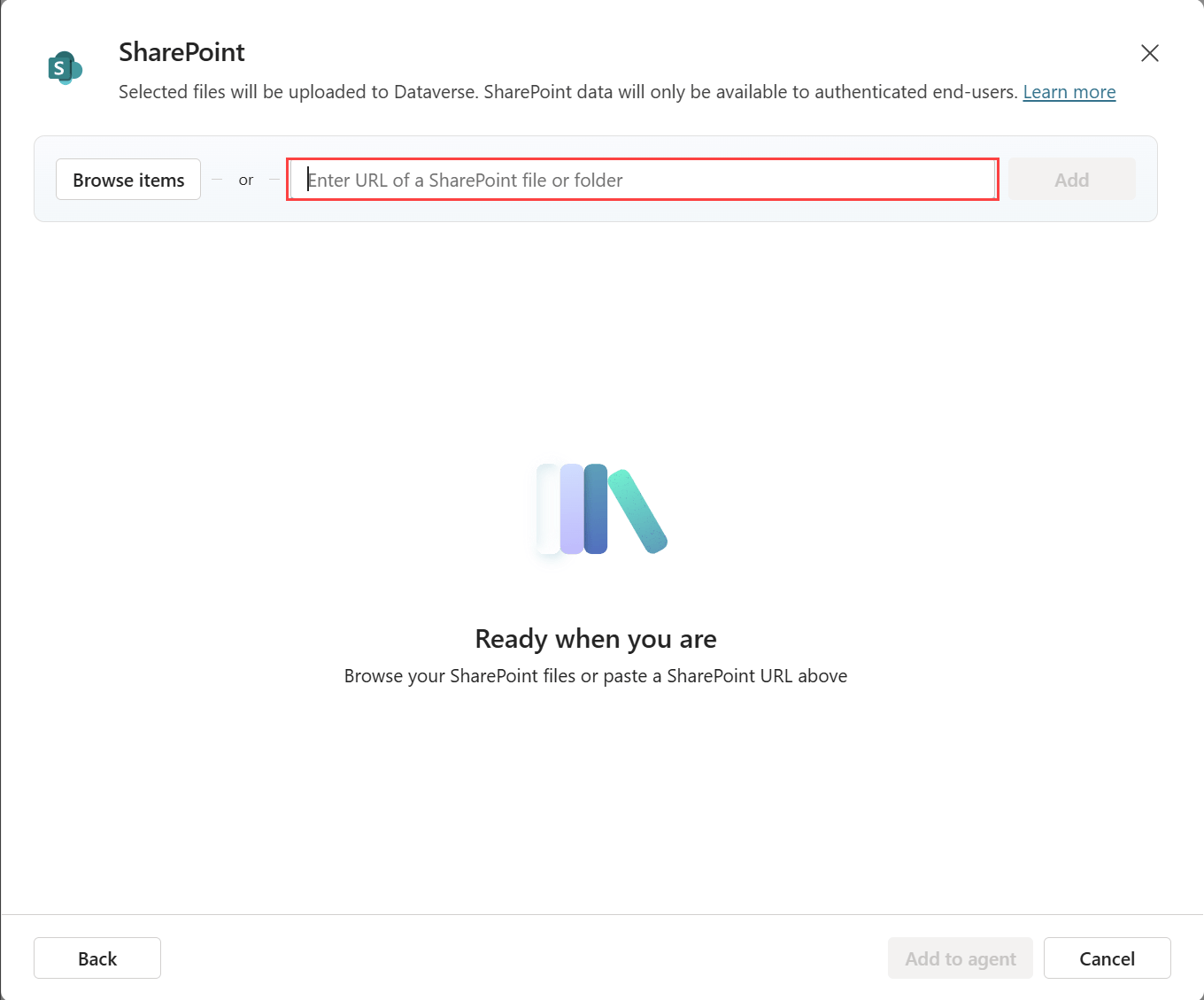
- Enter the SharePoint URL. Put multiple URLs on separate lines with Shift + Enter.
- Add a specific name and description. State what the source contains, who it serves, and which questions it should answer.
- Select Add to agent.
The registered URL includes its subpaths, but not parent folders, sibling locations, or unrelated sites. Links inside a registered page or document are not automatically followed for grounding; register a linked target separately when the agent must use it.
Update a renamed location
Renaming or moving a SharePoint site, page, or folder can break the saved source URL. Confirm permissions on the new location, copy the new link, edit the knowledge source, and retest with users who have different access levels.
Add SharePoint lists
A list connection retrieves current structured data and checks the user's SharePoint access before returning it.
- Open Add knowledge and select SharePoint.
- Select Browse items or paste the direct URL of the list.
- Choose from My Lists or Recent Lists. If a shared list is missing, open it once in SharePoint or paste its URL.
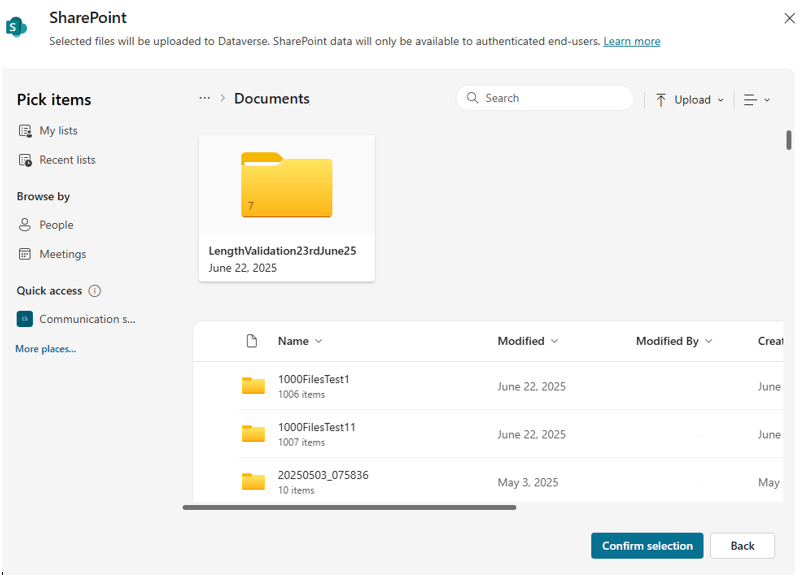
- Select the lists and choose Confirm selection.
- Add a clear name and description, then select Add to agent.
Microsoft's current guidance allows selecting up to 10 lists at one time and recommends no more than 10 lists per agent for best results. Lists above 35,000 rows can reduce quality and increase latency. Treat these as current service limits and recheck them before a large deployment.
Configure authentication
Authenticate with Microsoft is the normal choice for SharePoint knowledge in Teams, Power Apps, and Microsoft 365 Copilot. No authentication cannot securely retrieve private SharePoint content.
For advanced manual authentication, work with an Entra ID administrator. Microsoft's documented app registration requires delegated access scopes including Sites.Read.All and Files.Read.All for this scenario. Those scopes let the agent request content on the user's behalf; they do not override the user's existing SharePoint permissions.
- Restricted SharePoint Search can block this knowledge source.
- Generative SharePoint answers may not be available to guest users in SSO-enabled apps.
- Manual authentication provider support is limited; Generic OAuth is not supported for this SharePoint configuration.
- Changing authentication on an already published agent requires republishing and new test conversations.
Filter a SharePoint source
Filters reduce irrelevant retrieval. For example, you can restrict results to items modified on or after a selected date.
| Attribute | Operator | Value |
|---|---|---|
Modified on | on or after | A selected date or variable |
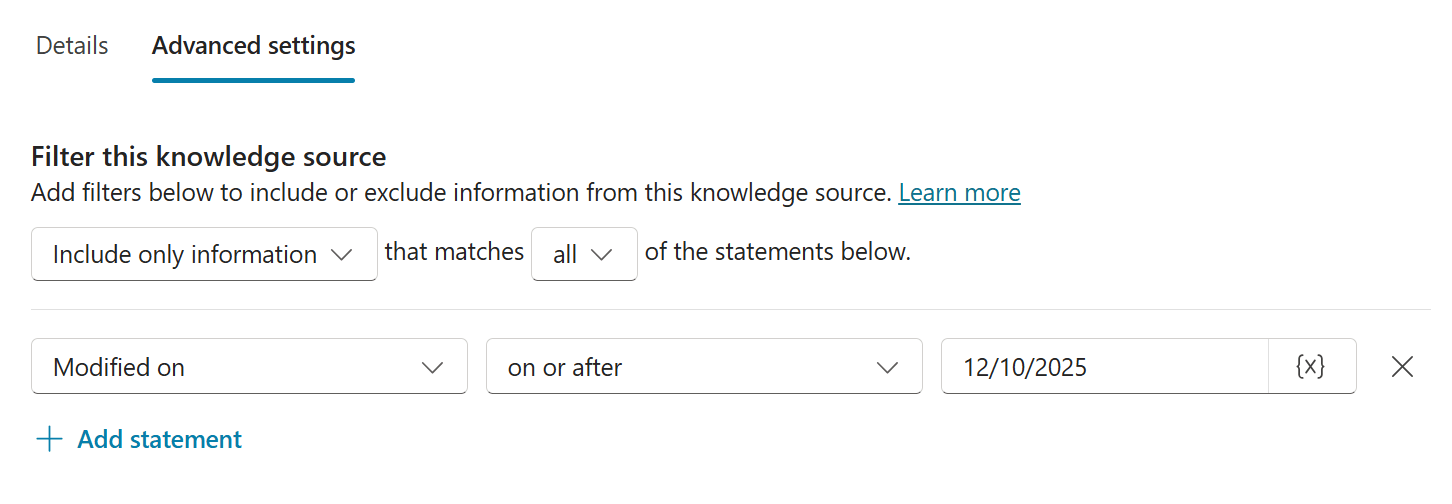
- On the Knowledge page, open the source's three-dot menu and select Edit.
- Open Advanced settings.
- Create conditions using supported attributes such as title, author, modified by, or modified on.
- Use a static value, a custom global variable populated during the conversation, or a supported system variable.
- Save and test both included and excluded content.
If the agent must answer only from the filtered source, review web search and general-knowledge settings at the agent and generative-answer-node levels. Turning those off can cause a no-answer response when SharePoint has no matching result, which is often preferable to an unsupported answer.
Use a variable SharePoint URL
A string variable can append a path to a base URL or replace the entire knowledge-source URL at runtime:
https://contoso.sharepoint.com/sites/{GlobalSitePath}Create a global string variable, populate it from a controlled topic input, user attribute, environment variable, flow, or connector, and insert it with the variable picker. Validate the resolved URL before retrieval.
Map approved inputs to paths
Do not concatenate unrestricted user text into a URL. Map known values to approved paths with Power Fx:
Table(
  { Product: "Copilot", Path: "copilot" },
  { Product: "Teams", Path: "teams" },
  { Product: "Surface", Path: "surface" }
)
LookUp(Topic.ProductTable, Product = Topic.Product, Path)Then use the resulting global string in the SharePoint URL. Variables change the destination scope; they do not bypass URL-format rules, depth limits, indexing, or user permissions.
Test before publishing
- Ask questions with known answers and inspect citations.
- Test as users with full, partial, and no access to the source.
- Test renamed, moved, deleted, and newly added content.
- Measure latency with and without optional advanced retrieval features.
- Confirm that filters exclude old or unauthorized material.
- Review transcript retention and access with an administrator.
For current limits and authentication details, consult Microsoft's SharePoint knowledge-source documentation before deployment.
Related Articles
 Use unstructured data as a knowledge source for agents10 minutes read
 Add unstructured data as a knowledge source for the Copilot13 minutes read
 Add Copilot Connectors to Copilot Studio Agents8 minutes read
 How to Create File Groups in Microsoft Copilot Studio13 minutes read
 Copilot Studio Knowledge Sources: Complete Guide10 minutes read
 Use Azure AI Search in Copilot Studio: Setup Guide13 minutes read
Reader Comments 0
Sign in with email or Google to join the discussion.