Table of Contents
This guide compares 10 leading Tips for Using Task Manager in Windows 10, focusing on useful features, compatibility, ease of use, and overall value.
In this article, I will introduce to you 10 super cool Task Manager tips that you should try even once. Maybe after using it, you feel this is a tip that you cannot lack.
1. Quick tip of Task Manager
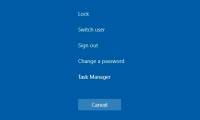
There are quite a few ways to open the Task Manager such as right-clicking the Taskbar and then selecting Task Manager, or pressing Ctrl + Alt + Delete and then selecting Task Manager. If you want to use a cumbersome mouse, you can press Ctrl + Shift + Esc to quickly open Task Manager. In addition, there are a number of other ways such as right-clicking on the Start Menu or using the Run dialog box, but some are not as fast as the keyboard shortcuts, so I will not mention it.
2. Check the cause of the application freeze

As I stated at the beginning of the article, one of the reasons why users have to use the Task Manager is to turn off tasks or applications that are either frozen or unresponsive. However, you don't always feel that an application takes too long to respond, it may just need more time to handle all the tasks that you require the app to do.
If you find that the application needs more time to process, you force shut down the application, causing data loss problem. Therefore, it is best to check to see why the application is not responding so long through Task Manager.
3. Restart Windows Explorer

If you are unsure, Windows Explorer or File Explorer are responsible for managing user interfaces such as Taskbar, Start Menu, etc. on Windows. If you experience problems with these user interfaces, restarting Windows Explorer is the first thing you should try to fix it.
Of course, Restarting your PC will also help you solve the problem, but that way you will have to wait for the computer to reboot, but if you Restart Windows Explorer it will take much less time and windows or applications. you do not need to open it all over again.
4. Monitor performance and computer resources more easily
If you open up Task Manager and access the Performance section, you will be able to see how much CPU, RAM, GPU, hard drive, Ethernet speed, Wi-Fi are working, how many resources are available or have been. use.
However, if the Task Manager window is too large, it will take up most of the screen area, but if you click and minimize the window, it will still show unnecessary 'mustaches' while you just want to. view resource usage only.
To be able to minimize the Task Manager window in a cleaner and more sophisticated way, right-click on any hardware pane such as CPU, RAM, Disk, etc. and select Summary view .

Task Manager will automatically minimize as possible and display only correct hardware usage information.

In addition, you can right-click on any hardware and choose Copy and paste out of Notepad to save the data or share on forums for help or troubleshooting.


5. Look up suspicious activities online
Task Manager has a very useful feature that is Search Online . This feature lets users directly check the network for a suspicious task running on the computer through Task Manager without having to manually open the web browser.
The way to do this is also very simple, if you see a suspicious task or application running without knowing what it is, you can right-click and select Search Online . Immediately, a web browser will open and check for yourself what that task or application is.

6. Show more information on Task Manager
By default, Task Manager only displays a certain column of information in the Processes section, although these columns have provided enough information for the user, but you can still add some other useful information columns. more if desired by right clicking at the top of any column and selecting any additional information you like.

Eg:
- Type: will tell you that a running task is an application, or background task, or a Windows task.
- Publisher: will tell you the developer of that program.
- Process name: will tell you the application name of the running task.
7. Show the percentage of RAM consumption of the application

As you probably know, Task Manager allows us to monitor the RAM usage of an application. But by default, Task Manager only displays the amount of RAM used in MB units only, not how much percentage of the system is using the application is using. However, with just a few simple adjustments, you can completely make Task Manager show the percentage of RAM usage instead of showing MB.
8. Find the location of the application saved on the computer
If you find that a suspicious task is running, in addition to Search Online you also have the option to open the folder location to save the application running that task on your computer. This feature helps you not only see in person, but also know where the application is saved so that, if needed, you can delete the file as needed.
To do so, right-click on the running application or task in Task Manager and select Open file location .

9. Add utilities for Task Manager
Task Manager also has a number of built-in utilities that you can add to make your experience better. For example, you click on Options and then select Always on top to attach Task Manager on any application window.
This utility helps you comfortably view Task Manager without fear of being hidden by other windows. If you combine Always on top with the Task Manager window minimization feature I introduced above, it will help you easily see but still keep the desktop space tidy.

Next, you can also choose which item is the default display item of the Task Manager every time you open the Set default tab .

In addition, in the View section , select Update speed to choose the update speed and Task Manager will show you as fast, normal, slow or pause if you want to take a look.

10. Find applications that are harming your hard drive

By default, the application will access your hard drive when it needs to open a file or you modify or modify something in the application. For example, if you open Word and type in it, you are creating and editing documents. Word will now write the data to the hard drive. At the same time, Word will also read data from the hard drive to access the current version of the document.
This is very normal. However, if there is an application that is continuously reading and writing data to the hard drive even if you are not using it or you do not even know which application it is, then this is an unusual problem at all.
FAQ
How should I choose among Tips for Using Task Manager in Windows 10?
Compare compatibility, essential features, ease of use, security, support, and total cost rather than choosing only by popularity.
Are free options suitable for everyday use?
Free tools can be sufficient for basic needs, but advanced features, commercial use, or priority support may require a paid plan.
What should I check before installing or using one?
Verify the official source, system requirements, recent updates, privacy practices, and support for your device and file types.
Related Articles
 All Problems About Using Task Manager6 minutes read
 Ways to Enable Task Manager in Windows 113 minutes read
 Useful Windows Task Manager Tricks You Need to Know: Complete Guide8 minutes read
 7 Simple Ways to Open Task Manager on Macbook, Windows 10,117 minutes read
 Preparing for a New Task Manager on Windows 113 minutes read
 Former Microsoft Employee Revealed the Secret in Task Manager on Windows 105 minutes read
Reader Comments 0
Sign in with email or Google to join the discussion.