Table of Contents
This guide provides a clear, practical overview of tips to block viruses from USB, how to prevent viruses from, with useful context, important details, and straightforward takeaways for everyday readers.
Next, a series of problems will happen to the data on your computer, which may damage your data or be hidden or deleted . generally a lot of problems that I cannot anticipate. all right.
So the best way is that you should have a solution to prevent Viruses spreading from USB, this article TipsMake.com will share with you how to prevent virus from usb to prevent maximum virus from spreading to your computer.
Note: This article I will guide computers using Windows 7 or higher, Win XP, I think few people use it now, so I do not guide, but if you want you can do the same, but maybe you will. slightly different in terms of interface.
The reason the virus can spread via USB is that the virus copies itself onto the USB drive and then creates a hidden file called autorun.inf to enable the drive's Autoplay feature.
And once you click to open the USB, it accidentally activated this virus. And there is a pretty good way that I used to apply it often is to create an autorun.inf file available in the usb, the purpose is to prevent the virus from overwriting its autorun file.
But now the virus has many smarter types, so I don't use this method anymore. Instead there are the following very good ways:
1. Turn off Auto Play
Implementation: By default, when you plug an external device in, for example USB, removable hard drive, CD / DVD ., the computer will automatically turn on.
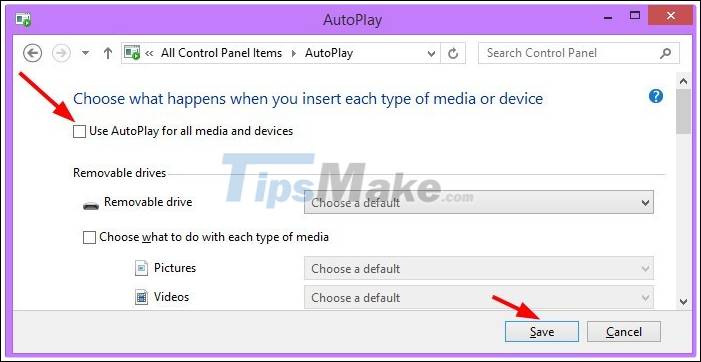
To turn off this function we go to Control Panel => AutoPlay then uncheck the box 'Use Autoplay for all media and devices'.
2. Prohibit running exe files directly from usb
This method is extremely useful and probably the most effective that you should apply immediately to your computer, you do not need to use any other 3rd tools.
And this little trick helps you prevent all applications from running automatically such as * .exe files . and files like word, excel still run normally.
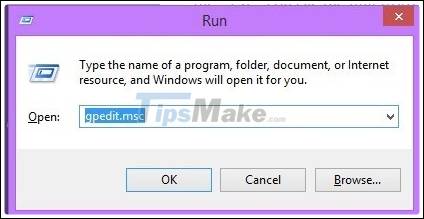
Implementation: First you open the dialog box Run (Windows + R) => then type the command gpedit.msc => and press Enter
Next, navigate to the following path:
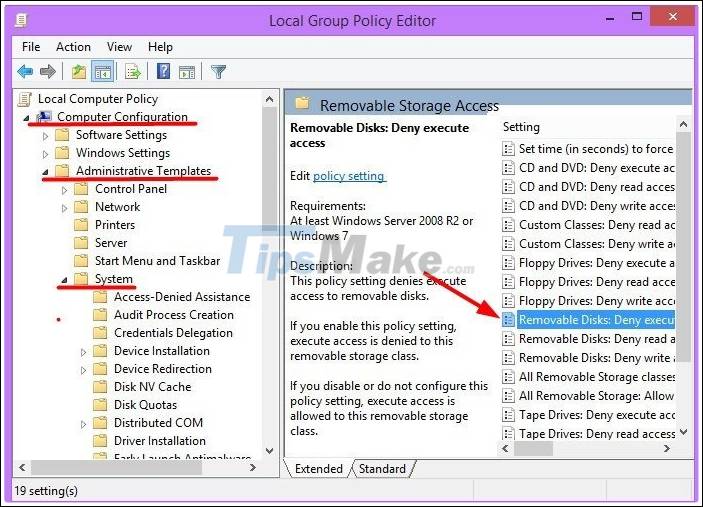
Go to Computer Configuration => select Administrative Templates => select System => select Removable Storage Access => navigate to Removable Disks: Deny Execute Access.
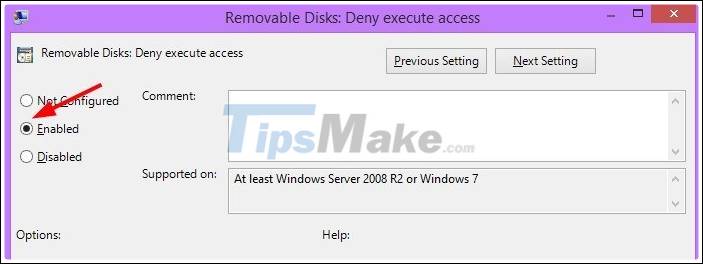
Double-click the Removable Disks file: Deny Execute Access you just found and turn it on Enabled then click OK to execute. That is done
OK! Now all files with * .exe format will not be able to run directly on USB, which means that if you or someone else double-click the wrong file, it's okay, because it cannot run.
Speaking of the problem of not running much, you will think that is too inconvenient, this is not good, right?
To solve this problem is straightforward, To run * .exe file, use Winrar to compress the file as .rar or zip.
How it works: When you double click to run the executable file in the file you just compressed, the application will be unzipped into the system's temporary directory so it can run normally without worry. Virus infection if the application unfortunately has a virus attached.
Tuts: You should compress important files before copying to USB, because as far as I know, so far no virus can infect the compressed file, so the documents to save the compressed file will be very safe. .
If you do this, it is not necessary to disable autoplay on windows.
3. Freeze USB
Freezing USB is a great way that you should immediately apply it to your usb.
Not only prevent virus from usb but also protect data in your USB. To understand more details you can see detailed instructions on how to freeze usb .
4. Install anti-virus software
If you are a careful person, it is indispensable to have an antivirus for your computer. If possible, you should use premium anti-virus software such as KIS, NIS, BIT . will be very good.
Or you can consult some of the best free anti-virus software available today. Although it cannot be compared to paid software but it also protects quite well for users, a home with a gateway will be more secure, right.
5. Conclusion
Above are the best ways to help you effectively block viruses from USB that I think anyone can do.
This is really useful for those who often have to work with USB, to avoid data loss and damage to the machine.
FAQ
What does this guide explain about Tips to Block Viruses from USB, How to Prevent Viruses from?
It explains the main concepts, practical considerations, and useful steps related to tips to block viruses from USB, how to prevent viruses from without requiring advanced knowledge.
Who can benefit from learning about Tips to Block Viruses from USB, How to Prevent Viruses from?
This information is useful for readers who want a clear overview, practical guidance, and reliable steps related to tips to block viruses from USB, how to prevent viruses from.
What should I check before applying this information?
Review the requirements, confirm that your device, software, or situation matches the instructions, and back up important data before making major changes.
Related Articles
 'Great Technique' Autorun Virus Removal by Hand3 minutes read
 Prevent Virus Infection via USB3 minutes read
 Computer: Asia: 26 Types of Viruses Are Spreading Strongly!1 minutes read
 How to Remove Viruses from Flash Drive: Practical Guide8 minutes read
 How to Block Other People on Google+: Block Others on Google Plus2 minutes read
 7 Computer Viruses You Should Be Careful8 minutes read
Reader Comments 0
Sign in with email or Google to join the discussion.