Table of Contents
If you don't want others to see your conversation, change the settings to set your conversation with Meta AI to private.
Meta and privacy aren't two terms that go together easily. Many users have paid a heavy price for realizing that their conversations with Meta AI are publicly displayed on the Discover Feed. If you don't want people to see your conversations, change your settings to make your conversations with Meta AI private.
For more context before choosing a tool, compare Claude and ChatGPT and review these practical AI tools for students.
The purpose of Discover Feed
Most chatbots keep things simple – you chat, get a response, and move on. Meta AI attempts to incorporate a more social element, which makes sense considering Meta owns the most popular social networks.
What most users don't know is that the Discover Feed isn't limited to just your friends. Instead, it's publicly visible to all Meta AI users. Everything you share is visible to everyone. Depending on the type of conversation you're in, you might not want the whole world to know too much about you.
Avoid sharing your Meta AI messages.
To keep your Meta AI messages private, never tap the Share button. Close the share pop-up window if it appears. If it doesn't appear, simply avoid tapping the Share button in the upper right corner.
A warning message will appear before you share anything to let you know that what you're sharing is public. However, in tests, this message only appeared occasionally. As you can see in the screenshot below, there is no notification above the " Post to feed" button, and no pop-up warning appears either.
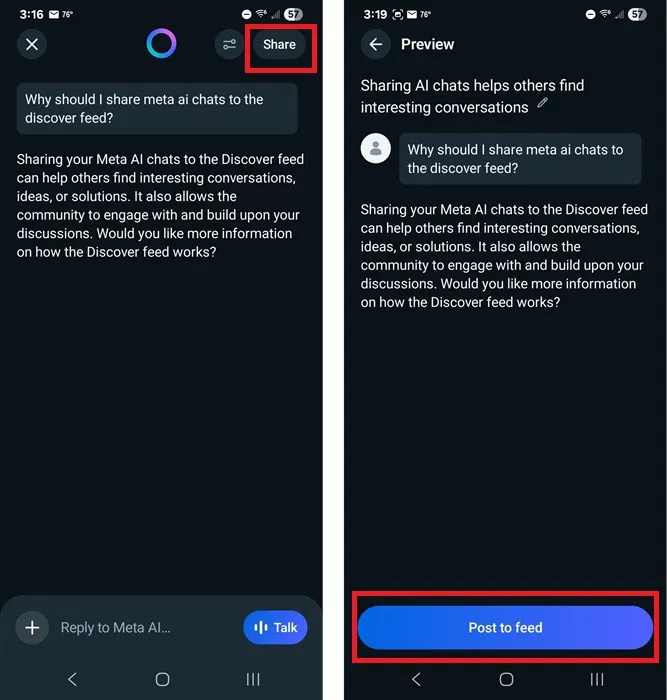
Do not share your messages on Discover Feed.
Many people fear accidentally clicking the Share or Post to feed button. Currently, there's no way to disable default sharing while still being able to share some conversations. It's either share everything or nothing.
Tap your profile icon in the upper right corner of the Meta AI app. Tap Data & privacy -> Manage your information -> Make all public prompts visible to only you. Tap Apply to all.
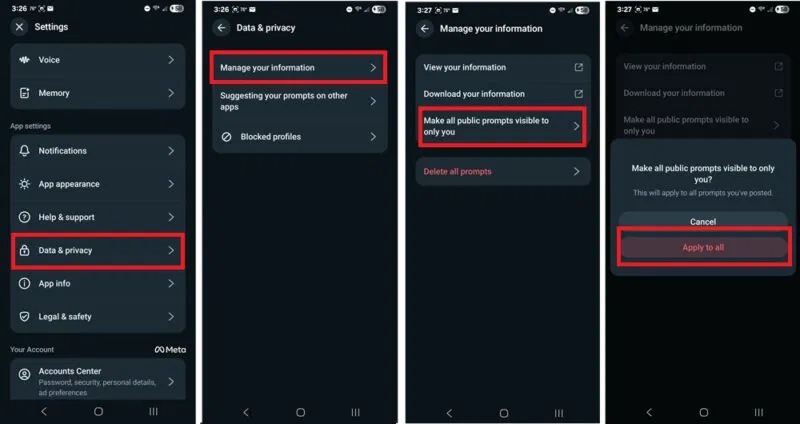
Delete or stop sharing public conversations.
Tap the History tab in the middle at the bottom of the Meta AI app. Look for the blue Public tag at the end of the list of conversations. These are conversations shared on the Discover Feed.
Press and hold any publicly shared conversation and select "Make visible only to you" to keep the conversation but no longer share it publicly. Or, press " Delete" to delete it completely.
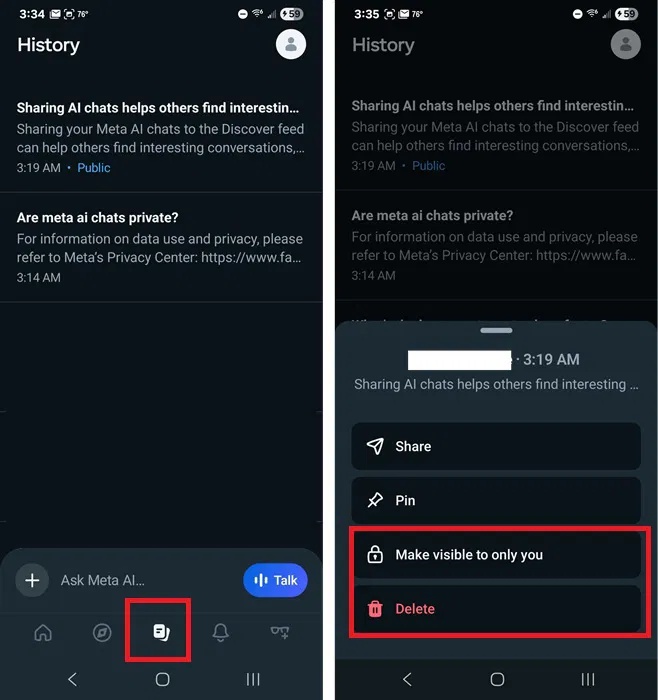
Remove direct messages from Discover Feed
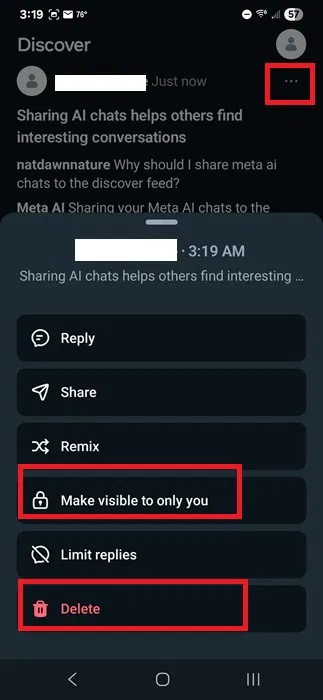
If you've just accidentally shared a message, go to Discover Feed to quickly delete it. Tap the Discover Feed tab near the bottom left and tap the three dots at the top of your post. Tap Make visible only to you or Delete.
Share the message only with friends.
The only way to share a message with friends is to first share it to your Discover Feed. Then, press and hold the message in your history or tap the three dots next to your post in your Discover Feed. Tap Share, and then choose how and where you want to share it.
Currently, the only solution is to copy or download your content and upload it to your chosen platform. For example, if you've created images, open each image and tap Save. For text, press and hold to select the text you want, tap Copy, and then paste it into another application. Or, simply take a screenshot of your conversation and share it as an image on your chosen platform.

This isn't as easy as tapping Share from the Meta AI app, but it's still better than sharing an awkward conversation with the whole world instead of just one close friend.
Related Articles
 6 Pros and Cons of Meta AI14 minutes read
 4 Best AI Chatbots for Handling Long Conversations8 minutes read
 Meta Will Use Your Chat Data with AI to Personalize Ads and Content On4 minutes read
 How to Delete Meta AI Chat History3 minutes read
 Private Chat Features Are Available on Skype for Android3 minutes read
 Change This Setting Immediately If You Use Meta AI!7 minutes read
Reader Comments 0
Sign in with email or Google to join the discussion.