Table of Contents
The following guide provides a clear overview of Screen capture, with the most relevant background, details, and practical takeaways.
Screen Capture Overview
Key features of PicPick computer screen capture tool:
- Various options for capturing different screen shots: capturing full screen, window, double screen, fixed area, continuous shooting of multiple images at the same time, auto-scrolling, adding sound effects or continuous shooting same time.
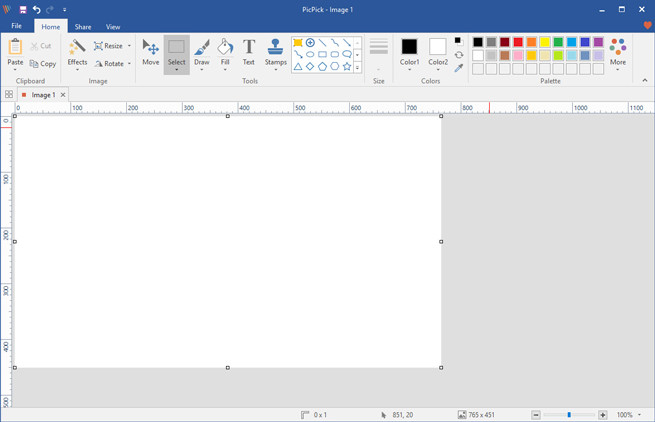
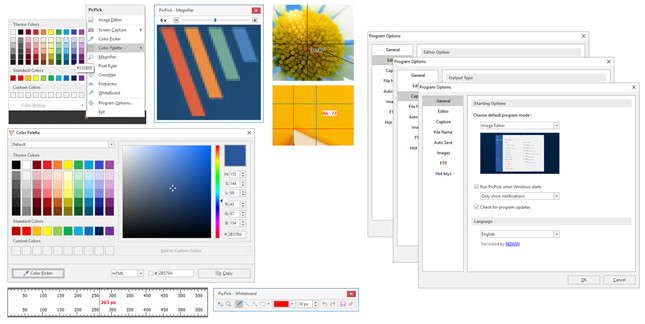
- Integrated with many other useful tools to help edit and edit photos faster such as measuring points, color dots, color codes or sketching.
- Basic image editing support including cut, merge, add effects or notes to photos, resize, rotate.
- Support to perform image editing in bulk helps reduce editing time.
- Support many different color encoding (RGB, HTML, C ++.) to help increase image quality.
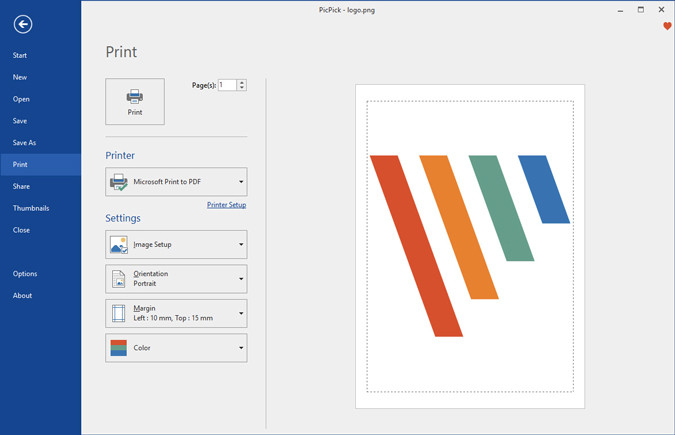
- Support printing images directly via connecting to the printer.
- Easily share photos via Email, or social networks like Facebook, Twitter.
Download link:
- PicPick: All-in-one design tool for everyone
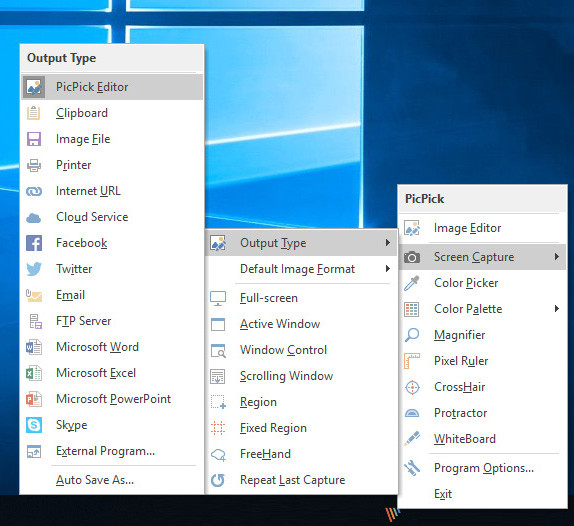
After downloading and installing, open the software and select the tool you want to use, including:
Screen Captune - Screen capture modes include:
- Full-screen: Full screen capture.
- Active Windows: Use Windows' default quick shortcut.
- Windows Control: Use the full control panel with preview.
- Scrolling Windows: Scroll to capture.
- Region: Select the region to capture.
- Fixed Region: Capture by custom size.
- FreeHand: Take photos according to the cursor position.
Graphic Accessories:
- Color Picker: Colored dots pen.
- Color Palette: Color code table.
- Magnifier: Zoom the image according to the mouse cursor.
- Pixel Ruler: Measure pixel size.
- Cross Hair, Protractor: Angle measure.
- White Board: White board.

If you want to use the small and fast toolkit, users can select Options -> select General -> select Choose default program mode -> switch to Floating Widget mode and turn off the full interface of PicPick.
- How to take photos, record screen videos on Chrome
- Instructions for taking screenshots of Linux computers
- 23 useful screen capture apps for macOS
- 15 useful screen capture applications for Windows
FAQ
What does Picpick, a Multi-Screen Screen Capture Tool, Supports Pixel explain?
The following guide provides a clear overview of Screen capture, with the most relevant background, details, and practical takeaways.
Who is most affected by Screen capture?
Screen Capture Overview Key features of PicPick computer screen capture tool: Various options for capturing different screen shots: capturing full screen, window, double screen, fixed area, continuous shooting of multiple images at the same time.
What are the key takeaways from this topic?
Integrated with many other useful tools to help edit and edit photos faster such as measuring points, color dots, color codes or sketching.
Related Articles
 Here's How to Take a Google Pixel Phone Screen Shot4 minutes read
 CSS Color Coding, Standard Color Code in Website Design14 minutes read
 4 Software to Help Get Professional Color Codes: Color-Coding Tool5 minutes read
 15 Useful Screen Capture Applications for Windows12 minutes read
 How to Capture a Windows 10 Screen Area Using Snipping Tool4 minutes read
 How to Create and Use Useful Snipping Tool Shortcuts in Windows6 minutes read
Reader Comments 0
Sign in with email or Google to join the discussion.