Table of Contents
Redeem Azure Latch codes through Menu > Rewards inside the Roblox experience. Enter one code exactly as written, then select Redeem. A code may award in-game currency or a cosmetic item, but its reward and availability depend on the developer's release.
Recently reported Azure Latch codes
The codes below were listed as active in Destructoid's October 5, 2026 update. They are reported codes rather than a guarantee of successful redemption: the developer can expire a code without warning, and the game's confirmation message is the final check.
| Code | Reported reward |
|---|---|
TIMOTHYISHEREFORNAGI | Style Coins and Cash |
KAISERISNEXTWEEKNOWORRIES | Style Coins and Cash |
MAYBE | Style Coins and Cash |
BAROUTSPECIAL | Style Coins and Cash |
BROTHERNOAH | Brother Noah emote |
MYANIMEFANSMAN | My Anime Fans Man emote |
Use only one code at a time. Keep capitalization and punctuation intact, and remove spaces added before or after the code when copying it.
How to redeem a code
- Open the Azure Latch Roblox experience. Make sure you are playing Azure Latch rather than a similarly named modded game.
- If the game asks you to join its Roblox community, use the developer/community link on the official experience page. Community names can change, so follow the current page rather than an old group name.
- Launch the game and select Menu at the bottom of the screen.
- Open Rewards.
- Paste a code into the code field and select Redeem.
- Read the response and check the relevant currency balance or cosmetics inventory.
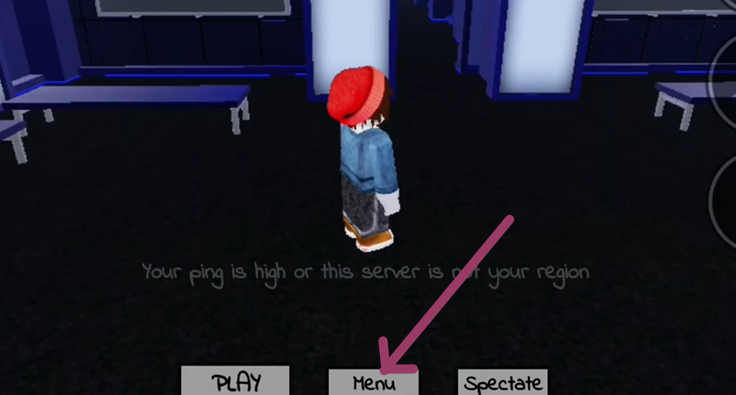
The first screenshot shows where to open the menu.
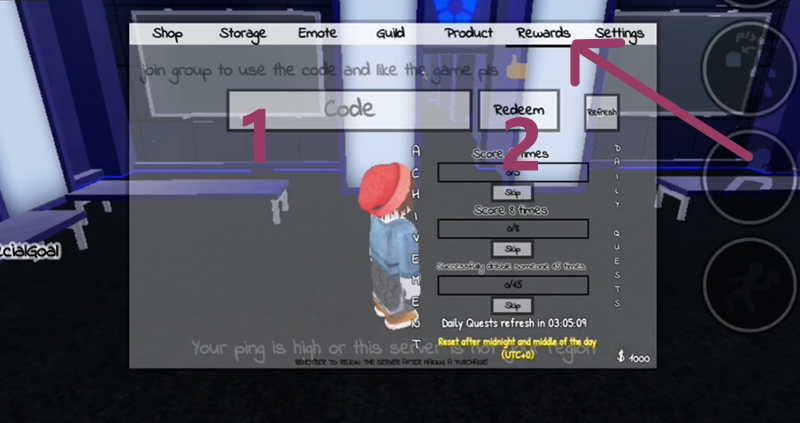
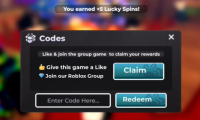
In the Rewards panel, enter the code in the text box and use the Redeem button. The layout may change after an update.
Older codes to recognize
The following entries from earlier lists are now reported as expired by the same reference. They are kept here to help explain why an older list or saved code may fail.
| Older code | Reported status |
|---|---|
DelayLatch | Expired |
Jakethesnake | Expired |
TheKing | Expired |
ACEEATER | Expired |
THXFOR2M | Expired |
RINRELEASE | Expired |
sorryforlatency | Expired |
Why a code does not work
- Invalid code: compare every character with the source announcement. Similar-looking strings are not interchangeable.
- Expired code: move on to a newer announcement. There is no reliable fixed lifespan such as three or seven days for every code.
- Already redeemed: a code already claimed by your account cannot normally be claimed again.
- Community requirement: follow any requirement shown by the game, then leave and rejoin so the membership can be recognized.
- Older server: after a game update, rejoin a fresh server and try once more.
If you cannot sign in to Roblox at all, resolve that first using the Roblox password recovery guide. A login problem is separate from a rejected game code.
Where to find future codes
Start with the current Roblox experience page and its linked community or developer announcements. Follow a Discord link only when it is supplied by the official game page or community. There is no guaranteed weekly release schedule.
Azure Latch codes work in Azure Latch. If you also play the separate soccer experience, use our Blue Lock Rivals code guide for that game's redemption process.
Redeem rewards in the game itself. A site offering codes should not need your Roblox password, browser cookies, or verification codes; Roblox's account safety guidance explains why those details must stay private.

Reader Comments 0
Sign in with email or Google to join the discussion.