Table of Contents
MECCHA CHAMELEON uses a compact keyboard-and-mouse layout: WASD to move, Ctrl to crouch, F for paint mode, and R for the pose menu. The same keys gain contextual actions when you are attached to a surface or playing as a Seeker.
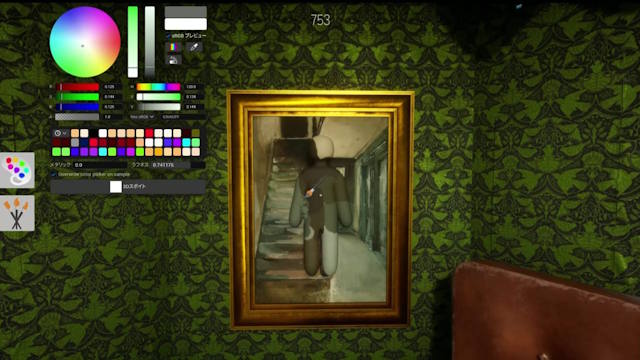
The game displays live prompts on the HUD. Treat those prompts and the current Settings screen as the final reference after a patch or custom remap.
Default PC controls
| Action | Default input | Context |
|---|---|---|
| Move | W, A, S, D | Hider and Seeker |
| Look or aim | Mouse | Hider and Seeker |
| Crouch | Ctrl | Normal movement |
| Move upward | Space | While attached to a surface |
| Move downward | Ctrl | While attached to a surface |
| Detach from surface | Shift | While wall-stuck |
| Open paint mode | F | Hider |
| Open pose menu | R | Hider |
| Paint | Left mouse button | Paint mode |
| Use the 3D eyedropper | Space | Paint mode; select the eyedropper tool as shown by the HUD |
| Rotate character while painting | Middle mouse button | Paint mode |
| Tag a suspected Hider | Left mouse button | Seeker |
| Taunt | 1 | Match |
| Toggle nameplates | 2 | Seeker |
| Toggle see-through paint view | 3 | Seeker |
| Chat | T | Online match |
| Pause or open menu | Esc | Match |
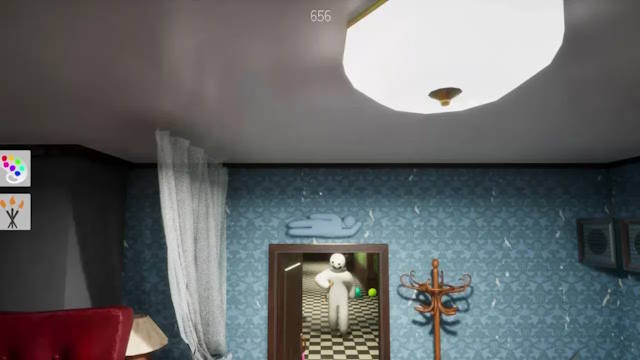
Movement: there is no sprint key
The default movement speed is fixed; there is no dedicated sprint or dash. Use the preparation period efficiently:
- Choose a plausible hiding area before opening paint mode.
- Move into position with WASD and crouch with Ctrl when necessary.
- Paint only after you know the surface and the likely Seeker viewing angle.
- Leave enough time to select a pose and inspect the silhouette.
Opening the paint interface in the center of the room wastes the most valuable seconds and can leave the character unfinished when the hunt begins.
How to use paint mode
Press F to open the painting interface. It provides direct color controls and surface settings such as roughness or metallic appearance, depending on the current build.
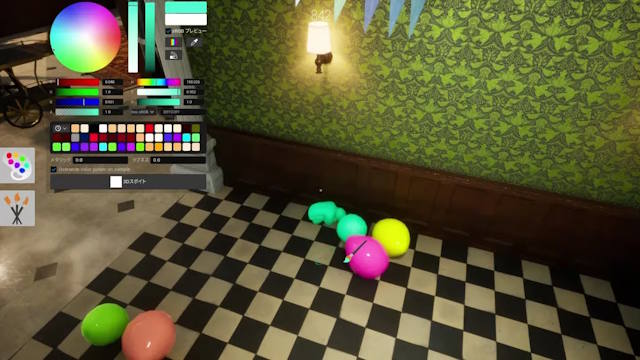
Sample the actual hiding surface
Select the 3D eyedropper and sample the wall, floor, prop, or object beside the final hiding position. A similar-looking surface across the room may use different lighting, shadow, or material values.
Match finish as well as color
A correct RGB value can still stand out when the character is glossy and the background is matte. Adjust brightness, saturation, metallic appearance, and roughness while viewing the character from the direction a Seeker will enter.
Rotate and inspect every side
Use the middle mouse button in paint mode to look around the character. Check the back, elbows, hands, legs, and any surface exposed by the selected pose. One white patch is more noticeable than a small shade mismatch.
Pose and wall-stick controls
Press R to open the pose menu. Choose a shape that fits the environment rather than the most dramatic pose. The outline should resemble nearby decoration, clutter, shelving, or wall art.
After attaching to a surface:
- press Space to move upward;
- press Ctrl to move downward;
- press Shift to detach.
If the game warns that the body is embedded too deeply, move outward. An invalid or deeply clipped position can reveal the Hider, and moving may expose an unpainted patch.
Seeker controls and a reliable search pattern
Seekers use the same WASD and mouse controls, but the left mouse button tags a suspected player rather than paints.
- Use 3 to toggle the see-through paint view in cluttered areas.
- Use 2 when nameplates obscure the scene.
- Search one zone at a time: floor, furniture height, walls, then ceiling.
- Look for an implausible silhouette, wrong shadow, unmatched gloss, or a shape repeated nowhere else.
- Tag based on evidence; random clicks waste time and attention.
Slower, controlled camera movement is often more useful than fast flicks because small lighting and outline errors are easier to see.
Controller and Steam Deck notes
The Steam store currently does not list official controller support among the game's features. Steam Input or a community layout can map keyboard and mouse actions to a gamepad or Steam Deck, but painting and precise sliders may feel better on a trackpad, touchscreen, or mouse.
Before entering a public match, verify movement, paint, eyedropper, pose, wall movement, tag, and the number-key toggles. A layout that covers WASD and mouse movement alone is incomplete.
Change or restore key bindings
Open Settings from the main or pause menu and inspect the Controls section.
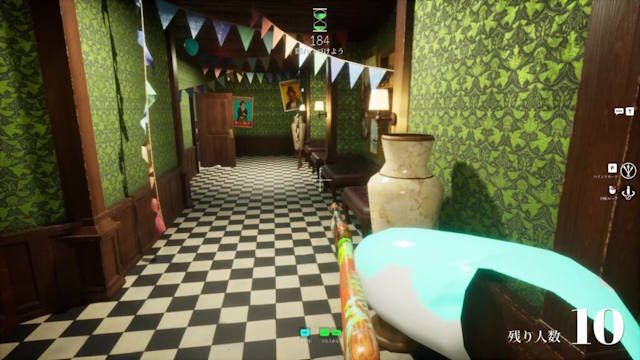
If the current build offers remapping, change one input at a time and test it in a private room. If your build does not expose a binding or a patch resets it, restore defaults and use Steam Input only for the missing device mapping. The HUD prompts should update to reflect supported in-game changes.
Five-minute practice routine
- Move, crouch, and stop precisely beside a prop.
- Open paint mode with F and sample the exact surface.
- Adjust the finish, then rotate around the model to find missed areas.
- Open the pose menu with R, attach to a surface, and practice Space, Ctrl, and Shift.
- Switch to Seeker and practice a zone sweep using the key 3 view.
The official MECCHA CHAMELEON Steam page lists current platform features and update links.
Related Articles
 Meccha Chameleon Hide-and-Seek Game Tips for Beginners - Meccha Chameleon Tips7 minutes read
 MECCHA CHAMELEON Beginner's Guide: How to Win14 minutes read
 Meccha Chameleon Seeker Guide: How to Find Hiders8 minutes read
 The Best Hiding Places in Meccha Chameleon4 minutes read
 Meccha Chameleon Hider Guide: Camouflage Tips7 minutes read
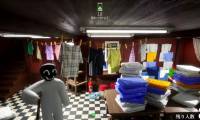 MECCHA CHAMELEON: A guide to color combinations and paint4 minutes read
Reader Comments 0
Sign in with email or Google to join the discussion.