Table of Contents
That app is KWGT (listed on the Play Store as KWGT Kustom Widget Maker), and it's a powerful way to really personalize your Android home screen.
Many people don't really set out to redesign their Android home screen. They just want a prettier clock, then one download turns into three, and before they know it, they've stumbled upon an app that lets you redesign the entire layout.
That app is KWGT (listed on the Play Store as KWGT Kustom Widget Maker), and it's a powerful way to really personalize your Android home screen. What should have been a 5-minute tweak turned into a complete dashboard redesign—and it's definitely worth the time.
What is KWGT Kustom Widget Maker?
KWGT Kustom Widget Maker is an Android app that lets you create highly personalized home screen widgets from scratch or by editing pre-existing templates. The app provides a powerful and flexible set of tools for designing unique widgets that can display a variety of information, from text and images to weather, calendar data, and more. It is an alternative to the basic widgets typically provided by default apps.
Getting Started with KWGT
Add your first widget!
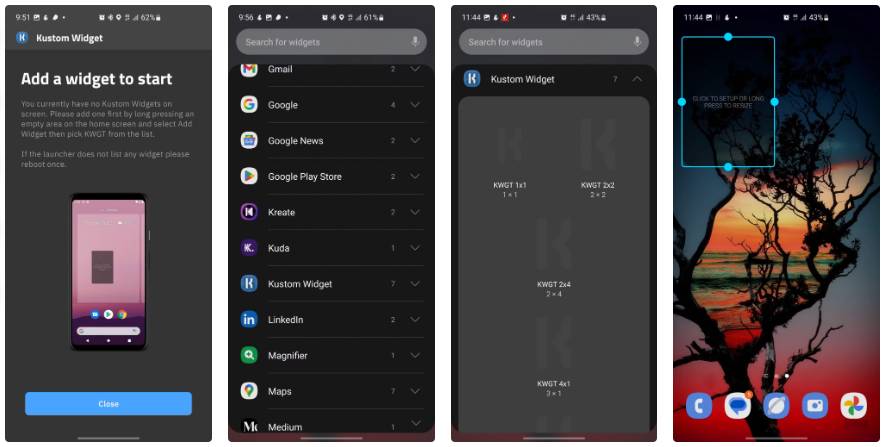
Before you get started with the fun of customization, you'll need to install KWGT. Download the app from the Google Play Store, install it, and open it. The welcome screen will give you a quick heads-up that nothing will actually happen until you place the widget on your home screen.
To do this, press and hold any empty space on your home screen until the customization menu appears. Tap the Widgets Option, then scroll until you find Kustom Widget in the list. This menu also contains any other Android widgets you may have downloaded; for now, we'll focus on KWGT. You'll see several size options, including 1x1, 2x2, 2x4, and 4x1. These tell you how much grid space the widget will take up.
Explore pre-built widget packs
Skip the design pressure and explore style
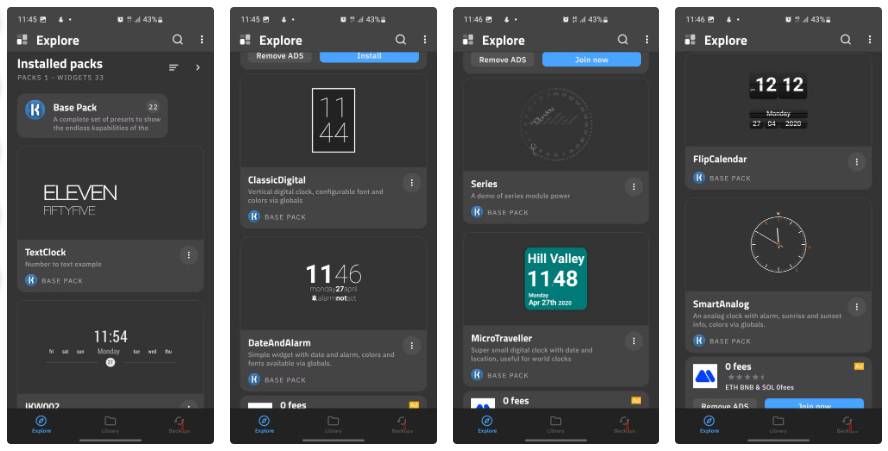
KWGT includes a Base Pack with 22 sample widgets, showing how far you can take your KWGT development. You'll find everything from super simple text clocks to layered creations with weather data, battery details, and full system stats. To explore, open the main menu, tap Load Preset, then select the Base Pack to see what's inside.
Using presets is easy. Tap the widget you want and it will open right in the editor. You can save the original settings or split them and customize every detail.
Some other useful widget packs
Because one package is never enough
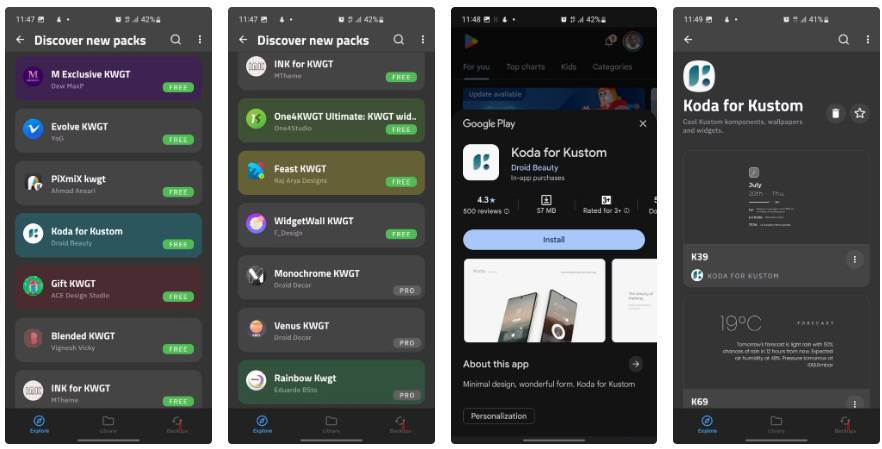
While the Base Pack is a great way to get started, the real fun begins when you start exploring the huge collection of free and paid widget packs. In KWGT, you can tap on Discover new packs , which will give you a number of free and paid widget packs available on the Play Store.
Once you find a pack you like, tap Install . Once added to your device, it will appear under 'Installed packs' In KWGT, giving you access to all of the widgets in that pack. Most packs come with dozens of presets, making it easy to combine elements to create your own unique home screen.
KWGT lets you design custom widgets from scratch
Your imagination is the only limit
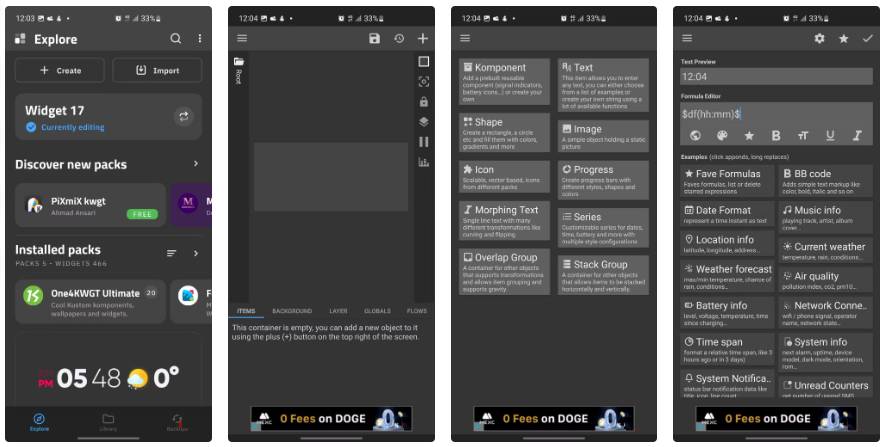
Building a widget starts by clicking the + Create Button on the KWGT homepage, which opens a full WYSIWYG editor – a blank canvas where your widget comes to life.
The editor interface has a toolbar on the right, which includes essential tools like snapping to the grid for precise positioning, alignment controls, locking to prevent accidental editing, layer management for arranging stacked objects, animation preview, and access to advanced settings. At the bottom, five tabs control different aspects of the widget: Items (list all objects), Background (set color or transparency), Layer (manage position), Globals (universal variables), and Flows (animation).
To add components, tap the plus (+) button in the upper right corner. This will open a menu of building blocks:
|
Element |
Function |
|---|---|
|
Text |
Display static or animated text with custom fonts, colors, and effects |
|
Shape |
Create rectangles, circles, and other geometric shapes |
|
Image |
Insert static images or icons |
|
Progress |
Add bars or circular indicators for battery, memory, etc. |
|
Icon |
Insert scalable vector icons from built-in packs |
|
Component |
Add pre-built reusable components |
|
Series |
Create a circular date/time display with an arc design |
|
Overlap/Stack Group |
Container to organize multiple components |
KWGT's real strength lies in its formulas, which are little snippets that pull data directly from your device. Whenever you add a Text element, you'll see a Formula Editor Field waiting for you, and below that is the Examples Section, where you'll find a bunch of formula categories: Date Format, Battery info, Current weather, Weather forecast, Music info, System info—pretty much anything your phone knows, KWGT can display. Each category is filled with pre-made formulas.
For example, $df(hh:mm)$ Will return the current time, $bi(level)$ Will display the battery percentage, and $wi(temp)$ Will get the weather temperature. Along the way, you can also chain formulas together, add conditional logic, and format everything exactly how you want.
FAQ
What should you know about KWGT kustom widget maker?
In practical terms, that app is KWGT (listed on the Play Store as KWGT Kustom Widget Maker), and it's a powerful way to really personalize your Android home screen.
Why does KWGT kustom widget maker matter?
The article highlights that kWGT Kustom Widget Maker is an Android app that allows users to create highly personalized home screen widgets from scratch or by editing pre-existing templates.
What is the main takeaway?
The main takeaway is that getting Started with KWGT Add your first widget.
Related Articles
 Google Fixed the Time of Death for App Maker3 minutes read
 Turn Off Widgets on Windows 11: Step-by-Step Guide4 minutes read
 How to Customize Widgets on iPad: Step-by-Step Guide3 minutes read
 How to Use Rainmeter Widget to Create Widgets for Windows 104 minutes read
 How to Customize the iPhone Widget Interface5 minutes read
 Collection of iPhone Widget Customization Applications: What to Know7 minutes read
Reader Comments 0
Sign in with email or Google to join the discussion.