Table of Contents
To rename the device that AirDrop identifies, change the device name in Settings on an iPhone or iPad, or in System Settings on a Mac. The change also affects other Apple services and network features, so choose a recognizable name that does not reveal unnecessary personal information.
Important: AirDrop may show a saved contact's name and photo under People rather than the device name. Renaming the device is most useful when it appears under Other Devices or when you manage several Apple devices.
Change the AirDrop device name on iPhone or iPad
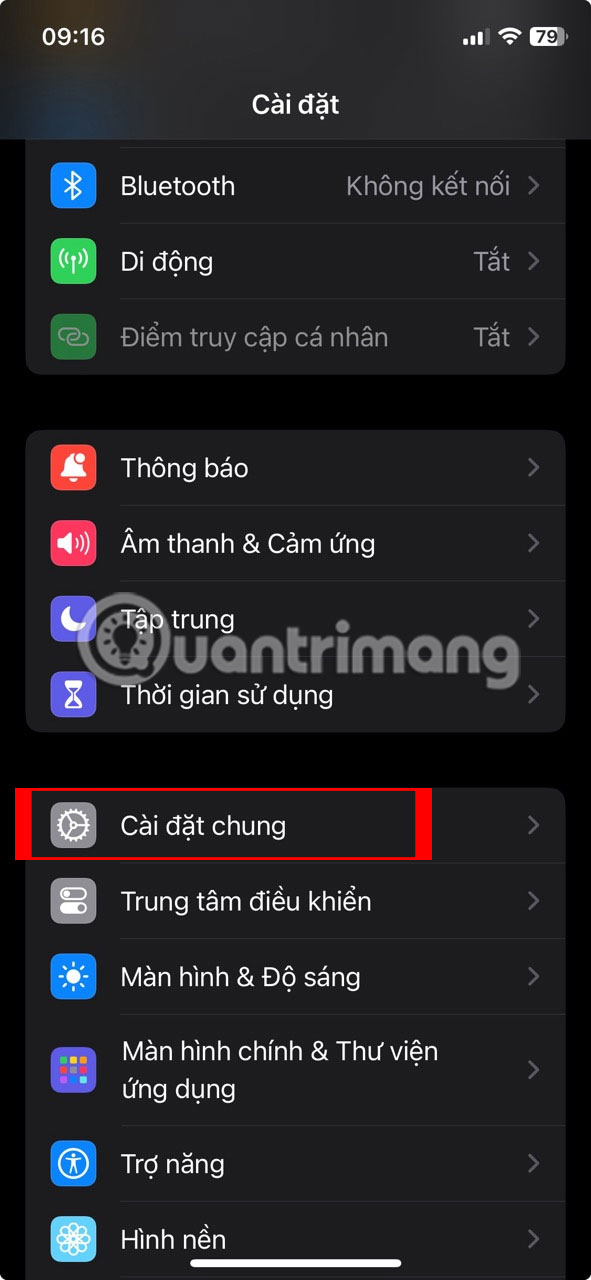
- Open Settings.
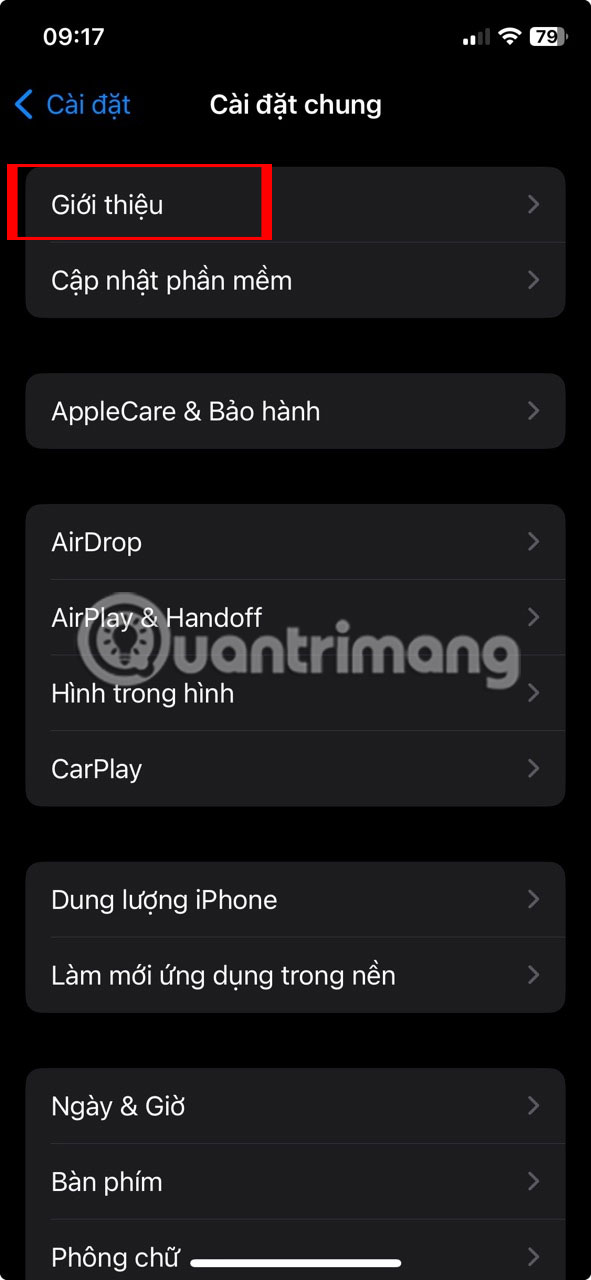
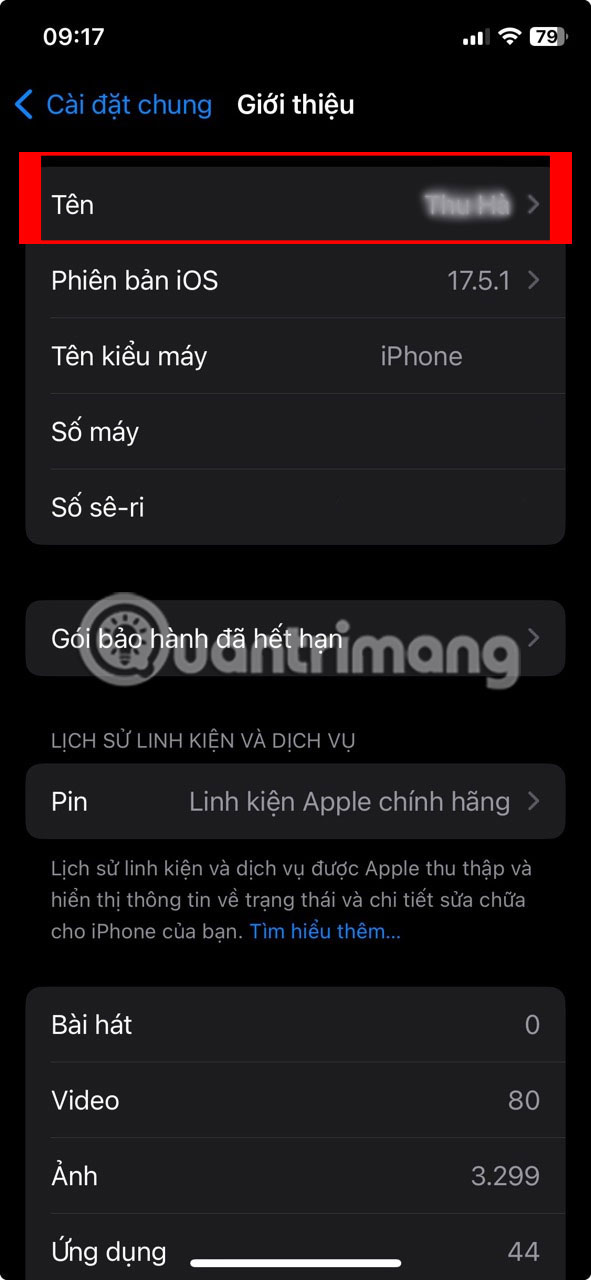
- Go to General > About > Name.
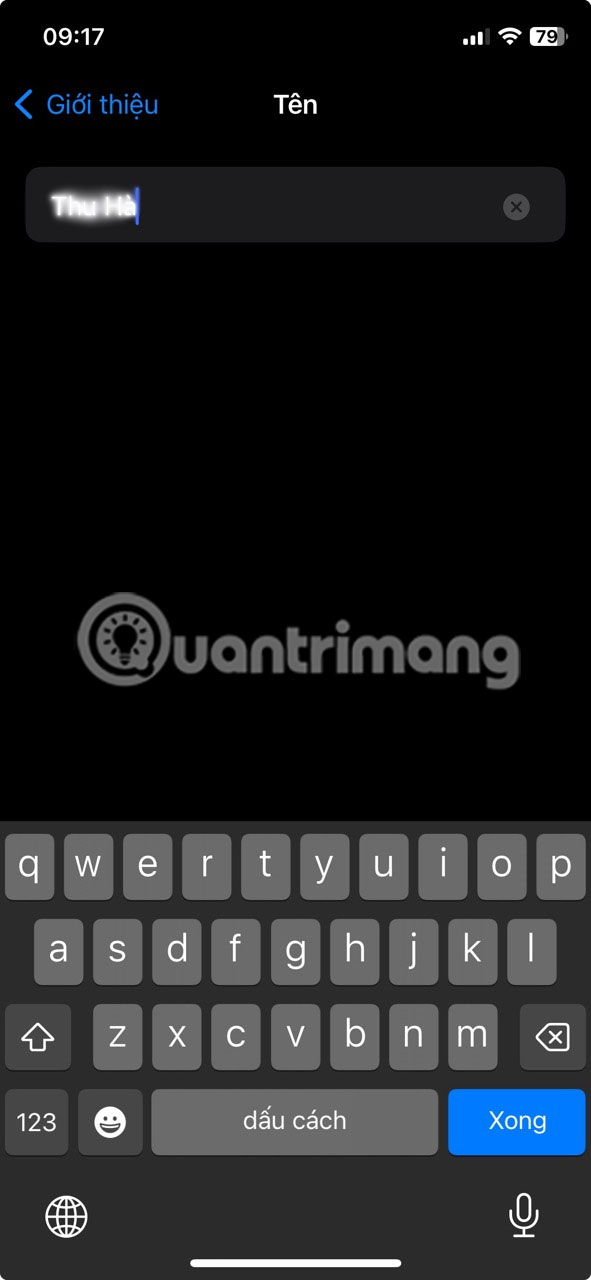
- Tap the clear-text button, enter a distinctive new name, and tap Done.
This name is also used by iCloud, Bluetooth, Personal Hotspot and computers that connect to the device. It does not change your Apple Account name or the name stored in another person's Contacts app.
Change the AirDrop device name on Mac
- Open the Apple menu and choose System Settings.

- Select General, then About.
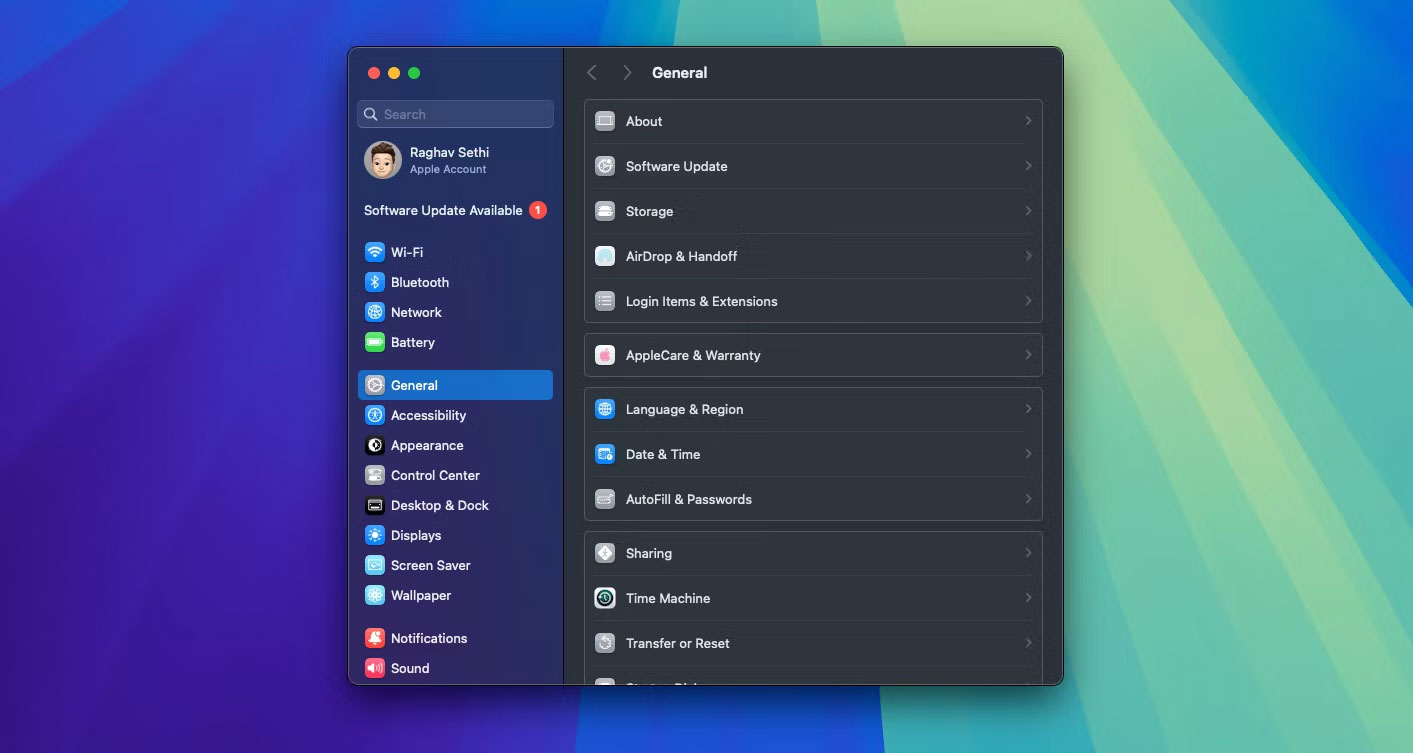
- Select the current computer name, enter the new name, and press Return.
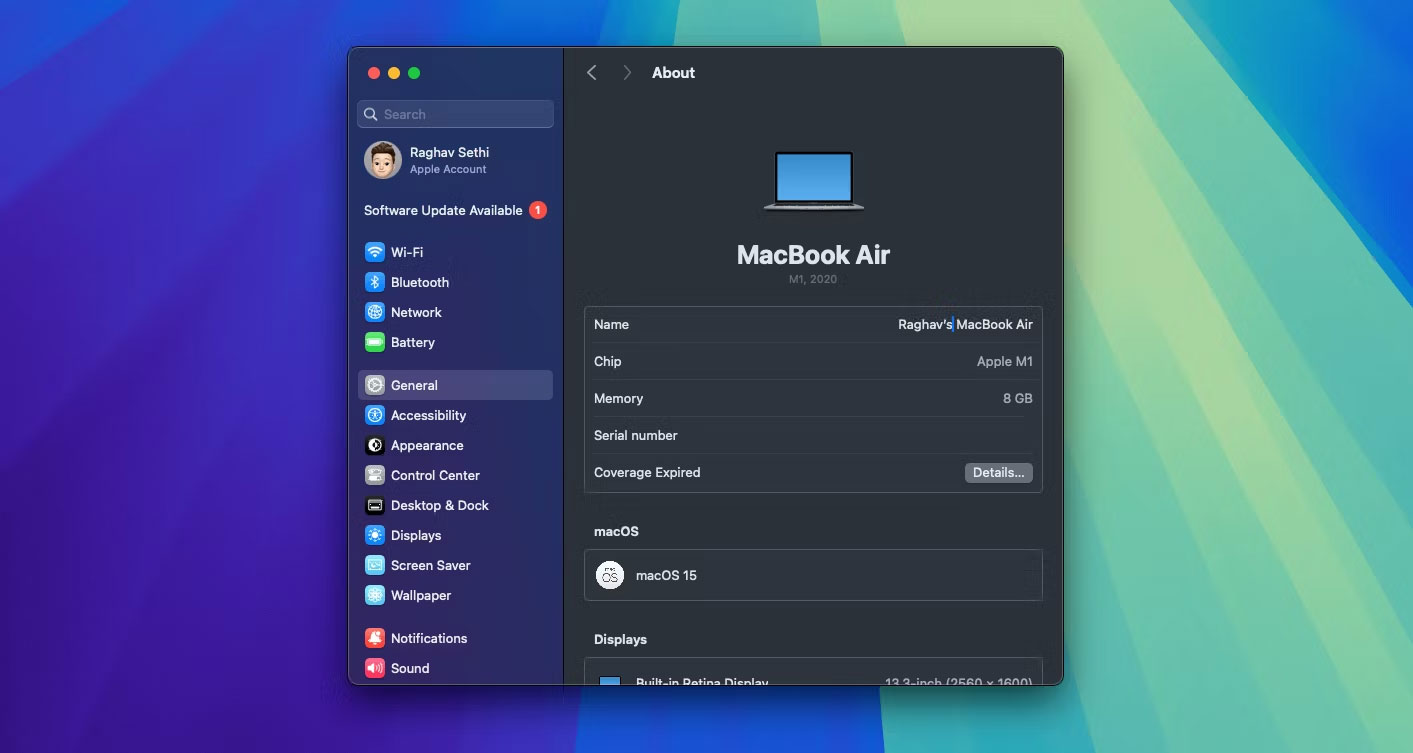
Renaming a Mac can also change the Bonjour local hostname derived from its computer name. If another device, backup task or network shortcut connects to the old name, update that configuration after the change.
If AirDrop still shows the old or wrong name
- Close and reopen the AirDrop sheet on both devices.
- Turn Wi-Fi and Bluetooth off and back on, or restart the affected device.
- On the receiving device, review AirDrop visibility in Control Center or System Settings > General > AirDrop & Continuity.
- If the sender sees you under People, ask them to check the name saved for your phone number or email address in Contacts. That label can differ from your device name.
- If several devices use similar names, add a neutral identifier such as “Work iPad” or “Living Room Mac” instead of a full personal name.
AirDrop privacy when sharing
Before sending a file, verify the recipient shown on screen and wait for the correct device to accept it. Use Contacts Only when possible. If you temporarily allow broader discovery, return the receiving setting to the more restrictive option when the transfer is complete.
Related Articles
 Airdrop Fixes Not Working on iOS 11.26 minutes read
 How to Turn Off AirDrop on iPhone, iPad5 minutes read
 How to Disable Airdrop on iPhone iPad3 minutes read
 How to Use AirDrop on iPhone: Step-by-Step Guide5 minutes read
 How to Turn on Airdrop on Macbook / iPhone / iPad7 minutes read
 How to Share Passwords on iPhone / iPad with Airdrop5 minutes read
Reader Comments 0
Sign in with email or Google to join the discussion.