Table of Contents
Just like any other Apple device with a screen, you can easily take screenshots on their Apple Watch. But before doing so, you need to enable this feature in the Watch app for iPhone or in the Settings on their Apple Watch.
Once the screenshot feature is enabled, all you need to do is press the Digital Crown and the Side button simultaneously to take a screenshot. From there, simply open the Photo Library or Screenshots folder on your phone to view the Apple Watch screenshot that has been automatically saved.
In this article, let's explore how to enable the screenshot feature, along with the steps to take a screenshot on your Apple Watch and where to view the captured images.
How to take a screenshot on Apple Watch
Enable the screenshot feature on your phone
First, you can enable the screenshot feature on their iPhones.
Step 1: Open the Watch app on your phone.
Step 2: Tap the My Clock tab and select General Settings.
Step 3: Scroll down and select Enable screenshot.
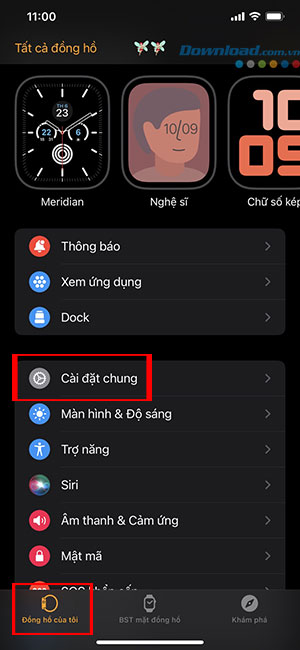
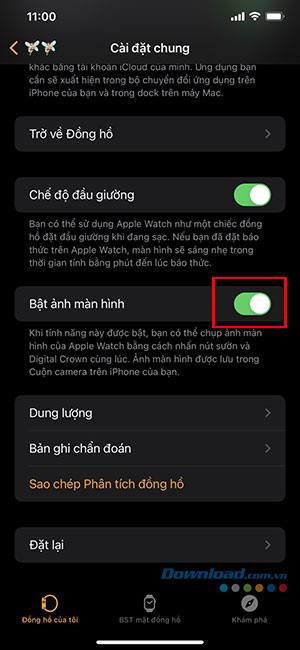
Enable screenshot on Apple Watch
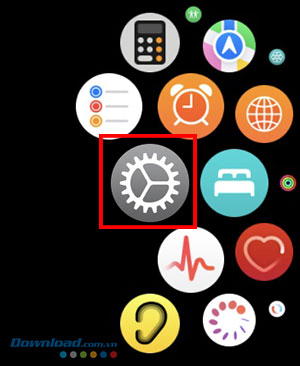
Alternatively, you can enable this feature directly on their Apple Watch by following these steps:
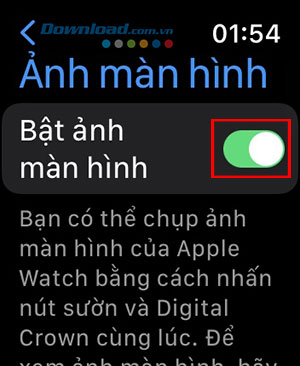
Step 1: Tap Settings and select General Settings.
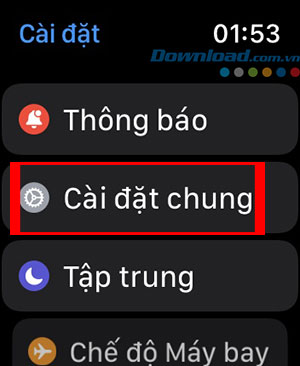
Step 2: Select Screenshot.

Step 3: Click the toggle switch next to Enable screenshot.
How to take a screenshot on Apple Watch
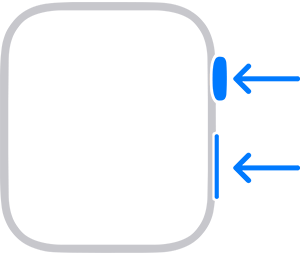
After enabling the feature, users simply need to press the Digital Crown and Side buttons on the right side of the watch simultaneously. If the screen flashes and a camera shutter sound is heard (if sound is enabled on the watch), this indicates that the photo has been successfully taken.
How to view screenshots taken on your Apple Watch
Apple Watch screenshots are automatically saved to the connected phone. Users simply open Photos on their iPhone, then tap Recent or Screenshots to view the screenshots taken on the Watch.
Related Articles
 How to Take Screenshots on Apple Watch2 minutes read
 How to Unpair Your Apple Watch5 minutes read
 How to Set Up Your Apple Watch for Emergencies5 minutes read
 Ways to Fix Apple Watch Not Receiving Notifications5 minutes read
 How to Adjust the Volume on the Apple Watch Watch5 minutes read
 How to Set the Moving Astronaut Wallpaper on Your Apple Watch3 minutes read
Reader Comments 0
Sign in with email or Google to join the discussion.