Table of Contents
This updated guide explains how to resize Windows 11 widgets with clear steps, practical tips, and useful context. Windows 11 allows users to change the position and size of widgets as you like. This helps to optimize the layout of the Widgets panel interface on Windows 11, rearranging the interface of the widgets to better suit your needs.
How to Resize Windows 11 Gadgets
Step 1:
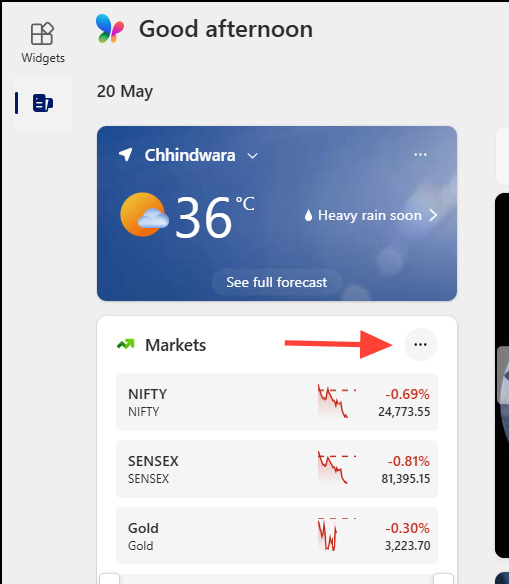
Press the Windows + W key combination to open the utility panel interface on Windows 11. In the utility interface, select the 3-dot icon at the utility you want to resize.
Step 2:
Display options for gadgets on Windows 11. We select the gadget size we want to change as shown below. Then the gadget size has been changed according to your choice.
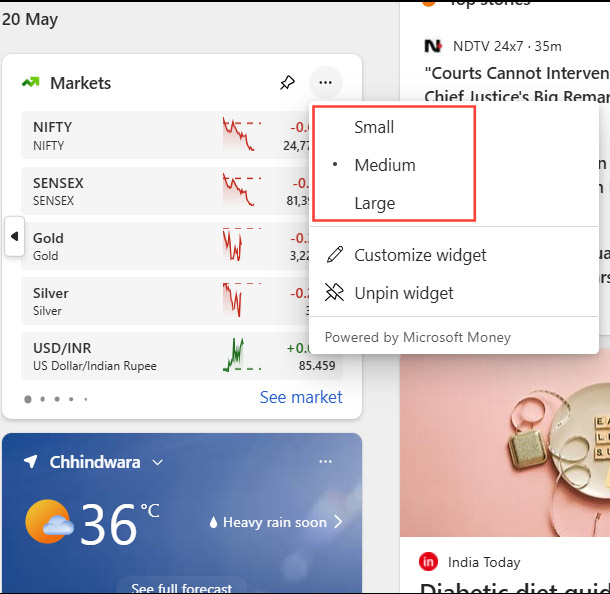
Some widgets only offer one or two size options, so not all widgets can be made smaller or larger.
Guide to Moving Windows 11 Gadgets
First you need to locate the pinned widget you want to move at the top. Then choose and hold the title (top bar) of the pinned widget and drag the widget to the desired position in the pinned section of the board.
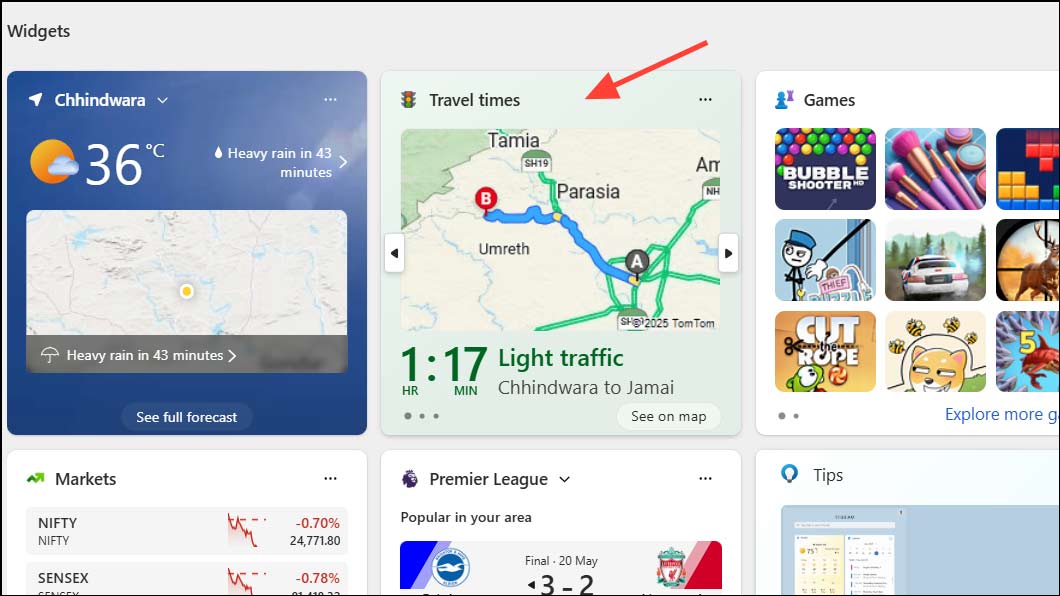
This lets you customize the order of the panels for quick access to important information.
FAQ
What should I prepare before I resize windows 11 widgets?
Review the requirements and options in the guide first. Having the correct device, app version, account access, or materials ready helps prevent avoidable errors.
How long does it take to resize windows 11 widgets?
The time depends on the task and your setup. Most basic steps can be completed quickly, while downloads, updates, scans, or troubleshooting may take longer.
What should I do if the steps do not work?
Repeat the instructions in order, confirm that your software or device is supported, and check permissions, connectivity, and available updates before trying again.
Related Articles
 Widgets: What Is a Widget on Android?4 minutes read
 How to Reset Utilities on Windows 113 minutes read
 9 Best Iphone Widgets5 minutes read
 How to Move Widgets Below iPhone Lock Screen: Step-by-Step Guide3 minutes read
 Steps to Use Bewidgets to Display Eye-catching Widgets on3 minutes read
 How to Fix High CPU Usage Windows Widgets5 minutes read
Reader Comments 0
Sign in with email or Google to join the discussion.