Table of Contents
Having seen Q4OS in action recently, the author decided to give his laptop a similar Windows makeover. And the results were even better than expected.
The author of this article found Q4OS while helping a neighbor get rid of his Windows XP computer. But why Q4OS? Because it has a similar interface (with the Q4XP theme), runs extremely well on old Pentium hardware, and is safe to use.
The author recently 'resurrected' his 10-year-old Dell laptop using Damn Small Linux. While it worked, the performance was not as expected. Having seen Q4OS in action recently, the author decided to 'remake' his laptop in a similar Windows style. And the results were even better than expected.
Install and setup Q4OS
Trinity compatible with legacy hardware


Q4OS offers a variety of desktop environments – KDE Plasma for modern computers, LXQt for everything, and Trinity for the most compact. With my 10-year-old Dell laptop, Trinity was the obvious choice. It's based on KDE3, which stopped being developed in 2008, but that's exactly why it runs so well on older hardware.
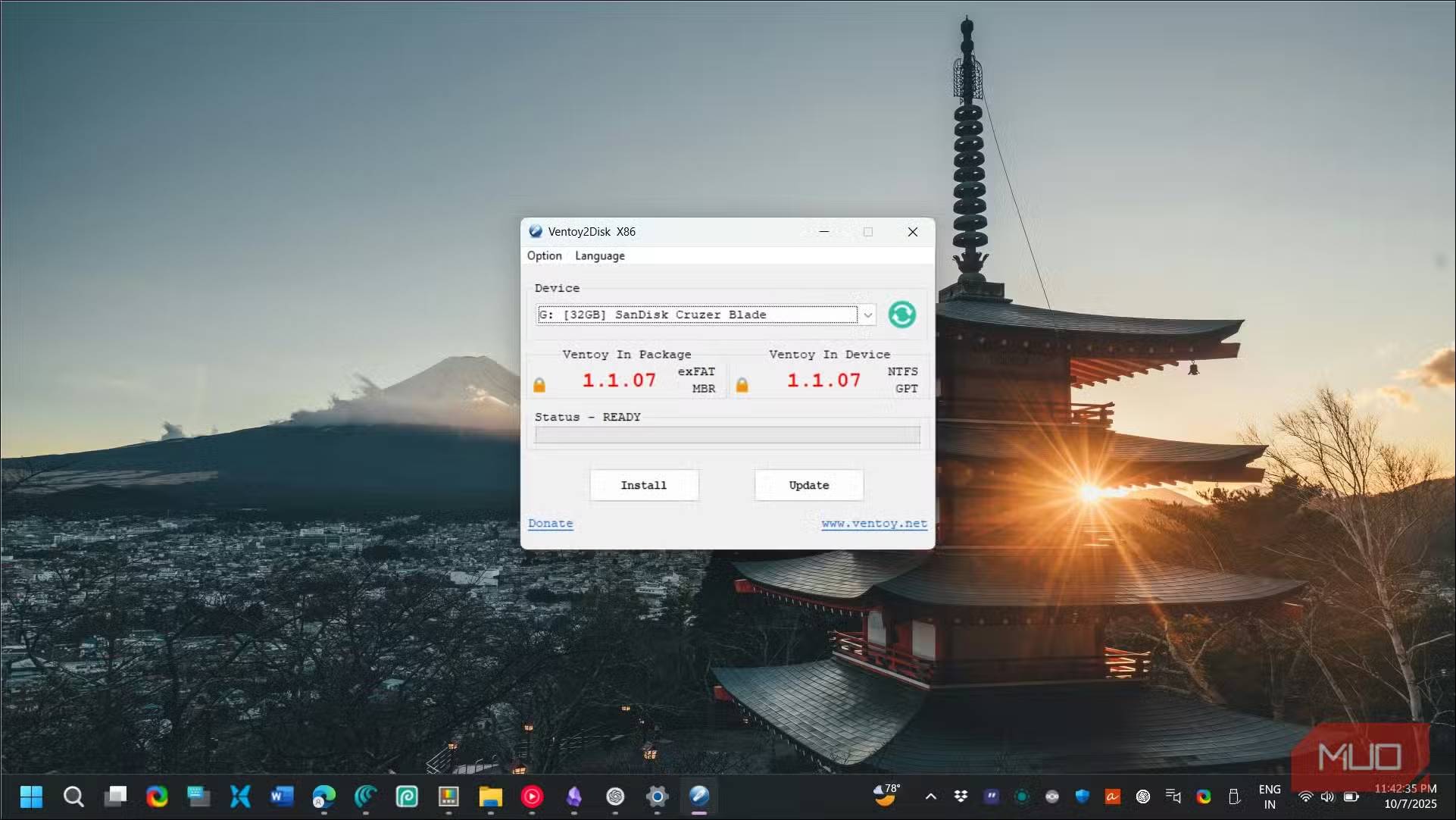
You can download the Trinity ISO from the Q4OS website. Then, use Ventoy to create a bootable USB. Once done, drop the Q4OS ISO onto the USB drive. You can also use Rufus or balenaEtcher to create a bootable USB, but Ventoy is better. It has become the top choice for testing different operating systems thanks to its multi-boot support.
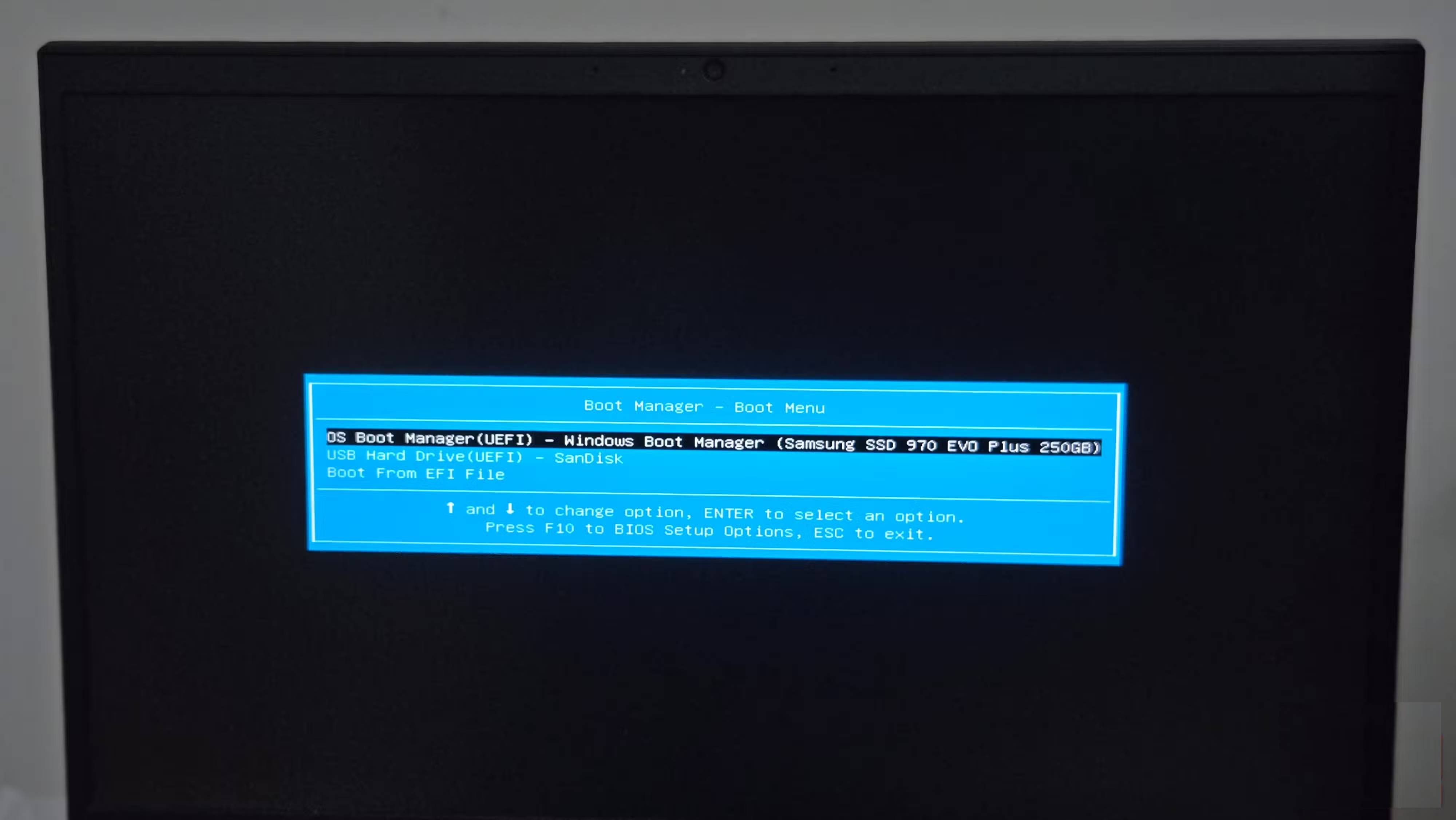
Next, connect the USB boot to the PC, press the Power Button and start pressing the Esc Key to see The Startup Menu . Then, go to Boot Menu And select the Ventoy drive as the boot drive.

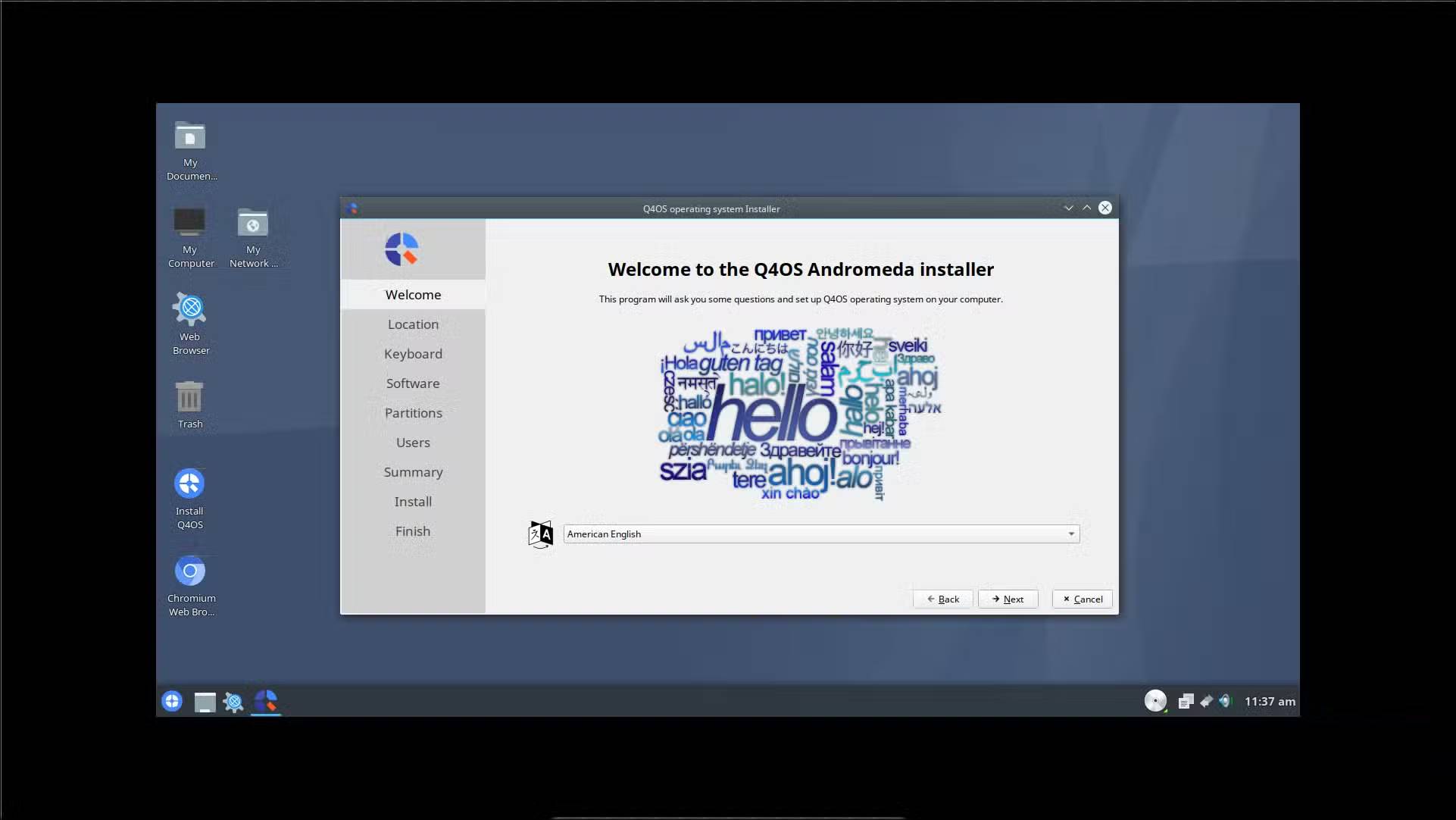
In the Ventoy boot menu, select Q4OS ISO to start the installer. Next, double-click Install Q4OS To launch the installer, select the language, partition the drive, and create a user account. The whole process takes about 10 minutes on your computer.
After rebooting, Q4OS displays the welcome screen with the desktop configurator. You can choose between a full-featured desktop with a browser and office apps, a basic desktop, or a minimal installation. I chose the full version to set everything up at once.
You can also download it as an installer and run it from within Windows, installing Q4OS like a regular app. However, the hassles of a dual-boot setup are not worth the convenience.
Efficiency
Not lightning fast, but steady
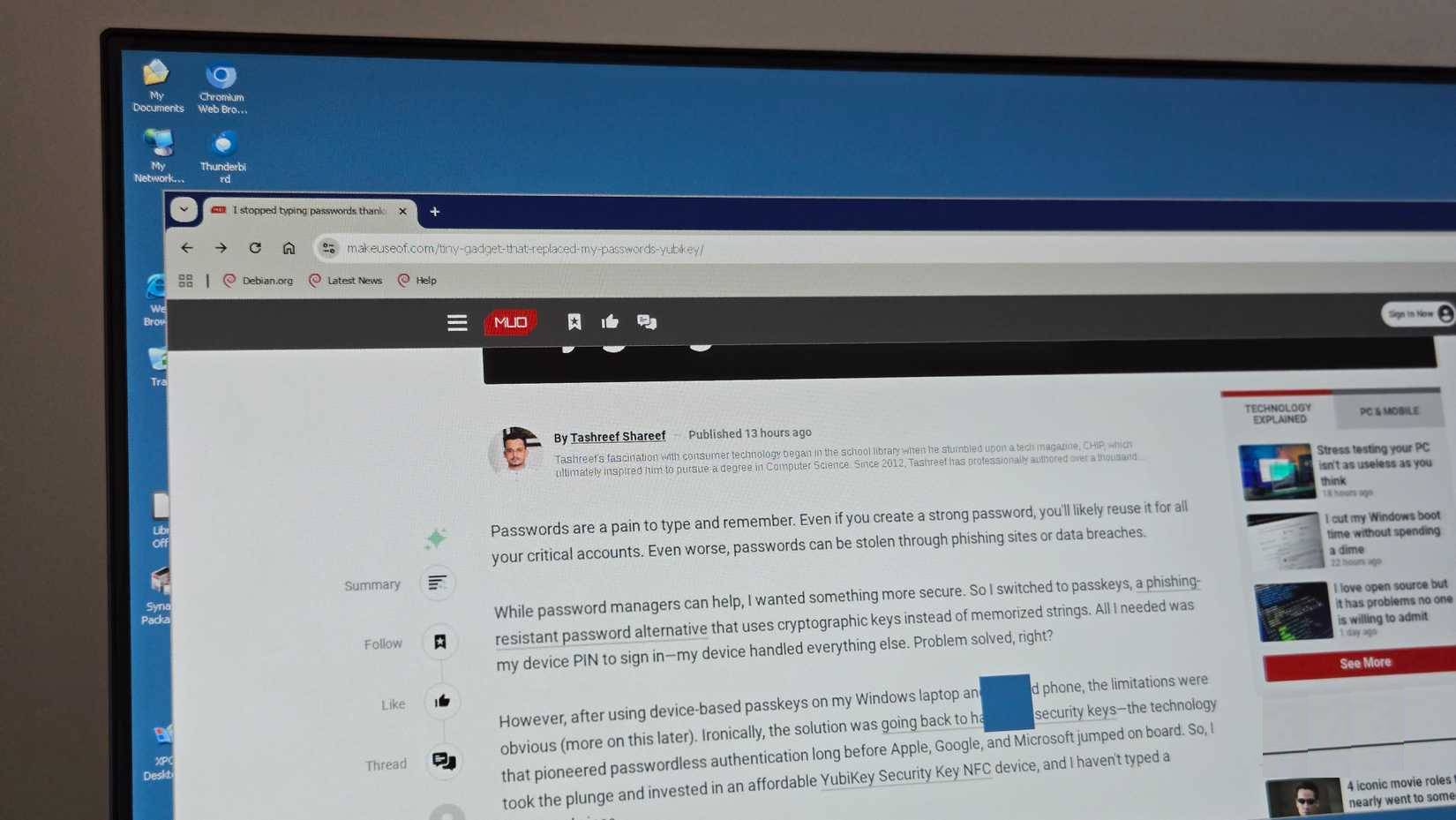
Q4OS boots up pretty quickly, around 20 seconds. Not lightning fast, but not a huge deal either. Apps launch without the annoying lag you're used to with Windows 10 on this hardware.
Desktop Trinity idles at 400-450MB of RAM. Windows 10 on the same computer will eat up 2GB just waiting. Q4OS can handle multiple browser tabs, LibreOffice documents, and music playback at the same time.
For browsing, use the Chromium browser, which is the lightest browser we tested. The lightweight Konqueror browser that comes pre-installed, while faster for basic browsing, struggles with JavaScript-heavy websites. The included Chromium browser handles most modern websites, including YouTube, at 720P resolution quite well.

Hardware support is mostly spot on: Wi-Fi, audio, and USB devices are all detected immediately. Old HP printers also work without having to search for drivers. Bluetooth mice and headsets are a little slow to connect, but work well once connected.
To make Q4OS look more like Windows XP, You should combine it with the XPQ4 interface. After installing, launch the application and choose from visual TDE themes like WindowsXP_Classic, Luna , or keep the Q4OS_Default Theme. Then, click Apply Theme And log out. When you log back in, everything from the Start menu to the File Manager and the desktop context menu will look and function like classic XP.
FAQ
How do you use Q4OS to turn a 10-year-old laptop into a Windows XP?
In practical terms, having seen Q4OS in action recently, the author decided to give his laptop a similar Windows makeover. And the results were even better than expected.
What should you check before getting started?
Review the requirements, compatible device or software version, and any warnings described in the guide before making changes.
What should you do if the steps do not work?
Repeat the steps in order, confirm that your app or system is up to date, and review the troubleshooting details provided above.
Related Articles
 How to Set Up Power Off When Closing the Laptop Lid4 minutes read
 Roads for Hunting Cheap Laptops7 minutes read
 How to Activate Virtual Machines on Windows 114 minutes read
 How to Turn Off Booting Spotify When Opening the Machine on Windows 103 minutes read
 Why Should You Shut Down Your Windows Laptop Every Day?6 minutes read
 Steps to Fix Windows Computer Screen Not Turning Off After6 minutes read
Reader Comments 0
Sign in with email or Google to join the discussion.