Table of Contents
Emojimix combines two emoji into a single graphic that you can save or share. The result is an image or sticker, not a new Unicode emoji character, so it may appear as an attachment in chat apps instead of sitting inline with ordinary text.
You can use Emojimix on the web without installing an app, or install the Tikolu version from its Google Play listing. Check that the publisher and package ID match before installing because similarly named apps exist. The Android listing has not been updated recently, so buttons or compatibility can differ by device.
Combine emoji in the Emojimix Android app
1. Choose the first and second emoji
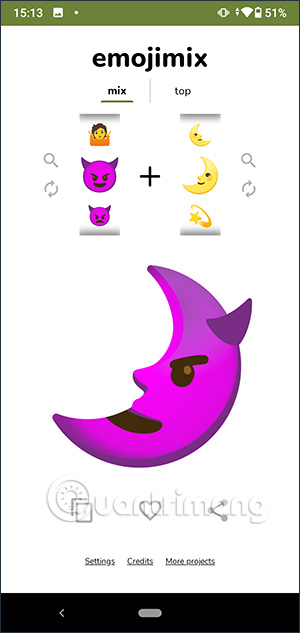
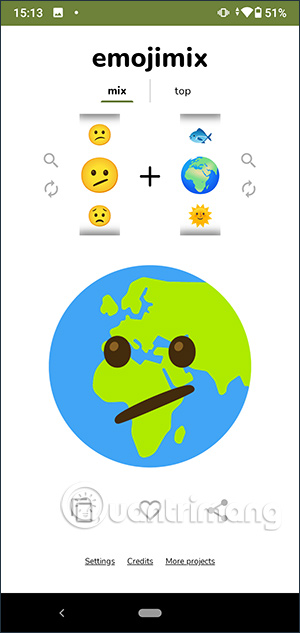
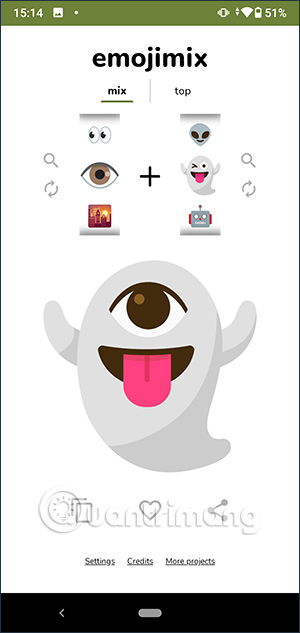
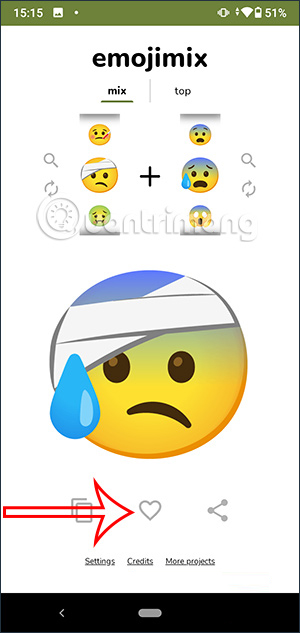
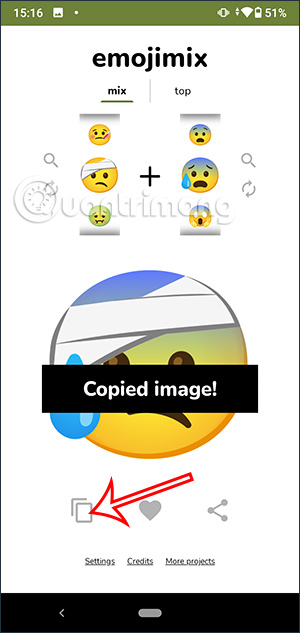
Open Emojimix. The two selectors represent the emoji you want to combine. Tap either side and choose an emoji; the mixed result appears between or below them, depending on the app layout. If you want a surprise, tap the shuffle or rotating-arrow control to choose a random pair.
2. Find a specific emoji
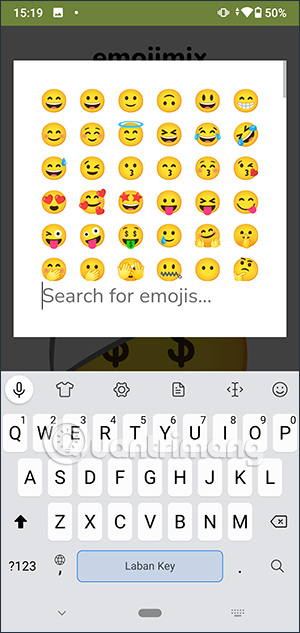
Tap the magnifying-glass icon to expand or search the available emoji. Select one item for each side of the mix. Not every pair necessarily has a result, and the available combinations can change with the service’s catalog.
If you like the result, tap the heart icon to add it to your favorites.
3. Browse popular combinations
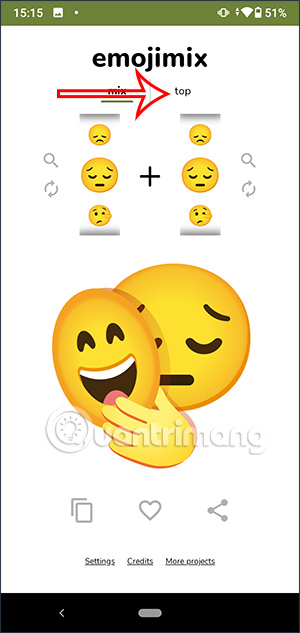
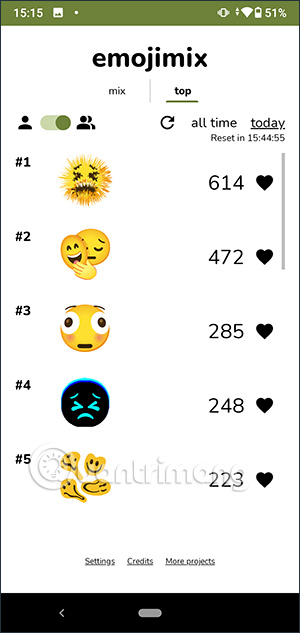
Open the Top or leaderboard area to see combinations other users have rated. Tap a mix to open it, then use the heart button if you want it in your saved list. Rankings can change, so the examples in the screenshots may not match the current list.
4. Open your favorites
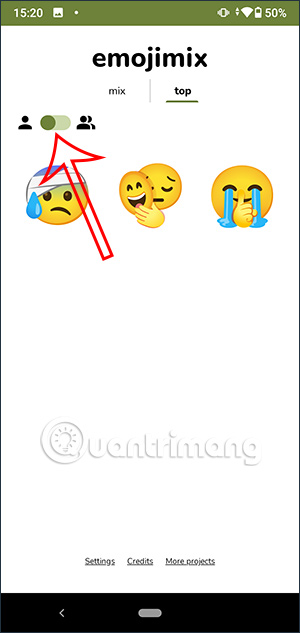
Move the profile or favorites selector to the single-person icon to view combinations you saved. If a favorite is missing, confirm that you used the same browser or app installation and that local app data has not been cleared.
5. Copy or save the result
Open a combination and tap the copy or download control. Because the result is a graphic, “copy” may place image data on the clipboard, download a file, or show the system share sheet. The exact behavior depends on Android and the receiving app.
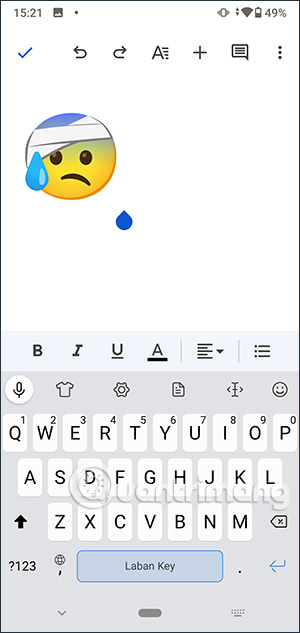
If pasting into a document produces nothing, save the image first and insert it with the document editor’s image command. Do not expect the mix to behave like a normal keyboard character with a text cursor.
6. Share to a messaging app
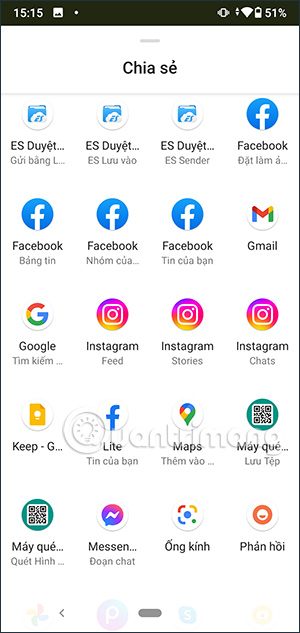
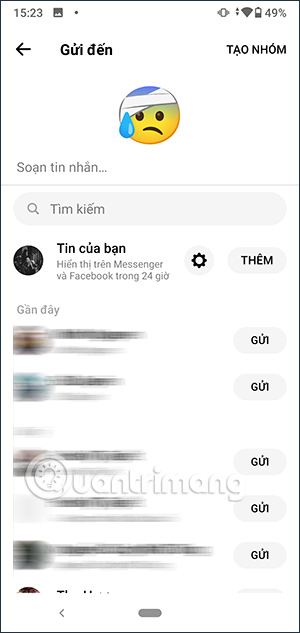
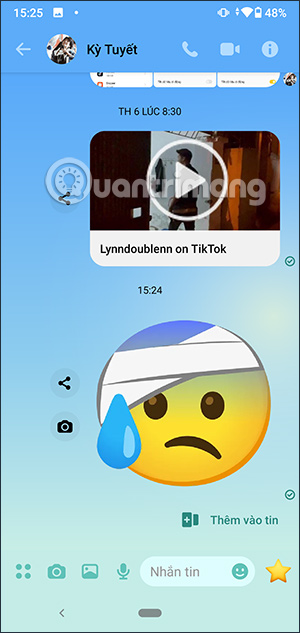
Tap the share icon, choose a compatible app, select the conversation, and review the preview before sending. Messenger and similar apps normally send the mix as an image or sticker. If it appears with a white or transparent background that you did not expect, try saving the file and sharing it from your gallery instead.
Use Emojimix in a browser
- Open the Emojimix website.
- Select one emoji on the left and another on the right.
- Open a result to copy, download, vote for, or share it, depending on the controls shown.
- Save the file if clipboard sharing does not work in your browser.
The web version is useful on iPhone, iPad, desktop, or an Android device where the older app is unavailable. Browser privacy settings or content blockers may affect saved favorites because the site may rely on local storage.
Emojimix versus Emoji Kitchen
Emojimix is a third-party interface built around emoji combination graphics. Google’s Emoji Kitchen is integrated into supported Google experiences such as Gboard and also produces sticker-style mashups. They are related in purpose but are not the same app. If you already use Gboard, TipsMake’s guide to creating and sharing stickers with Gboard covers another built-in route.
Common problems
The pair has no combination
Try reversing the two emoji or choose a similar emoji. The catalog contains many combinations but not every possible pair.
The copied mix will not paste
The destination may accept text but not clipboard images. Download the result and attach or insert the image instead.
The app is missing from Google Play
Availability can vary by country, device, and Android version. Use the web app rather than downloading an APK from an unfamiliar mirror. Third-party APK files can be outdated or altered.
The sticker looks different in chat
Messaging apps may resize, compress, crop, or add a background to uploaded images. Send the original saved file when image quality matters.
Emojimix is best treated as a quick sticker generator: choose a pair, save the result as an image, and share it where image attachments are supported.
Related Articles
 Create Unique Emoji Shapes on Samsung Galaxy S96 minutes read
 How to Manually Combine Emojis on iPhone: Practical Guide4 minutes read
 Instructions for Creating Emoji Using AI Online: Main Insights3 minutes read
 Change URL into a Funny Emoji Icon, Have You Tried It?4 minutes read
 How to Create Emoji Wallpaper on iPhone3 minutes read
 How to Use Emoji on Mac3 minutes read
Reader Comments 0
Sign in with email or Google to join the discussion.