Dead pixels on a screen are unusual bright spots or small dots that appear on the screen. Colors cannot be displayed in these areas, unlike the rest of the screen. One of the most effective tools for detecting dead pixels on a desktop screen is Dead Pixel Locator . The software's advantages include its small size, use of modern features, and above all, its extremely simple operation.
Instructions for installing and using Dead Pixel Locator
Step 1 : Download the latest version of Dead Pixel Locator software here:
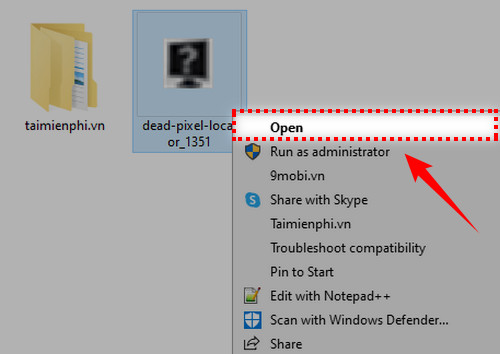
Step 2 : Open the folder containing the downloaded file, double-click the file (or right-click and select Open ) to begin the installation.
Step 3 : Dead Pixel Locator starts up very quickly and doesn't require many additional installation steps. This is the software interface:
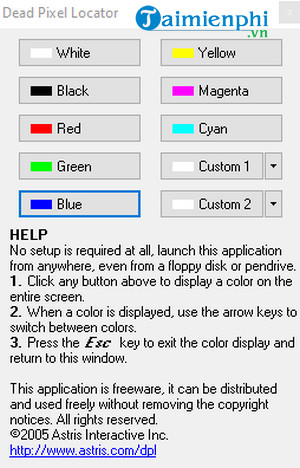
We will see different colors to indicate dead pixels on the screen, such as: White, Yellow, Black, Cyan.
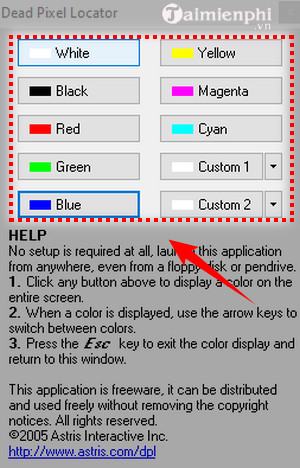
Step 4 : To check for dead pixels, click on any color that appears on the interface. The color will cover the entire screen. Use the arrow keys to switch between different colors.

If your screen has unusual colored spots that are different from the computer screen's color, those are dead pixels.
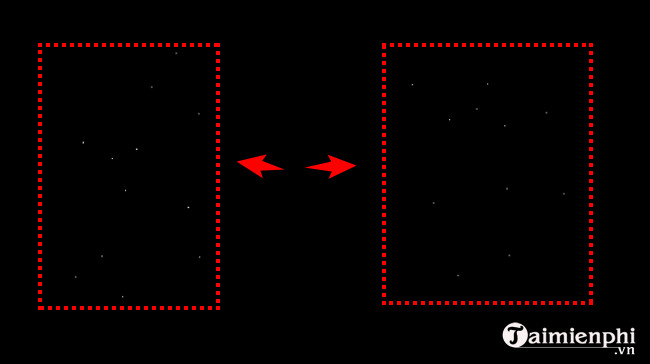
You can switch between colors for more precise testing. Press the Esc key to return to the previous screen interface.
Here, I tested the screen with a blue color and found no dead pixels. With dead pixels, small dots of a different color will appear, making them easy to identify.

The above is a guide on how to use Dead Pixel Locator to check for dead pixels on your computer screen. In addition, there are many other tools that help detect dead pixels on the desktop. The common feature of these software programs is that they display the screen in different colors to help users easily detect faulty pixels.
In addition, for mobile devices like iPhones, we also have ways to check for dead pixels; you can use apps or tools built into the device to check your iPhone screen.
Related Articles
 How to Detect Dead Spots on the Desktop Screen6 minutes read
 How to Check and Detect Dead Spots on Desktop3 minutes read
 How to Use the Most Simple, Detailed Child Locator Q508 minutes read
 Pixel and Pixel XL Duo Were Killed by Google3 minutes read
 Google Stops Production of Pixel 53 minutes read
 Google Has Just Revealed the Price of Pixel 4a and Pixel 5, Surprisingly3 minutes read
Reader Comments 0
Sign in with email or Google to join the discussion.