Table of Contents
The Apple Watch is a fantastic device packed with advanced technology, and while Apple doesn't provide it with a dedicated camera, it can be used to trigger the camera on an iPhone. In fact, there are quite a few accessible camera controls on the Apple Watch, making it a handy phone photography tool.
Although the Apple Watch can't take photos directly because it doesn't have a camera, Apple has created a really useful app that can display a preview image from the camera of a paired iPhone on the watch screen.
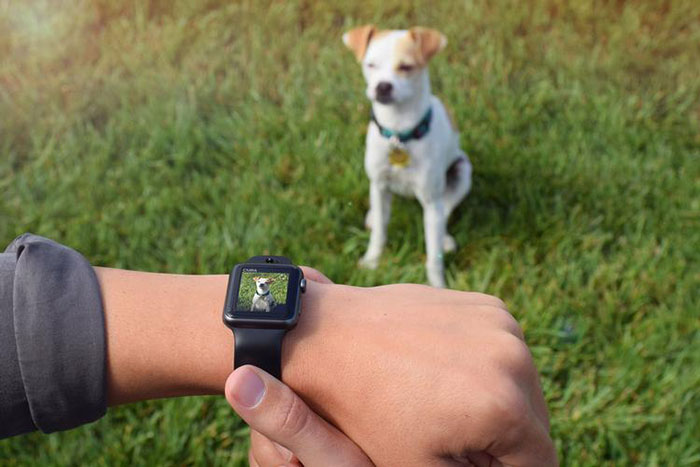
With this feature, you can also take photos or start recording videos on their iPhone with just one tap on their Apple Watch. It's called the Camera Remote app, a great solution for taking photos remotely.
In this article, let's explore how to use your Apple Watch to remotely take photos on your iPhone, making it easy to capture panoramic shots or selfies.
How to use Apple Watch to take photos remotely
Step 1: Open your Apple Watch and tap the camera icon to open Camera Remote.
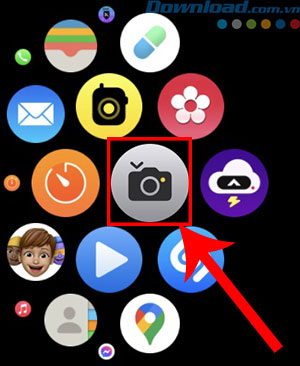
Step 2: Position your iPhone to get the ideal shooting angle.
Step 3: To zoom, rotate the Digital Crown.
Step 4: To adjust the exposure, tap the main area of the image in the preview on your Apple Watch.
Step 5: To take a photo, press the circular " Capture " button in the center.
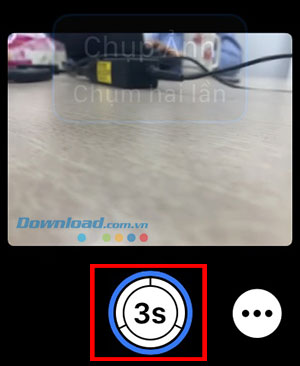
The photos will be stored in the Photos library on the iPhone, but you can also view them on the Apple Watch.
How to review captured photos
Use the following steps to view photos you've taken on your Apple Watch.
- View image: Click on the thumbnail in the bottom left corner.
- View other photos: Swipe left or right.
- Zoom: Rotate the Digital Crown.
- To view zoomed-in images: Drag on the zoomed-in image.
- Open the image in full screen: Double-tap the image.
- Show or hide the Close button and the number of shots: Tap the screen.
When finished, click Close.
Switch cameras and adjust settings
Step 1: Open the Camera Remote Control app on your Apple Watch.
Step 2: Tap the three dots in the bottom right corner to open settings.
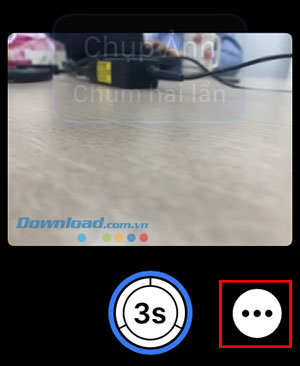
Then choose from the following options:
- Timer (Turn the 3-second timer on or off)
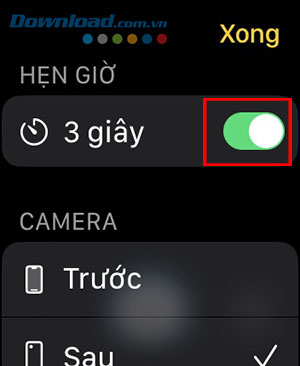
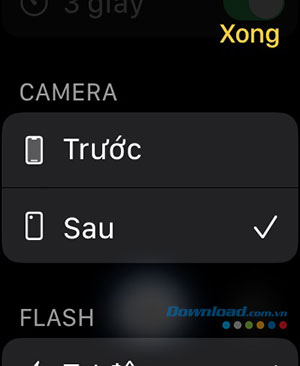
- Camera (Front or Rear)
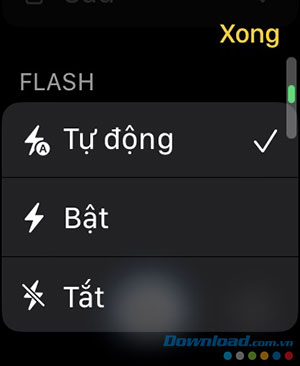
- Flash (Automatic, On, or Off)
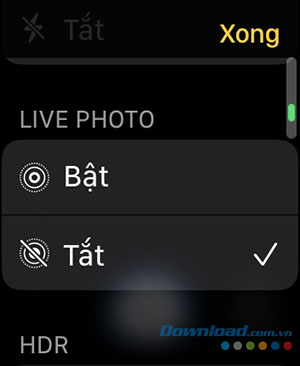
- Live Photo (Automatic, On, or Off)
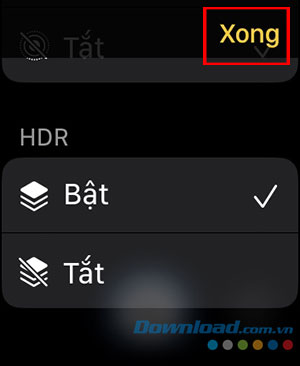
- HDR (On or Off)
After you have finished making changes, press Done to save the settings.
Related Articles
 How to Control Iphone Camera with Apple Watch2 minutes read
 How to Disable Apple Pay When Your iPhone and Apple Watch Are Lost or Stolen6 minutes read
 How to Set up a New Apple Watch7 minutes read
 How to Unpair Your Apple Watch5 minutes read
 How Much 'Successful' Will Your Apple Watch Be If Not Connected13 minutes read
 How to Ping Apple Watch from iPhone4 minutes read
Reader Comments 0
Sign in with email or Google to join the discussion.