Table of Contents
Losing your phone is a real nightmare, not only because it's a valuable asset, but also because of the risk that someone could access your personal information, such as photos or Apple Pay.
Although Apple Pay is very secure and doesn't work without Touch ID or Face ID, you should ensure they disable Apple Pay on lost iPhones and Apple Watches. This will enhance security and prevent more serious risks from occurring.
After Apple Pay officially launched in Vietnam, users were able to add cards to their Apple Wallet and make Apple Pay payments using their iPhone and Apple Watch. Therefore, knowing how to remotely deactivate Apple Pay is also something you should know to ensure security.
In this article, let's explore methods for remotely disabling Apple Pay in case your device is lost or stolen.
Disable Apple Pay when you lose your iPhone
Use the Find app
You can remove Apple Pay from their iPhone using other Apple devices linked to the Find app. So, first, set up a different iPhone from family or friends. To turn off Apple Pay, do the following:
- Open the Find My app, select your lost iPhone, and swipe up.
- Click Activate in the Mark as Lost section.
- Click Continue.
- If your phone doesn't have a passcode, set a new one. Then enter it again to confirm.
- It will require a replacement number so that anyone who finds that iPhone can contact the owner. Alternatively, leave a message on the device's screen for added convenience.
- Finally, select Activate from the upper right corner.
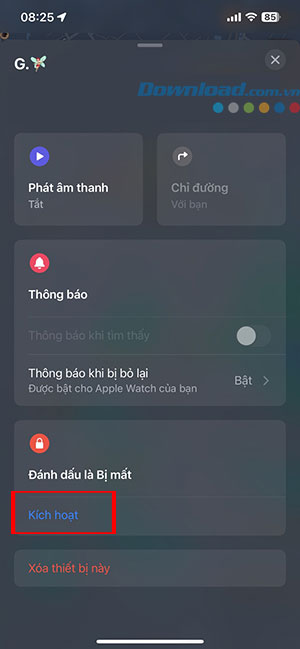
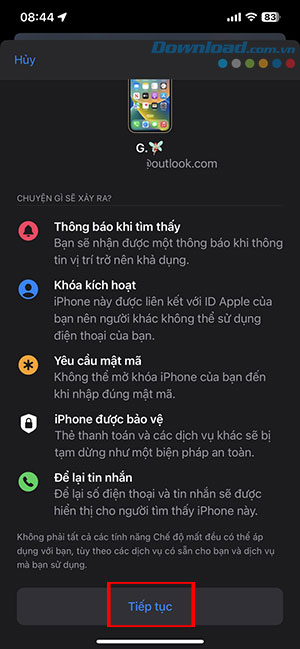
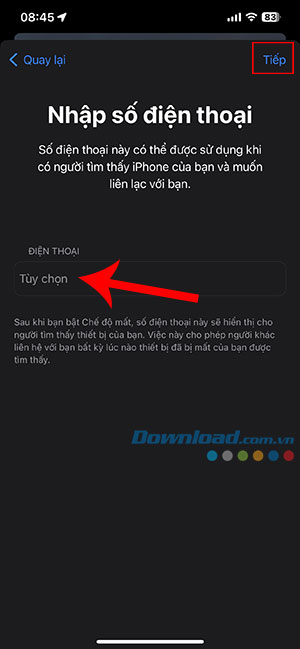
This action will temporarily suspend all Apple Pay-related cards on the lost iPhone. If the passcode was previously set on the iPhone, it will immediately activate the device lock.
Use iCloud
Even without access to any iPhones, you can still mark their iPhones as lost from the iCloud website.
- Open iCloud.com/find on your computer and sign in with your Apple ID and password.
- From the list of devices, select the lost iPhone and tap Lost Mode. This will disable Apple Pay and lock the iPhone with your passcode.
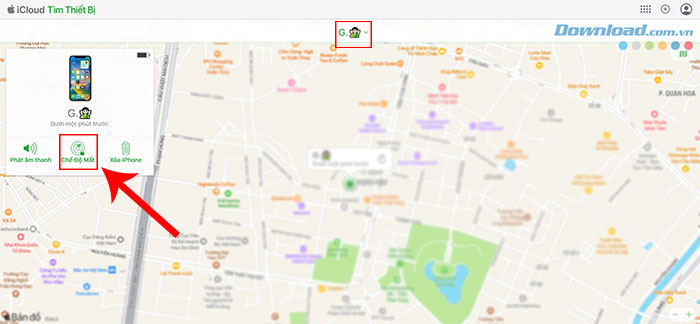
You can also add other phone numbers and messages so that whoever finds the device can see them. If you find your iPhone, enter the passcode you created to reactivate Apple Pay.
Remove card details from the Apple ID website
From the Apple ID website, you can remove cards linked to Apple Pay without enabling Lost Mode. This means users don't have to contact their card issuer to temporarily deactivate the card from Apple Pay.
- Open appleid.apple.com in your browser and log in with your Apple ID.
- Scroll down to see the devices linked to your Apple ID from the account page.
- Then select the lost iPhone and tap Erase Card from the menu.
- If you have multiple cards linked to Apple Pay, select Remove all cards.
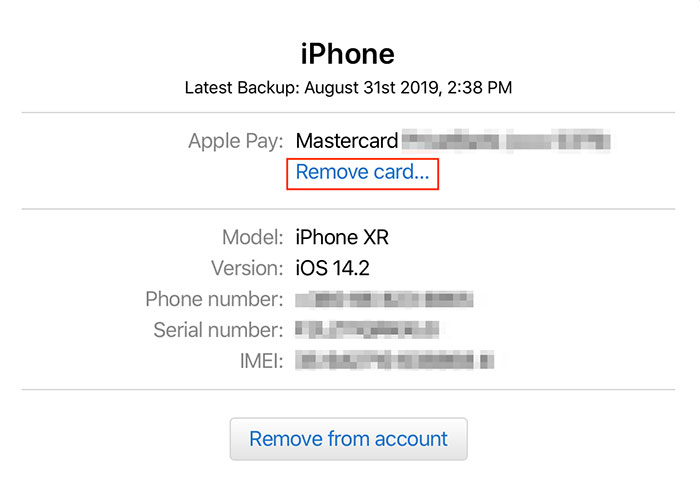
A pop-up window will appear asking for confirmation, at which point you need to select Delete. This will remove the credit card from Apple Pay after a few minutes. Users will have to re-enter their credit card details after retrieving their iPhone.
Disable Apple Pay when you lose your Apple Watch
Use Search
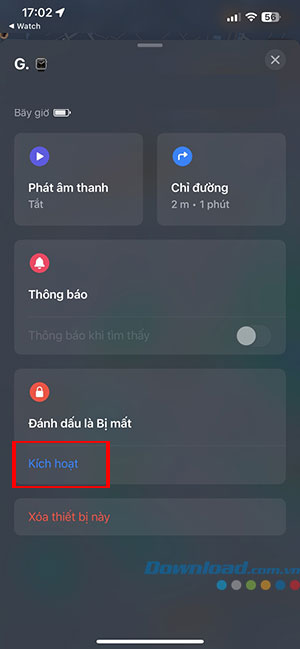
If an Apple Watch is lost or stolen, you need to put it in Lost & Found mode to temporarily disable its ability to make payments.
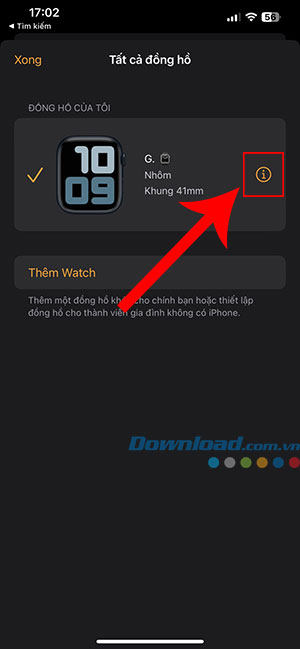
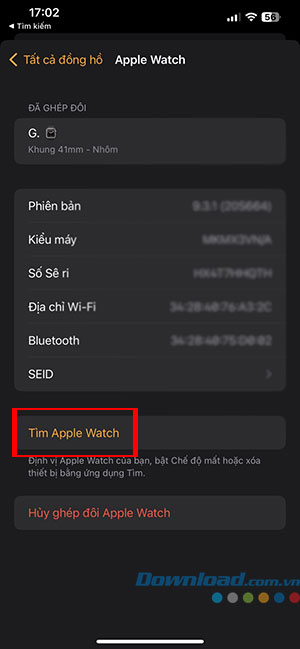
To mark your watch as lost, open the Watch app > select All Watches > tap the i next to the lost watch > tap Find Apple Watch > tap Activate at Mark as lost.
Use the Apple ID management page
Sign in to appleid.apple.com with your Apple ID and remove the ability to pay with credit and debit cards in Wallet. In the Devices area, select the lost watch, then click Erase All in Apple Pay.
Alternatively, you can also call the card issuer to request that the card be blocked immediately.
Related Articles
 Stolen iPhone? Don't Delete It from Your Apple Account!5 minutes read
 Find the Lost Apple Watch with the Find My iPhone App7 minutes read
 How to Turn on iPhone Protection When Stolen: Step-by-Step Guide5 minutes read
 What Is Apple's Lost Mode?9 minutes read
 How to Check for a Stolen iPhone: Practical Guide6 minutes read
 How to Set up a New Apple Watch7 minutes read
Reader Comments 0
Sign in with email or Google to join the discussion.