Table of Contents
The error zsh: command not found: code means Terminal cannot find Visual Studio Code's command-line launcher in the current PATH. You normally do not need to reinstall VS Code. Install the launcher from VS Code's Command Palette, restart Terminal, and verify it with command -v code.
Install the code command in PATH
- Make sure Visual Studio Code.app is in the Mac's Applications folder. If it is still in Downloads, move it before continuing.
- Open Visual Studio Code.
- Press Command-Shift-P to open the Command Palette.
- Type shell command, then select Shell Command: Install 'code' command in PATH.
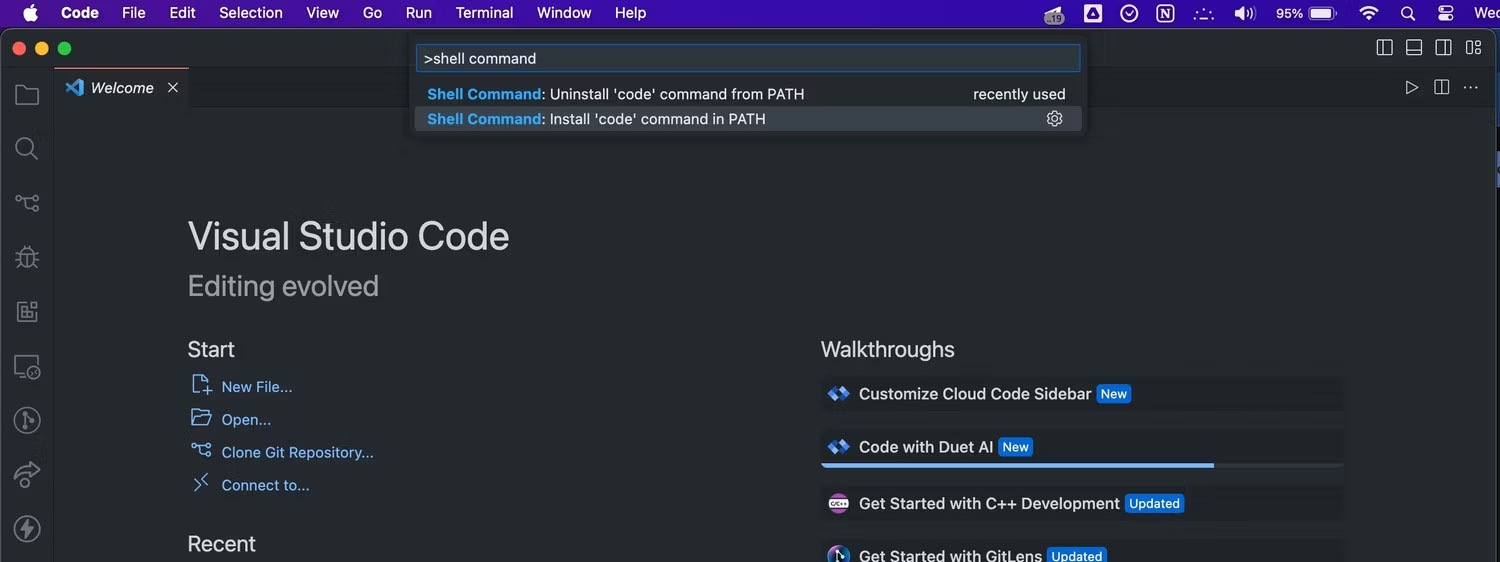
- Approve the change and enter an administrator password if macOS requests it.
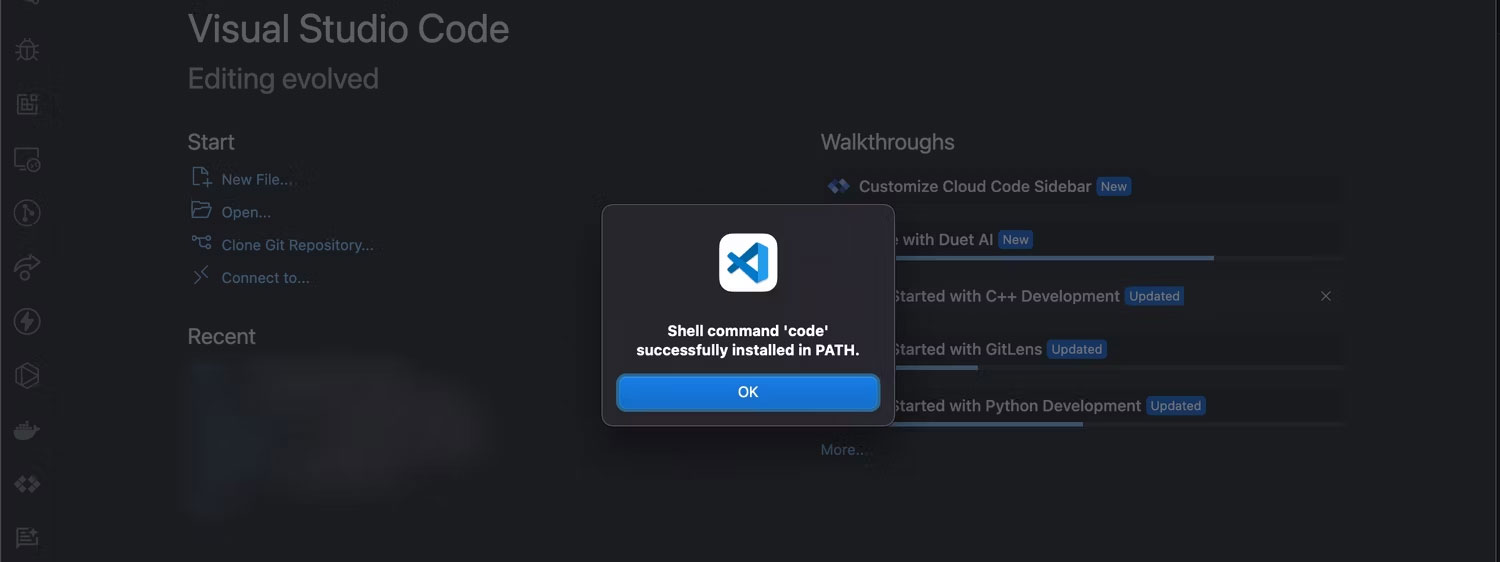
- Quit every open Terminal window, start Terminal again, and run:
command -v code
code --version
The first command should print the launcher's path, and the second should print version information. Microsoft's official VS Code setup guide for macOS documents the same Command Palette method.
Open a folder in VS Code
Move to a project folder and run code .. The dot represents the current directory.
cd "/path/to/project"
code .
You can also open a specific file with code filename.txt or reuse the current VS Code window with code -r ..
If the command is still not found
1. Start a new shell session
An existing Terminal window may still have the old environment. Open a new window or run:
exec zshThen test command -v code again.
2. Confirm the app is in Applications
The standard launcher path assumes this location:
/Applications/Visual Studio Code.appIf you renamed the app or keep it in another folder, move it to Applications and rerun Shell Command: Install 'code' command in PATH.
3. Remove a stale alias or old launcher
Check everything the shell can find under the name code:
type -a codeIf the output points to an old alias or a missing file configured in ~/.zprofile, ~/.zshrc, or an older Bash profile, remove that outdated line. Restart Terminal, then install the launcher again from VS Code.
4. Add the VS Code bin folder manually
If the Command Palette action is unavailable, open ~/.zprofile in a text editor and add this line:
export PATH="$PATH:/Applications/Visual Studio Code.app/Contents/Resources/app/bin"Save the file, then load it in the current shell:
source ~/.zprofile
command -v code
Do not replace the rest of your PATH; the $PATH: portion keeps its existing entries.
Other useful checks
- VS Code Insiders: its command is normally
code-insiders, notcode. - Command works in one terminal only: compare the shell and startup files used by each terminal app.
- Permission error during installation: confirm you are using an administrator account, then rerun the Command Palette action.
- Wrong application: download VS Code from its official site and verify the app name before adjusting the path.
Once the launcher works, these VS Code extensions can add language and workflow features. If you are comparing editors, see this list of free code editors.
Related Articles
 How to Fix 'Apt-get: Command Not Found' Error in Linux Terminal: Practical Guide6 minutes read
 6 Interesting Terminal Commands on Mac5 minutes read
 Terminal: How to Get to the Command Line on a Mac3 minutes read
 How to Open the Terminal App on Mac: Clear Instructions4 minutes read
 How to Fix the 'Error Code 8076' Error on macOS6 minutes read
 6 Ways to Fix Windows Terminal Not Opening Error4 minutes read
Reader Comments 0
Sign in with email or Google to join the discussion.