Table of Contents
You can turn Apple Intelligence off from the Apple Intelligence & Siri settings on a compatible iPhone, iPad, or Mac. Apple says the downloaded on-device models are removed when the feature is turned off, so this can also recover the storage reserved for them.
If only one feature is distracting, you may prefer to disable notification summaries, message summaries, the ChatGPT extension, or image and writing tools individually.
Turn off Apple Intelligence on iPhone or iPad
- Open Settings.
- Tap Apple Intelligence & Siri.
- Turn off the switch beside Apple Intelligence.
- Confirm if the device asks you to turn it off.
Apple's current iPhone guide uses this path. The name or location of a control may differ on an older software release, so update the device or use Settings search if it is not visible.
Turn off Apple Intelligence on Mac
- Choose the Apple menu and open System Settings.
- Click Apple Intelligence & Siri in the sidebar.
- Turn off the switch beside Apple Intelligence.
- Confirm the change if prompted.
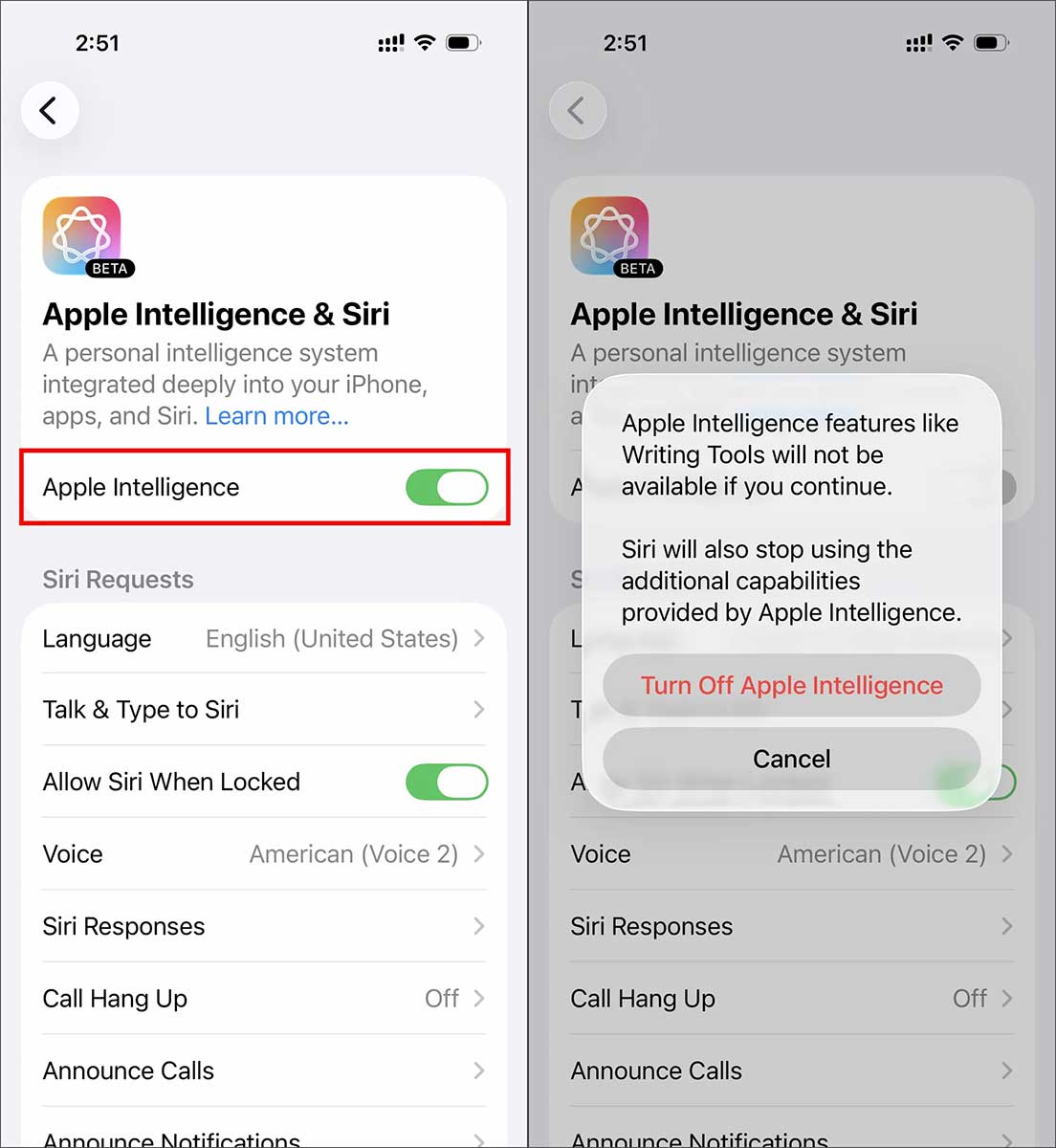
Turning the feature off disables Apple Intelligence capabilities that depend on the local models, including Writing Tools, supported summaries, Genmoji, Image Playground generation, and other system integrations. Feature availability varies by device, platform, language, and region.
What happens to storage
Apple's current requirements page lists 7 GB of device storage for Apple Intelligence and states that the on-device models are removed when Apple Intelligence is turned off. The exact storage shown on a particular device can vary with software and downloaded models.
On iPhone or iPad, you can review storage in Settings > General > iPhone Storage or iPad Storage. On Mac, go to System Settings > General > Storage.
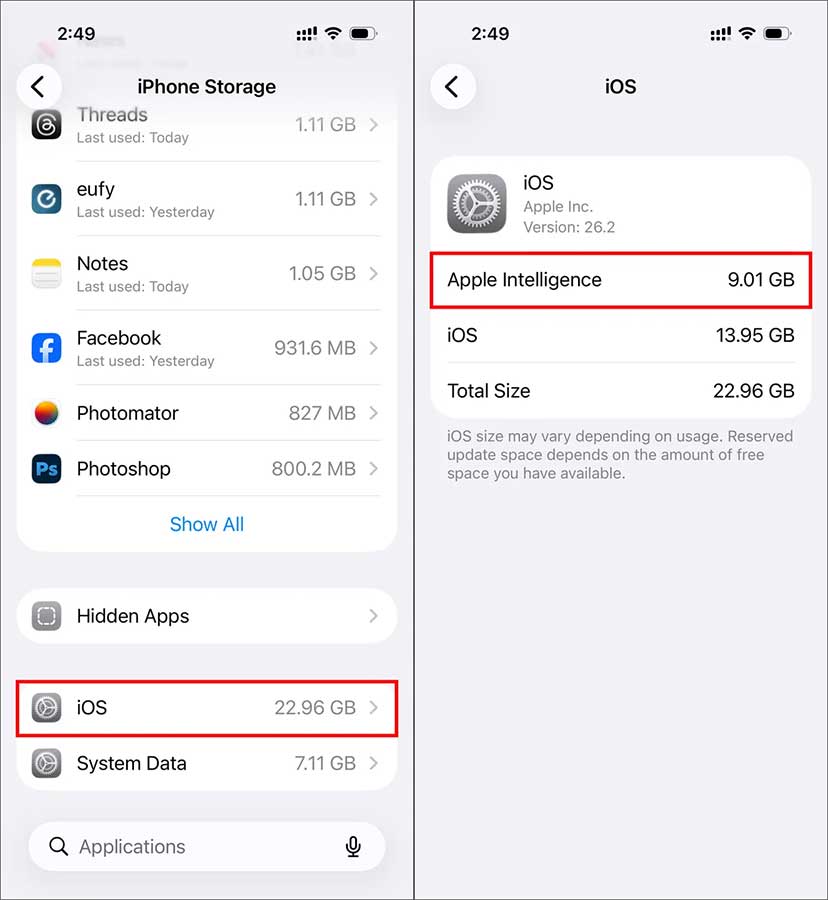
Give the device time to complete the removal. If storage does not change immediately, restart the device and check again after it has been connected to power. Avoid deleting unrelated system data in an attempt to force the change.
Turn off only notification summaries
On iPhone or iPad:
- Open Settings.
- Tap Notifications.
- Tap Summarize Notifications.
- Turn the feature off, or choose which apps may use summaries.
On Mac, open System Settings > Notifications > Summarize Notifications. You can disable all summaries or adjust them for individual apps. Apple's notification summary guide documents the current controls.
Turn off summaries in Messages or Mail
On iPhone or iPad, go to Settings > Apps > Messages and turn off Summarize Messages.
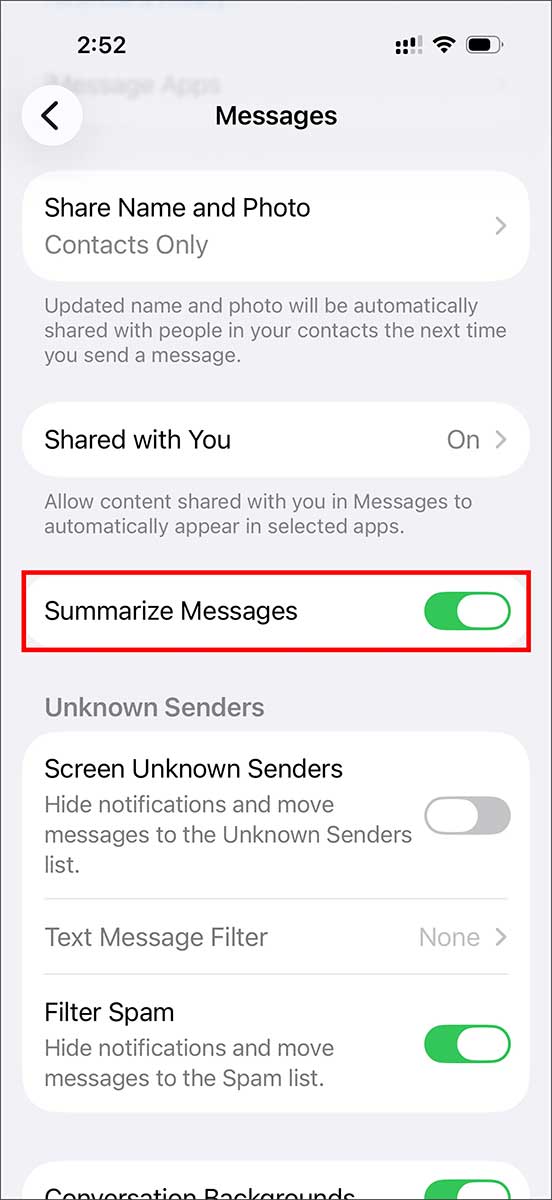
For Mail preview summaries, go to Settings > Apps > Mail and turn off Summarize Message Previews.
On Mac, open Messages, choose Messages > Settings > General, then deselect Summarize messages. These switches keep Apple Intelligence available elsewhere.
Turn off ChatGPT integration
On iPhone or iPad:
- Go to Settings > Apple Intelligence & Siri.
- Tap ChatGPT under Extensions.
- Turn off Use ChatGPT.
- To stop Siri from suggesting setup, also turn off Setup Prompts.
On Mac, use the corresponding System Settings > Apple Intelligence & Siri > ChatGPT panel. This disables the third-party extension without switching off all Apple Intelligence features.
Restrict selected features with Screen Time
Screen Time can block Writing Tools, image creation, and intelligence extensions while leaving other functionality available.
- Open Settings > Screen Time on iPhone or iPad, or System Settings > Screen Time on Mac.
- Open Content & Privacy Restrictions and turn the restrictions on.
- Select Intelligence & Siri.
- Set Writing Tools, Image Creation, or Intelligence Extensions to the desired restriction.
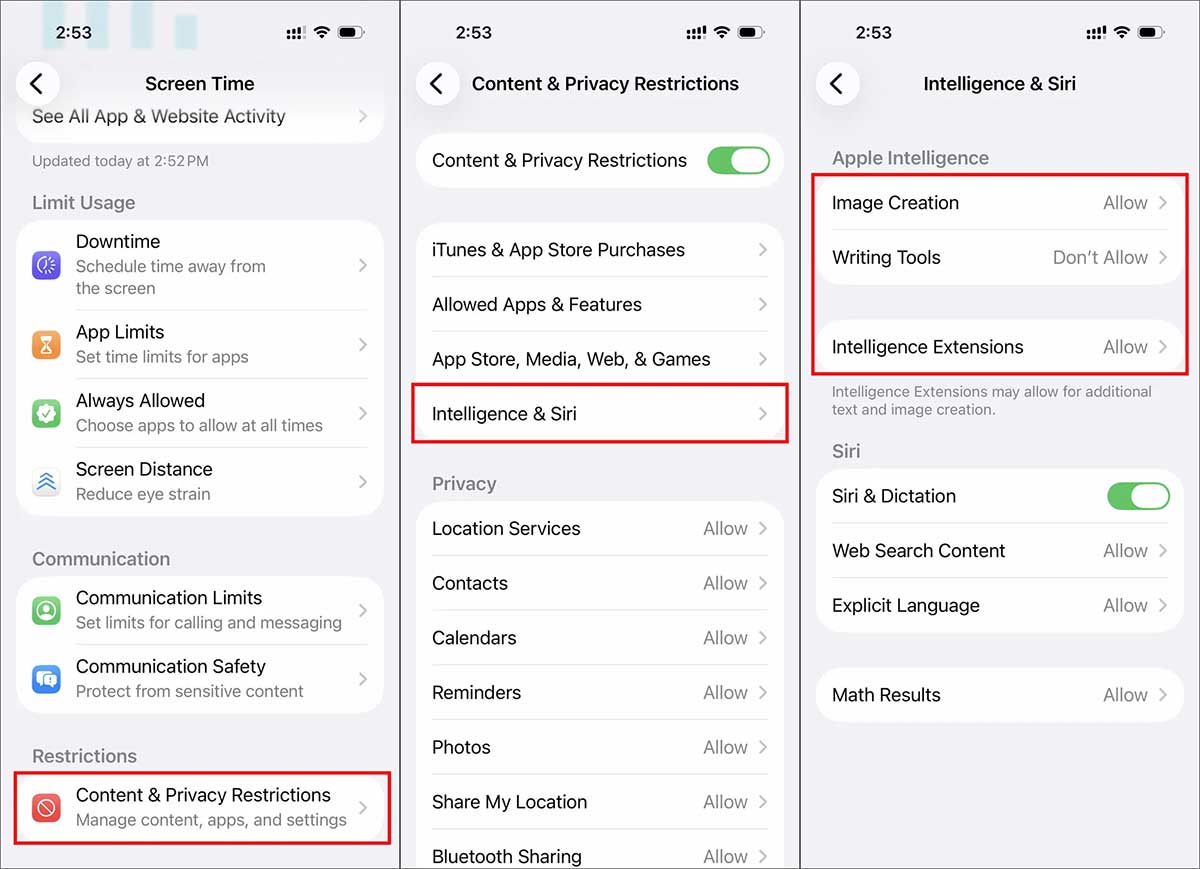
Image Creation covers features such as Image Playground, Genmoji, and Image Wand. Intelligence Extensions can restrict third-party providers such as ChatGPT. Apple's Screen Time guide provides the current steps.
Which devices support Apple Intelligence?
Apple's current device requirements include:
- iPhone 15 Pro models and iPhone 16 models or later;
- iPad mini with A17 Pro and iPads with M1 or later;
- Mac computers with Apple silicon;
- Apple Vision Pro;
- supported Apple Watch models when paired with a nearby Apple Intelligence-enabled iPhone.
The device must also run a supported software version, have sufficient storage, and use matching supported device and Siri languages. Region and language limits can affect individual features.
If you want to turn it back on
Return to Apple Intelligence & Siri and enable Apple Intelligence. The device may need to download the on-device models again. Connect it to Wi-Fi and power and allow time for the download to finish.
Turning Apple Intelligence off does not erase your photos, messages, documents, or normal Siri settings. It removes the feature's local models and makes the dependent tools unavailable until you enable it again.
Related Articles
 Instructions to Turn Off Apple Intelligence2 minutes read
 How to Block Apple Intelligence on iPhone4 minutes read
 Detailed Instructions on How to Disconnect Your iPad from Your iPhone4 minutes read
 What Is Apple Intelligence?4 minutes read
 What to Do When the iPhone or iPad Can't Turn On?6 minutes read
 Apple Intelligence Blocked on All Meta Apps on iOS4 minutes read
Reader Comments 0
Sign in with email or Google to join the discussion.