Table of Contents
Windows updates can cause errors, compatibility issues, or even slow down your system. Here are some tips to avoid faulty Windows updates.
Microsoft regularly releases Windows updates to introduce new features and fix problems. However, sometimes Windows updates can cause errors, compatibility issues, or even slow down your system. Here are some tips to avoid faulty Windows updates.
Pause updates
When a Windows update is available, you should wait about 2 weeks or more to check feedback from other users and see if any serious issues are reported.
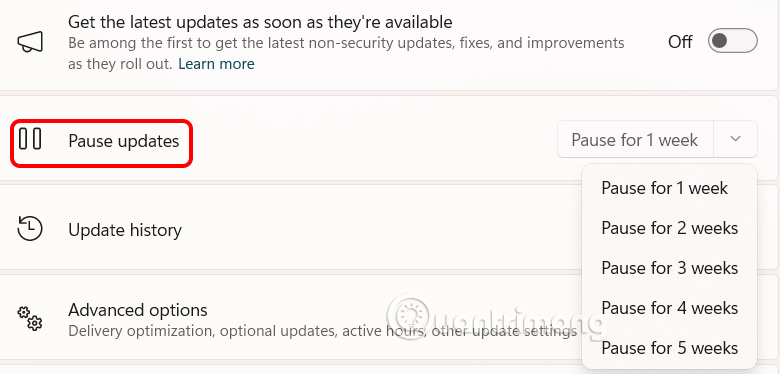
Open Settings , then click on Windows Update And look to the side. In Pause Updates , Select the time you want to delay the update . After pausing, Windows will not automatically install the update, reducing the risk of errors.
Track information for each Windows update
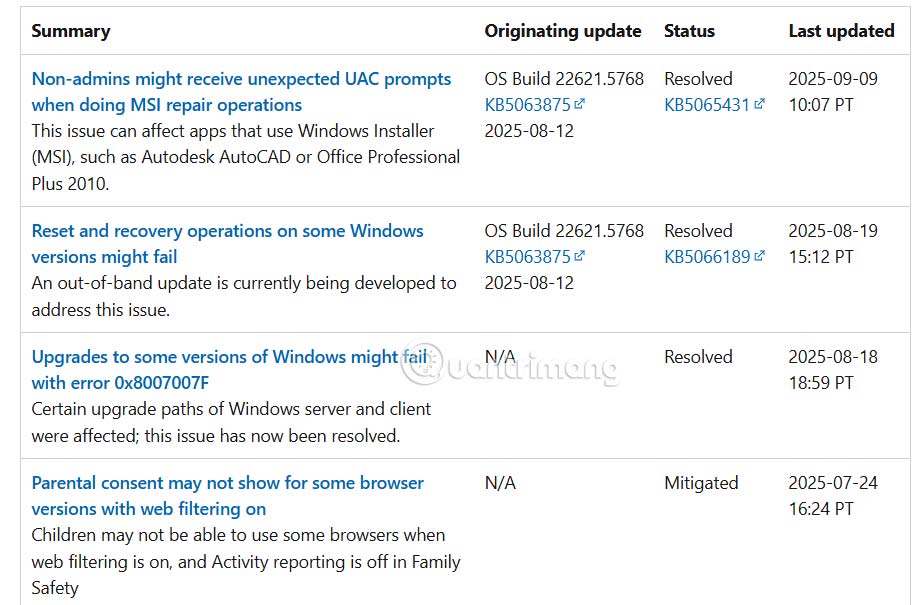
The Windows Release Health Dashboard provides information for each update, listing known issues, bugs, and fixes associated with the latest Windows updates. By checking this page, you can see if a particular update breaks important features or causes serious problems.
Backup data before updating
Updates can cause unexpected problems or corrupt your data, so you should back up important computer data before installing any major update to ensure you can restore it if something goes wrong.
Create a system restore point
While backing up important data helps protect your computer files, it doesn't completely eliminate the risk of an update affecting your system to the point where you'll have to reinstall Windows. To avoid this hassle, use System Restore Points, which create a snapshot of your Windows settings in a healthy state that you can restore if something goes wrong.
- Instructions for creating a backup and restore point (Restore Point)
Uninstall a faulty Windows update
If the update causing the problem only affects a few features, you can simply uninstall it to go back to the previous version.
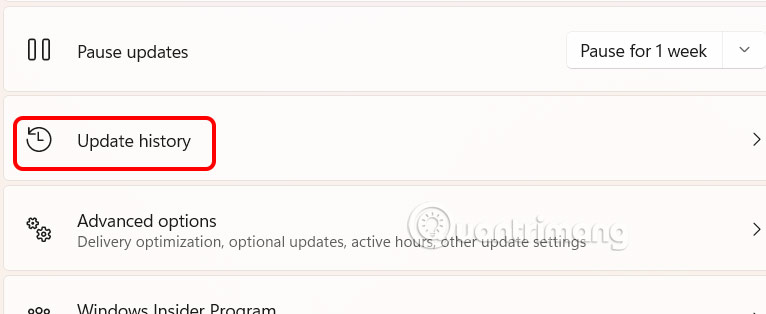
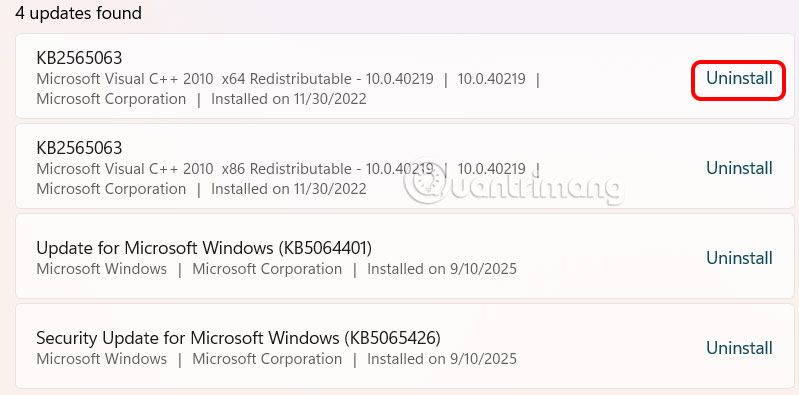
You open Settings and Select Windows Update , then we Continue to select Update History To see the history of updates performed.
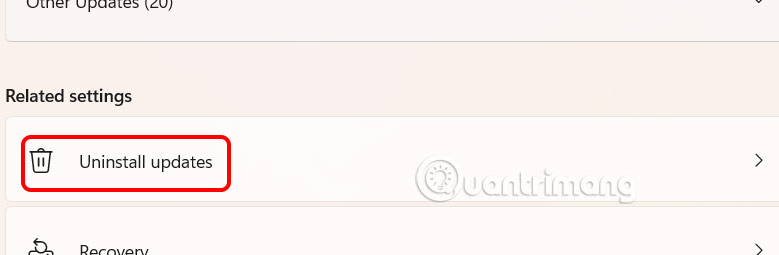
Scroll down and Tap Uninstall Updates And select the update you want to remove.
We select the update and Click Uninstall To uninstall this update.
Set Windows Active Hours
Even with all precautions taken, an update can still fail, forcing you to restore factory settings and disrupting your work. To avoid this, we recommend setting up Active Hours.
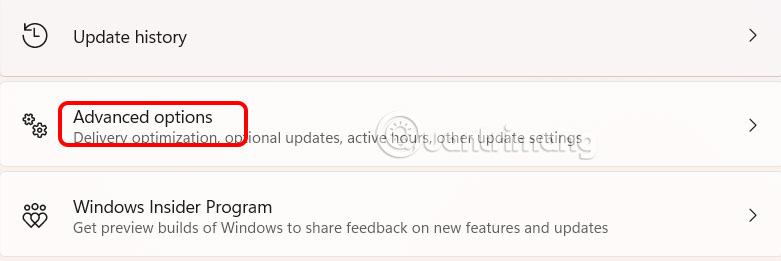
You access Windows Update then scroll down And select Advanced Options .
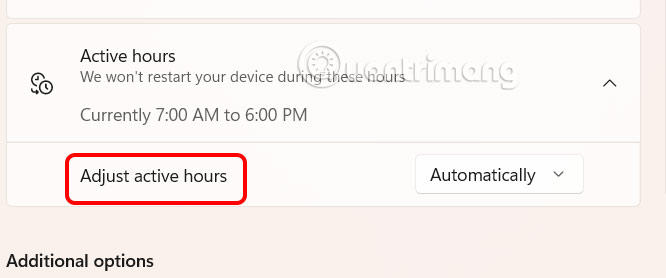
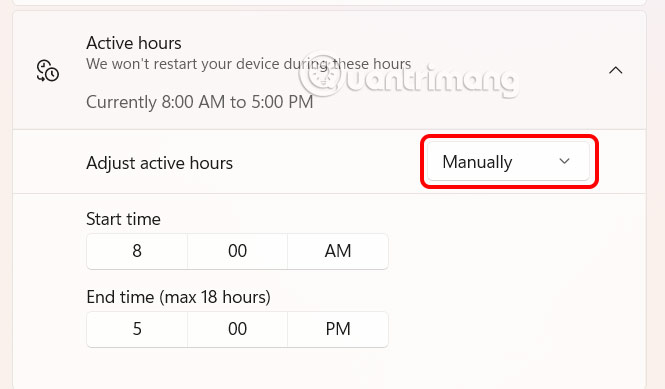
Then you will see The Active Hours section To adjust. You Switch to Manually And set the time to match your working hours.
During this time, Windows will not restart or interrupt your work, ensuring your workflow is not interrupted.
FAQ
What should you know about the options in this guide?
In practical terms, Windows updates can cause errors, compatibility issues, or even slow down your system. Here are some tips to avoid faulty Windows updates.
Which option is the best choice?
The best choice depends on your priorities, compatibility, budget, and the specific features discussed in the comparison.
What should you compare before deciding?
Compare core features, limitations, ease of use, compatibility, and long-term value before making a decision.
Related Articles
 Restore: How to Uninstall All Windows Updates5 minutes read
 How to Stop Windows Updates on Your PC10 minutes read
 25 Useful Tips for Windows 8.1 Users to Know16 minutes read
 How to Troubleshoot Refresh Loop in Microsoft Store on Windows 104 minutes read
 How to Turn Off Windows 10 Update to Avoid Automatic Updates?7 minutes read
 Silly Errors on Windows 10 Make Users Uncomfortable4 minutes read
Reader Comments 0
Sign in with email or Google to join the discussion.