Table of Contents
The fastest way to lock a Windows PC is Windows+L. It keeps your apps open but requires the account's password, PIN, fingerprint, or face recognition before someone can return to the desktop. Lock the PC whenever you step away, even for a short time.
1. Press Windows+L
Hold the Windows key and press L. The lock screen appears immediately.

This is the best everyday method because it is quick, built in, and does not depend on a timer or Bluetooth device.
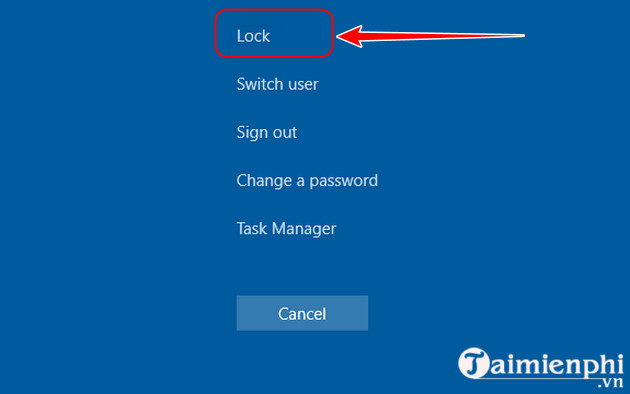
2. Use Ctrl+Alt+Delete
Press Ctrl+Alt+Delete, then select Lock. This route is useful when you already have the security screen open or the Start menu is not responding.
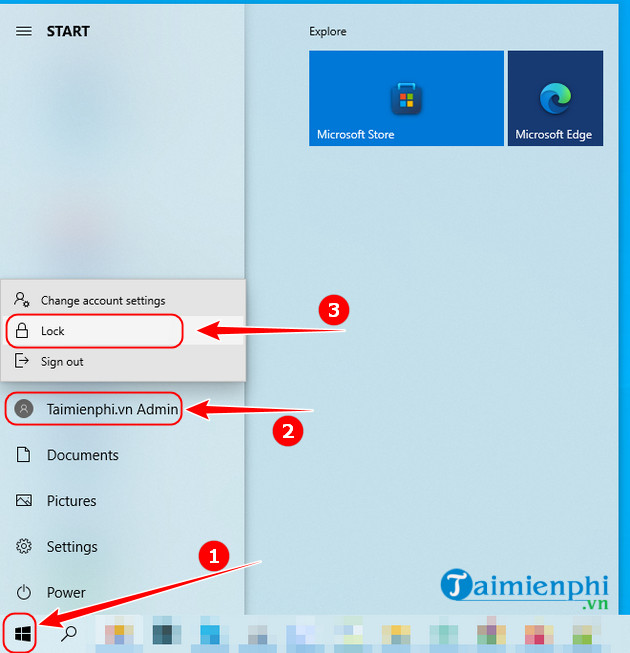
3. Lock from Start
Open Start, select the account or power control shown by your Windows version, and choose Lock. Microsoft has moved the command between these menus in different Windows 11 releases, so use the visible Lock action.
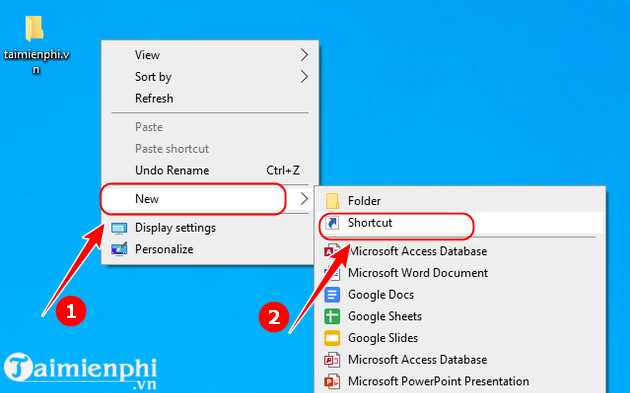
4. Create a desktop lock shortcut
If you use a mouse-only workstation or accessibility setup, you can create a desktop shortcut:
- Right-click an empty area of the desktop and select New > Shortcut.
- For the location, enter
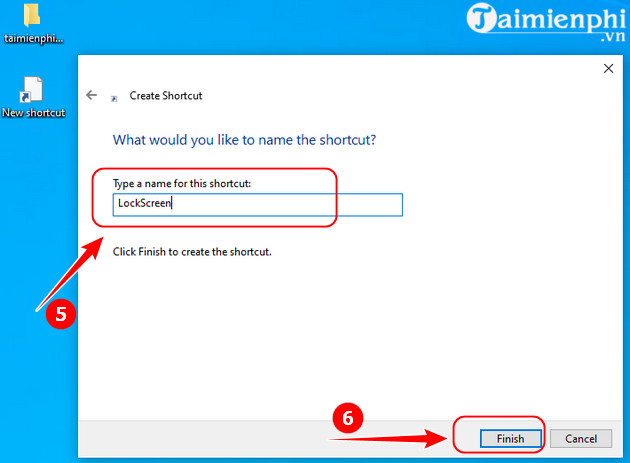
rundll32.exe user32.dll,LockWorkStation. - Select Next, name it Lock PC, and finish.
- Double-click the shortcut once to test it.
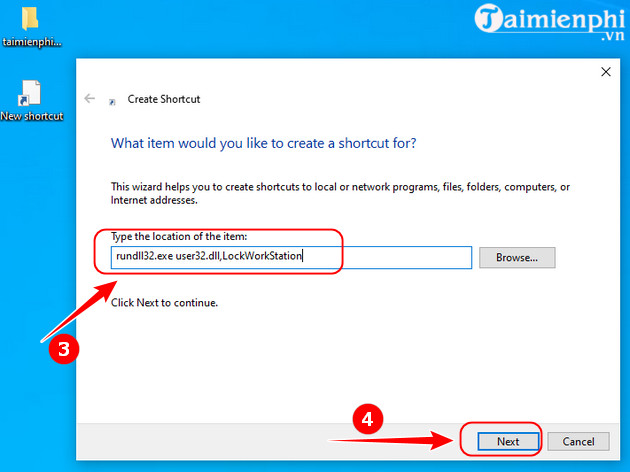

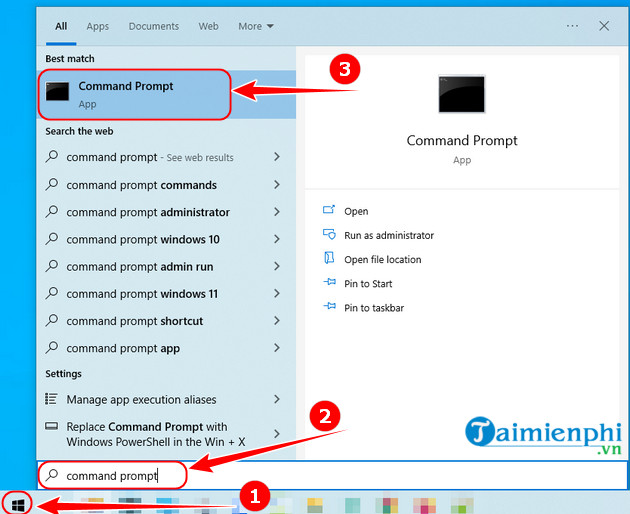
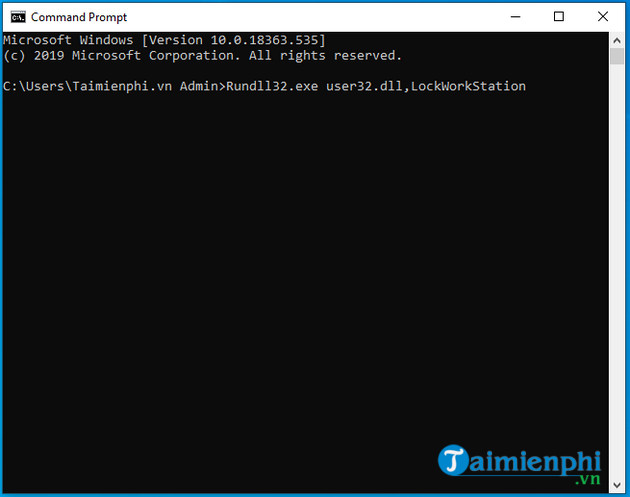
The same command can be run from Command Prompt or the Run dialog, although Windows+L remains simpler.
5. Lock automatically after inactivity
Turning off the display is not the same as locking the account. To require sign-in after a screen-saver timeout:
- Open Start, search for Change screen saver, and open it.
- Choose a screen saver or leave a blank option as available.
- Set a reasonable Wait time.
- Check On resume, display logon screen, then select Apply.
Also open Settings > Accounts > Sign-in options and review when Windows should require sign-in after sleep. On a shared or portable PC, use a short timeout consistent with your work or organization policy.
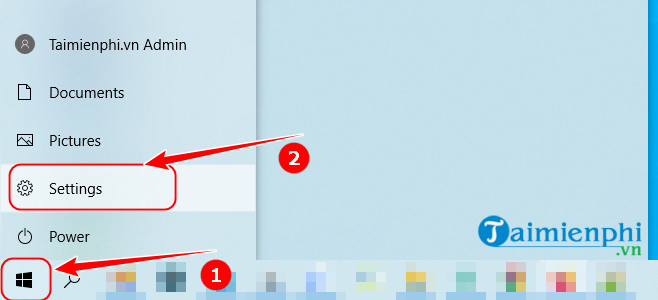
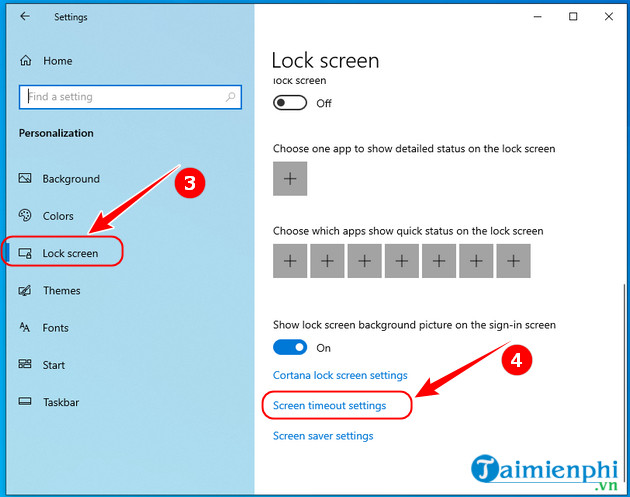
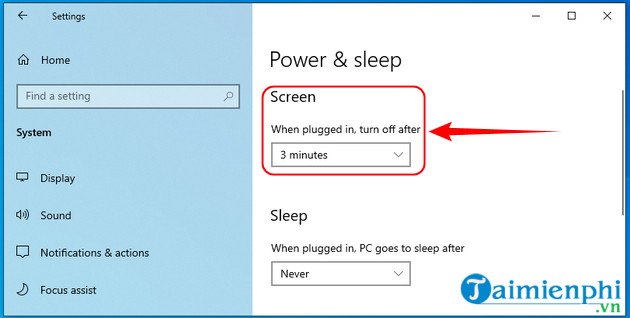
The original instructions treated Screen and sleep timeout as an automatic lock setting. It controls display and sleep timing; it does not by itself guarantee that the next person must authenticate. Configure the sign-in or screen-saver requirement as well. For more controls, see Windows lock-screen and screen-saver timeout settings.
6. Use Dynamic Lock as a backup
Windows Dynamic Lock can pair with a phone over Bluetooth and lock the PC after the phone moves out of range. Open Settings > Accounts > Sign-in options > Dynamic lock and follow the pairing prompts.
Bluetooth distance varies and the lock is not instantaneous. Use Dynamic Lock as a fallback for when you forget—not as a replacement for Windows+L. The Windows settings checklist explains its tradeoffs.
Make sure the lock actually protects the account
- Set a strong password or Windows Hello PIN; an account with no credential is easy to reopen.
- Test the lock and unlock process before relying on it.
- Use Windows Hello fingerprint or face recognition only with compatible hardware and keep the PIN secure. See the Windows Hello fingerprint setup guide.
- Do not disable automatic locking on a work or school device without administrator approval.
Lock keeps the session running, while Sign out closes the user session and can discard unsaved work. Choose Lock when stepping away and Sign out when another person needs a separate session.
Related Articles
 How to Disable Lock Screen Lock Screen on Windows 8, 105 minutes read
 How to Turn Off the Lock Screen on Windows 10 Creators Update4 minutes read
 Remove Network Icon on Lock Screen Lock Screen Windows 104 minutes read
 Some Applications Help Customize the Windows Phone 8 Lock Screen10 minutes read
 How to Secure Missed Calls on iPhone Lock Screen: Step-by-Step Guide3 minutes read
 How to Turn on the Search Box on the Lock Screen on Windows 105 minutes read
Reader Comments 0
Sign in with email or Google to join the discussion.