Table of Contents
Changing the SIM PIN and setting a pattern lock are two of the most common and effective ways users can keep their Samsung Galaxy A12 smartphone secure.

How to enhance security for Samsung A12
1. Samsung Galaxy A12 Specifications
Despite being part of Samsung's A series, the Samsung Galaxy A12 boasts impressive hardware specifications, featuring an octa-core MediaTek Helio G35 chip, two RAM options (4GB/6GB), up to 128GB of internal storage, and support for a Micro SD card up to 1TB. Combined with a massive 5000mAh battery, users can easily use the A12 throughout the day, performing basic tasks like browsing the web, watching movies, and communicating smoothly. Furthermore, the A12 supports 15W fast charging for quick battery recharges.
Despite using only an HD+ LCD panel, the display quality on the A12 still provides users with a good visual experience, thanks to its high brightness, comfortable use in sunlight, and vibrant colors with good depth. Featuring a trendy teardrop design and a good refresh rate, gaming and video viewing on the A12 are quite smooth compared to competitors in the same segment. Furthermore, the Samsung Galaxy A12 has a 48MP main camera, capable of capturing sharp and realistic photos.
2. How to securely protect your Samsung Galaxy A12
Samsung has always been a smartphone manufacturer that pays close attention to security in its products, and the Samsung Galaxy A12, although in the mid-range segment, is still equipped with the company's best security features.
To ensure the best security for your Galaxy A12, users can refer to some of the solutions below:
Method 1: Change SIM PIN
Step 1
Swipe up from the bottom of the screen to access the main menu interface of the Samsung Galaxy A12.
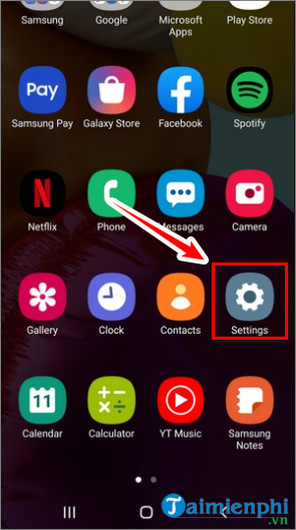
Step 2 : Open the Settings app .
Step 3
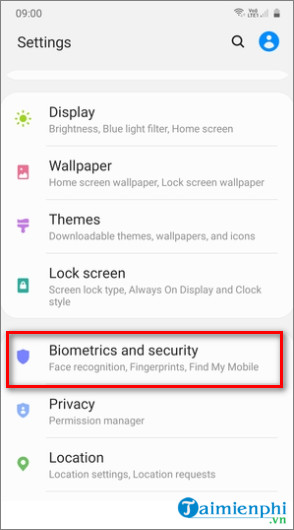
Scroll down, find and select Biometrics and Security .
Step 4
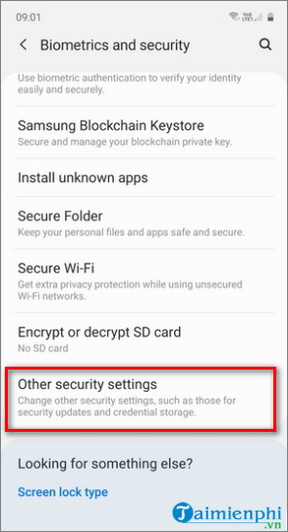
In the window that appears on the screen, select the "Other security settings " option.
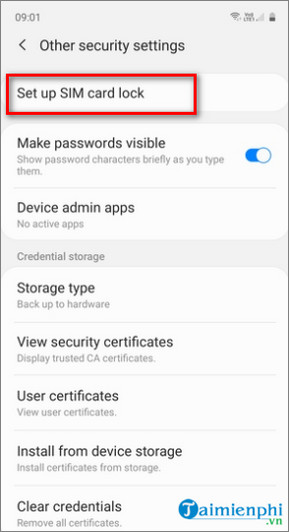
Step 5: Select Set up SIM card lock .
Step 6
Select the option Change SIM card PIN (or change the SIM card PIN).
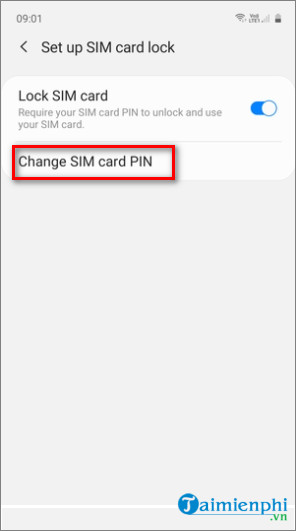
Step 7
In the window that appears, enter your old PIN and then press OK.
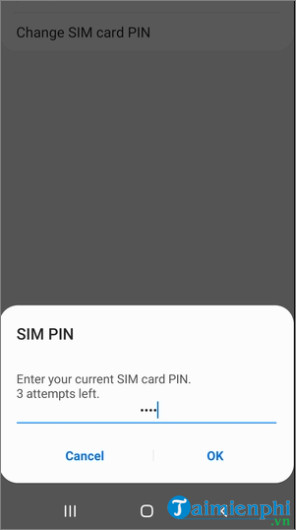
Step 8
Then enter the new PIN you want to change to and press OK again.
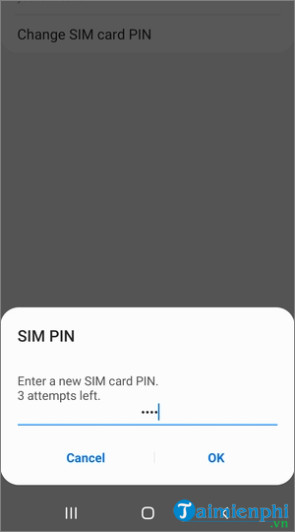
Step 9
Re-enter the new PIN to confirm, then press OK to save the changes.
Method 2: Set up screen unlock using a pattern.
Step 1: Open the Settings app and then find and tap the Lock screen option .
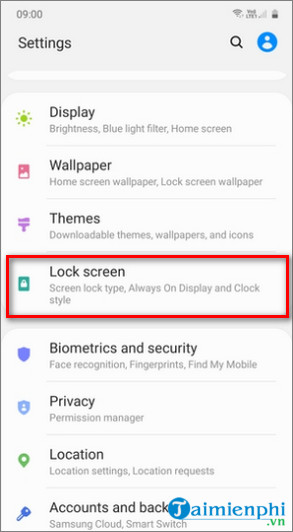
Step 2
In the window displayed on the screen, find and select Screen lock type .
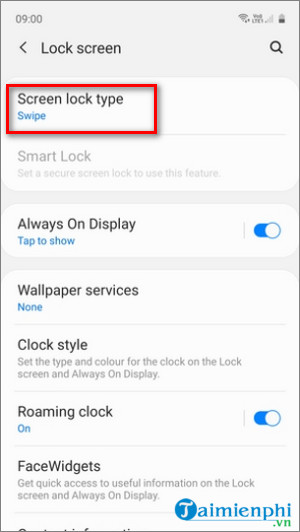
Step 3
Next, select Pattern to set up unlocking using a pattern.
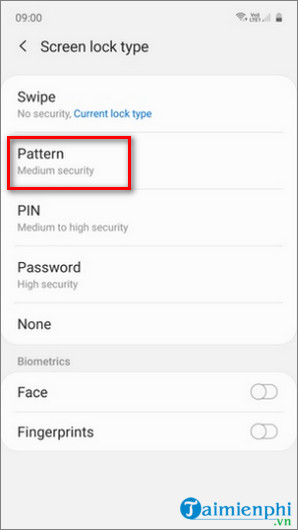
Step 4
Draw any pattern you want to use to unlock your device, then tap Continue .
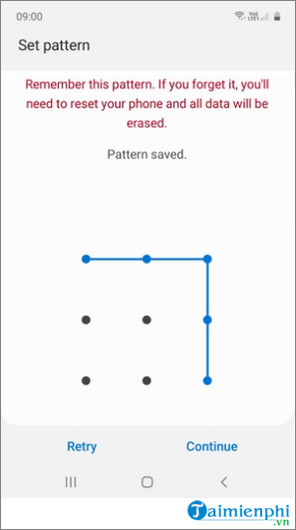
Step 5
Draw the pattern you just created to confirm your password, then press Confirm to save the screen unlock pattern.
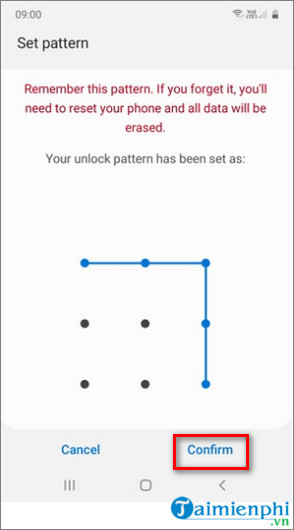
Step 6
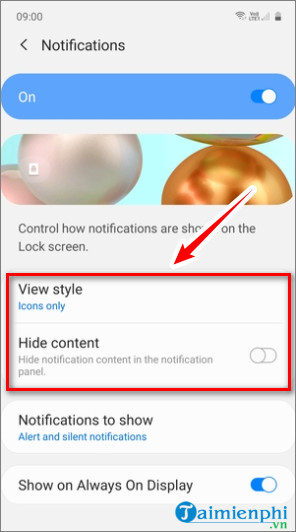
Finally, in this step you can set whether to show or hide notifications on the lock screen by selecting the View style option (show notifications) or the Hide content option (hide content). After you're done, tap Done .
In summary, this article has provided users with two ways to better secure their Samsung Galaxy A12 phone, as well as some information about this latest product.
Related Articles
 Official Information About Samsung Galaxy S8, S8 Plus: Price, Date of Sale, Specifications12 minutes read
 Galaxy S20 and S20 +:+: Snapdragon 865 // Exynos 990, 8 // 12gb4 minutes read
 Review Samsung Galaxy S20: First 5g Phone in 20207 minutes read
 8 Useful Apps on Samsung Galaxy S218 minutes read
 6 Top New Features on Samsung's Galaxy S20 Flagship Device6 minutes read
 Tips for Speeding Up Samsung Galaxy Crickets3 minutes read
Reader Comments 0
Sign in with email or Google to join the discussion.