Table of Contents
If an Android phone displays a ransom demand or blocks access to files, disconnect it from Wi-Fi and mobile data, avoid paying or entering personal information, and begin removal from Safe Mode. The exact menu names and button combinations vary by phone model.
Before you remove anything
- Disconnect the phone from networks to limit communication with the malicious app.
- Do not tap links or call numbers shown in the ransom message.
- If possible, note the name of any app installed shortly before the problem began.
- Do not create a new backup after the infection if it may overwrite a known-good backup.
Restart the phone in Safe Mode
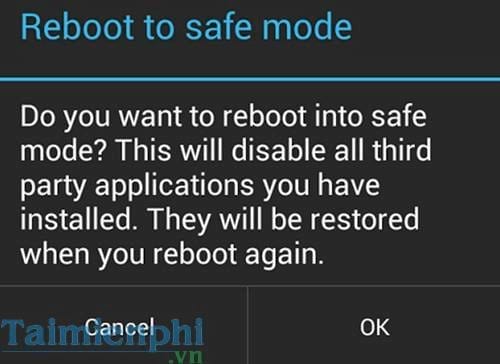
Safe Mode starts Android without most downloaded apps. On many phones, you can hold the power button, then touch and hold Power off until the Safe Mode option appears. The process differs by manufacturer, so use the instructions for your model if this method is unavailable.
- Start the phone in Safe Mode.
- Open Settings and find the Apps or Applications section.
- Review recently installed or unfamiliar apps. Select the suspected app and choose Uninstall.
- If uninstalling is blocked, check whether the app has device-administrator privileges. Remove only the privilege belonging to the suspected app, then try uninstalling again.
- Restart normally and check whether the ransom screen returns.
Do not remove system apps or apps you cannot confidently identify. If the phone belongs to an employer, contact its IT administrator before changing device-management settings.
Use a factory reset only as a last resort
A factory reset erases apps, accounts, settings, and data stored on the phone. It may remove ordinary malicious apps, but it also destroys local files that have not been backed up.
If you can still access the phone, use the factory-reset option in Settings. If the device is locked, the recovery-mode button sequence depends on the manufacturer and model; consult the device maker's instructions rather than relying on a generic key combination.
- Confirm that any available backup predates the infection.
- Remove the memory card before resetting if you need to preserve it for separate inspection.
- Perform the reset using the phone's Settings or manufacturer-documented recovery process.
- During setup, install system updates before reinstalling apps.
- Restore only trusted data and reinstall apps from the official app store. Avoid automatically restoring an app you suspect caused the infection.
After recovery
Change passwords for accounts used on the phone from a different, trusted device, especially if you entered credentials while the phone was compromised. Review account activity and enable multi-factor authentication where available. If ransomware returns after a reset, or if sensitive work or financial data may have been exposed, seek help from the phone manufacturer, your organization, or a reputable security professional.
Related Articles
 How to Remove Moba Ransomware from the Supported Operating Systems6 minutes read
 What Is Ransomware Cryptowall 4.0? How to Clean up Ransomware19 minutes read
 Is It Necessary to Disconnect Secure USB Devices?4 minutes read
 7 Kinds of Ransomware You Didn't Expect8 minutes read
 What Is Ransomware Screen Locker? How to Remove?7 minutes read
 How to Get Rid of Root Virus *.*. Osiris -- Ransomware Locky?14 minutes read
Reader Comments 0
Sign in with email or Google to join the discussion.