Table of Contents
Windows 7 has no universal “Reset this PC” button. To return a computer to a working state, you must use an OEM factory-recovery option, restore a system image you previously created, or reinstall Windows from licensed media. System Restore is less destructive, but it does not erase personal files or return the PC to factory condition.
Before choosing a method, back up documents, photos, browser data, email archives, software installers, and license information to a separate drive. Factory recovery and clean installation can erase the entire system disk.
Windows 7 support ended on January 14, 2020. The Microsoft lifecycle page confirms that it no longer receives routine security updates. Use recovery only for a genuine legacy requirement; for ordinary internet use, move to a supported operating system.
Choose the right recovery method
| Method | What it changes | What you need |
|---|---|---|
| System Restore | Rolls system files, drivers, and settings back to a restore point; normally keeps personal files | An available restore point |
| OEM factory recovery | Returns the PC to the manufacturer's original software image and may erase the disk | An intact recovery partition or manufacturer recovery media |
| System image restore | Replaces selected partitions with a previously saved image | Your own known-good system image and recovery media |
| Clean reinstall | Installs Windows from scratch and can remove all existing data | Licensed installation media, a valid license, drivers, and backups |
Option 1: Try System Restore first
Use System Restore when Windows recently became unstable after a driver, update, or application change. It is not a factory reset and does not remove all malware or user data.
- Open Start, search for System Restore, and choose Create a restore point or System Restore.
- Select a restore point created before the problem began. Use Scan for affected programs if it is available.
- Review the date and affected drives, then start the restore. Keep the computer connected to power while it restarts.
See how to use System Restore in Windows 7 for the recovery-environment route when Windows will not start.
Option 2: Restore your own system image
Windows 7 Backup and Restore can recover a full system image created earlier. This restores the system to the exact state captured in that image, including its applications and settings; files created afterward are not included unless they were backed up separately.

- Connect the external drive that contains the image.
- Open Control Panel > Backup and Restore and choose the recovery option, or boot into System Recovery Options if Windows cannot start.
- Select System Image Recovery, verify the image date and destination disk, and read the format warning carefully.
- After recovery, restore newer personal files from a separate backup.
Our guide to Backup and Restore in Windows 7 explains how the built-in tool works.
Option 3: Use the manufacturer's factory recovery
Many Windows 7-era PCs shipped with a hidden recovery partition or recovery discs. The exact startup key and menu differ by brand and model, so check the model's manual or the manufacturer's support page rather than guessing.
- Disconnect unnecessary external drives and peripherals.
- Start the PC and use its documented recovery key or boot the official recovery media.
- Choose the factory-recovery option, verify which disk will be erased, and keep the PC connected to power.
- When recovery finishes, reinstall only trusted applications and restore personal files from backup.
If the recovery partition was deleted or the drive has failed, ask the manufacturer whether model-specific recovery media is still available. Do not download a “factory image” for another model.
Option 4: Reinstall Windows 7 from licensed media
A clean installation is the last resort when no trustworthy recovery image exists. Confirm first that you have legitimate installation media, the correct Windows 7 edition, a valid license, and drivers for the exact PC model.
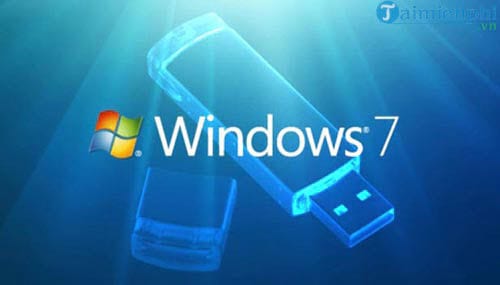
- Create bootable media from the licensed ISO and test that it starts.
- Boot the PC from the media and choose the language and keyboard layout.
- Select Custom only if you intend a clean installation. Verify the disk and partition by size and label before deleting or formatting anything.
- Complete setup, install manufacturer-provided drivers, activate the matching Windows edition, and restore files from backup.
The detailed sequence is covered in our Windows 7 installation guide. Do not use modified “ghost” images downloaded from file-sharing sites: their contents, licensing, drivers, and security settings cannot be trusted.
After recovery
- Check that files restored correctly before erasing the backup.
- Install applications from their publishers, not from bundles included in an unofficial image.
- Keep the Windows 7 device isolated from the public internet where possible.
- If the hardware cannot run a supported Windows version, consider a supported lightweight operating system or replace the device for sensitive online work.
If the disk reports errors, makes unusual noises, or repeatedly loses the restored installation, stop reinstalling and test or replace the drive. A factory reset cannot repair failing hardware.
Related Articles
 3 How to Reset Win 7, Factory Reset Windows 78 minutes read
 7 Ways to Reset Your Windows 7/10/11 Computer to Its Factory Settings16 minutes read
 Steps to Reset Apple TV, How to Factory Reset Apple TV4 minutes read
 How to Factory Reset: Step-by-Step Guide8 minutes read
 How to Factory Reset Windows 10 PC with Command Prompt3 minutes read
 minutes read
Reader Comments 0
Sign in with email or Google to join the discussion.