Table of Contents
Before trying a key finder, check whether you need a product key at all. Windows may use a digital license, and an Office purchase may already be associated with your Microsoft account. Recovering a string from an old installation does not guarantee that it is a reusable license.
Find the original purchase or account record
Check the retailer's confirmation email, original packaging, product card, and any label supplied with the PC. For a Microsoft purchase, check your account's order history. If the software belongs to your employer or school, contact its administrator rather than attempting to extract an organizational key.
Microsoft explains the purchase-specific options in Find your Windows product key. Keep any recovered key private.
Check Windows activation before reinstalling
On Windows 11, open Settings > System > Activation. On Windows 10, open Settings > Update & Security > Activation. Record the installed edition and activation status. TipsMake's activation status guide explains the messages.
A device with an existing digital license can normally reactivate after reinstalling the same edition on the same device. Link the license to your Microsoft account before reinstalling where available, and sign in with that account afterward. Significant hardware changes may require activation troubleshooting. A Home license does not activate Pro.
During setup, eligible devices can use I don't have a product key and activate online afterward. Back up personal files before reinstalling. See installing Windows 11 from USB and Microsoft's activation instructions.
Recover Office through the account used to redeem it
For an Office product already redeemed to a Microsoft account, use that same account to reinstall. For a work or school subscription, use the account assigned a license by the organization. A key used for initial redemption is not necessarily the key shown by the installed application.
Check the product name and account in an Office app's File > Account page. If the purchase is missing, check whether another account was used and locate the receipt. Microsoft's Office product-key guidance covers account and license differences.
Use key-recovery tools only where supported
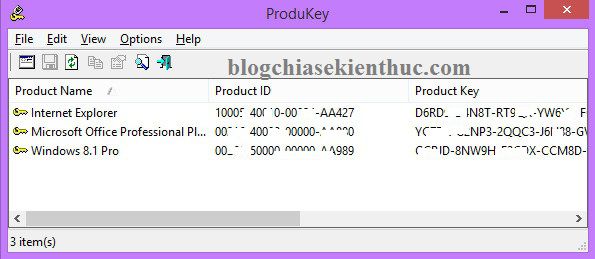
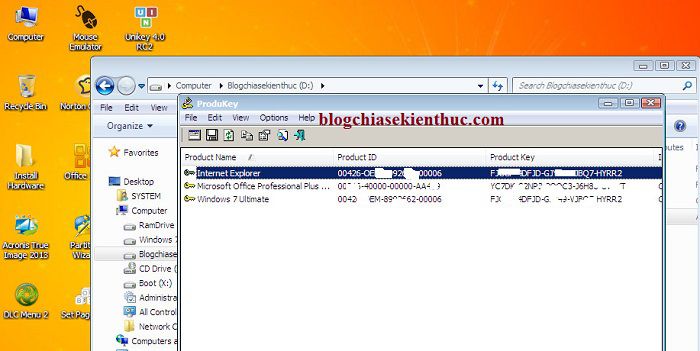
ProduKey can display stored keys for supported products, particularly older Windows and Office installations. Its official documentation lists compatibility and limitations; it does not support every Windows license type or modern Office release.
- Obtain the utility from its official source and check compatibility first.
- Extract the archive and run
ProduKey.exeon a computer you own or administer. - Inspect the product name and key. Save selected results securely if useful.
Do not assume a generic installation key or a partial key can activate a new installation. If security software blocks a download, investigate the detection and source. Do not disable protection simply because an old tutorial says the file is safe.
If Windows will not start
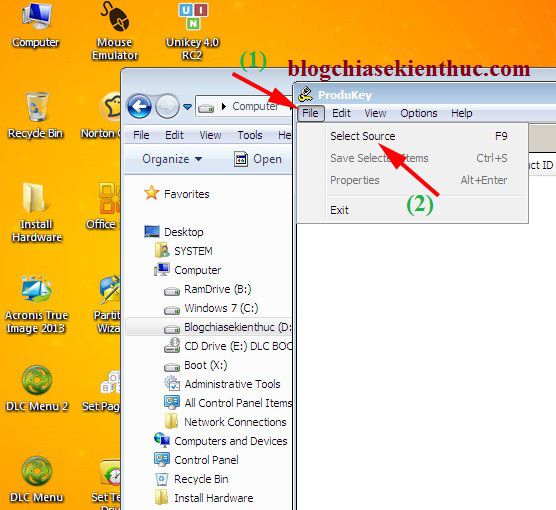
Preserve the drive and back up accessible files before formatting it. Where the product and recovery environment are supported, ProduKey's File > Select Source option can read an external Windows directory. Select the actual Windows folder on the old installation; recovery environments may assign different drive letters.
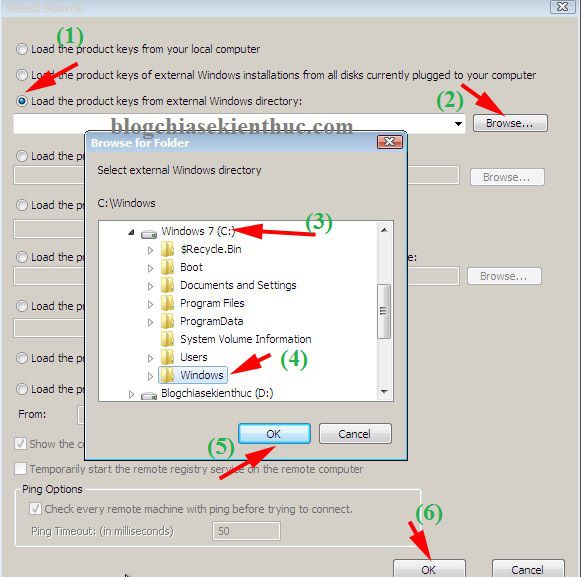
Results depend on readable files and supported licensing data. Encrypted drives need to be unlocked through the appropriate recovery process. If no useful key appears, return to the account, retailer, PC manufacturer, or administrator.
Other inventory tools
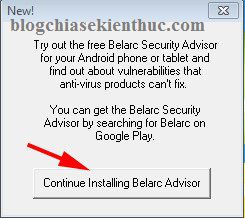
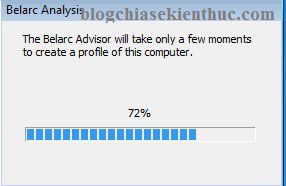
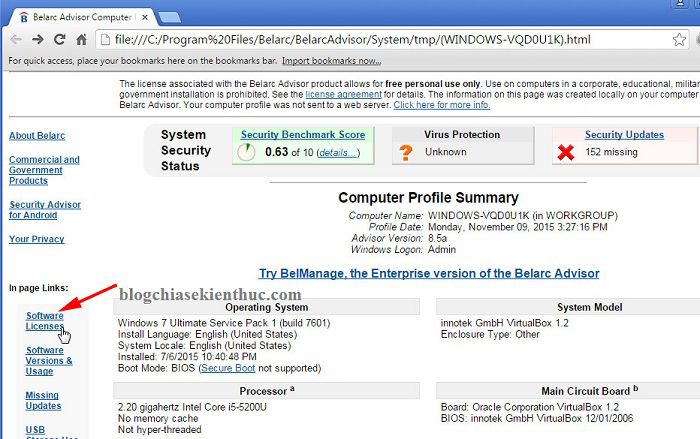
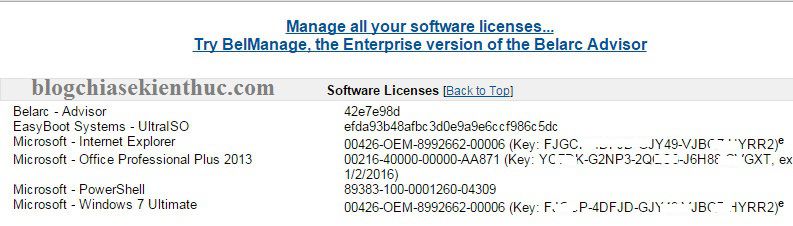
Belarc Advisor may list license information for supported installed software, but an inventory report is not a guarantee that a full reusable key is available. The older screenshots below illustrate its installation and Software Licenses report. Current interfaces and supported products may differ.
Why old scripts and activation-file backups are unreliable
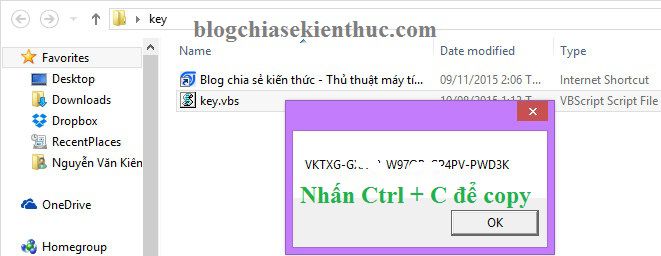
Registry-decoding scripts may return an installation key rather than a usable license, and copied scripts can contain damaged syntax. This older key-display screenshot illustrates an output dialog, not proof of activation entitlement.
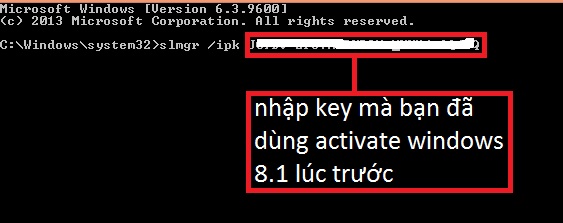
Do not overwrite Windows activation files such as tokens.dat or data.dat using instructions for a different installation. Use the supported activation interface and a valid license instead. A command that installs a key does not create a license or guarantee activation.
Reactivate the matching Office edition
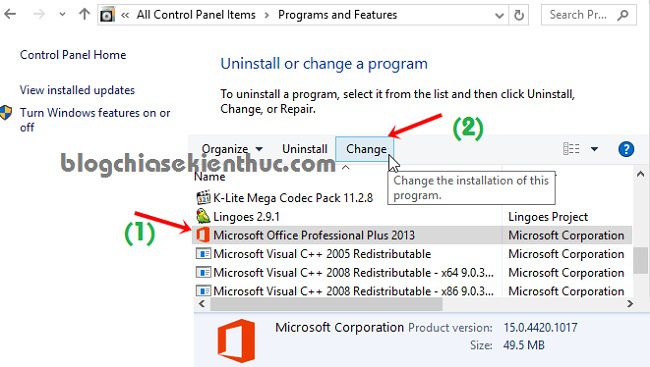
Install the Office product associated with your account or authorized key, then follow its sign-in or activation prompts. Older perpetual editions may offer a product-key change through their setup interface, as shown in these legacy screenshots; those dialogs do not apply to every release.
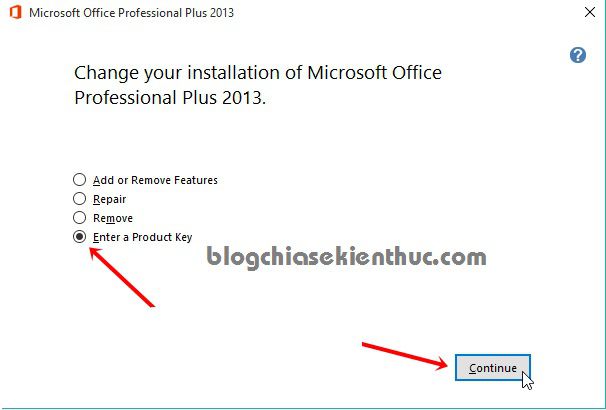
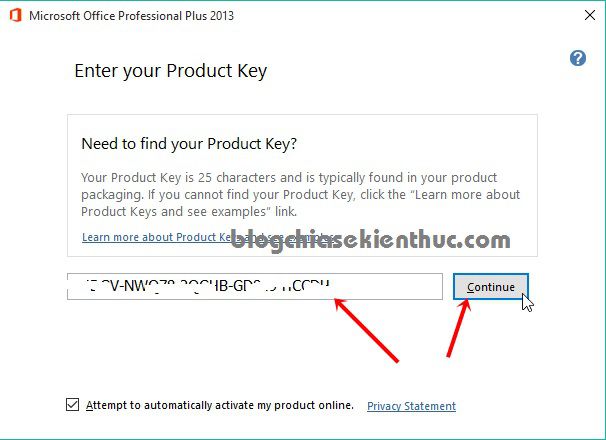
If activation fails, confirm the edition and account, record the exact error, and use Microsoft support or your organization's administrator. Avoid shared keys, activation bypasses, and unsupported license-file copying.
Related Articles
 Forgot Your Skype Password? Recover the Microsoft Account for Teams Free
 Invite Any Data Recovery - software that helps recover lost data on a Mac, costing 56 USD, is free
 How to recover lost Word documents on Mac
 How to Recover Lost Calendar Events After Updating iPhone
 How to Reset a GapoWork Password
 How to recover deleted photos with EXIF metadata
Reader Comments 0
Sign in with email or Google to join the discussion.