Table of Contents
Battery specifications in battery management software contain a wealth of information about the battery integrated into the user's computer or laptop. Therefore, checking battery specifications on BatteryCare will help users detect battery-related issues such as battery degradation and capacity, allowing for more effective laptop battery management .
Learn about and read the specifications on BatteryCare.
To check your battery status on BatteryCare, follow the instructions below:
Step 1
Right-click on the BatteryCare icon and select Show .
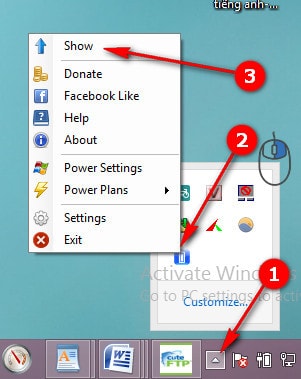
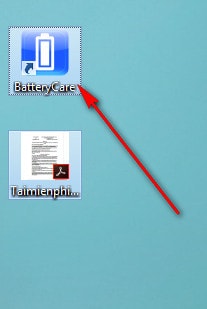
Alternatively, you can also click directly on the BatteryCare app icon on the screen.
Step 2
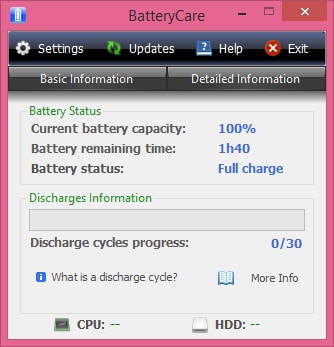
In the main interface, you will see the sections Basic Information and Detail Information.
Basic Information section:
- Current battery capacity: Current battery capacity
- Battery remaining time: The remaining operating time (when using battery mode)
- Battery status: Battery condition
- Discharge Information: Battery discharge information.
- Discharge cycles progress: battery discharge cycles (usually 30 times). If this cycle is complete, the system will send a notification so the user can discharge the battery to 0% to recalibrate the battery information. Recalibrating the battery involves using the computer until it reaches 0% and the computer automatically shuts down.
Typically, a battery discharge cycle involves using the battery from 100% down to a safe level of 7%-20%, then plugging it back in to charge. That counts as one cycle. Even if you use the battery from 100% down to 50% and then plug it back in to charge, the computer will still recognize that as a discharge cycle.
Detailed Information section:
- Model: computer model name
- Designed Capacity: The battery capacity as designed by the manufacturer (always higher than the current battery specifications and total capacity). This parameter indicates the maximum capacity of the battery.
- Total Capacity: The total battery capacity. This is the total battery capacity after adjusting and compensating for the current battery capacity.
- Current Capacity: Current battery capacity (current battery capacity after accounting for battery degradation).
- Charge/discharge rate: The charging/discharging ratio
- Tension (Voltage): Voltage
- Wear Level: Battery degradation level (%).
- Total flush cycles: The total number of flush cycles performed.
- Last calibration date: The last date for battery calibration.
- Calibration performed: Number of calibrations performed.
- See dates: displays the most recent battery discharge date and the number of discharge cycles.
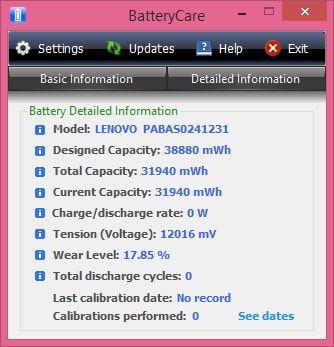
Above is a summary of battery performance checks on BatteryCare, where Wear Level is considered the most important parameter for users to save laptop battery power more effectively. However, battery management is not simply about monitoring battery degradation; you also need to pay attention to battery capacity and CPU/HDD temperatures. To display temperatures on BatteryCare , you can refer to TipsMake's previous guide.
Reading battery specifications using BatteryCare isn't a difficult trick for many people, but without a deep understanding of these specifications, users will find it difficult to create the most effective laptop battery management plan.
In addition, even when using other software like Smart Battery or Battery Doubler to check battery parameters, you can easily understand these parameters. Smart Battery , in particular, has many similarities to BatteryCare's display.
Related Articles
 How to Check Laptop Battery Bottles HP, Asus, Dell, Acer4 minutes read
 How to Display CPU and HDD Temperatures on BatteryCare4 minutes read
 Meaning of Parameters on Battery: Complete Guide12 minutes read
 How to Check the Battery Charge on iPhone3 minutes read
 How to Accurately Check the Battery Health of Windows and MacBook Laptops10 minutes read
 How to Check the Battery of a MacBook Air or Pro3 minutes read
Reader Comments 0
Sign in with email or Google to join the discussion.