Table of Contents
When using the BatteryCare laptop battery management software, you might expect it to offer more features, especially the ability to display CPU/HDD temperatures. In fact, BatteryCare already has this feature, and you can enable it in the software's settings.
Follow the instructions below to display CPU/HDD temperatures using the BatteryCare laptop power saving tool.
Display CPU/HDD temperature on BatteryCare
Step 1
Access BatteryCare's Settings by right-clicking the icon and selecting Settings .
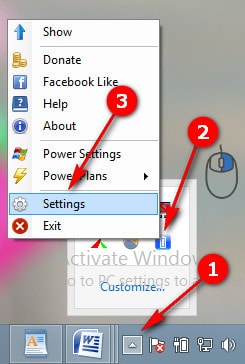
Access the BatteryCare battery management software icon from the system tray.
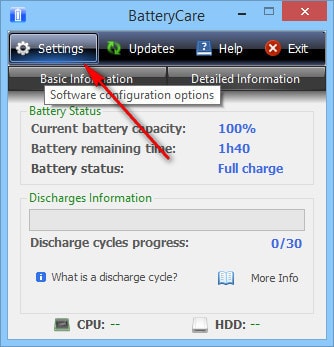
Alternatively, open the app directly and access the software's Settings.
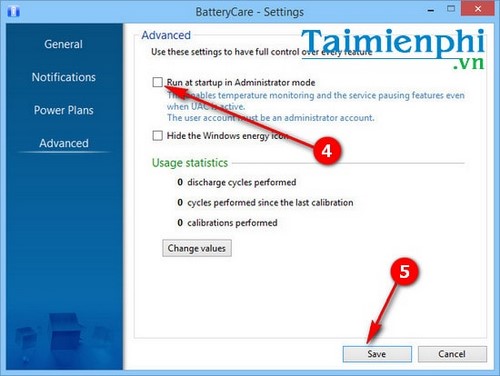
Step 2 : In the Settings interface , select the Advanced tab . This Advanced section allows you to configure features that give you control over all of BatteryCare's functions.
Step 3
Check the box for "Run at startup in Administrator mode" in Settings .
By selecting this option, you can enable temperature monitoring and pause services even when User Account Control is active. Click Save to save all changes.
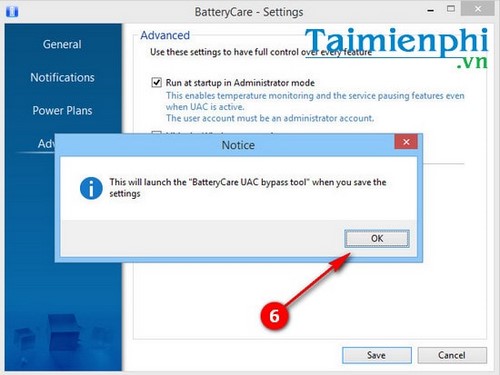
After saving the changes, the software will automatically use the BatteryCare UAC bypass tool that was downloaded earlier during the BatteryCare installation on your Windows computer.
A command box will appear requesting permission for User Account Control to run third-party software. Click Yes to accept.
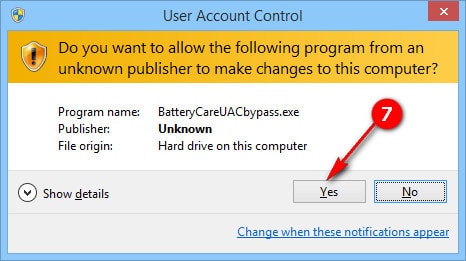
If you don't want to receive notifications from User Account Control, you can easily turn off User Account Control (UAC) notifications on Windows 7, 8, and 8.1 by changing the notification status in the UAC settings in the Control Panel or adjusting it directly from the screen.
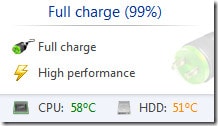
The results after enabling the HDD and CPU temperature display feature in BatteryCare.
If, after enabling the " Run at startup in Administrator mode" feature , BatteryCare does not display CPU/HDD temperatures, it may be due to software incompatibility. You can uninstall and reinstall BatteryCare.
If reinstalling BatteryCare doesn't work, you should consider using other more effective laptop battery management software such as Smart Battery or Battery Doubler. However, TipsMake recommends using Smart Battery as it is one of the most effective laptop battery management tools currently available and is highly rated by users.
Related Articles
 How to Read and Check Battery Parameters on BatteryCare5 minutes read
 Temperature: How to Tell How Hot Your Computer Is6 minutes read
 Why Can't Small Planes Take Off if Temperatures Rise3 minutes read
 Display in CSS: What You Need to Know2 minutes read
 Battery Thin-film - a Safe Alternative to Lithium-ion Batteries4 minutes read
 Learn CSS: Display (Inline-block) Properties in CSS8 minutes read
Reader Comments 0
Sign in with email or Google to join the discussion.