Table of Contents
This updated guide examines Post a 3d Photo on Facebook: How to Post a 3d Collage on Facebook and organizes the essential facts, background, and practical takeaways in clear American English.
If you want a simpler implementation, you can use Ephoto360, a website that supports creating 3D collages with a beautiful night sky theme. The website will allow you to blend photos under 3D photos, from there to post to Facebook and display images in 3D. We can use both Facebook PC version and Facebook Android and iOS versions. The following article will guide you how to create 3D collages posted to Facebook.
- How to post animated images, GIFs to Facebook?
- Tutorial for creating 3D photo effects in Photoshop (Part 1)
- How to post photos to Facebook computer 360-degree Panorama mode
- How to use video as a avatar, Facebook Avatar on iOS and Android
Instructions for posting 3D collages on Facebook
Step 1:
Users access the Ephoto360 website according to the link below.
https://ephoto360.com/In the page interface we click on the List and then select 3D Photo Effect .

Step 2:
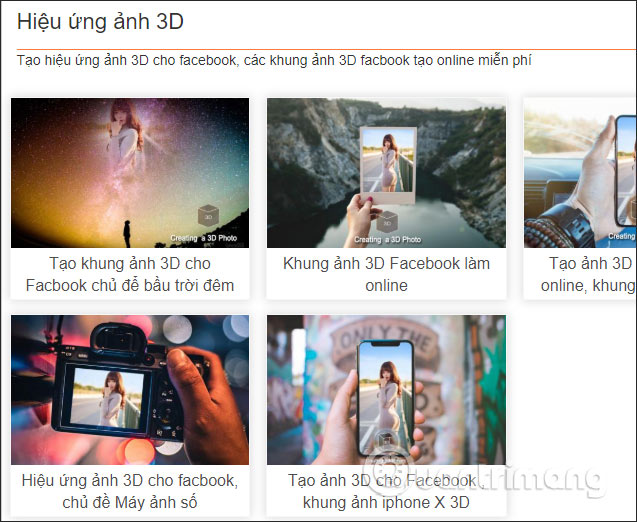
Switch to the new interface with many types of 3D collages that Ephoto360 supports. We click on a type of 3D collage you want to use.
Step 3:
In the type of effect you choose, click the Choose photos button to download the image available on your computer to Ephoto360.

Click the Choose image button to upload the image to the website.

Step 4:
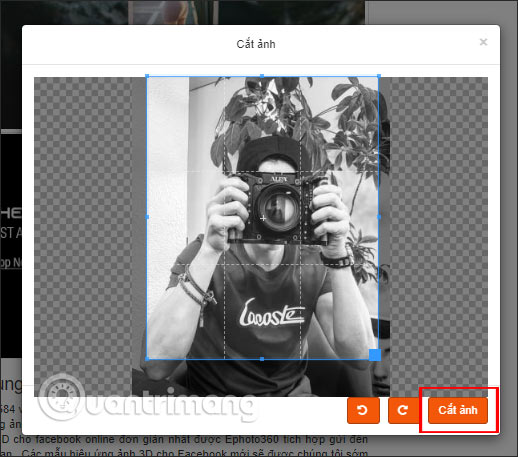
Next, the user selects the image area to be used by moving the blue border frame, then clicking Cut image .
Step 5:
Finally click on the button Create a photo to Ephoto360 to create 3D images according to the theme that we have chosen.

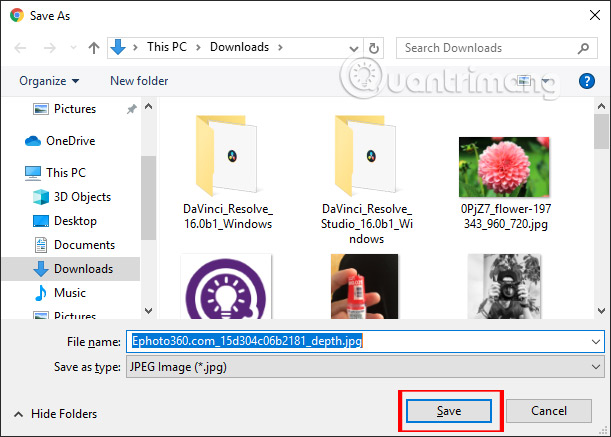
The result is displayed, the user clicks Save image 1 and Save image 2 to download 2 images in jpg format and format _depth.jpg.

In case you want to rename the image file, the 2 images must be the same name, only different from the image format, when uploading Facebook, display the 3D image format.
Step 6:
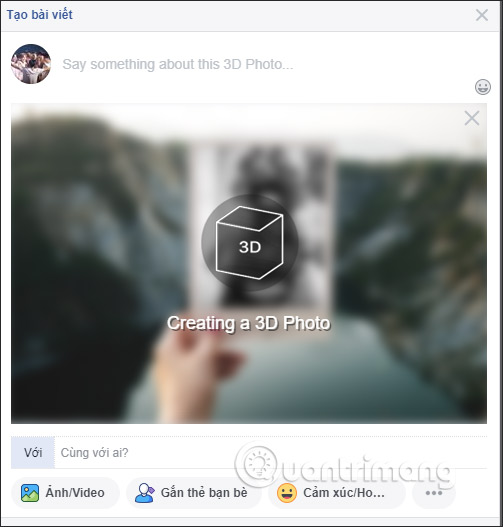
Access Facebook on your computer and upload 2 photo.jpg and photo_depth.jpg images as usual. Facebook will immediately recognize the 3D image as shown below.
We write captions, add positions, etc. when posting normal photos on Facebook and then click the Share button .
Step 7:
The end result is that we will see a 3D collage on Facebook, just hover over the image to finish.
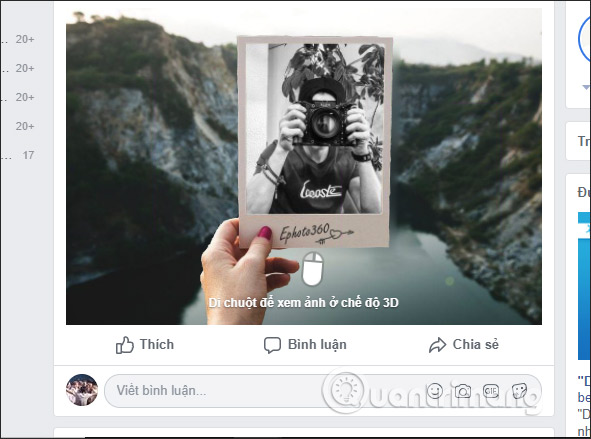
No need to use 3D photo creation software, with Ephoto360 you can easily get very artistic 3D collages with different types to post on Facebook. Hopefully the upcoming Ephoto360 will have many different types of 3D compositing effects.
I wish you all success!
FAQ
What is Post a 3d Photo on Facebook: How to Post a 3d Collage on Facebook about?
It provides a structured overview of post a 3d photo on facebook, explains the main context, and highlights practical takeaways for readers.
Why does this topic matter?
Understanding the main concepts helps readers evaluate the issue, avoid common mistakes, and make better-informed decisions.
How should readers use this information?
Use the guidance as a practical starting point, confirm details that may have changed, and follow current product, safety, or security recommendations.
Related Articles
 How to Combining Photos to Post on WhatsApp Status4 minutes read
 How to Optimize Photo Collages for Social Media and Printing6 minutes read
 Post Gif on Facebook: How to Post Status Facebook Gif Images3 minutes read
 How to Schedule Posting to Fanpage on Facebook: Fanpage Facebook5 minutes read
 Use the Feature 'Why Am I Seeing This Post?' to Overpower the5 minutes read
 How to Post Color Status on Facebook Computer6 minutes read
Reader Comments 0
Sign in with email or Google to join the discussion.